Pasting AI content into PowerPoint or Word usually goes one of two ways. or you get a mess of tables, stacked text boxes, and stray markdown symbols.
The fix: use Paste Special to paste AI content as unformatted text:
PowerPoint (Windows): Ctrl + Alt + V then choose Unformatted Text
PowerPoint (Mac): Command + Option + V then choose Unformatted Text
Word (Windows): Ctrl + Shift + V
Word (Mac): Command + Shift + V
Doing so strips the hidden markdown and HTML, so text arrives clean and adopts your formatting.
That's the whole trick.
The rest of this guide covers where each paste breaks, why, and the exact keystrokes for PowerPoint, Word, and Excel.
Here's how I ran into it. I used Copilot to rework my slide titles, using the Pyramid Principle as my prompting framework. The titles came back better. But every paste landed as a table in the middle of my slide instead of text in my title placeholder. So I cut the text out of the table, pasted it into the title, and repeated that 5, 10, 15 times in a row. It felt like digging a digital hole and filling it back in again.
This led me right back to a classic shortcut, Paste Special, that has all new meaning in the age of AI.
And it's not just me. Microsoft's own support forums are full of professionals who can't figure out why their AI content looks broken the moment they paste it:
"While copying txt from copilot output unable to past it in PowerPoint. Command + V dose not worked."
— Mr Sonbir, Microsoft Q&A
"If Copilot formats its response with numbered or bulleted paragraphs, that portion will not be copied to the clipboard..."
— Anonymous user, Microsoft Q&A
"This doesn't address the real problem: the lack of ability to simply cut and paste portions of Copilot dialog..."
— Gene Rovak, Microsoft Q&A
"Not able to copy paste from copilot into word - text does not show."
— Anonymous user, Microsoft Q&A
To Microsoft's credit, they're clearly working on this. The placeholder paste in PowerPoint now works cleanly where a year ago it created a table every time. But you don't have to wait for Microsoft. Every cleanup you do by hand is a paste tax. Paste Special is how you stop paying it.
Old shortcut. New use case. Same fix
If you didn't think Paste Special was important before, now it's more important than ever.
Why does AI content paste badly into PowerPoint and Word?
AI chat tools often render responses with Markdown-style formatting.
When you copy from the chat, your clipboard can also carry rich-text or HTML formatting along with the words. When you press Ctrl + V , PowerPoint and Word decide how to interpret all of that copied formatting.
Sometimes the result is clean. Sometimes you get tables, background colors, or stacked text boxes.
What is the current state of Copilot paste? (May 2026 status)
I ran a full set of paste tests in PowerPoint, Word, and Excel on May 14, 2026. The short version:
What works now
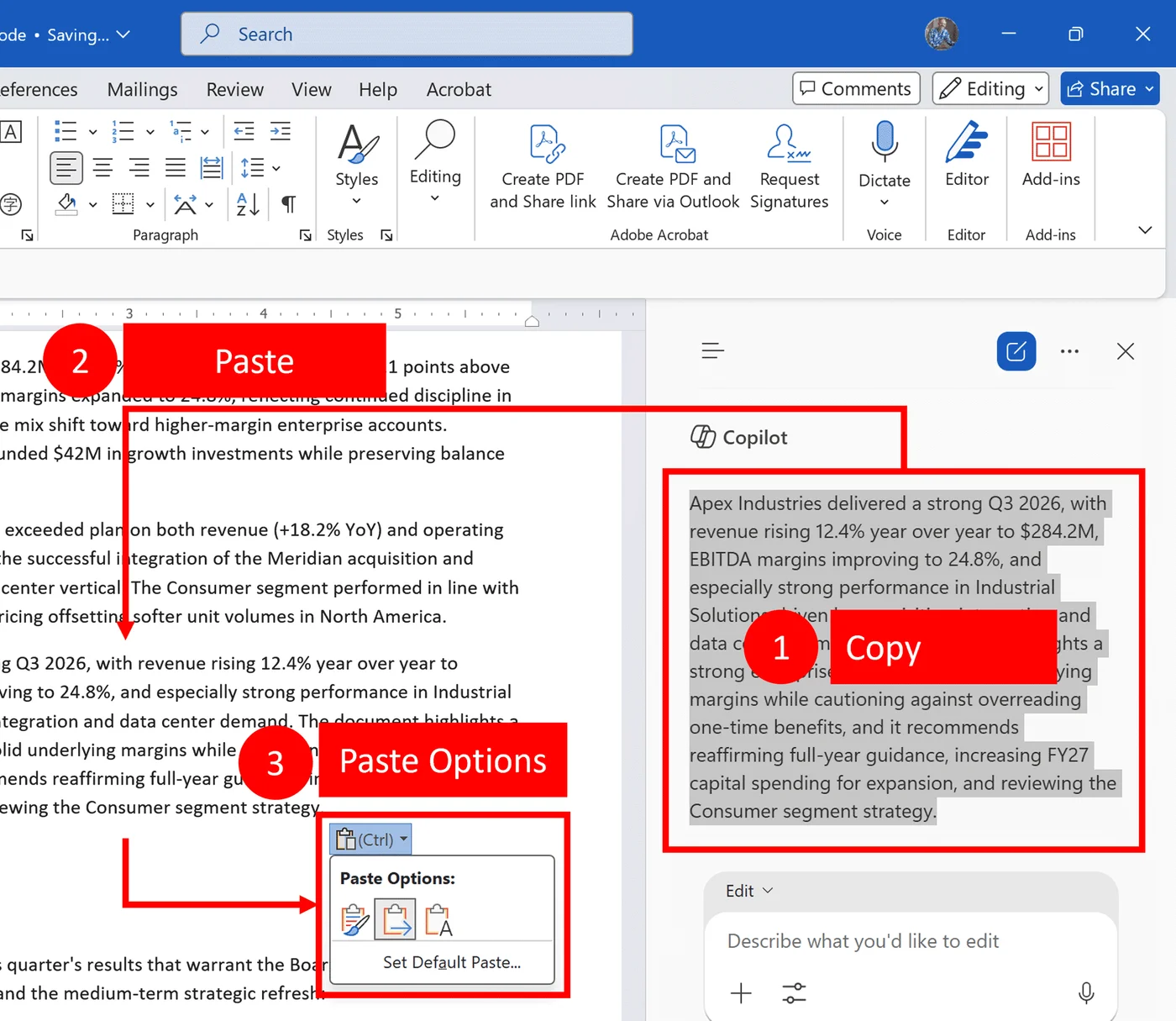
A Paste Options dropdown now appears after a Copilot paste in both Word and PowerPoint:
Use Destination Theme
Keep Source Formatting
Keep Text Only
That last one is Paste Special > Unformatted Text in button form.
Word often lands Copilot content as inline text now. No table to dismantle, no background colors to clear. Pasting into a PowerPoint title placeholder usually arrives clean too.
What still breaks
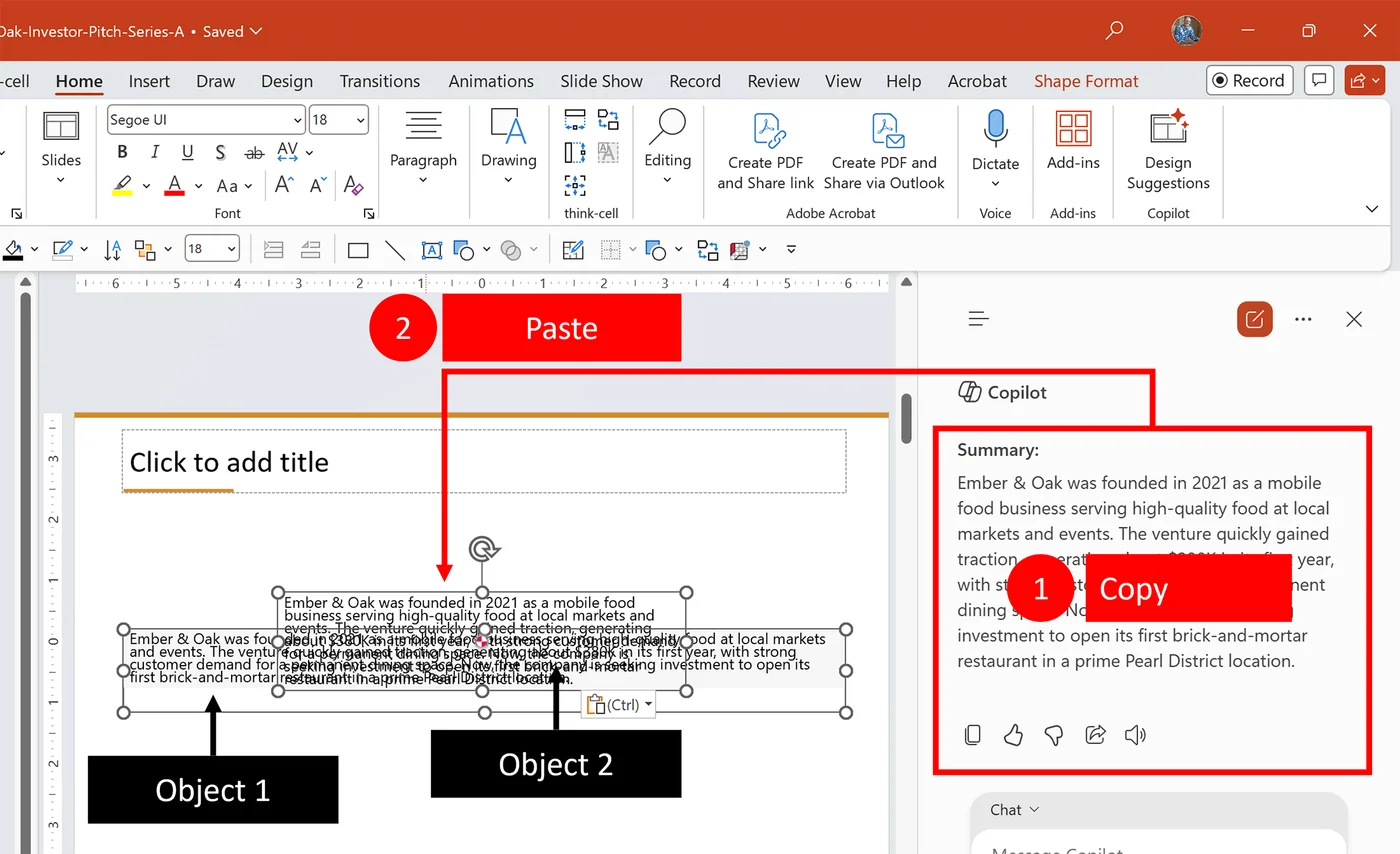
Pasting directly onto the slide body (not into a placeholder) still creates what I call the text box pile-up: overlapping, stacked text boxes you then clean up by hand. This is the biggest remaining problem as of May 2026.
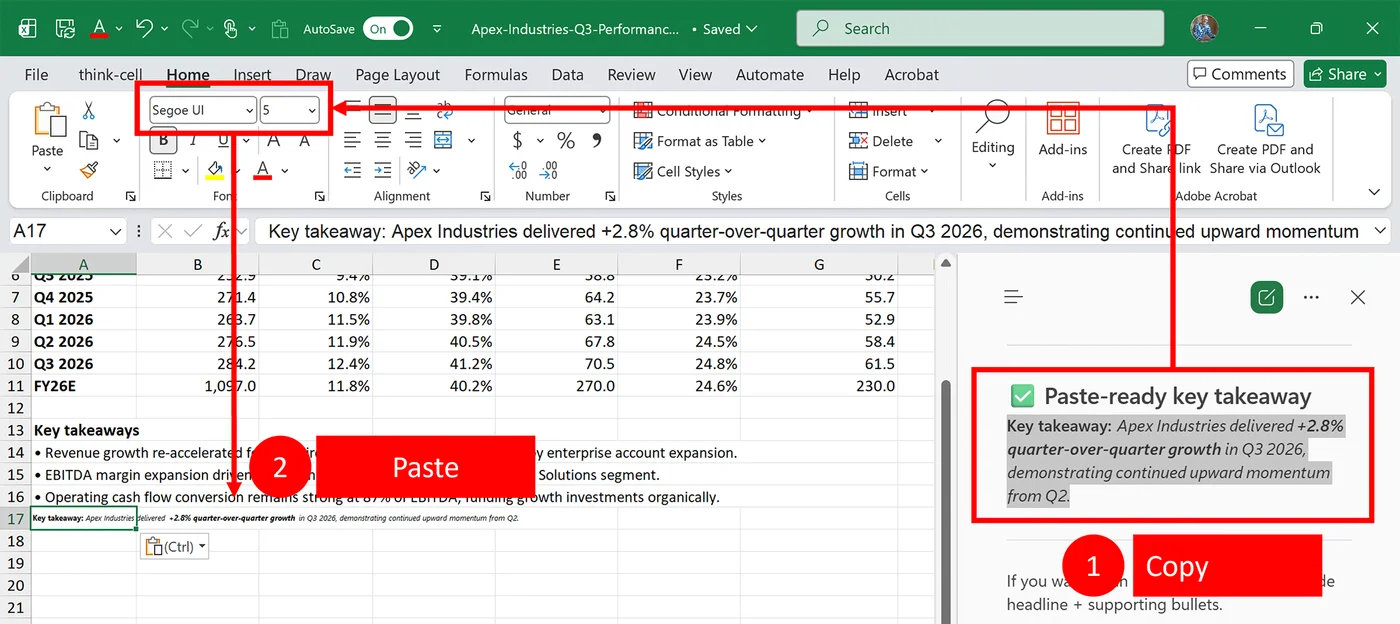
Excel still inherits the Copilot chat pane's font and size. On my test machine that meant Segoe UI at a tiny 5pt (it may vary by Excel version).
Still intermittent: the disappearing chat pane
Some users report the Copilot chat pane closing mid-copy, or Copilot silently flipping from Chat Only mode to Allow Editing mode. It's a bug, it's not consistent, and it's not just you. More on it in the Word section below.
What is the fastest fix? (Paste Special shortcuts — Master Reference)
The five-step workflow:
1. Copy the AI response (from Copilot, ChatGPT, or any other tool).
2. Click into the text box, title placeholder, or Word document where you want the content.
3. Press Ctrl + Alt + V in PowerPoint, Ctrl + Shift + V in Word (Microsoft 365), or Cmd + Option + V on Mac.
4. In PowerPoint and on Mac, select Unformatted Text in the Paste Special dialog.
5. Click OK.
RULE: Make this your default habit when pasting from any AI tool.
Try it now, 30 seconds. Ask Copilot or ChatGPT for five slide titles. Copy the answer. Click into your slide title placeholder, press Ctrl + Alt + V, and choose Unformatted Text. Then press Ctrl + Z, click on empty slide space, and press Ctrl + V. Look at what lands. That second paste is the one costing you time.
If you came up through investment banking or consulting Alt E S still opens the Paste Special dialog too. I call it Alt Extra Special. Old shortcut. New job. And it won't be the last legacy shortcut to pick one up in the age of AI.
Here's the thing about Paste Special: it's not new. It's been the secret formatting weapon of busy analysts and consultants since the early 2000s, and I've been teaching it since 2015. The only thing that changed is the source of the messy text. Two seconds, clean text, your styles intact.
Ctrl + Alt + V is one of a much larger library of shortcuts that add up to serious time savings. For the full list, see our 80 favorite PowerPoint keyboard shortcuts. For a related paste-style shortcut, see Duplicate vs. Copy and Paste in PowerPoint.
How do I fix Copilot paste in PowerPoint?
Can't find Copilot in PowerPoint? It may be floating in the lower-right corner of your slide. Here is where the Copilot button lives in PowerPoint.
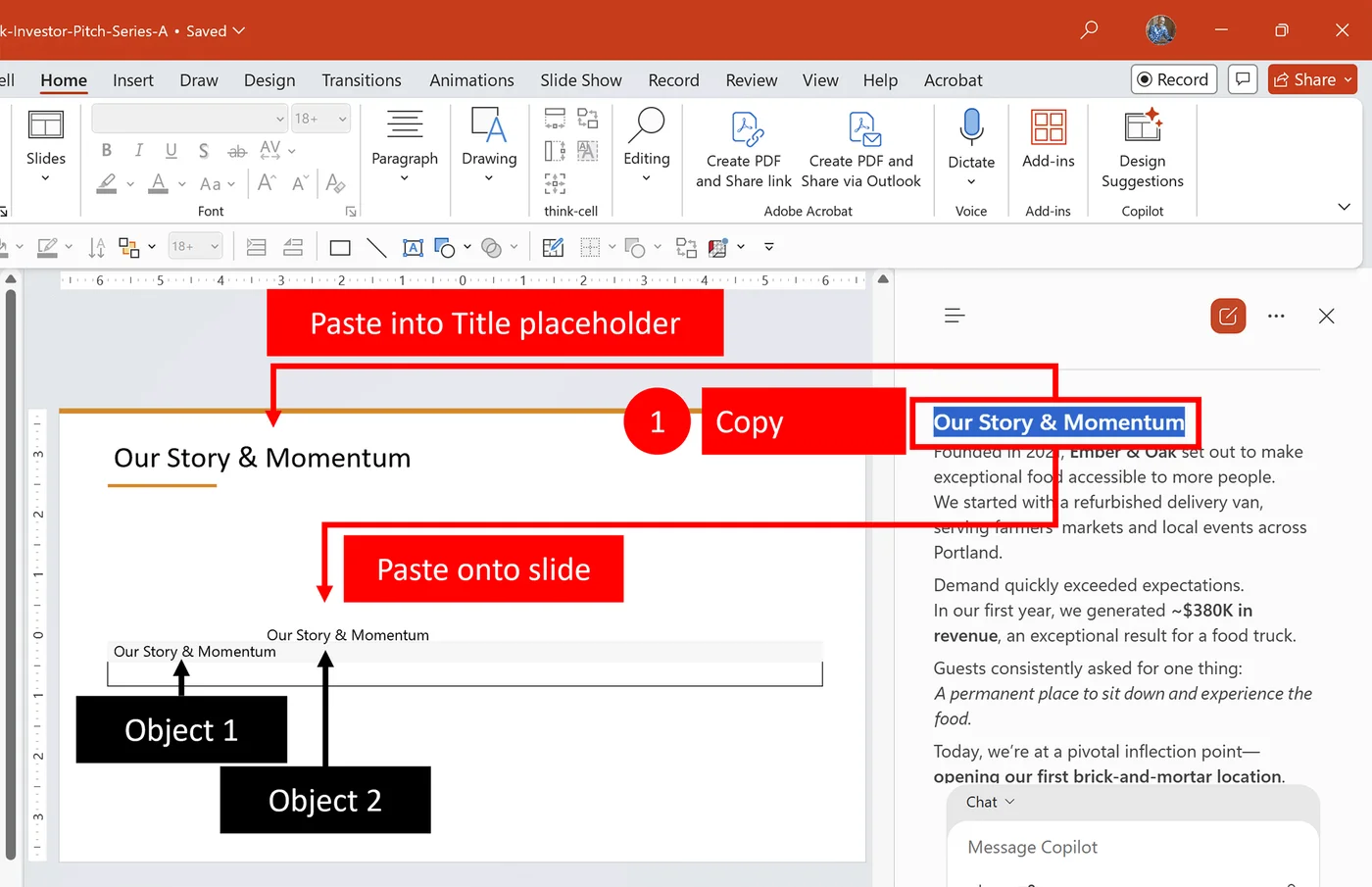
Paste into the placeholder, not the slide body
This is the big one. There are two different pastes you can make on a slide:
Click directly INTO the title placeholder and paste. This usually works cleanly now.
Click on an empty area of the slide and paste. This still triggers the text box pile-up. As of May 2026, it hasn't been fixed.
If you end up with the pile-up: Ctrl + Z , click into the placeholder, paste again. Or skip the gamble entirely with Paste Special.
The Pyramid Principle problem (and how to fix it)
Even inside a title placeholder, if Copilot formats its response as a table (which it sometimes does with list-style output), you can still get a table on your slide. That's exactly what happened to me with the Pyramid Principle titles.
✓ Best Method The fix is the same: Paste Special > Unformatted Text every time, rather than trusting the native paste.
Where is the Paste Options dropdown after I paste?
After a Copilot paste in PowerPoint, a small dropdown button appears near the pasted content. It doesn't auto-expand, so most people miss it.
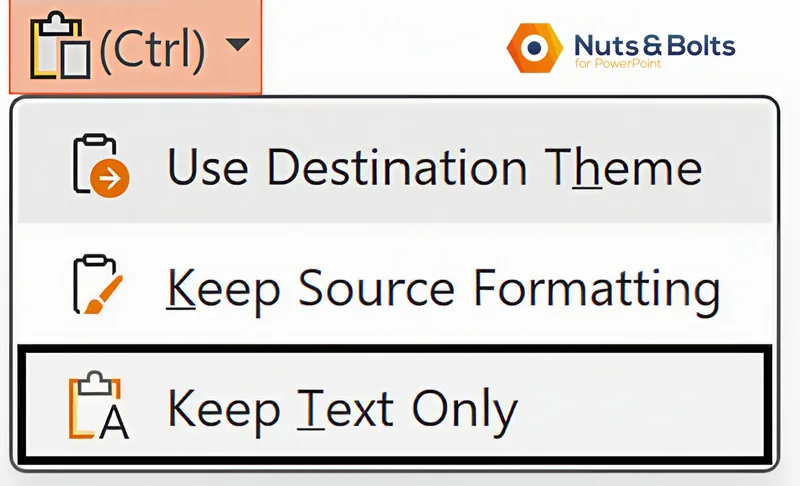
Click it and Keep Text Only gets you the Unformatted Text result. Fine when you notice the button. The keyboard shortcut is the more reliable habit, because the button doesn't always show up.
How do I fix Copilot paste in Word?
If you can't find Copilot in Word, it may be floating in the lower-right corner of your document. Here is where the Copilot button lives in Word.
Word now pastes cleanly in many cases (the 2026 improvement)
When I pasted from the Copilot chat pane into Word on May 14, 2026, the content arrived as inline text. No table, no background colors. If the table problem seems to have vanished from your Word, you're not imagining it. Microsoft has genuinely improved this.
"Many cases" isn't "all cases," though. If your Copilot response includes a summary table or structured formatting, pasting into Word can still drag in background colors and cell borders. Paste Special as Unformatted Text strips all of it.
Should I use the new "Set Default Paste" setting in Word?
As of 2026, there's a "Set Default Paste..." link at the bottom of the Paste Options dropdown. It opens Word Options on the Advanced tab, where you still have to scroll down to "Cut, copy, and paste."
Most pros should skip it. If Ctrl + V always strips formatting, you lose the formatting on the half of your pastes where you actually wanted it. Keep all three moves instead:
Ctrl + V keeps formatting.
Ctrl + Shift + V pastes text only, case by case.
The Paste Options button lets you pick after the fact.
Three shortcuts, three contexts, full control.
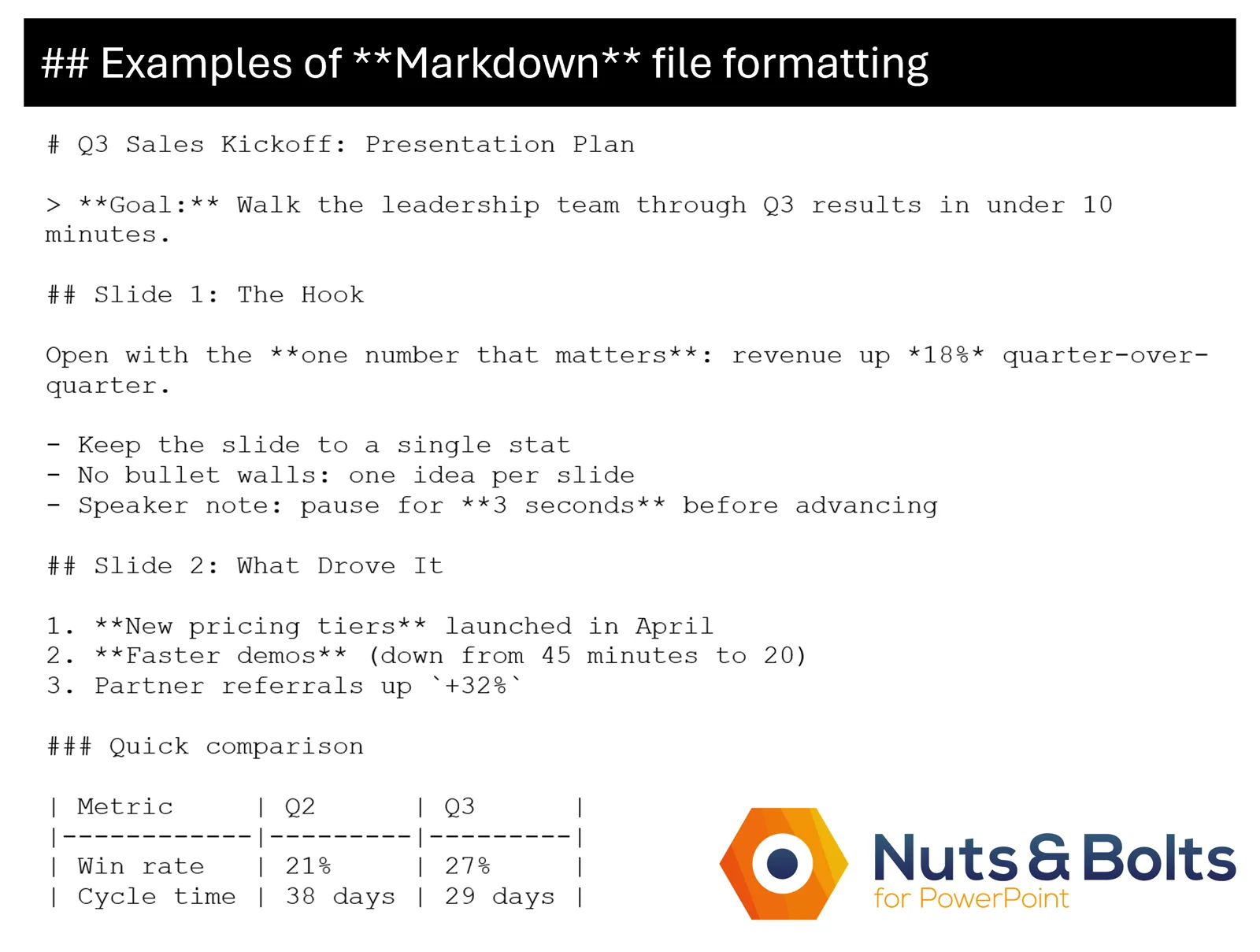
Why is my AI content showing markdown symbols (** ## etc.)?
You copied from ChatGPT or the Copilot desktop app, and those asterisks and hash marks are markdown symbols Word doesn't know how to interpret.
Paste Special strips the source formatting, including fonts, colors, backgrounds, and other rich formatting. If literal Markdown characters such as ** or ## were copied as text, those may still need to be removed separately.
Why aren't bullet lists copying from the Copilot desktop app?
The Copilot desktop app has a known issue where bulleted and numbered paragraphs simply don't copy to the clipboard. Two workarounds:
Copy from the Copilot browser version (copilot.microsoft.com) instead of the desktop app. The browser version preserves lists.
If you must use the desktop app, copy each bulleted section individually rather than the entire response.
Why does the Copilot chat pane sometimes close when I copy from it?
I've hit this in both Word and PowerPoint: mid-copy, the chat pane closes, or Copilot silently switches from Chat Only mode to Allow Editing mode. It appears to be a bug (Microsoft, please fix this). Reopen the pane and try again. An annoyance, not a blocker.
Still fixing formatting after a paste? The Format Painter is the fastest way to copy one object's formatting and apply it across others.
What about Excel? (Copilot paste behavior in Excel)
If you can't find the Copilot command in Excel, it may be floating over your worksheet or docked, or in the Ribbon. Here is where the Copilot button lives in Excel.
Same May 14, 2026 test. Pasting a Copilot response into Excel landed the content in a single cell, which is correct. But it brought the chat pane's own font along with it: Segoe UI at 5pt on my machine. Readable, barely. And definitely not your workbook's default.
The fix: Match Destination Formatting (one click)
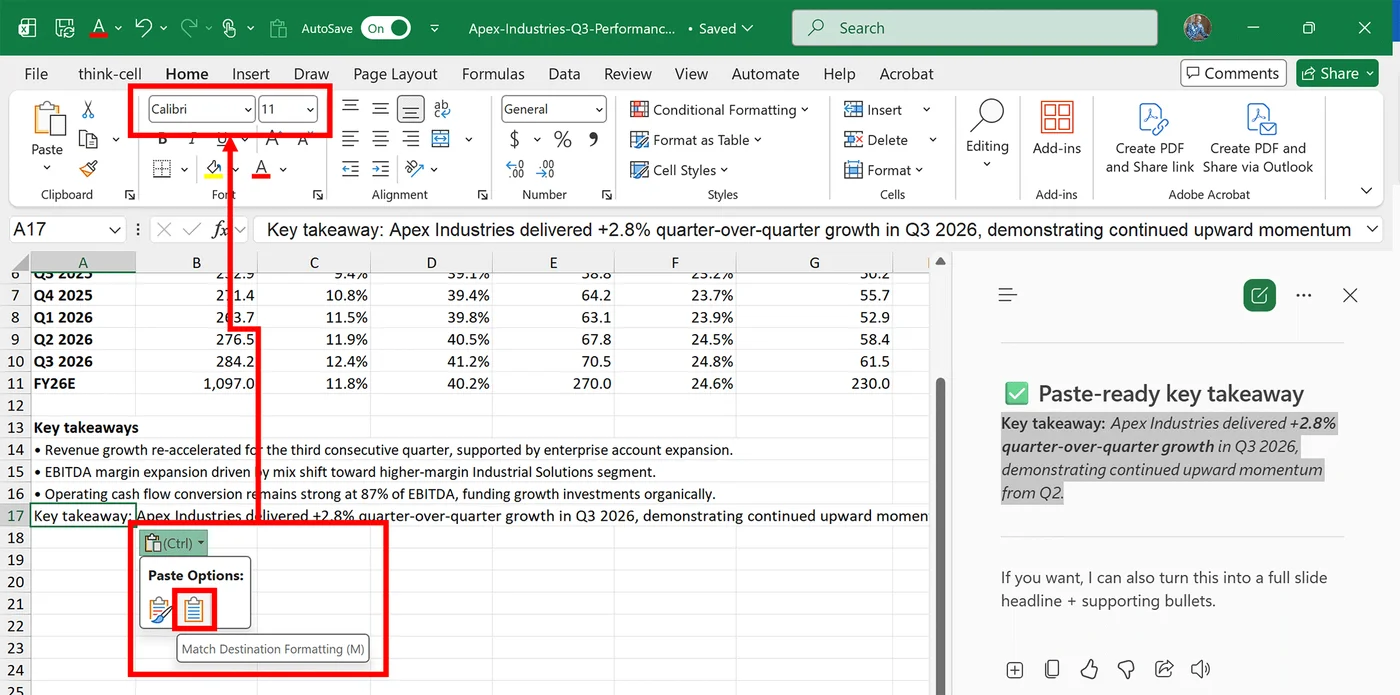
Microsoft already put the fix one click away, and most users never notice it. After you paste, click the Paste Options dropdown below the cell and select Match Destination Formatting. The text instantly inherits your workbook's format (Calibri 11 or whatever your default is), and the tiny Segoe UI is gone.
Alternatives for Excel paste cleanup
Two other options exist, each with a specific use case:
Paste Special > Values (Ctrl + Alt + V → Values) strips ALL formatting AND any underlying formula references. Use it when you want raw values only.
Home > Clear > Clear Formats is a partial cleanup: it strips cell-level formatting but leaves rich text formatting inside the cell. If Copilot bolded words in its answer, those bolds stay.
For Copilot paste, Match Destination Formatting is the cleanest fix. And there's a full Excel paste deep-dive worth doing separately. More on that soon.
Frequently Asked Questions
Q: Why does Copilot content paste as a table in PowerPoint?
A: Copilot formats responses using markdown and HTML behind the scenes. When you paste directly onto a slide body (not into a placeholder), PowerPoint interprets that formatting code and creates a table or stacked text boxes.
Pasting into a title placeholder is cleaner. For the universal fix, use Ctrl + Alt + V (Windows) or Cmd + Option + V (Mac) and select Unformatted Text.
Q: What is the Mac shortcut for Paste Special?
A: Cmd + Option + V. It's the Mac equivalent of Ctrl + Alt + V on Windows for PowerPoint.
Select Unformatted Text in the dialog box to paste clean text from any AI tool.
Q: Does Paste Special work with ChatGPT, Claude, and Gemini content too?
A: Yes. Every AI tool formats its responses with markdown and HTML.
Paste Special with Unformatted Text works identically for content copied from Copilot, ChatGPT, Claude, Gemini, or any other AI assistant, in both PowerPoint and Word.
Q: Does Paste Special still matter now that Microsoft is fixing some of the Copilot paste behavior?
A: Yes. As of May 2026, some pastes genuinely work better: Word often lands inline text, and a Paste Options dropdown now appears after Copilot pastes.
But pasting onto a PowerPoint slide body still piles up text boxes, Excel still inherits the chat pane's tiny font, and Microsoft's behavior keeps evolving. Paste Special is the most reliable cleanup move when the copied content itself is intact.
Q: What is the shortcut to paste text only in Word?
In Word for Microsoft 365, Ctrl + Shift + V (Windows) or Command+ Shift + V (Mac) is the built-in paste-text-only shortcut.
This shortcut does NOT paste text only in PowerPoint. There, Ctrl + Shift + V is still Format Painter. Use Ctrl + Alt + V in PowerPoint.
Q: How do I fix Copilot's tiny font when pasting into Excel?
A: Click the Paste Options dropdown that appears below the cell after you paste, and select Match Destination Formatting. The text instantly inherits your workbook's default font and size.
It's faster than Paste Special > Values for most cases, and more complete than Home > Clear > Clear Formats, which misses any rich text formatting embedded inside the content.
Q: Is there an "AI text cleaner" for PowerPoint and Word?
A: You don't need a separate AI text cleaner tool or add-in. Paste Special is the one built into Office.
Paste as Unformatted Text (Ctrl + Alt + V in PowerPoint, Ctrl + Shift + V in Word) and it strips the markdown, HTML, background colors, and stray tables wrapped around Copilot, ChatGPT, Claude, and Gemini output. No download, no extension, no extra tab. It has shipped inside PowerPoint and Word for two decades.
Takeaway: Stop paying the paste tax
AI paste problems are inconsistent. Your cleanup move doesn’t have to be.
PowerPoint: Click into the placeholder first. If the paste still comes in messy, use Ctrl + Alt + V > Unformatted Text.
Word: Use Ctrl + Shift + V when you want clean text without the source formatting.
Excel: If Copilot brings its tiny font along for the ride, choose Match Destination Formatting.
Don’t trust Ctrl + V blindly. Tables, stacked text boxes, odd fonts, and rich formatting are all signs that Office is interpreting more than just the words.
Paste Special is an old shortcut with a very modern job. Learn the right paste for the right app, and you can spend less time cleaning up AI output and more time getting to happy hour.
About the Author

Taylor Croonquist
Co-Founder, Nuts & Bolts Speed Training
Taylor Croonquist is a PowerPoint expert and trainer. Over a career spanning the globe, from consulting in New York and investment banking in China, Taylor has truly seen it all in PowerPoint. Through necessity and a natural tech savvy, Taylor honed his PowerPoint skills to the point of even blowing the minds of the Microsoft PowerPoint programming team. When he's not busy crafting PowerPoint training, you can find him reading a sci-fi series or scuba diving.