If Copilot disappeared from Excel’s Home tab, look in the lower-right corner of your worksheet first.
And if you already found it because a round Copilot button is sitting on top of the cells you are trying to read, you have found the same problem from the other direction.
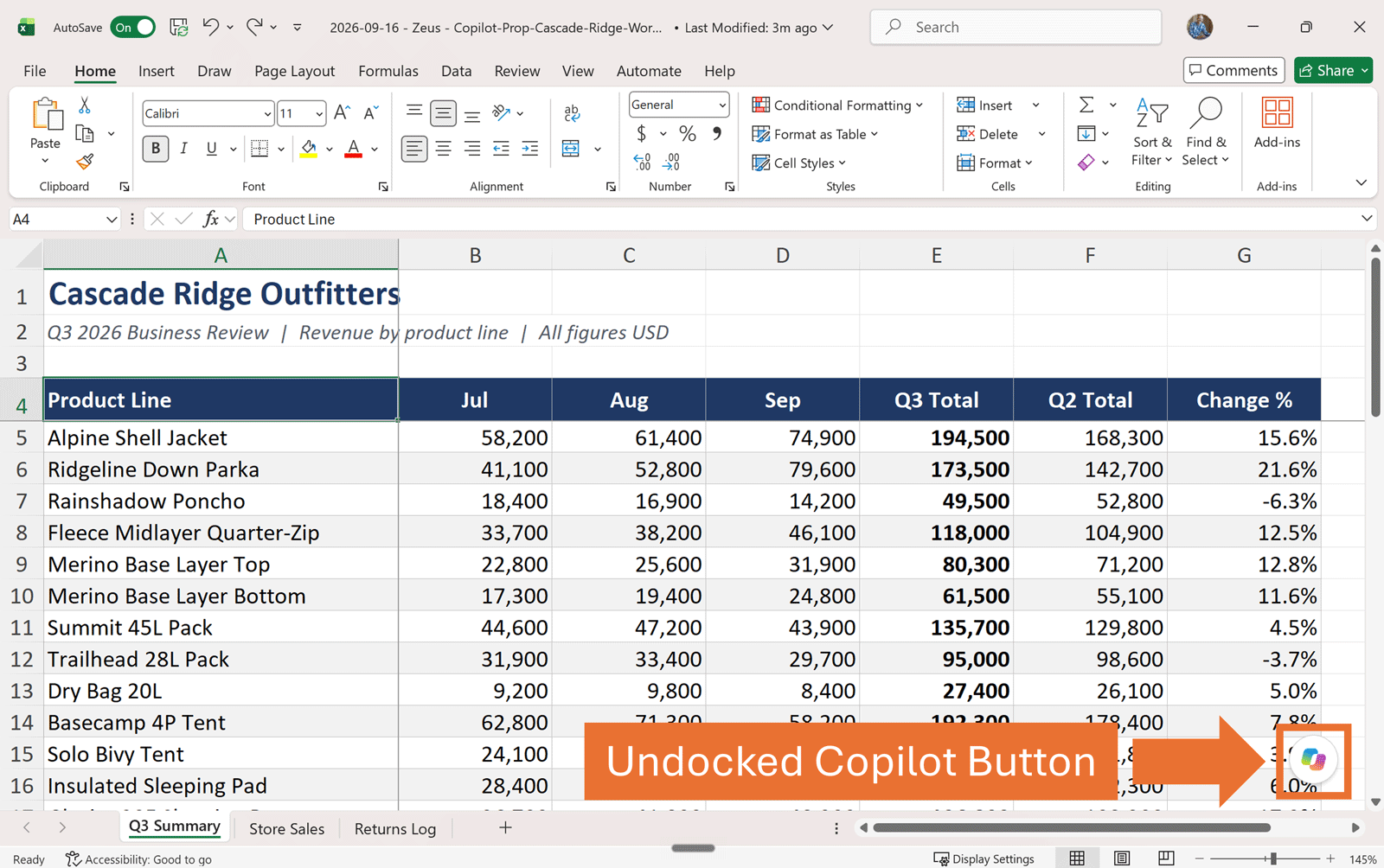
As of September 2026, the Copilot button in Excel can live in three places:
Undocked floating over the worksheet
Docked as a small icon on the edge of the window
Move to top which puts it on the Home tab of the Ribbon.
The three positions look similar, but they do not behave the same way, and only one position includes it's useful Alt + C keyboard shortcut.
Smart move looking this up.
First, get the Copilot button off your Excel cells
If the floating Copilot button is in your way, you do not need to turn Copilot off. Right-click the button. On my current Excel build, the two useful placement choices are Dock and Move to Top.
There is a Welcome screen option too if you want the Copilot chat pane to start open (I guess Microsoft counts that as a welcome).
Dock it when you only need the grid clear for now
Choose Dock and the floating button shrinks into a small icon on the edge of the Excel window. Your worksheet is clear again, but Copilot is still close by.
Docking is temporary. In my testing, closing Excel and reopening it returns Copilot to the floating position. Microsoft describes docking the same way: it lasts for your working session.
The useful part for keyboard users is that Alt + C still works while Copilot is docked. Press Alt + C to activate it, then Enter to open the Copilot pane.
Move it to the ribbon when you want the grid clear every time
If you want Copilot off the worksheet permanently, right-click it and choose Move to Top on my current build. Copilot moves to the far-right side of the Home tab.
Unlike docking, that choice persists. Close Excel, reopen it, and Copilot stays in the ribbon until you deliberately move it back out.
To reverse it, right-click the ribbon control and choose Move out of Ribbon.
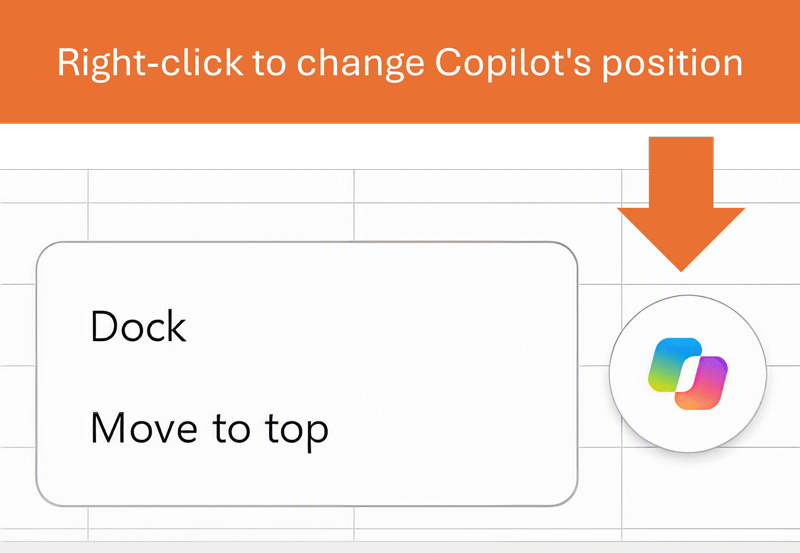
Where the Copilot button can live in Excel
Microsoft calls it the Copilot Dynamic Action Button. Everyone else calls it the Copilot button, so that is what I am calling it here.
There are three possible positions, but in Excel I would think of them less as three designs and more as three tradeoffs.
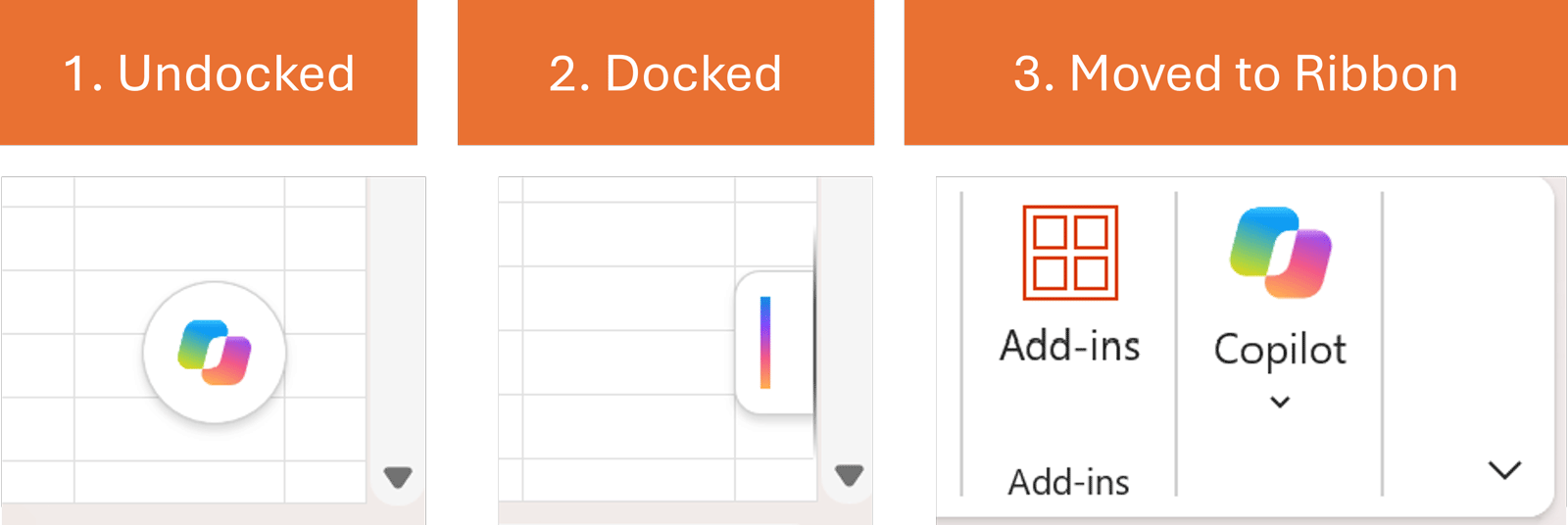
1. Undocked: Floating in the lower-right hand corner of your worksheet
This is the default. Copilot sits in the lower-right corner of the worksheet area, on top of the grid.
Floating gives you the most useful Alt + C behavior. In my testing, Alt + C activates the floating Copilot control and exposes its starter prompts. You can move through those prompts with the arrow keys and press Enter to continue.
The downside is obvious in Excel: the button is occupying worksheet real estate.
2. Docked on the lower-right hand corner edge
Docking gets the control off your cells without sending it to the ribbon. Alt + C still activates it, and Enter opens the pane.
The tradeoff is persistence. Docking is a session choice, not a permanent Excel preference.
3. Moved to the ribbon
Moving Copilot to the Home tab keeps the worksheet clear and remembers your preference after Excel closes. To be clear: moving the Copilot command to your Ribbon (Move to Top) is a program-level setting that persists until you change it.
The tradeoff is keyboard access. On my current Excel build, Alt + C is useful when Copilot is floating or docked, not when the control has been moved into the ribbon. Its ribbon KeyTips are Alt, H, F, X, but that only gives you the option to move it out of the Ribbon, not the Copilot pane.
So if you are moving Copilot to the ribbon because you expect a faster keyboard shortcut, keep reading. That route is less useful than it first appears.
Which Copilot position should you use in Excel?
The best position depends on what annoys you more: a floating control on your data, or reaching for the mouse.
Keep it floating if you like the Alt + C starter prompts and the button is not covering anything important.
Dock Copilot if you want the worksheet clear for the current session while keeping Alt + C .
Move it to the ribbon if you want the worksheet clear every time you open Excel and you are happy clicking Copilot with the mouse.
For a dense workbook, the ribbon is the cleanest visual choice. For keyboard-heavy work, docked is the better compromise because it gets Copilot off the grid without giving up Alt + C.
That is the key Excel decision. You are not just choosing where a button looks nicest. You are choosing between worksheet space, persistence, and keyboard access.
The Quick Access Toolbar is not the shortcut win it looks like
Normally, the Quick Access Toolbar is exactly where I go when I want an awkward Office command to become easier to reach. Copilot is an exception.
You can add the Copilot-related control to Excel’s Quick Access Toolbar. If Copilot is already in the ribbon, you can right-click the ribbon group and add it there. You can also go through File > Options > Quick Access Toolbar.
The weird part is, once you add it to your Quick Access Toolbar, its group is called Assistance (not Copilot). The command is still there, but if you use your keyboard shortcuts to activate it on your Quick Access Toolbar (Alt, its number on your QAT, then F, X), it only gives you the option to move it out of the Ribbon.
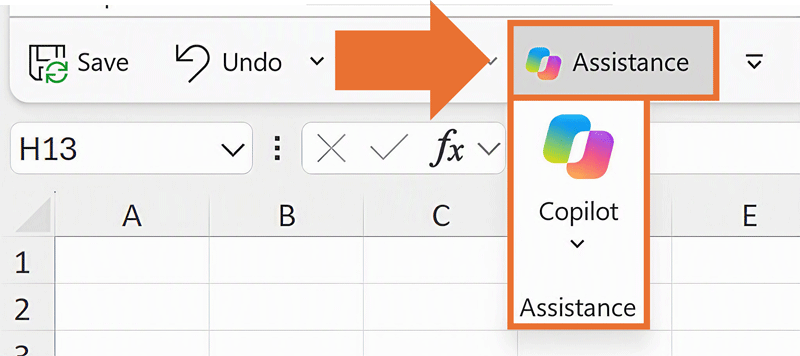
That's why I don't recommend adding the Copilot command to your Quick Access Toolbar. Using your keyboard shortcuts to activate it should open the Copilot chat pane, not just give you the option to move it out of the Ribbon.
If you do add the Copilot button to your Quick Access Toolbar (it is your own QAT to do whatever you want with), just know that you'll need to click it with your mouse to open the chat.
There is also a gotcha if you added it and it looks dead. In Excel, the Copilot command only works from your Quick Access Toolbar after Copilot has been moved to the Ribbon. While it is floating or docked over your worksheet, the Assistance button on your QAT turns grey. Right-click the Copilot button, choose Move to Top, and it is back in color. Move it back out of the Ribbon and it goes grey again.
If your goal is keyboard access, floating or docked plus Alt + C is the simpler route.
Copilot may not be missing. It may just be somewhere else.
The easiest mistake is looking at the Home tab, not seeing Copilot where an older tutorial showed it, and assuming the feature is gone.
Look in the lower-right corner of the worksheet first. Microsoft now tells users to do the same thing in its own missing-Copilot troubleshooting guide.
If Copilot is not floating, docked, or on the ribbon, then you have a real availability problem rather than a placement problem.
Microsoft’s current troubleshooting checklist starts with your Office build and Copilot license, then checks your update channel and connected-experiences privacy settings. Business users on the Semi-Annual Enterprise Channel may not have the same Copilot features as users on Current Channel or Monthly Enterprise Channel.
Once you find Copilot, Excel gives you one more choice
Finding the button only opens the door. Excel then gives you three different Copilot modes, and they change what Copilot is allowed to do with your workbook.
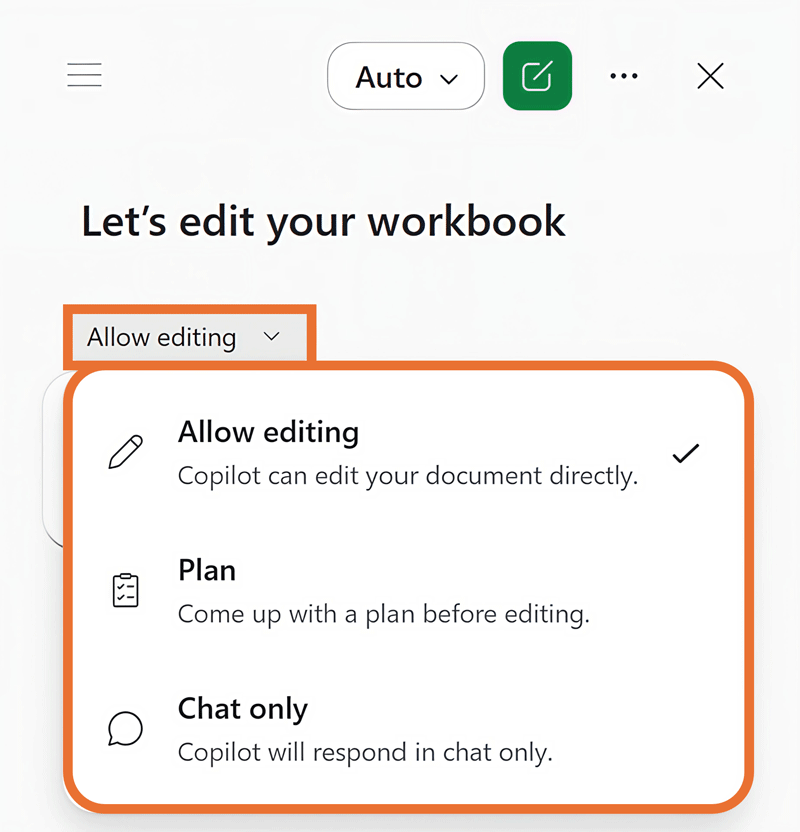
Allow editing: Copilot can make changes directly in the workbook.
Plan mode: Copilot proposes an approach that you can review before making the changes.
Chat only: Copilot can analyze and answer questions about your workbook without editing anything (this is always the fastest).
If you are copying Copilot’s answer back into your worksheet, watch the formatting too. In my testing, Excel brought some very strange font sizing along for the ride.
That is an Excel-specific distinction worth noticing because opening Copilot in Chat only is a very different experience from handing it permission to edit your workbook.
In my current build, once focus is inside the Copilot pane, Ctrl + Shift + M cycles through Allow Editing, Plan Mode, and Chat Only. I would treat that as a current-build shortcut rather than a forever rule, because Microsoft is still changing this interface quickly.
Are you using the Copilot button in PowerPoint or the Copilot button in Word too? The Copilot button has the same three basic positions, but the keyboard and Quick Access Toolbar behavior is a little bit different.
Common questions
Q: Where is the Copilot button in Excel now?
By default, look in the lower-right corner of the worksheet. Copilot can also be docked on the edge of the Excel window or moved to the Home tab of the ribbon.
If your Copilot button is in your Ribbon, it will remain there until you select Move out of Ribbon (by clicking the bottom portion of the button).
Q: How do I get the floating Copilot button off my Excel cells?
Right-click the floating Copilot button. Choose Dock to tuck it against the lower right edge of your screen for your current Excel session (it will automatically undock itself when you close and reopen Excel), or move it to the Ribbon if you want your worksheet to stay clear across sessions.
Q: Why is Copilot not showing in Excel?
First, check the lower-right corner of the worksheet. The button may be floating there even if it is no longer on the Home tab.
If Copilot is not floating, docked, or on your Ribbon on the Home tab, check your Office build, Copilot license, update channel, and connected-experiences privacy settings.
Q: Is docking the Copilot button permanent in Excel?
No. In my testing, docking lasted only for your current Excel session. After I closed and reopened Excel, Copilot returned to the floating position. Moving Copilot to the Ribbon is the only way to keep the Copilot button off your spreadsheet.
Q: Does Alt + C work when Copilot is on the Excel ribbon?
Not the same way on my current build. Alt + C is useful while Copilot is floating or docked. If you move Copilot into the Ribbon, plan on clicking the ribbon control rather than moving it there for a faster keyboard shortcut.
Even with the keyboard shortcuts Alt ,H ,F ,X to hotkey to the Copilot command in the Ribbon, counterintuitively, it only gives you the option to move the command out of the ribbon, not actually open up the Copilot pane.
Q: Can I add Copilot to the Excel Quick Access Toolbar?
Yes, but do not expect a one-step Copilot shortcut. In my current Excel build, the Copilot-related command appears as Assistance in the Quick Access Toolbar options and on the toolbar button itself. The QAT shortcut (Alt, its QAT number, then F, X) only opens a dropdown to move it out of your Ribbon.
I honestly think this is a glitch in PowerPoint, Word, and Excel that Microsoft will fix for the Copilot command.
Q: Why is Copilot not showing on my Quick Access Toolbar in Excel?
Check where your Copilot button is sitting. If it is floating in the lower-right corner of your worksheet, or docked on the edge, the Assistance button on your Quick Access Toolbar is greyed out. Right-click the Copilot button and choose Move to Top to put it in the Ribbon, and the one on your QAT turns back on.
Takeaways
The Copilot button can live in three places in Excel, but the best choice depends on whether you care most about worksheet space, persistence, or keyboard access.
Floating is the default and keeps the useful Alt + C behavior, but it can sit directly on top of your worksheet.
Docked gets Copilot off your cells and keeps Alt + C , but the placement resets when the Excel session ends.
Moving Copilot to the ribbon keeps your worksheet clear across sessions, but it is better for mouse access than keyboard speed.
The Quick Access Toolbar route works, but it does not currently give you the clean Copilot shortcut you would expect.
If Copilot is nowhere to be found, then check your build, license, update channel, and privacy settings.
Once you know which tradeoff you want, move Copilot once and get back to the workbook.
About the Author

Taylor Croonquist
Co-Founder, Nuts & Bolts Speed Training
Taylor Croonquist is a PowerPoint expert and trainer. Over a career spanning the globe, from consulting in New York and investment banking in China, Taylor has truly seen it all in PowerPoint. Through necessity and a natural tech savvy, Taylor honed his PowerPoint skills to the point of even blowing the minds of the Microsoft PowerPoint programming team. When he's not busy crafting PowerPoint training, you can find him reading a sci-fi series or scuba diving.