PowerPoint program level settings only affect your personal computer environment, while presentation level settings are saved within the specific file and affect anyone who opens that presentation.
The fact that you are even asking which settings affect other people puts you ahead of most of the room.
Most PowerPoint professionals (including your clients) never customize anything in PowerPoint, so any presentation level setting you tweak will freak them out.
For example, if you hide your PowerPoint thumbnails (pictured below), those thumbnails will remain hidden until someone unhides them (i.e. you).
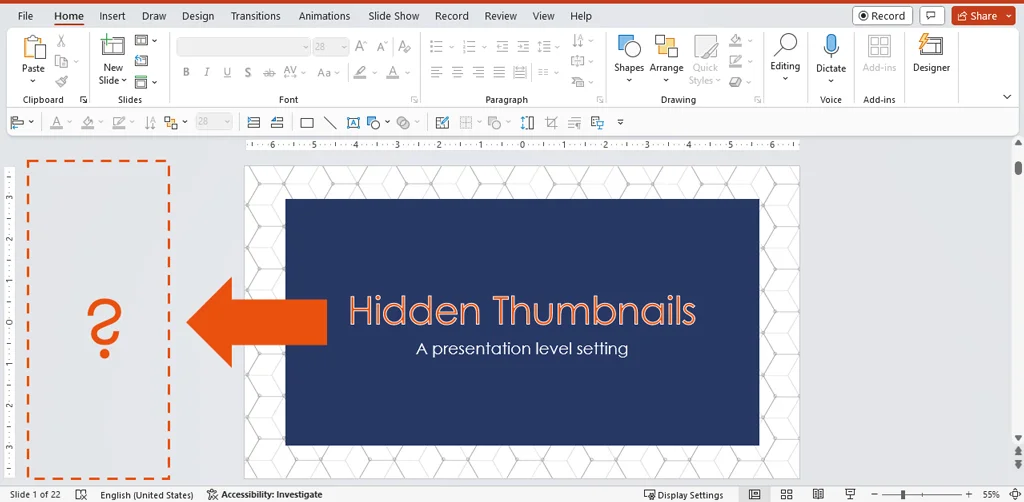
If you do this to your boss, client, or colleague, they will likely send the PowerPoint presentation right back to you to fix it. This wastes everyone’s time in PowerPoint, and makes your peers feel dumb.
If you want to stand head and shoulders above your colleagues in PowerPoint, join my PowerPoint Pro Membership to get 24/7 access to my premium PowerPoint training courses that will radically improve your PPT skills. It's only $37/month to join, and you can cancel anytime.
Program level vs. presentation level: the core difference
Program level settings customize the PowerPoint environment on your computer. They never load on anyone else's machine.
Presentation level settings save inside the .pptx file itself. Whoever opens the file gets them, whether they wanted them or not.
Here's the split for the settings people ask about most:
Stays home (program level): your Quick Access Toolbar, the Mini Toolbar, Smart Guides, AutoRecover interval, undo levels, PowerPoint Designer, the Start screen, AutoCorrect, image compression defaults, and the Copilot and Connected Experiences toggles.
Travels with the file (presentation level): slide size, laser pointer color, everything in the Set Up Show dialog box, windowed slideshows, guides display, the Notes pane size, thumbnail visibility, passwords, and embedded fonts.
One of those is a trick entry. Embedded fonts is a setting you flip on your computer that then travels with the file, and it deserves its own section below.
Program level settings (they stay home)
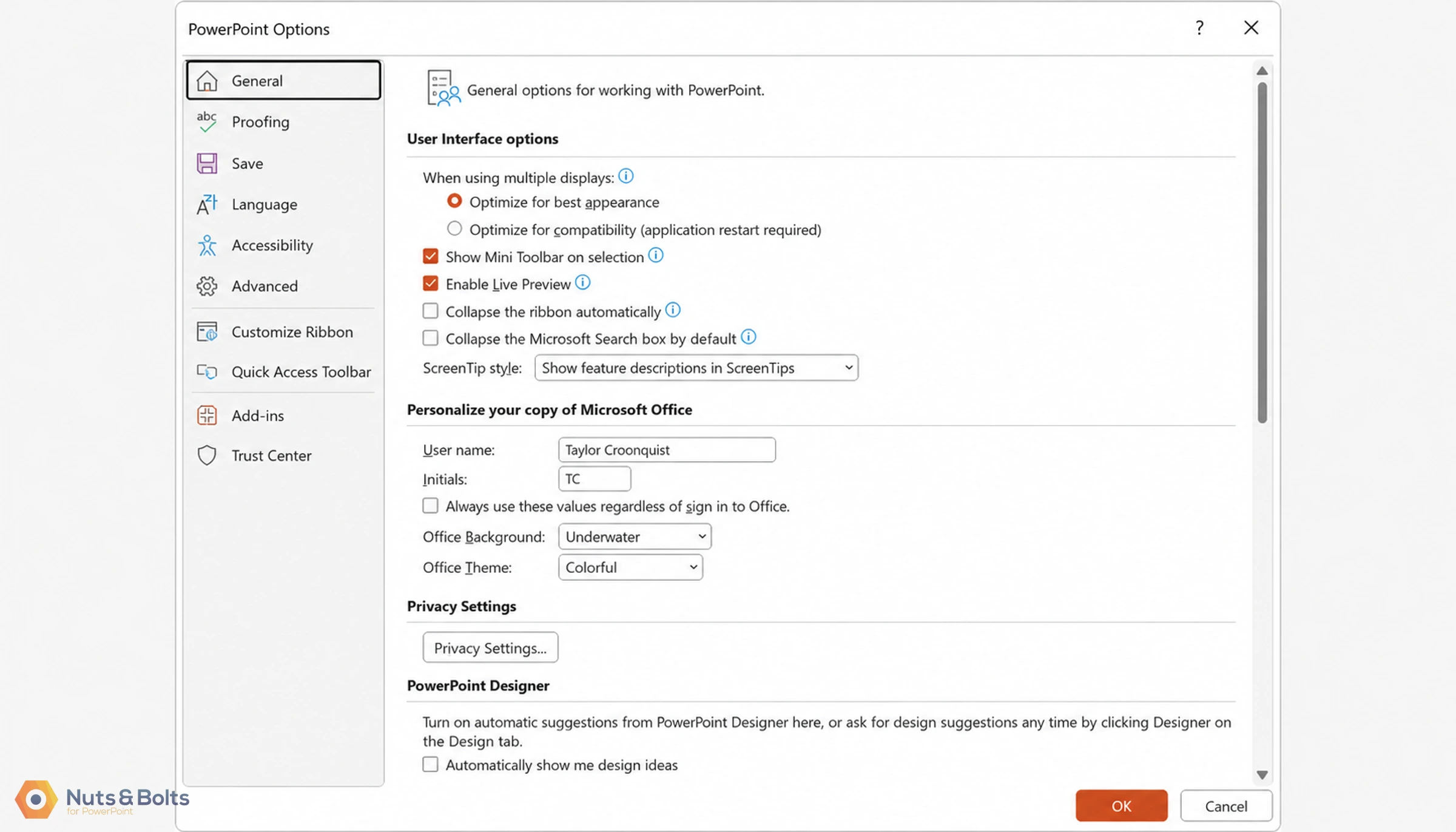
Most program level settings live in one place: the PowerPoint Options dialog box.
Click the File tab
Select Options.
Almost everything you customize in there affects PowerPoint on your computer and nothing else.
The Quick Access Toolbar
The QAT is the single highest-value customization in PowerPoint, and it's purely program level. Build it out with the commands you use constantly; it stays with you across every presentation you ever open.
One piece of advice before you customize your QAT, get rid of all the stuff that already has keyboard shortcuts:
Save Ctrl + S
Undo Ctrl + Z
Redo Ctrl + Y or F4
Slideshow from beginning F5
While these are all useful commands, they should not be on your QAT as they already have keyboard shortcuts associated with them.
If you want the full build-out, see our guide to customizing your Quick Access Toolbar. One wrinkle worth knowing: the QAT customization dialog has a “For all documents” dropdown with a per-document option. That dropdown is this article in miniature: the default keeps your QAT program level; the per-document option saves a custom QAT inside that one file.
Turn on Smart Guides
Smart Guides are the orange dashed lines that appear when you drag objects around a slide, showing you when things are aligned or evenly spaced. They're a program level setting, so turning them on helps you without changing anything for anyone else.
To turn them on: right-click a blank area of the slide, choose Grid and Guides, and check “Display smart guides when shapes are aligned.” Then grab any object and drag it near another one. The orange lines do the rest.
When Smart Guides first came out, I called them dumb guides. They're getting smarter and smarter, and I use them all the time now.
For everyday aligning of two or three objects, they're faster than opening any alignment menu.
AutoRecover and AutoSave
These two get confused constantly, and both are program level.
AutoRecover is PowerPoint's crash safety net. File, Options, Save, “Save AutoRecover information every X minutes.” The default is 10 minutes. We recommend dropping it to 5, and making sure “Keep the last AutoRecovered version if I close without saving” is checked right below it.
This one is personal for us. Camille's father once lost pages of work to the default interval, and a student in one of our webinar sessions hit the same thing.
The critical thing to understand: AutoRecover is NOT the same as saving. It's a safety net for crashes, not a replacement for Ctrl + S .
AutoSave is the separate toggle at the top-left of the PowerPoint window, and it only works on files stored in OneDrive or SharePoint. Flip it on for a cloud file and PowerPoint saves your changes continuously. It's a program level preference, but it does nothing until the file lives in the cloud. If your files stay on your desktop, AutoRecover is your only net, so tighten it to 5 minutes.
Save behavior is where people get burned the hardest. One IT admin on Microsoft's own support forum, dealing with a Windows bug that blocks PowerPoint saves when File Explorer's Preview Pane is on, put it in all caps: “Disabling the Preview Pane is NOT A SOLUTION.”
When saving is the thing that breaks, no workaround feels acceptable. Set your safety nets before you need them.
The Mini Toolbar and the rest of the Options dialog
The Mini Toolbar is the small floating formatting toolbar that appears when you select text. Whether it shows up is a program level setting (File, Options, General). Same for the popup toolbar in slideshows: disable it on your machine and your slideshows run clean, but a colleague presenting from their own machine still gets theirs. I've seen people in meetings hunting around for that feature.
Two more program level residents worth knowing about in the Options dialog.
AutoCorrect and AutoFormat live under Proofing (that's where “(c)” becomes a copyright symbol and typed fractions reformat themselves).
Copilot and Connected Experiences toggles, under General and Trust Center privacy settings, are program level too: turning AI features on or off changes your PowerPoint, not the presentation.
See our guide for help finding and moving the Copilot button in PowerPoint.
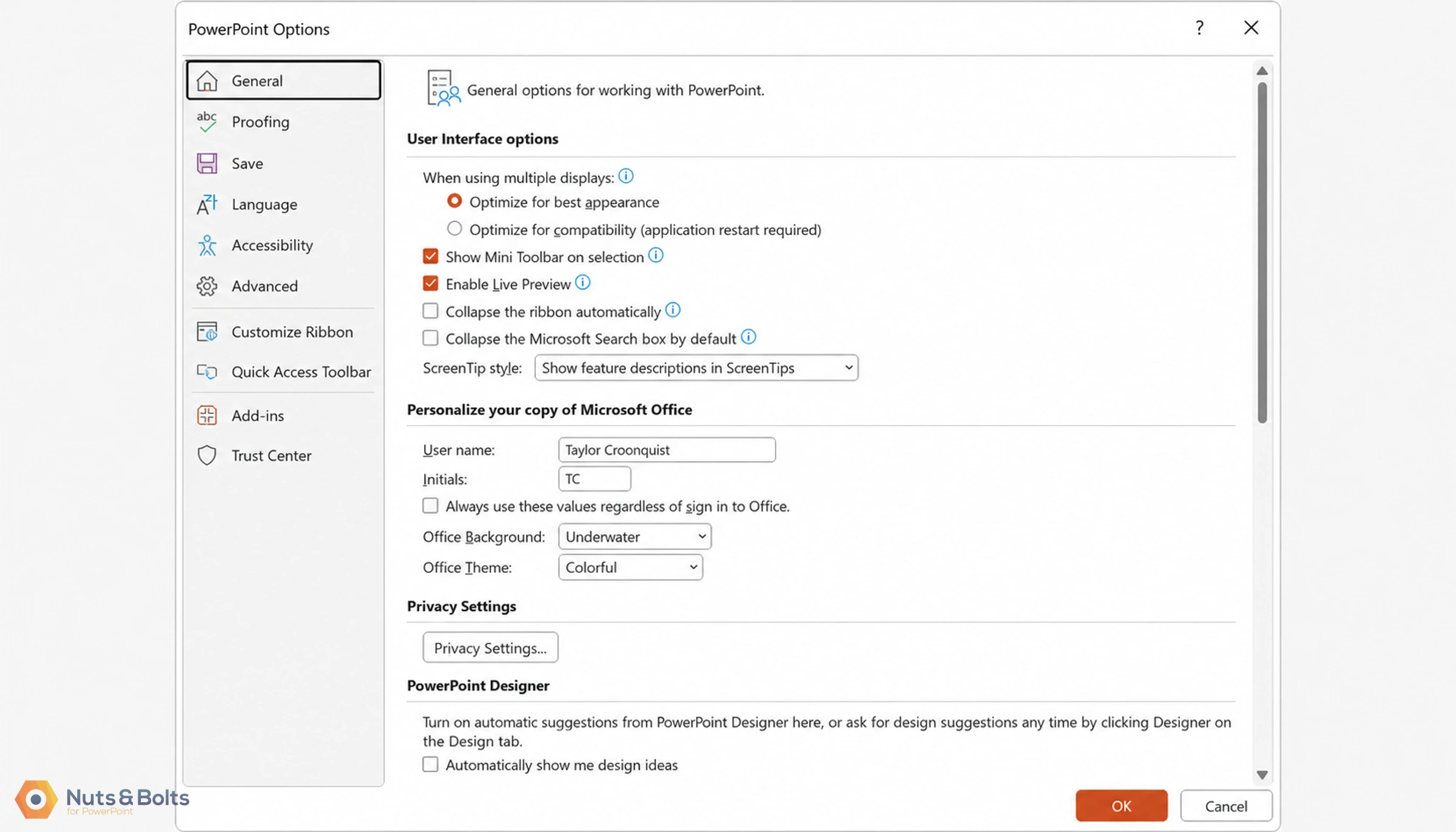
As a general rule, any customizations you make in the PowerPoint Options dialog box (pictured below) are program level settings. That said, there are other settings you can adjust within PowerPoint like Smart Guides, that are not managed within this dialog box.
Presentation level settings (they travel with the file)
Presentation level settings save inside the file. That's the whole point and the whole danger: every one of these travels to whoever opens your deck.
Slide size is the one that surprises people most. Change a deck from 16:9 to some custom dimension and everyone downstream inherits it.
The laser pointer color you pick in the Set Up Show dialog travels too. So does everything else in Set Up Show: looping, kiosk mode, which slides display, whether the show runs in a window. Kiosk mode is the classic gotcha, because a deck stuck in kiosk mode won't advance with a click, and the person you sent it to has no idea why.
A few other examples of presentation level settings are:
Changing the laser pointer color
Resizing the Speaker Notes pane
Setting your slides to run in a windowed slideshow
Nothing is worse than opening a PowerPoint presentation and feeling lost due to settings that someone else set, that you don’t understand.
As such, when sending your slides to your bosses, clients, or colleagues, I recommend using the default PowerPoint presentation level settings. Keep it boring, your clients will be happy.
PowerPoint settings that trip people up
Embedding fonts: the setting that breaks the rule
You build a deck in a brand font, send it to a client who doesn't have that font installed, and PowerPoint silently swaps in a substitute. Your slides reflow, line breaks move, and the deck looks broken.
That's the problem font embedding solves, and it's the exception to everything above: a setting you flip on your computer that then travels with the file.
The fix: File, Options, Save, then check “Embed fonts in the file.” You'll get two choices. “Embed only the characters used in the presentation” keeps the file smaller but breaks if the recipient needs to edit text with characters you didn't use. “Embed all characters” makes the file bigger but stays editable. If anyone downstream will touch the text, embed all characters.
Two caveats before you rely on it. Embedding only works with fonts whose license allows it, and results on Mac versions of PowerPoint have historically been inconsistent, so test the round trip before a high-stakes send. The safest play for cross-company work is still building in fonts that ship with Office.
So the two-bucket rule gets one asterisk: the switch lives in your Options dialog, but the embedded fonts ride inside the .pptx. That's why we call it the setting that breaks the rule.
Image compression: one foot in each bucket
Image compression is a hybrid. The checkbox under File, Options, Advanced (“Discard editing data,” default resolution) sets your program level default, but the compression itself bakes into the specific file when it runs.
Your default stays home; the compressed images travel. If a client opens your deck and the photos look soft, compression already happened, and no setting on their machine will bring the pixels back.
Which settings should you actually change?
Everything above tells you where settings live. This is the list of what we actually recommend changing, straight from our PowerPoint 3X course. All six are program level, so they stay home and nobody else will ever know.
Turn OFF PowerPoint Designer. File, Options, General, uncheck “Automatically show me design ideas.” I personally don't find any of these layouts worth using.” You can still open Designer manually from the Design tab whenever you want it.
Turn ON Smart Guides. Covered in its own section above. If you skipped ahead: right-click the slide, Grid and Guides, check “Display smart guides when shapes are aligned.”
Turn ON the Paste Options button. File, Options, Advanced, under Cut, copy, and paste. This gives you the little floating menu after every paste so you can choose how content lands. It applies across Word, PowerPoint, and Excel. And while we're on the subject of pasting between presentations: “Please, please, please don't keep source format.” Use Destination Theme unless you enjoy cleaning up duplicate slide masters.
Turn ON the Ruler. View tab, check Ruler. You need it for indents and bullet spacing, and there's no downside.
Turn OFF Gridlines and Guides. View tab, uncheck both. Guides are worth toggling back on (Alt + F9) when you're checking whether a template has them set up, but as an always-on display they're clutter.
Turn OFF the Start screen. File, Options, General, uncheck “Show the Start screen when this application starts.” PowerPoint opens straight to a blank presentation. Personal preference, and it applies to Word and Excel too.
Ten minutes of setup, and every one of them stays home.
PowerPoint settings Q&A
Q: What is the difference between PowerPoint program level and presentation level settings?
Program level settings customize how PowerPoint works for you, on your computer only. Presentation level settings save inside the PowerPoint file and affect other people who open or present it.
The reason the difference matters: everyone has their own preferred way of working, and forcing your customizations on other people creates confusion they didn't sign up for.
Q: Do my PowerPoint Options affect other people?
Generally, no. Settings you change under File and Options customize your computer's PowerPoint environment rather than the presentation itself, so colleagues never see them.
The exceptions are the Save-tab settings that write into the file, font embedding being the big one. And remember that disabling a feature on your machine doesn't disable it for a colleague presenting from theirs.
Q: Can PowerPoint presentation settings travel with the file?
Some do. View and slideshow settings (slide size, Set Up Show choices, windowed slideshow, hidden thumbnails, guides display) store inside the presentation, so others encounter them when opening your file. Everything in File and Options stays on your computer, with the embed-fonts exception covered above.
When in doubt, run the hotel-computer test: if you emailed the file to yourself and opened it somewhere else, would the change survive?
Q: Why are my slide thumbnails missing in PowerPoint?
The thumbnail pane may simply be collapsed. In Normal view, click the collapsed Thumbnails bar or drag the pane edge back out.
If someone has hidden your thumbnails, they likely hit the thumbnail hide shortcut: hold Ctrl + Shift and click the Normal icon at the bottom of your screen. To bring them back, just click the Normal icon.
Q: Should I customize presentation level settings before sending a PowerPoint file to someone else?
I wouldn't. If anything, I recommend reverting to defaults before sharing: Normal view, Speaker Notes pane hidden, thumbnails visible. Your boss, client, or colleague can start working immediately instead of troubleshooting your customizations.
Customize your own environment as aggressively as you like. That's what program level settings are for.
Takeaways
The easiest way to think about PowerPoint settings is this: customize PowerPoint for yourself, but be careful about customizing the presentation for everyone else.
Program level settings change how PowerPoint works on your computer, so customize away.
Presentation level settings can affect other people who open your file, so think twice before changing them.
When you’re handing slides to a boss, client, or colleague, boring is often better. Stick as close to the default settings as possible.
The goal isn’t to avoid customizing PowerPoint. It’s to know who your customization affects before you make it. Don't assume anyone knows much about customizing the PowerPoint environment (as most don't).
That little distinction can save you from confused clients, returned presentations, and the dreaded, “What did you do to my PowerPoint?”
And if your whole team understands these settings, even better. Learn more about our corporate PowerPoint training workshops. If you want to keep going, the rest of our PowerPoint tutorials cover the individual settings above in more depth.
About the Author

Taylor Croonquist
Co-Founder, Nuts & Bolts Speed Training
Taylor Croonquist is a PowerPoint expert and trainer. Over a career spanning the globe, from consulting in New York and investment banking in China, Taylor has truly seen it all in PowerPoint. Through necessity and a natural tech savvy, Taylor honed his PowerPoint skills to the point of even blowing the minds of the Microsoft PowerPoint programming team. When he's not busy crafting PowerPoint training, you can find him reading a sci-fi series or scuba diving.