In this article, you’ll learn how to use eight hidden PowerPoint shortcuts to help you work faster and more efficiently as you build your decks.
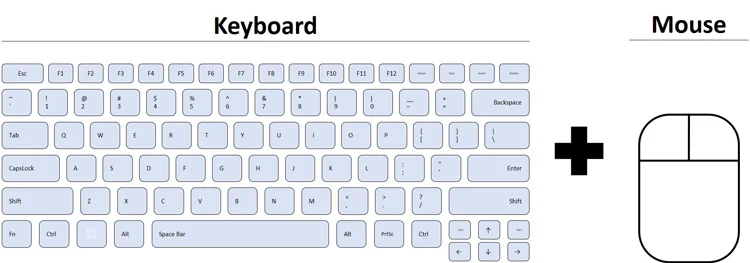
These are shortcuts I discovered over my career working in PowerPoint and I haven’t seen them covered anywhere else before. And the reason that they are hidden is that they require a combination of both your mouse AND your keyboard.
So you need to hold down a key on your keyboard and then click something with your mouse to make them work.
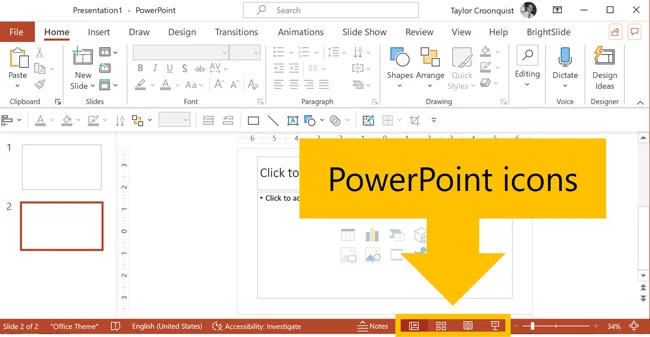
As you follow along with the shortcuts listed below, you can find the icons I’m referring to at the bottom of your workspace.
From left to right in the picture below, you have the Normal icon, the Slide Sorter icon, the Reading View icon, and the Slide Show icon.
These hidden shortcuts should work in most versions of Microsoft PowerPoint on a PC. In the video below, you can see that I’m using the latest version of Microsoft Office, with the subscription (Microsoft 365).
Thumbnail Auto-Resize Shortcut
Have you ever received a PowerPoint presentation with a resized thumbnail view on the left side of your screen?
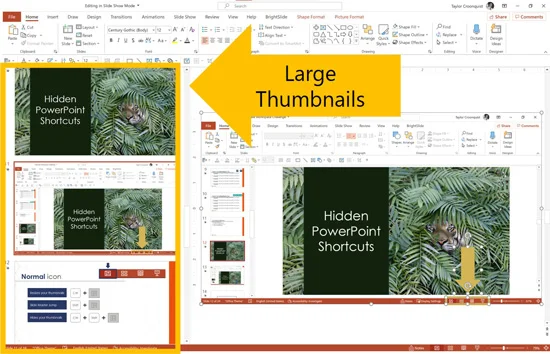
Maybe someone adjusted the thumbnails and they’re too big (as pictured below) or too small. And now, you can’t quite figure out how to get them back to their default size.
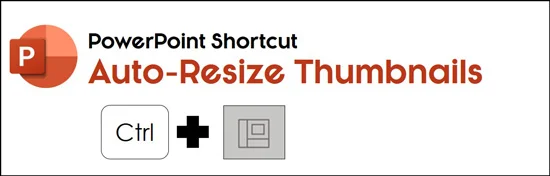
Holding the Ctrl key and clicking the Normal icon automatically resizes your thumbnails to the default size. This is the ONLY way that I’m aware of that you can do this.
An important rule to remember about the thumbnail view in PowerPoint is this: The size of your thumbnails saves at the presentation level, not at the program level, so it travels with the file to whoever opens it next.
That means that if you accidentally resize your thumbnails and hit Ctrl + S to Save, their size saves to your presentation. So anyone who opens that specific presentation will have to deal with the thumbnails as you resized them.
Holding Ctrl and clicking the Normal icon allows you to quickly and effortlessly standardize the size of your thumbnails back to the default PowerPoint size so that your environment always looks the same.
This is also extremely useful if you are a creature of habit and always want to use the standardized PowerPoint workspace when building and editing your slides.
If you are having trouble with your keyboard shortcuts not working, see our article for tips and tricks on how to fix them.
Slide Master Jump Shortcut
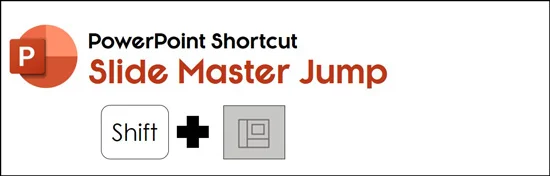
If you frequently need to jump back and forth to the Slide Master view in PowerPoint you will love this hidden shortcut.
Holding Shift and clicking the Normal icon immediately jumps you to the Child Slide layout of your current slide in the Slide Master View.
On top of that, if you immediately use this shortcut again, holding Shift and clicking the Normal icon again, you immediately jump to your Parent Slide.
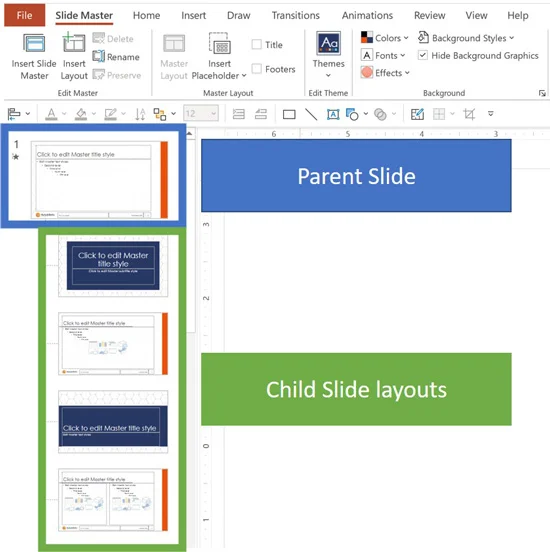
While the Slide Master is beyond the scope of this article, in short, the Slide Master allows you to make macro-level edits to all of the slides within your presentation.
The Parent Slide layout (the big slide in the picture above) is where you want to make the global formatting adjustments to your presentation. The Child Slide layouts (the little slides in the picture above) are where you can make adjustments to the individual layouts inside your presentation.
The goal of the Slide Master is to enable you to create customized slide templates for your presentations, ensuring that all of your formatting is consistent. This also makes it easier for everyone on your team to build brand consistent presentations, regardless of their PowerPoint skill level.
That being said, custom PowerPoint templates can take can take a bit of time.
Thumbnail Hide Shortcut
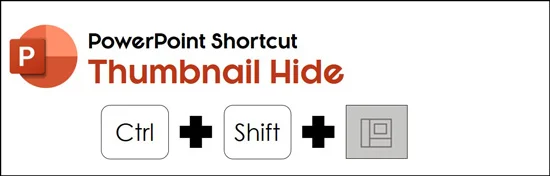
If you are working on a small laptop screen, this next shortcut enables you to get more screen real estate by hiding your thumbnail view.
This is the ONLY way I know of that you can 100% hide your thumbnail view in PowerPoint, allowing you to focus on your slides.
To do this, simply hold the Ctrl AND Shift keys on your keyboard, and then click the Normal icon at the bottom of your screen. Doing so, your thumbnails on the left will disappear as pictured below.
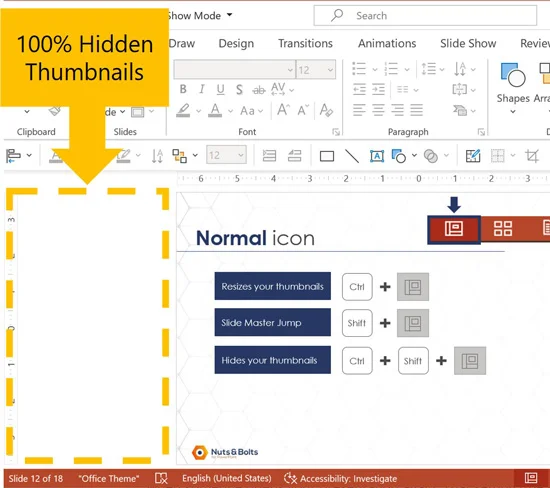
To unhide your thumbnails, simply click the Normal icon.
When hiding your thumbnails, keep in mind that this setting will save with your presentation. That means that if you hide your thumbnails and save your presentation, the thumbnails will remain hidden when someone opens your presentation.
As most people have NO IDEA that hiding your thumbnails like this is even possible, they will likely freak out if they open a PowerPoint presentation like this.
Therefore, I recommend always unhiding your thumbnails before saving and sending your presentation to your boss, clients, or colleagues.
Handout Master Jump Shortcut
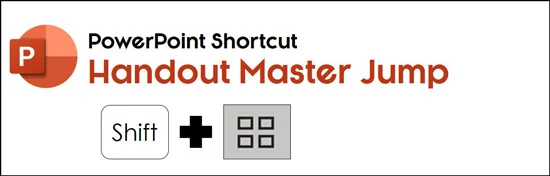
If you want to improve the look and feel of your PowerPoint handouts, this next shortcut is for you.
That’s because holding Shift and clicking the Slide Sorter icon jumps you to your Handout Master in PowerPoint.
The Handout Master is where you can format the look and feel of your slides when you print them as handouts.
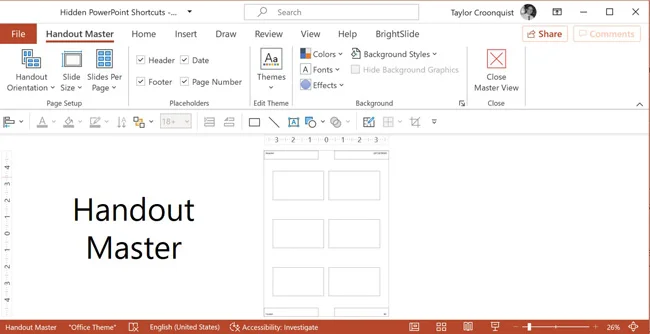
Spending even just a little bit of time formatting on your Handout Master will radically improve the professionalism of your handouts.
You can add your company logo, contact information or any other design elements you want to make your handouts look better.
See our guide for how to print multiple slides per page in PowerPoint.
Full Screen Outline View Shortcut
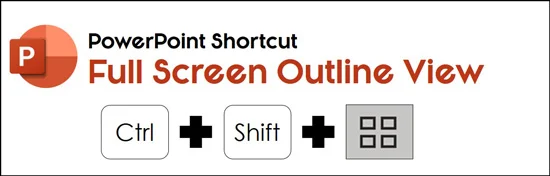
Holding Ctrl and Shift and clicking the Slide Sorter icon gives you a full-screen look at your Outline View in PowerPoint.
The Outline View is where you can see all of the text inside the placeholders of your presentation. And by placeholders, I mean the preset containers for text that are set up as part of your PowerPoint template.
NOTE: Only text that is typed into your placeholders shows up in the Outline View in PowerPoint. Any text that is inside shapes and text boxes will not show up in the Outline View.
See our guide for tips on different ways you can use the Outline View in PowerPoint.
To expand your knowledge and learn about the differences between Shapes, Text Boxes, and Placeholders in PowerPoint, watch my short explanation below in response to a question I received from the community.
Set Up Slide Show Shortcut
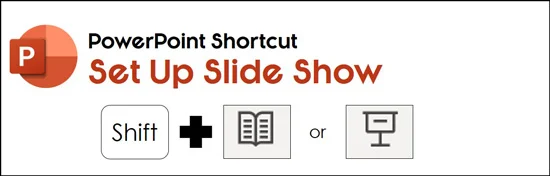
The next hidden PowerPoint shortcut allows you to quickly access the presentation level settings of your presentation.
Holding Shift and clicking either the Reading View icon or the Slide Show icon opens up the Set Up Show dialog box.
As you can see in the picture below, this is where you can edit how your presentation runs in Slide Show mode.
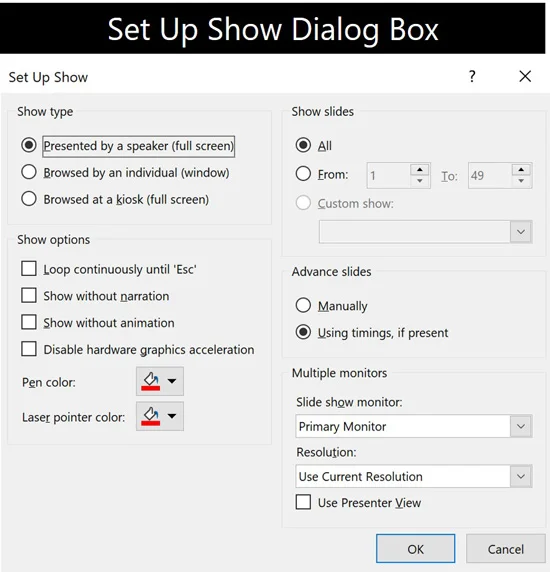
Four of the more common settings to adjust are:
Whether your presentation runs full screen or as an individual window
The color of your inking pen
Create a custom show, using a selection of slides
Normally, to open this dialog box you would click the Slide Show tab and then select the Set Up Slide Show command, as pictured below.
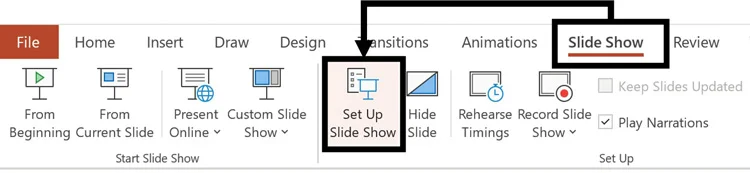
Using the Shift key with either of these icons (the Reading View icon or the Slide Show icon) opens the same Slide Show dialog box. So while slightly different, they do the same exact thing.
Present Online Shortcut
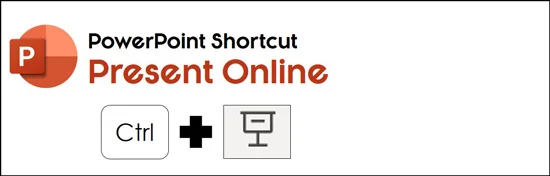
If you use the Office Presentation Services to deliver your presentations online, you will love this next hidden PowerPoint shortcut.
Holding Ctrl and clicking the Slide Show icon immediately jumps you to the Office Presentation Services dialog box, as you can see in the picture below.
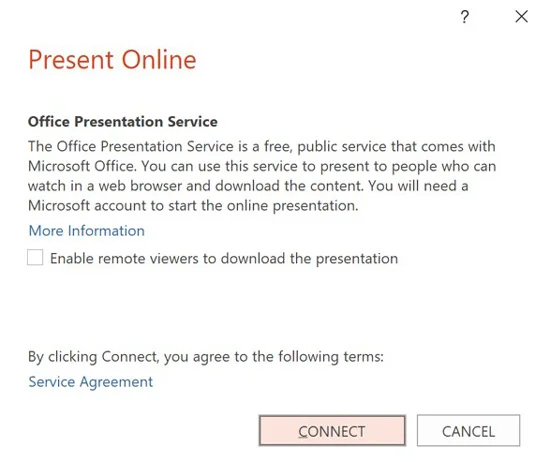
I rarely use the Office Presentation Service to deliver my presentations, but if you do, this is a great way to jump to that service.
What services do we use to deliver presentations online?
We use Zoom, Webex, Google hangouts, or whatever other online hosting services our clients want us to use.
Mini-Presentation Slide Show Shortcut
This last hidden shortcut introduces an alternative way to review your slides in a mini-presentation window.
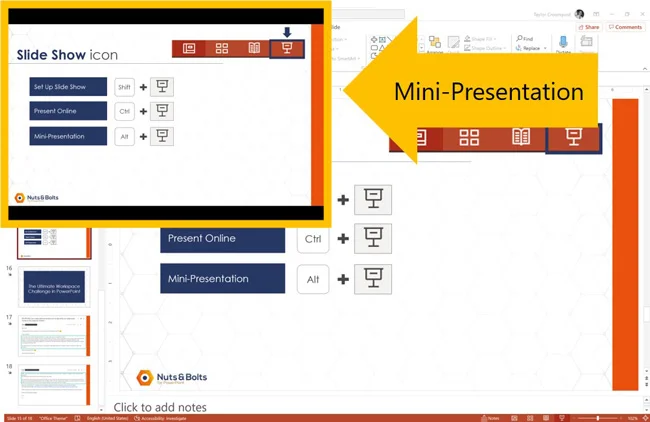
This hidden shortcut is also the only way to access this mini-presentation window in PowerPoint.
Holding Alt and clicking the Slide Show icon launches the mini-presentation window, as you can see in the picture below.
Go ahead and test it out (you won’t believe it until you see it).
Common questions about hidden PowerPoint shortcuts
Q: What makes these PowerPoint shortcuts “hidden”?
They combine your keyboard with your mouse. Hold down the specified key while clicking a view icon at the bottom of PowerPoint, and the key changes what that button does.
Same button. Different job.
Q: How do I reset the size of my slide thumbnails in PowerPoint?
Hold Ctrl and click the Normal icon at the bottom of PowerPoint. This returns your slide thumbnails to their default size. Handy when someone sends you a deck with enormous thumbnails and barely any room for the slide.
Q: How do I bring back missing slide thumbnails in PowerPoint?
If your thumbnails were hidden using Ctrl + Shift + click Normal, click the Normal icon again without holding any keys.
If the thumbnail pane was simply collapsed by dragging it, drag its edge back out. Missing thumbnails do not necessarily mean missing slides, so check the view before assuming someone deleted half your presentation.
Q: What is the shortcut for opening Slide Master view in PowerPoint?
Hold Shift and click the Normal icon at the bottom of PowerPoint. This opens Slide Master view at the layout used by your current slide.
That is especially useful when you need to investigate the layout behind a slide that is giving you trouble.
Q: Why is some of my text missing from PowerPoint’s Outline View?
Outline View displays text from your slide placeholders, such as the title and content areas built into your layout. Text you add in separate text boxes or shapes does not appear there.
Your text has not disappeared. Outline View simply does not include it. Keep that distinction in mind before treating your outline as a complete transcript of the presentation.
Q: Can I preview my PowerPoint slides in a small window?
Hold Alt and click the Slide Show icon at the bottom of PowerPoint to open the miniature slide show window.
It is a useful little option when you want to review your slides without taking over the whole screen.
Q: Do these hidden PowerPoint shortcuts work on a Mac or in a browser?
These instructions are for the Windows desktop version of PowerPoint. Mac and browser versions have different shortcuts and controls, so do not assume that swapping Ctrl for Command will make every combination work.
If a shortcut behaves differently, check which version of PowerPoint you are using first.
Key Takeaways
Some of PowerPoint’s useful shortcuts are hiding in buttons you already click. Here are the ones worth keeping in your back pocket:
Remember the keyboard and mouse combination. Hold the key down while you click. Pressing the keys alone will not activate these shortcuts.
Reset awkward thumbnail sizes. Hold Ctrl and click Normal to return your thumbnails to their default size.
Give yourself more room on a small screen. Hold Ctrl + Shift and click Normal to hide the thumbnails. Click Normal again to bring them back.
Get to the formatting behind your slides and handouts. Shift + click Normal opens Slide Master view. Shift + click Slide Sorter opens Handout Master view.
Know what your outline leaves out. Outline View shows text in placeholders. Separate text boxes and shapes will not appear, even if they contain the most important words on your slide.
Get to your slide show settings faster. Hold Shift and click either Reading View or Slide Show to open the Set Up Show dialog box.
Restore your thumbnails before sharing the file. Hidden thumbnails can stay hidden when someone else opens your presentation. Save your colleagues the “What happened to my PowerPoint?” moment.
Pick one or two shortcuts that solve something you regularly find annoying, and use them on your next deck. A little less clicking every time you work is where the payoff starts.
About the Author

Taylor Croonquist
Co-Founder, Nuts & Bolts Speed Training
Taylor Croonquist is a PowerPoint expert and trainer. Over a career spanning the globe, from consulting in New York and investment banking in China, Taylor has truly seen it all in PowerPoint. Through necessity and a natural tech savvy, Taylor honed his PowerPoint skills to the point of even blowing the minds of the Microsoft PowerPoint programming team. When he's not busy crafting PowerPoint training, you can find him reading a sci-fi series or scuba diving.