There is nothing worse than when you are working on an important project and suddenly have all your keyboard shortcuts not working. For example, if you like to use the F12 key for the Save As shortcut, to suddenly have it not work is frustrating.
Keyboard shortcuts are the fastest way to radically improve your speed and efficiency in whatever program you are using on your computer, so understanding why shortcuts stop working and how to fix them is important. If you are a hardcore PowerPoint user like I am, I recommend checking out my PowerPoint shortcuts guide for some big quick wins in PowerPoint.
Below I’ve listed five major reasons why your keyboard shortcuts are not working. If none of these fixes work, don’t assume your keyboard is dead yet. The problem could also be a Windows accessibility setting, an app-specific conflict, an Office add-in, or finally, the keyboard itself.
Shortcuts not working? Try these 5 fixes
Inverse your function / media keys
Take your PPT skills to the next level
Break free from PowerPoint struggle and reclaim your time. Amplify your PowerPoint knowledge with proven advanced methods taught in the PowerPoint Pro Membership.
Most new computers start with the media keys at the top of the keyboard as the dominant command.
That is, if you hit the F1 through F12 keys, the media keys (mute, lower volume, increase volume, etc.) are triggered, rather than the standard F1-F12 commands.
There are three different ways you can solve the media key problem.
If your media keys like volume, screen brightness, etc. aren’t working, that means your F1 through F12 keys have been set as the dominant commands.
A. Add the Function key (Fn) to your shortcut
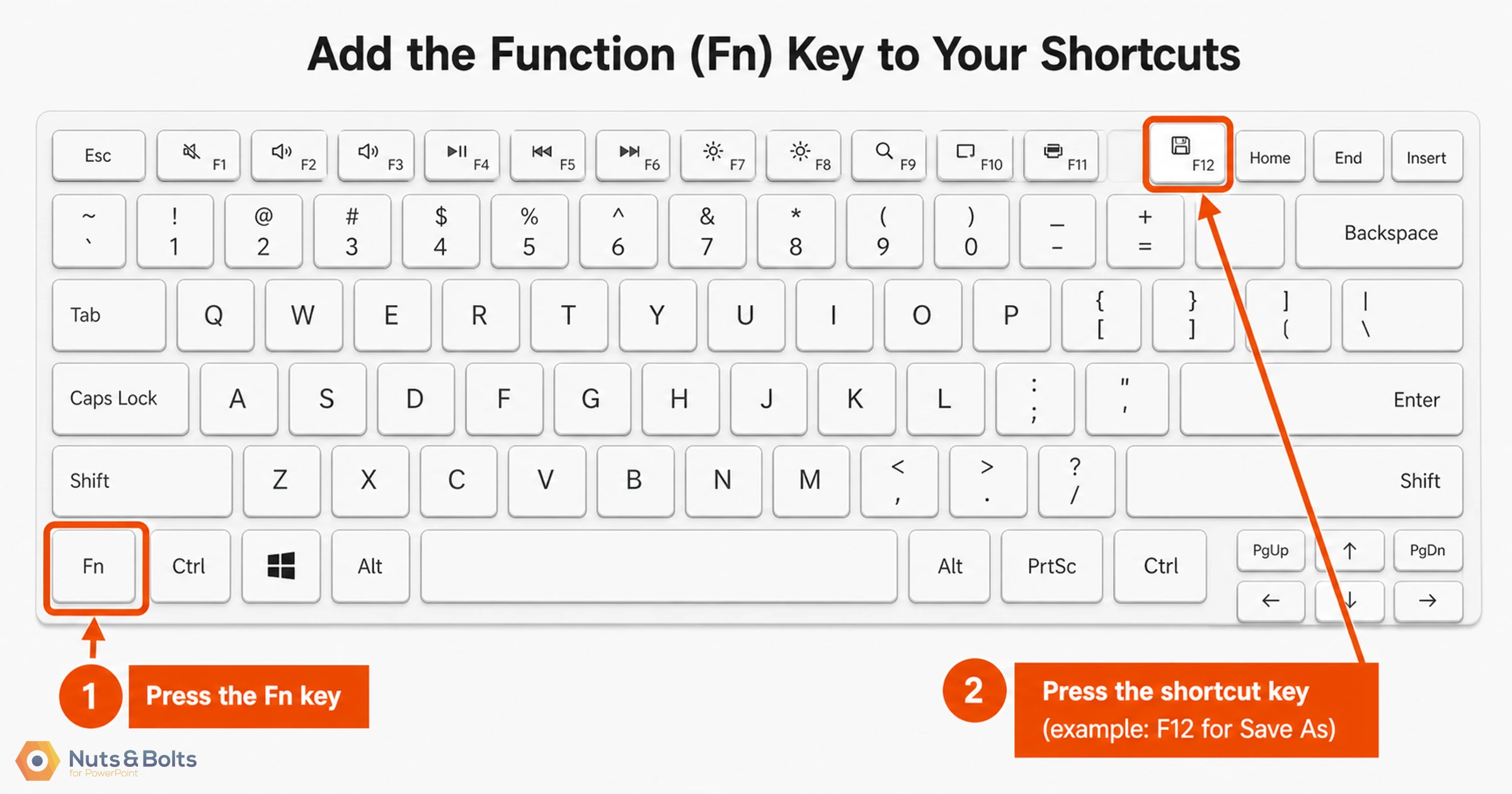
Whichever problem you are having with your media keys, adding in the FN key to your shortcut will solve it.
For example, if F12 for Save As is not working in Word, Excel, or PowerPoint, that probably means that your media keys are dominant.
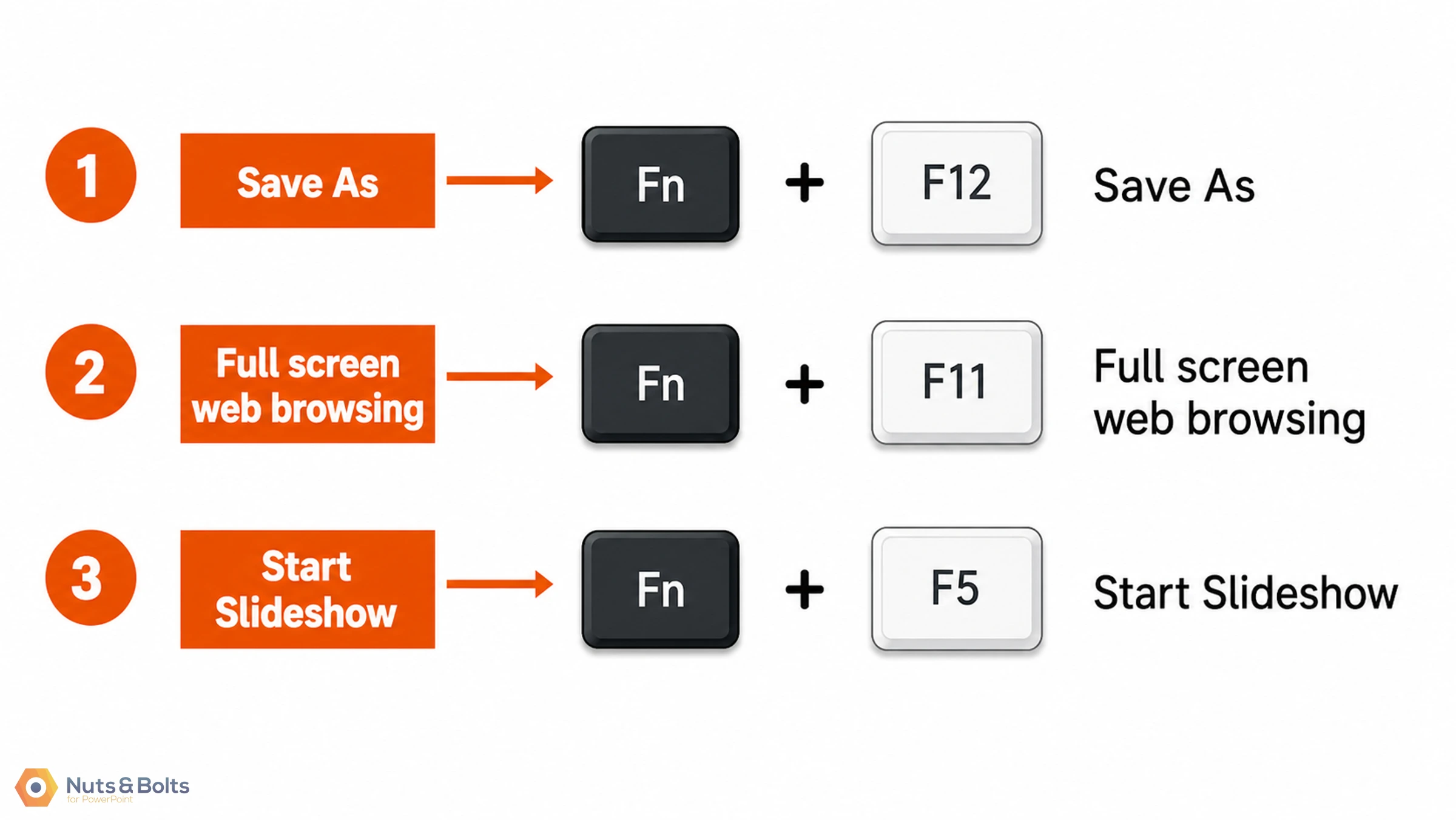
You can just hit FN + F12 and your ‘save as’ keyboard shortcut will work. Below you can see examples of what your shortcuts will look like by adding the function key.
B. Function lock your Function / Media key
If you want to use your media keys once in a while but still use your shortcuts normally, you can simply lock your media keys.
To lock your media keys, find the Function Lock (FnLock) command on your keyboard and activate it. On my keyboard, the Function Lock shortcut is Fn + Esc .
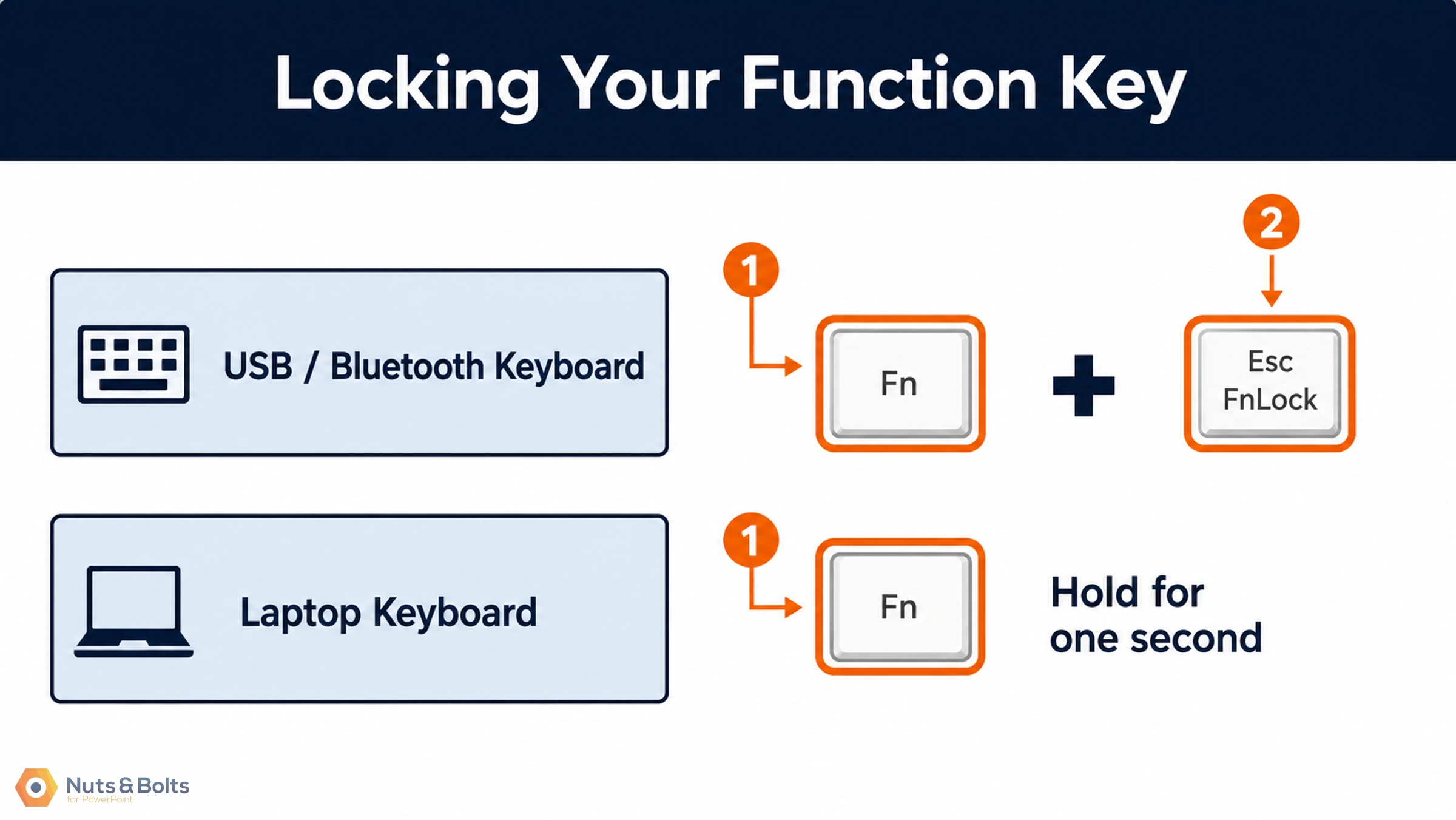
In this way, you can lock your Media keys, using the volume and mute commands when you are watching a movie on your computer, and then unlock it when you are using Excel, PowerPoint and Word, so you can use all of your F1 through F12 keyboard shortcuts normally.
C. Switch your media keys (System BIOS)
If you want your media keys to ALWAYS be in a specific way (you don’t want to flip back and forth between them) you can permanently inverse your function keys. This means that you will not have to add the function key to your keyboard shortcuts to make them work.
For example:
F12 for Save As instead of Fn+F12
F2 to edit a cell in Excel instead of Fn+F2
Alt+F10 for the Selection Pane in PowerPoint instead of Fn+Alt+F10
As you can see, having to add the extra function key is annoying. If you want to reset your function keys, you simply need to restart your computer and go into your System BIOS. For help fixing your function keys like this, read our guide to fixing function keys.
Adjust Your Language Bar settings
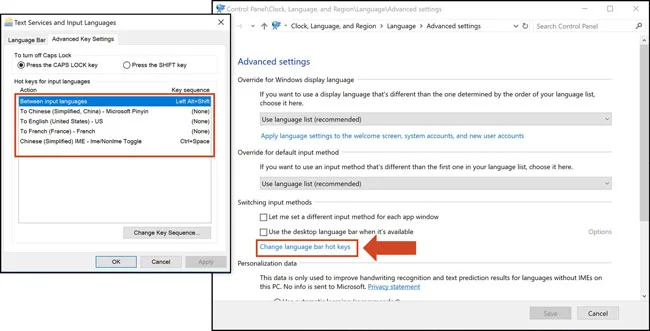
If you are using more than one language input on your computer (English, Chinese, French, etc.) your language bar might have overridden some of your favorite keyboard shortcuts.
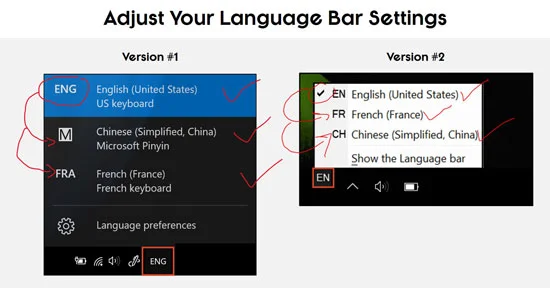
To adjust your language bar keyboard shortcuts, follow these steps, according to your version of Windows (see which image looks like your computer above):
Version #1
Click on your language bar
Select Language preferences
Scroll down to Related Settings and click on Additional date, time, and regional settings
Under the Language section, click on Change input methods
In the left sidebar, select Advanced settings
In the Switching input methods, select Options
Select Change language bar hotkeys
Change the key sequence for shortcuts that are missing
Version #2
Right-click your language bar
Select Settings
Select Advanced settings
In the Switching input methods, select Options
Select Advanced key settings
Change the key sequence for shortcuts that are missing
For a video walkthrough of this, see the video at the top of the page at 1:52.
International keyboard layouts are different
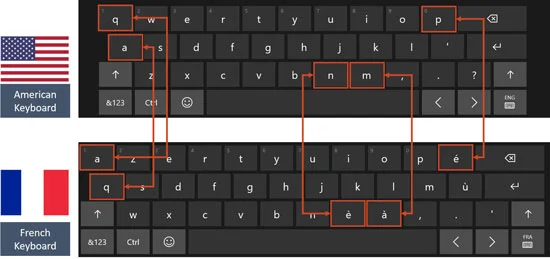
Most keyboard shortcuts that you find online are quoted using a standard U.S. keyboard.
That means that if you are using a Dutch, French or other non-English keyboard, the key sequences might be slightly different.
There is no formula for converting U.S. keyboard shortcuts into other language keyboards, so you’ll have to find your shortcuts one by one. In this case, Google will become your best friend.
Mac shortcuts are different
Most keyboard shortcuts are quoted based on Windows PC keyboards.
That means that if you are using a Mac or a Mac keyboard, your key sequences might be slightly different and will require a bit of extra research.
In general, the CMD key on a Mac translates to the CTRL key on a Windows keyboard, allowing you to quickly learn Windows keyboard shortcuts.
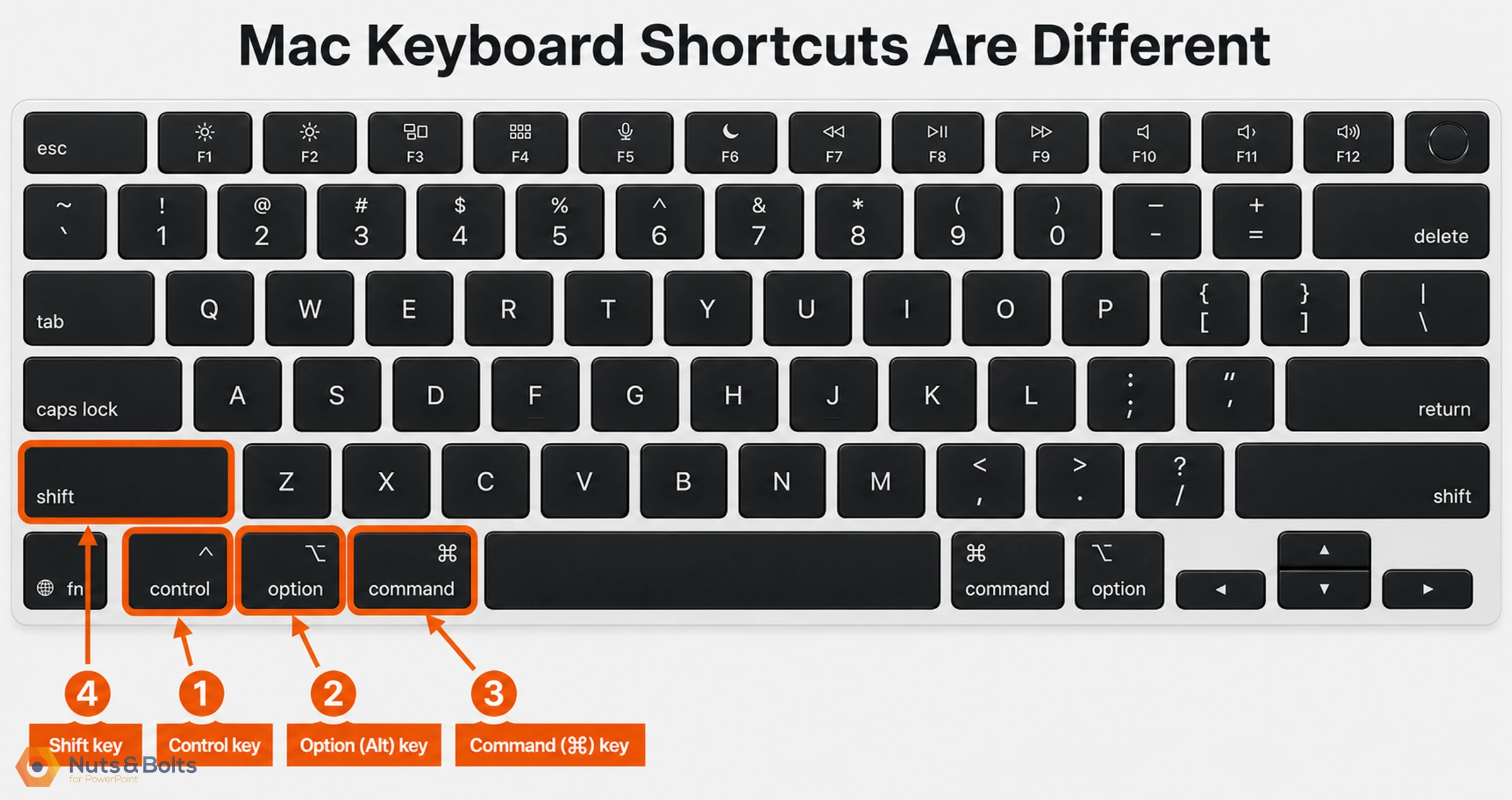
For example, here are the Windows and Mac versions of the Copy shortcut:
CMD + C to Copy on a Mac keyboard
CTRL + C to Copy on a Windows keyboard
See our guide to learn more about the copy shortcut (including how to use Clipboard Copy to copy up to 24 items at once.
While some keyboard shortcuts are the same (or remarkably similar), often Mac shortcuts are longer (requiring more keys).
CMD + OPTION + G to Group on a Mac keyboard
CTRL + G to Group on a Windows keyboard
Watch out for program trolls (the worst!)
Having a program troll hijacking your shortcuts is another common way you might lose access to your favorite keyboard shortcuts, for no apparent reason.
Program trolls are simply other programs on your computer that have their own set of shortcuts that take over your existing ones.
This can happen immediately when the program is installed on your computer (like Evernote), or it can happen only when the program is open and running (like GoToWebinar). Three common program trolls I see are Evernote, GoToWebinar and Camtasia.

To get your old keyboard shortcuts back, all you need to do is:
Find the program troll in question (this might take some trial and error)
Open the settings or options for that program
Find the Hotkey or Shortcut section
Find your lost shortcuts and change them in the program
Changing the shortcuts for each program troll should automatically turn on your old shortcut, but you can always restart your computer to make sure it takes.
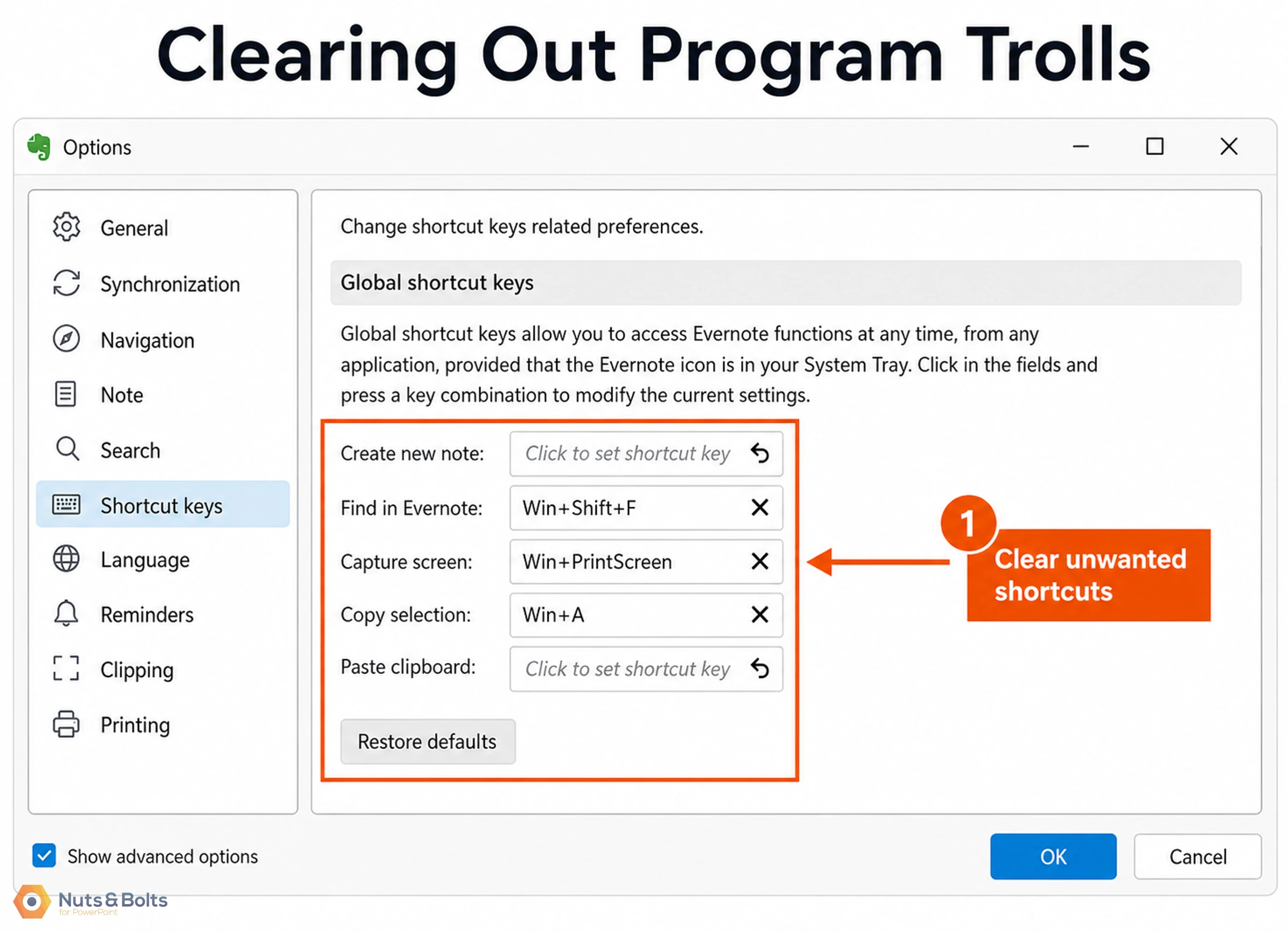
To see an example of me clearing out some overridden Evernote shortcuts, see 4:11 of the video tutorial at the top of the page.
Conclusion
Getting your keyboard shortcuts to work the way they are supposed to is mission critical if you are a keyboard jockey like me. Shortcuts are the fastest way to improve your speed and efficiency in any program you use on your computer and free up your time so that you can invest it in higher priority tasks.
That’s why it’s critical that you understand why keyboard shortcuts stop working, and how to troubleshoot and fix them quickly. The last thing you want to do is get bogged down trying to troubleshoot your computer, instead of getting your work done so you can make it to Happy Hour.
If you know of another reason why keyboard shortcuts stop working and how to fix them, let me know in the comments section below to share with the community.
If you enjoyed this article and want to learn more about our training courses and other free resources, visit us here.
About the Author

Taylor Croonquist
Co-Founder, Nuts & Bolts Speed Training
Taylor Croonquist is a PowerPoint expert and trainer. Over a career spanning the globe, from consulting in New York and investment banking in China, Taylor has truly seen it all in PowerPoint. Through necessity and a natural tech savvy, Taylor honed his PowerPoint skills to the point of even blowing the minds of the Microsoft PowerPoint programming team. When he's not busy crafting PowerPoint training, you can find him reading a sci-fi series or scuba diving.
Take your PowerPoint skills to the next level
Get access to our complete training library, new tutorials every month, and the same techniques we teach in our corporate workshops. Join the 260,000+ professionals who have trained with us.
See Membership Options