If you recently bought a new computer, and your function keys are not working, it’s likely that they are reversed, broken, flipped, or whatever you want to call it.
The point is, your keys are the opposite of the way you want them, and it’s a big deal…
I almost returned a BRAND NEW computer that I loved because my Function keys were not working the way I wanted them to work.
This is also a classic reason why you might think that your keyboard shortcuts aren’t working.
F1-F12 as function keys or media keys?
Most new laptop computers and laptops start out with dominant media keys. That means that when you try to use your F1 to F12 function keys, the media key function launches. Things like screen brightness, volume, mute, etc.
To see which set of keys is currently dominant as your F1 through F12 keys, try this:
Fire up PowerPoint, Word, or Excel
Hit F1 key on your keyboard (only touch the F1 key)
See what pops up
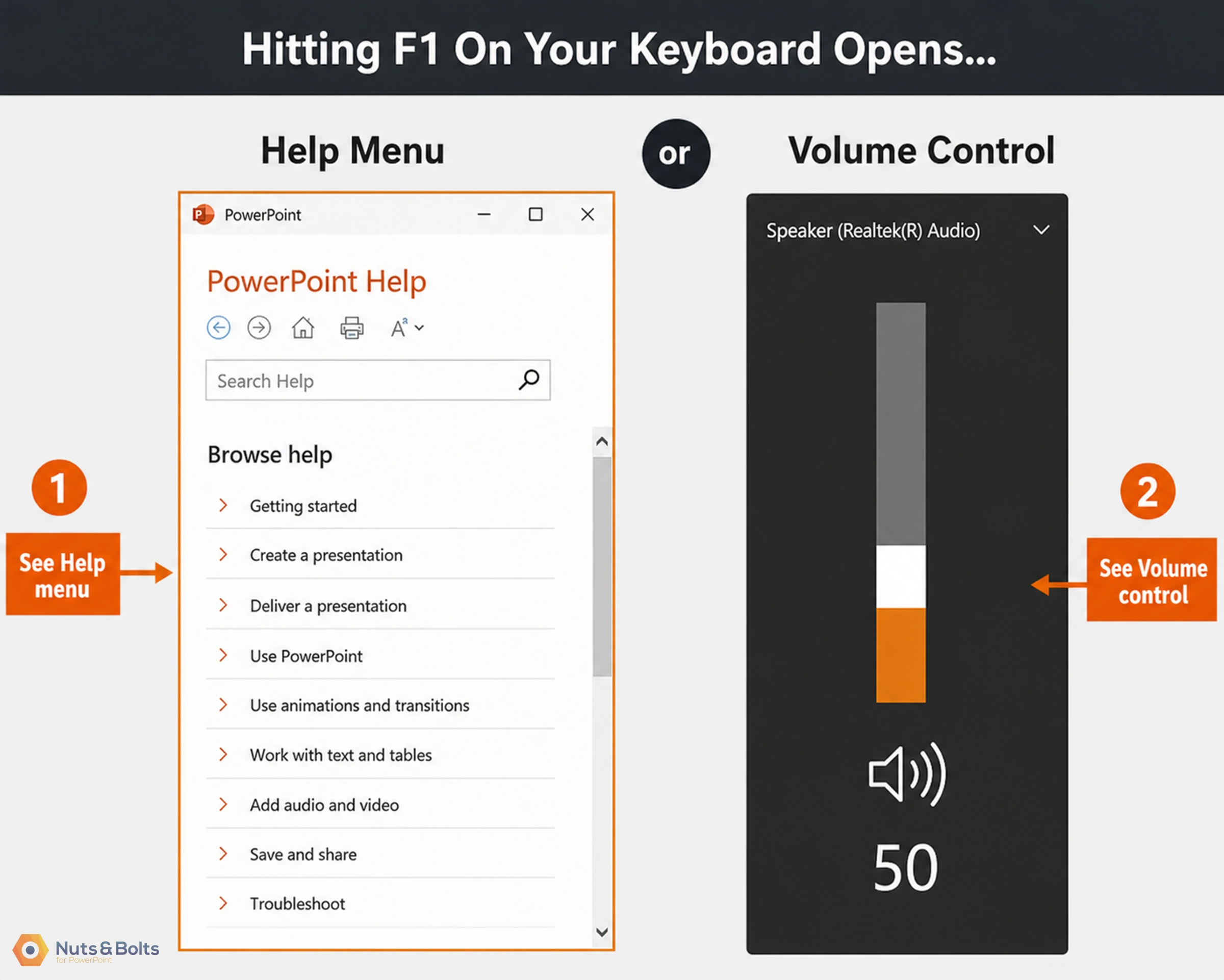
If you get the Help menu, your Function keys are dominant (my personal preference and setup). This means that there is no action required on your end. Your function keys are active.
If on the other hand the mute or unmute computer action takes place, that means that your media keys are dominant (and probably why you are reading this blog post).
Before You Switch Your Function Keys...
Before you switch your setup and commit, here’s the main reason why new computers start with the new Media key setup.
Most people barely use any keyboard shortcuts at all. As a result, the trend appears to be making the media keys dominant on new keyboards. The manufacturers probably figure that it will encourage more people to start using them.
That said, if you are a keyboard jockey, spending the majority of your time at the office crunching Excel spreadsheets and PowerPoint slides, this default setup will drive you nuts.
That’s because it complicates your basic keyboard shortcuts, like these ones:
Save As: F12
PowerPoint Selection Pane: Alt + F10
PowerPoint Ruler: Alt+ Shift + F9
PowerPoint Grid Lines: Alt+ F9
Switching the setup of your Function keys as described below has zero effect on your computer’s operating system. It’s simply a personal preference based on how you work best.
Fixing your function keys (F1-F12)
In a nutshell, the steps to fix your Function keys are (further detailed below):
Restart your computer
Interrupt your computer’s normal startup (hit Enter at the launch screen)
You will enter your System BIOS
Navigate to the Keyboard/Mouse setup
Set the F1-F12 as the primary function keys
Save and Exit
To fix your Function keys, you’ll need to restart your computer and make some changes to your System BIOS. That means your computer will not boot normally and you’ll lose this page with the instructions. That’s why I recommend re-opening this page on a separate device, such as a tablet or phone, so you can follow along.
1. Restart your computer (System BIOS)
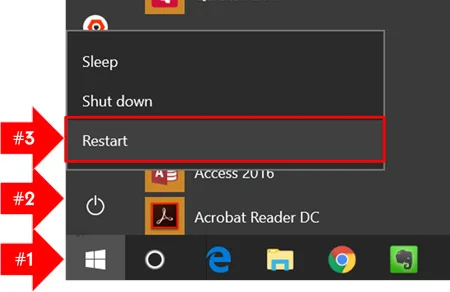
To fix your Function keys, you need to restart your computer and get into your System BIOS. The only way to get there is to restart your computer:
Hit the Windows key (or click the Windows button)
Click the Power Options
Select Restart
2. Hit Enter at your computer's launch screen
As it’s restarting, the second you see your computer’s logo on screen, hit Enter (or whatever it says to hit beneath the logo). On my Lenovo, it says: “To interrupt normal startup, press Enter”.
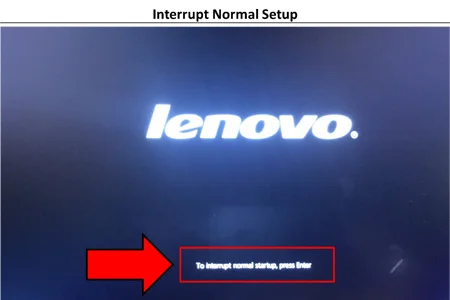
After hitting Enter, just sit tight for a second while the Startup Interrupt Menu loads.
Note: It might take you a couple of times to nail the timing (it took me three times). So if you miss it, don’t freak out… just restart your computer and try it again.
3. Enter the BIOS Setup Utility
Once the Startup Interrupt Menu loads, hit F1 to enter the BIOS Setup utility.
If your startup menu is different than mine, just follow whatever prompt it gives you to get at your BIOS Setup Utility.
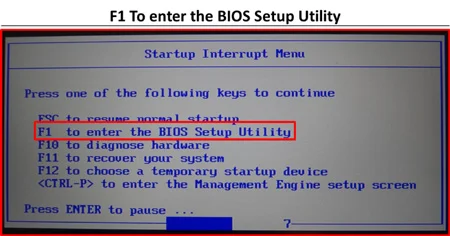
Don’t dally here either. This menu is on a timer that exits back to a normal computer startup. If you miss it the first time, take a deep breath and start over again with step #1.
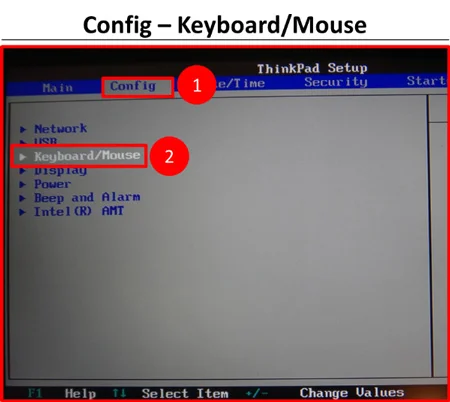
4. Navigate to the Keyboard/Mouse setup
To get to the Keyboard/Mouse setup, do the following:
Hit the right arrow key to navigate to the Config tab
Use the down arrow key to highlight Keyboard/Mouse and hit Enter
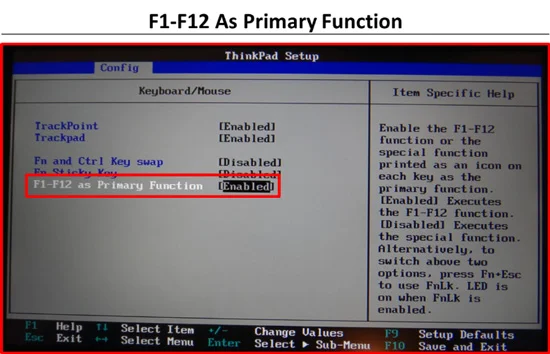
5. Enable: F1-F12 as the primary Function
Within the dialog box that opens, navigate to the F1-F12 keys and just reverse whatever you have.
On my Lenovo computer, it is F1-F12 as Primary Function [Enabled].
If you want the reverse, you can disable the F1-F12 keys to set your Media keys as the dominant keys (which is how most laptop computers start these days).
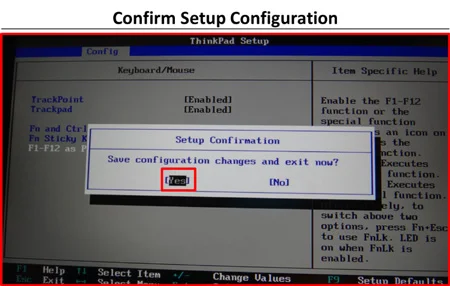
6. Save and Exit
With your Function keys now flipped, hit F10 to Save and Exit the BIOS utility.
7. Double-check that everything is now working
Once your computer restarts, double-check that your functions are now working the way you want them to:
Open a Microsoft Office program like PowerPoint, Word, or Excel
Hit F12 for the Save As Dialog Box
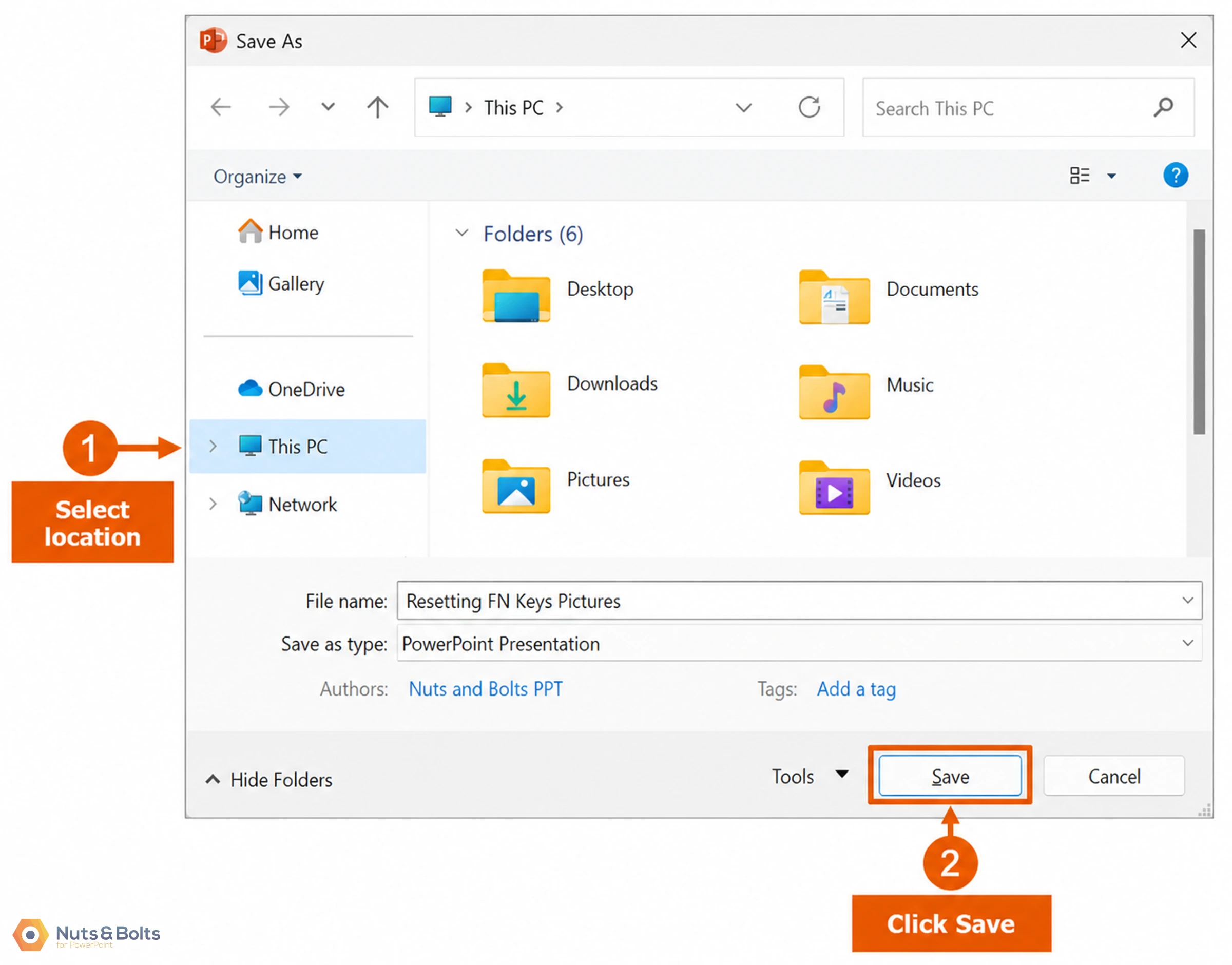
If hitting F12 opens the Save As dialog box, you are now all set up and ready to go. If not, you probably just missed one of the steps above or didn’t save your setup.
Function Key Questions
Q: Why do my F1–F12 keys change the volume or screen brightness?
Your keyboard may be set to use the actions pictured on those keys first. Try holding Fn while pressing the function key. If that runs the shortcut you expected, check your keyboard’s Fn Lock or function-key setting.
Q: What is the difference between Fn and Fn Lock?
Holding Fncan access a key’s alternate function while you press it. Fn Lock changes the keyboard’s mode so certain keys use their other functions when pressed by themselves. The way you switch Fn Lock depends on your keyboard.
Q: How do I use F1–F12 without holding Fn?
Set your keyboard so F1–F12 are the primary commands. On supported keyboards, you can do this with Fn Lock. For example, Dell documents Fn + Esc for the Latitude 5455. Check your model’s instructions for the correct shortcut.
Q: Why does Fn + Esc not work on my keyboard?
Fn + Esc is not the shortcut for every keyboard. Microsoft documents pressing Fn by itself on supported Surface keyboards, while certain HP models use Fn + left Shift. Other keyboards require a setting change. Check the instructions for your exact model.
Q: Can I still adjust the volume and brightness after changing Fn Lock?
On keyboards that support switching these functions, yes. When F1–F12 are the primary commands, holding Fn while pressing the key with the volume or brightness icon accesses that control. You can also switch the keyboard mode back when you prefer.
Q: Do I need to change my BIOS to fix my function keys?
If your keyboard supports a suitable Fn Lock shortcut or manufacturer app setting, you can start there. Some models still use a BIOS setting for this preference, so follow the instructions for your computer if the keyboard shortcut is unavailable.
Q: Why does F12 still not open Save As?
First check which application is active. F12 opens Save As in desktop Word, but Chrome uses it for Developer Tools. Click inside your desktop Office application and try again. If neither F12 nor Fn + F12 works as expected, continue with the broader keyboard-shortcut troubleshooting steps.
Keyboard shortcuts STILL not working?
Inverted function keys are just one of the reasons why your keyboard shortcuts might not be working. To see other quick fixes, see our guide on keyboard shortcuts not working (solved).
If you use A LOT of PowerPoint, Word, and/or Excel, I highly recommend flipping your functions keys. That way you can take advantage of a number of useful keyboard shortcuts in these programs, like F12 for Save As.
If you want to learn more about how to speed up everything you do in PowerPoint, including tips, tricks, and shortcuts, you can learn more about our training courses and other helpful resources here.
About the Author

Taylor Croonquist
Co-Founder, Nuts & Bolts Speed Training
Taylor Croonquist is a PowerPoint expert and trainer. Over a career spanning the globe, from consulting in New York and investment banking in China, Taylor has truly seen it all in PowerPoint. Through necessity and a natural tech savvy, Taylor honed his PowerPoint skills to the point of even blowing the minds of the Microsoft PowerPoint programming team. When he's not busy crafting PowerPoint training, you can find him reading a sci-fi series or scuba diving.