The Group, Ungroup and Regroup shortcuts are a few of what I consider CRITICAL keyboard shortcuts that every knowledge worker should know in PowerPoint.
That is because being able to quickly group graphics together to organize your slides, then ungroup those graphics so you can format the pieces, and finally regroup your graphics are critical steps in being able to use PowerPoint effectively.
In other words, if you are not using these grouping shortcuts yet, you are in for a treat. These will not only speed up your workflow, but they also make organizing and arranging your slides easier. Just keep in mind that not all PowerPoint objects can be part of a group (see details further below).
Want more PowerPoint shortcuts? Shortcuts are the fastest way to improve your productivity and efficiency in PowerPoint. See our list of the top 25 shortcuts.
The Grouping Shortcut: Ctrl + G

To group two or more objects together in PowerPoint, simply select those objects and hit Ctrl + G on your keyboard. Hitting Ctrl + G, your individual objects will become a single group of objects that you can move around your slides.
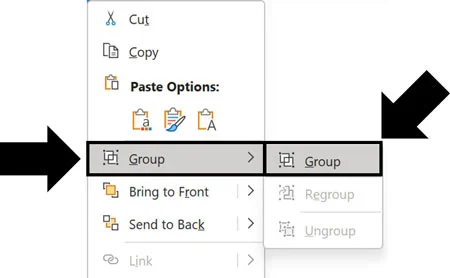
If you do not want to learn the keyboard shortcut, you can alternatively access the Group command by right clicking the objects you want to group together.
Select two or more objects you want to group together
Right-click with your mouse
Hover over the Group options
Select Group
The advantage of grouping objects together is that they are easier to grab and format as a group. You can also further organize your objects by creating groups within groups. If you need another shape inside the same group, BrightCarbon shows how to add shapes to an existing PowerPoint group by duplicating a shape already inside it.
The Ungrouping Shortcut: Ctrl + Shift + G
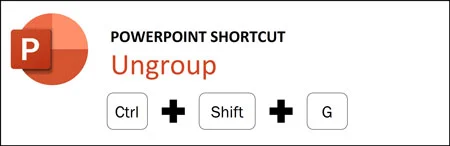
Once you have created groups in PowerPoint, you can ungroup those objects back into their individual pieces by using the Ungroup shortcut (Ctrl + Shift + G).
If your graphic has groups within groups, you will need to reselect the pieces of your graphic multiple times and continue using the Ctrl + Shift + G shortcut until all the groups have been ungrouped.
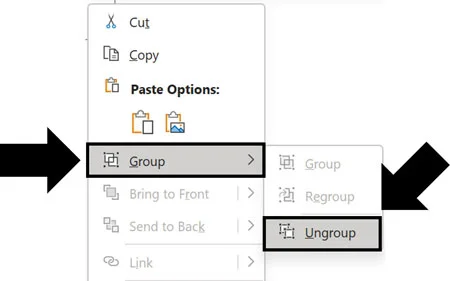
If you do not want to learn the keyboard shortcut, you can alternatively access the Ungroup command by right clicking the objects you want to ungroup.
Select a set of objects that are already grouped together
Right-click with your mouse
Hover over the Group options
Select Ungroup
The Regrouping Shortcut: Ctrl + Shift + J
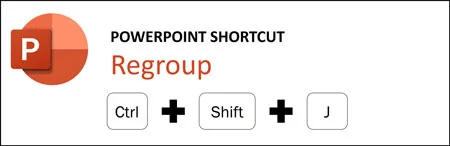
The Regroup shortcut (Ctrl + Shift + J) is not well known as most people do not fully understand how the Regroup commands work.
The Regroup shortcut allows you to reform a group of objects that has been ungrouped, simply by selecting one of the objects that used to be in the group.
For example, if you ungroup a set of 10 rectangles to edit their individual titles, you can reform the ENTIRE group by simply selecting one of the ten rectangles and hitting Ctrl + Shift + J on your keyboard.
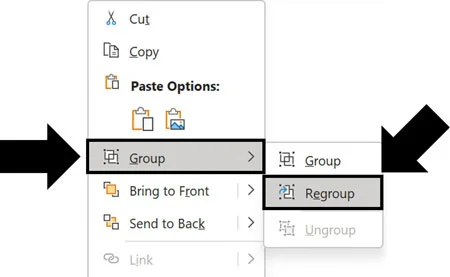
If you don’t like keyboard shortcuts, you can also access the Regroup command using your mouse:
Select an object that was part of a group
Right-click with your mouse
Hover over the Group options
Select Regroup
The one limitation of the Regroup shortcut is that you can only reform a group back to its last group. That means that the Regroup shortcut cannot recreate groups within groups. It can only reform the last group that the objects were in.
NOTE: If you ungroup a set of objects and close your presentation, when you reopen your presentation the Regroup command will not be able to reform that group. The Regroup shortcut can only reform recent groups, as defined as things you have ungrouped in your open presentation.
Grouping Shortcuts Not Working?
Not all objects in PowerPoint can be part of a group.
If Group is greyed out, first make sure you have at least two objects selected. If it is still unavailable, check whether your selection includes something PowerPoint cannot group, such as a table or a title or content placeholder. For Ungroup, make sure you have selected an existing group.
If your objects can be grouped and Ctrl + G still does nothing, or other shortcuts are failing too, see what to check when keyboard shortcuts stop working.
Below are lists of PowerPoint objects that can and cannot be part of a group.
1. PowerPoint objects that cannot be part of a group
A few common PowerPoint objects that cannot be part of a group are:
Content Placeholders (footers, headers, page numbers, etc.)
PowerPoint Tables
SmartArt graphics
Trying to include any of these objects in a group will result in a pinging noise on your computer. If this happens to you, simply unselect the incompatible object and try hitting Ctrl + G for Group again.
2. PowerPoint objects that can be part of a group
Most objects in PowerPoint can be part of a group, including:
Text boxes
Shapes
Lines
Charts
Pictures
Icons
Equations
Ink annotations (anything you insert using the Draw Tab)
Screenshots
Symbols
Videos and screen recordings
Common questions about grouping in PowerPoint
Q: What are the shortcuts for Group, Ungroup, and Regroup in PowerPoint?
In PowerPoint for Windows, press Ctrl + G to group selected objects, Ctrl + Shift + G to ungroup a selected group, and Ctrl + Shift + J to regroup objects you previously ungrouped. These shortcuts help you organize a graphic, work on its pieces, and bring it back together.
Q: What is the difference between Group and Regroup in PowerPoint?
Group creates a group from the objects you currently have selected. Regroup restores a group you previously ungrouped. The useful difference is that Regroup only needs one object from the previous group selected. You do not have to hunt down and reselect every little piece of your graphic.
Q: Why is the Group command greyed out in PowerPoint?
First, check that you have at least two objects selected. If you do, look for an incompatible object in your selection, such as a PowerPoint table or a slide layout’s title or content placeholder. Remove that object from the selection and try grouping again.
Q: Can I group a text box with a picture in PowerPoint?
Yes. A regular text box created using Insert > Text Box can be grouped with a picture. Select the picture and the border of the text box, then press Ctrl + G. This is useful when you want a picture and its label to move together. However, a slide layout’s title or content placeholder cannot be included in a group.
Q: Can I edit an object in PowerPoint without ungrouping it?
Yes. Click the group once, then click the individual object inside it that you want to edit. You can work on that object while keeping the group together. If you only need to change a label or a shape’s color, this can save you an unnecessary round of ungrouping and regrouping.
Key Takeaways
Grouping makes related objects easier to move and manage together. In PowerPoint for Windows, these are the shortcuts to remember:
Ctrl + G groups your selected objects. Use it to keep the pieces of a graphic together.
Ctrl + Shift + G ungroups a selected group. Use it when you need to separate the pieces.
Ctrl + Shift + J restores a previous group. Select just one object that belonged to it, and PowerPoint brings the group back together.
You can edit individual objects without ungrouping. Click the group, then click the object inside it that you want to change.
If Group is greyed out, check your selection. You need at least two compatible objects. Tables and slide layout placeholders cannot be included.
The next time you ungroup a complicated graphic, remember Regroup. Selecting all those little pieces again is a step you can skip.
About the Author

Taylor Croonquist
Co-Founder, Nuts & Bolts Speed Training
Taylor Croonquist is a PowerPoint expert and trainer. Over a career spanning the globe, from consulting in New York and investment banking in China, Taylor has truly seen it all in PowerPoint. Through necessity and a natural tech savvy, Taylor honed his PowerPoint skills to the point of even blowing the minds of the Microsoft PowerPoint programming team. When he's not busy crafting PowerPoint training, you can find him reading a sci-fi series or scuba diving.