Ctrl + C or Control-C, is the keyboard shortcut for Copy in the Microsoft Office Suite. This shortcut works best when used in tandem with the Paste shortcut. However, there is more to this quick and easy keyboard shortcut. Read on to learn all about how the Copy shortcut works.

How does the Copy shortcut work?
The Copy shortcut works by copying things to your clipboard, that you can then paste elsewhere within your document. This saves you from having to manually recreate your content in the Microsoft Office Suite.
One way to know that the Copy shortcut is a critical keyboard shortcut to learn is that Microsoft tells you exactly what the shortcut is when you hover over it with your mouse in the Ribbon.
Just note that for the Copy shortcut to work, you first must select something that can be copied. If you hit Ctrl + C and hear a pinging noise on your computer, that means you have not selected something that can be copied.
If you did select something and Ctrl + C still does nothing, work through these fixes for keyboard shortcuts that are not working.
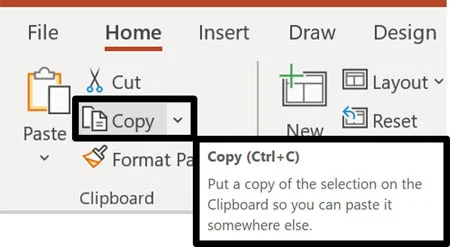
Besides copying objects, Ctrl + C is the root shortcut for copying an object’s formatting as discussed below.
Also, if you have turned on your Microsoft Office clipboard, anything you CTRL+C to copy is collected on your clipboard (up to 24 unique objects).
What does Ctrl+C do?
Where is the Copy Command?
If you do not want to learn the Copy shortcut, there are two additional ways to access the Copy command in Word, Excel, and PowerPoint.
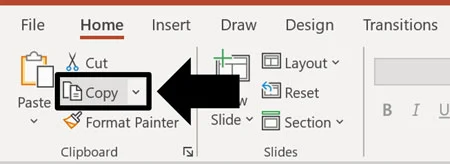
Option #1. You can find the Copy command on the Home tab on your Ribbon. If you see that the command is greyed out, that means you have not selected something that you can copy. As soon as you select something that can be copied, the command will become colored (which means you can use it).
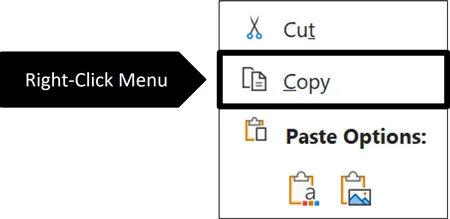
Option #2. You can access the Copy command when you right-click an object or block of text within your document. If you are into shortcuts like we are, the underlined ‘C’ in ‘Copy’ in the right-click menu, means that you can hit C on your keyboard to activate the command instead of clicking it with your mouse. This is what we at Nuts & Bolts Speed Training call a ‘Hybrid Shortcut,’ which is a mouse plus keyboard combination.
To expand your knowledge and learn a faster way to copy and paste content in PowerPoint using the Duplicate shortcut (which includes a hidden jump feature for laying out your content quickly), read our guide here.
How to Copy formatting
The other reason that Ctrl + C is such an important shortcut, is that it is the root shortcut for copying formatting in Word and PowerPoint: Ctrl + Shift + C

In the Microsoft 365 subscription version of Office, CTRL+SHIFT+C is now the shortcut for the Format Painter.
Ctrl + Shift + C to copy formatting
Ctrl + Shift + V to paste formatting
There are two limitations to the Format Painter that are worth mentioning:
Limitation #1: The Format Painter can only hold one formatting style at a time. As soon as you copy a new set of formatting, you automatically replace the previous formatting you copied.
Limitation #2: The Format Painter can only hold a single style of text formatting. This means that when copying the formatting of a block of text, only the text formatting of the first character within your block of text is copied.
For example, if the first character of text within a paragraph of text that you are copying is bolded and underlined, the Format Painter will apply that same bold and underline formatting onto any text when you use Ctrl + Shift + V.
The single style of text formatting includes Font Style, Font Size, Font Color, and any other text formatting you can apply to text within the Microsoft Office Suite, like bold, italics, underline, etc.
The Format Painter shortcut does not currently work in Microsoft Excel, even though Excel does include the Format Painter command in the Ribbon. To copy and paste formatting in Excel using keyboard shortcuts, you need to use the Paste Special shortcut.
Common questions about the Copy shortcut
Q: What does Ctrl+C do?
Ctrl + C copies selected text, cells, pictures, or objects to your clipboard so you can paste them elsewhere with Ctrl + V. The original content stays where it is. It works in Word, Excel, PowerPoint, and many other Windows apps.
Q: What is the difference between Copy and Cut?
A: Copy and Paste let you reuse content while keeping the original in place. Cut and Paste move content to another location. On Windows, use Ctrl + C to copy, Ctrl + X to cut, and Ctrl + V to paste.
Q: What is the Copy shortcut on a Mac?
A: Use Command + C to copy and Command + V to paste. Select the text or item you want to copy first, then click where you want the copy to go before pasting.
Q: Why is Ctrl+C not working?
A: First, check that you have selected the text, cells, or object you want to copy. Copying leaves the original in place, so test it by pasting with Ctrl + V .
If that does not work, right-click your selection and choose Copy, then try Paste from the destination’s menu. If the menus work but the keyboard shortcut does not, follow these steps to fix keyboard shortcuts that are not working.
Q: Where does copied content go?
Copied content goes to your clipboard, a temporary holding place for things you want to paste.
On Windows, press Win + V to open clipboard history. If prompted, select Turn on to start collecting supported items you copy. This is a separate feature from the Office Clipboard pane in Word, Excel, and PowerPoint.
Q: Can I copy something once and paste it multiple times?
Yes. After copying with Ctrl + C , you can paste the same content with Ctrl + V in multiple locations. You do not need to copy it again before each paste, provided it is still the current item on your clipboard.
Q: How do I copy formatting without copying the content?
Use Format Painter to apply formatting to existing text or objects. Select the content with the formatting you want, choose Home > Format Painter, then apply it to the target.
For keyboard users, the current Microsoft 365 desktop shortcuts on Windows differ by app:
Word: Ctrl + Alt + C copies text formatting, and Ctrl + Alt + V applies it.
PowerPoint: Ctrl + Shift + C copies formatting, and Ctrl + Shift + V applies it.
In current Word for Windows, Ctrl + Shift + V pastes text only. That is a different job from applying copied formatting.
Takeaways
The Copy shortcut lets you reuse work you have already done. Here’s what to remember:
Select first, then copy. Ctrl + C copies the text, cells, pictures, or objects you have selected without removing the original.
Pair Copy with Paste. Use Ctrl + V to paste your copied content. You can paste the same item multiple times without copying it again.
On a Mac, use Command. Copy with Command + C and paste with Command + V.
Reuse formatting separately. Format Painter applies an existing look to other content. Check the shortcut for your app, because Word and PowerPoint use different combinations.
For repeated objects on a PowerPoint slide, try Duplicate. The Ctrl+D shortcut in PowerPoint creates a copy of selected objects with a single keyboard shortcut.
About the Author

Taylor Croonquist
Co-Founder, Nuts & Bolts Speed Training
Taylor Croonquist is a PowerPoint expert and trainer. Over a career spanning the globe, from consulting in New York and investment banking in China, Taylor has truly seen it all in PowerPoint. Through necessity and a natural tech savvy, Taylor honed his PowerPoint skills to the point of even blowing the minds of the Microsoft PowerPoint programming team. When he's not busy crafting PowerPoint training, you can find him reading a sci-fi series or scuba diving.