The Format Painter is a Microsoft Office tool that allows you to copy formatting, such as color, font style, size, and border, from one piece of text or object and apply it to another. It ensures visual consistency across Word, Excel, and PowerPoint documents without requiring you to manually recreate the formatting steps.
This is important because office workers spend 40% or more of their time in PowerPoint, Word, and Excel formatting things (over and over again).
To the extent that you can simply copy the existing formatting of something you already have and reuse it means you won't waste your day repeating repetitive formatting actions for nothing.
Before we dive into the different mechanics of how the tool works, there are two different commands you can use.
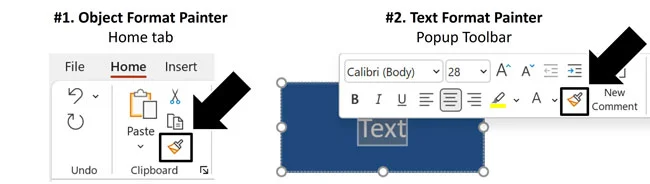
There is what I call the Object Format Painter, which you can find on the Home tab in Word, Excel, or PowerPoint. There is also what I call the Text Format Painter that pops up when you select text using your mouse.
You can identify both commands by the paintbrush icon (see picture above). Both commands can be used as a single use or locked Format Painter depending on how much formatting you want to copy and paste. The difference between the two is how you access them, and what kind of formatting you can copy.
The Object Format Painter is always accessed through the Microsoft Ribbon and can be used to copy both object level formatting (shapes fills, shape outlines, shape outline weights, etc.) as well as text formatting.
The Text Format Painter can only be accessed in the popup toolbar that appears whenever you highlight or select text. Its primary function is to copy only the formatting of the text you have selected.
Both commands now work seamlessly with the Pick Up Style shortcut (Ctrl + Shift + C ) and Apply Style shortcut (Ctrl + Shift + V ). In the latest version of the Microsoft Office Suite these two shortcuts are now considered the Format Painter shortcut (see details below).
This is such an important set of keyboard shortcuts that I always lead my PowerPoint speed training sessions with it, especially when teaching incoming investment banking analysts.
The rule of thumb is simple too. If you have existing formatting on a slide, please don't invest your valuable time reverse engineering it. Instead, just copy and paste it, and move on with your day.
The Format Painter in action
To learn how to radically improve your speed at PowerPoint (in record timing), check out our PowerPoint Pro Membership here.
Single Use Format Painter
The most basic way to use either of the two commands is as a single use copy and paste. That is, you are copying something’s formatting and applying it once as follows:
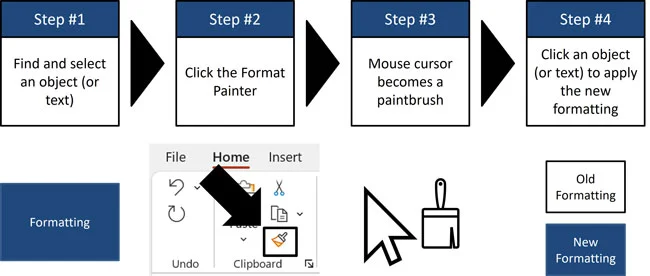
Step #1. Find and select a formatted object (shape, line, or text box) or block of text that you want to copy the formatting of.
You do not need to know how an object is formatted to copy all its formatting. All you need to do is find the object (shape, line, text box, or text) with the formatting you want to reuse.
Step #2. Click the Format Painter on the Home tab or in the popup toolbar that appears when you highlight text with your mouse cursor.
If you are into keyboard shortcuts, you can alternatively use copy and paste formatting shortcuts discussed below.
Step #3. After clicking one of the commands, your mouse cursor becomes a paintbrush icon, indicating that you have successfully copied your formatting. So, you know you are ready to paste it.
Step #4. Click the object or select the block of text you want to apply your formatting to. Doing so, the paintbrush icon on your mouse cursor disappears.
Once you have copied formatting using either of the Format Painter commands, you can continue to apply that formatting using the Format Painter shortcuts discussed below.
The Locked Format Painter
If you want to copy and paste formatting and apply it to multiple objects (one after the other), the locked Format Painter is the way to go.
To lock the Format Painter, simply click the paintbrush icon twice, that’s it. If you forget this trick, simply hover your mouse cursor over the Format Painter in any of the Microsoft Office programs and read the FYI at the bottom.
To apply the formatting in multiple places, double-click Format Painter.
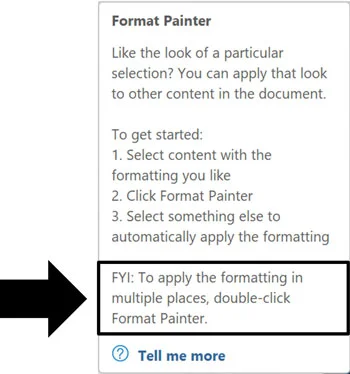
Locking the tool works for both of the Format Painting tools (the one in the Ribbon or the one in the popup toolbar when you select text with your mouse).
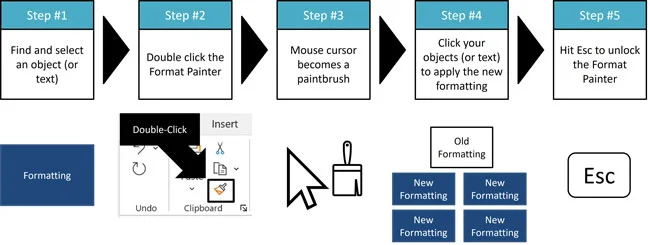
When locking the Format Painter like this, your cursor remains a paintbrush (allowing you to click and apply your formatting to multiple objects one after the other) until you hit the Esc key.
In this way, you can copy the formatting of a rectangle in PowerPoint for example, and then apply that formatting to other objects within your presentation without having to copy your formatting again.
Once you have copied formatting using any of the Format Painter tricks in this article, you can continue to apply that formatting using the Format Painter’s paste formatting shortcut.
Format Painter Shortcuts
The Format Painter shortcut is two different keyboard shortcuts that combine to create the Format Painter in PowerPoint and Word.
If you are using Excel and want to copy and paste formatting, you will instead need to use the Paste Special shortcut.
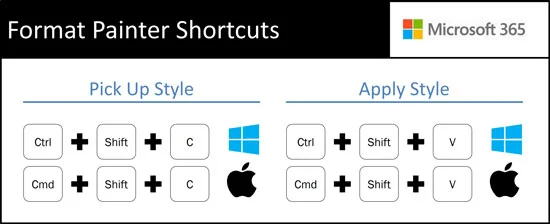
The two shortcuts that make up the Format Painter in Word and PowerPoint are:
Pick Up Style shortcut (Ctrl + Shift + C ) to copy formatting
Apply Style shortcut (Ctrl + Shift + V ) to paste formatting
These shortcuts are easy to remember as they mimic the Ctrl + C to Copy and Ctrl + V to Paste shortcuts. All you need to do is add the Shift key to each shortcut to copy and paste formatting.
If you ever forget these shortcuts, you can always hover your mouse cursor over the Format Painter icon in Microsoft Word to see what the shortcuts are.
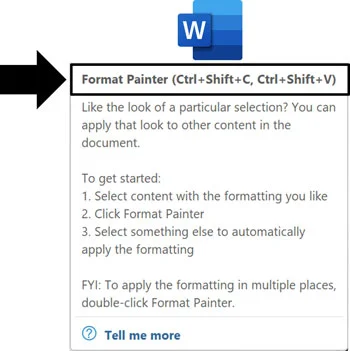
This keyboard shortcut reminder currently only works in Microsoft Word. Hopefully, Microsoft updates Excel and PowerPoint with this useful feature soon too.
Windows 11 file path shortcut - works great with AI
In Windows 11, Ctrl + Shift + C has a second job.
It copies the full path of a file or folder on your computer that you can paste anywhere.
I have been using this regularly with Claude and ChatGPT desktop apps. The main difference between using a browser and the desktop app version of AI tools is that the desktop apps can interact, reorganize, read, and change files on your computer.
Ctrl + Shift + C is the easiest way to feed file paths to these desktop apps so they can take action on your files for you.
See our guide for using Ctrl + Shift + C in the age of AI and see sample prompts you can use on your messy folders sitting on your computer.
Text Formatting Limitation
The one formatting limitation of the Format Painter is when copying and pasting the formatting of text.
The limitation is that the Format Painter can only hold one style of text formatting at a time. It cannot copy and paste multiple styles of text formatting within a block of text, and then perfectly apply it to another block of text.
Instead, the Format Painter simply picks up the formatting of the first character of text and uses it for all its text formatting.
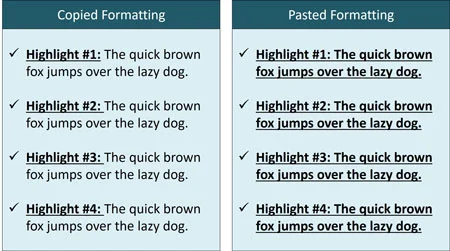
For example, in the picture above, notice that only the Bold (Ctrl + B ) and Underlined (Ctrl + U ) text formatting on the left side of the picture is copied and then applied to all the text in the rectangle on the right.
This means that when copying and pasting text formatting, you will need to make some manual formatting adjustments, or copy and paste your text formatting in multiple steps.
This is still WAY better than recreating your formatting yourself. It is just something to be aware of as you get more familiar with the Format Painter.
Format Painter questions
Q: What does the Format Painter copy?
A: The Format Painter copies formatting, not the content itself. Depending on what you select, that can include fonts, colors, borders, shape fills, outlines, and other formatting.
Q: How do I use the Format Painter more than once?
A: Double-click the Format Painter button to lock it. You can then apply the same formatting to multiple objects or sections of text. Press Esc when you are finished.
Q: What is the keyboard shortcut for the Format Painter?
A: In PowerPoint and Word, press Ctrl + Shift + C to copy formatting. Then press Ctrl + Shift + V to apply that formatting somewhere else.
Q: Does the Format Painter work in Excel?
A: Yes, the Format Painter button works in Excel. However, the Ctrl + Shift + C and Ctrl + Shift + V formatting shortcuts covered here are for PowerPoint and Word. In Excel, use Paste Special (Ctrl + Alt + V ) when you want to copy and paste only formatting.
Q: Why does the Format Painter sometimes miss text formatting?
A: The Format Painter can hold only one text style at a time. If your selection contains several fonts, sizes, colors, or styles, it typically copies the formatting of the first character and applies that style to the entire destination.
Q: Does Ctrl + Shift + C have another use in Windows?
A: Yes. In Windows 11 File Explorer, selecting a file or folder and pressing Ctrl + Shift + C copies its full path. That can be useful when pointing a desktop AI tool like Claude or ChatGPT desktop to files on your computer.
Key Takeaway: Use the Format Painter to Save Time
The Format Painter is time-saving tools of the Microsoft Office Suite. That is because it allows you to copy and paste your object and/or text formatting without having to manually recreate it. As formatting objects and text can consume 40% or more of your time in the Microsoft Office Suite if you let it, that is what makes this tool so powerful.
The Format Painter also has a lot of flexibility depending on what your situation is. You can use the command as a single use instance, a locked Format Painter and/or use its shortcuts to quickly copy and paste your formatting.
Also, once you have used the Format Painter once, you can continue to use the Ctrl + Shift + V Apply Style shortcut to continue applying your formatting without having to copy it again.
About the Author

Taylor Croonquist
Co-Founder, Nuts & Bolts Speed Training
Taylor Croonquist is a PowerPoint expert and trainer. Over a career spanning the globe, from consulting in New York and investment banking in China, Taylor has truly seen it all in PowerPoint. Through necessity and a natural tech savvy, Taylor honed his PowerPoint skills to the point of even blowing the minds of the Microsoft PowerPoint programming team. When he's not busy crafting PowerPoint training, you can find him reading a sci-fi series or scuba diving.