One of the best AI shortcuts wasn't created for AI.
It was already sitting in Windows.
It's the Ctrl + Shift + C shortcut to copy the full path (or location) of a file or folder on your computer. For years, that was mostly a handy trick for IT teams, but now it's a killer keyboard shortcut to feed file and folder locations into your AI desktop apps like Claude Cowork or ChatGpt desktop.
All you need to do is Ctrl + V to Paste that full path into a desktop AI tool with permission to use your local files, and you can point the AI directly at the work you want it to review.
For example, a folder full of PowerPoint decks, spreadsheets, Word documents, screenshots, or duplicate copies of the same file can become the starting point for your next prompt.
No hunting for each file. No trying to explain where everything lives. No uploading documents one at a time.
In my August 5, 2026 test, I selected a "meeting hold" folder on my desktop that I knew was bloated with files. I copied it's full path location (Ctrl + Shift + C ) on my computer, then pasted it into the ChatGPT desktop app. It found the folder, and made a list out of the 62.38 GB of files in there, in about 50 seconds. Amazing!
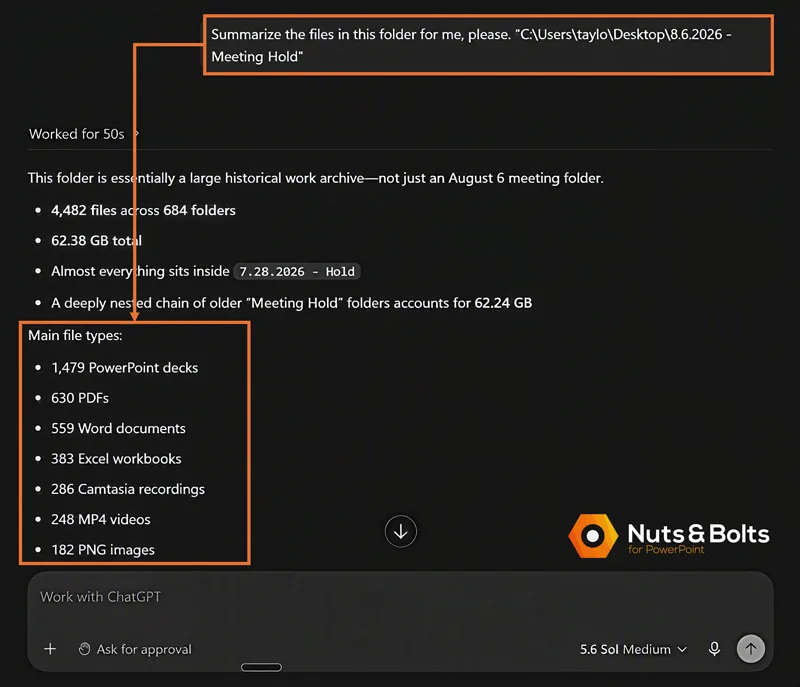
One old Windows shortcut had quietly become a bridge between my files and AI.
And here is the twist: Ctrl + Shift + C is also the PowerPoint shortcut for copying formatting.
One keystroke. Two completely different jobs.
Ctrl + Shift + C isn't a new shortcut. But in the age of AI, it suddenly has a whole new reason to learn it.
I found this full path trick by accident when I was repetitively right-clicking documents to feed them into AI. Here is how it works.
Whenever you find yourself doing something repetitively on your computer, that is a great time to learn a keyboard shortcut.
What is a file path?
A file path is the full address of a file or folder on your computer. It looks like this:
C:\Users\taylor\Documents\Q3 Review\Budget-Deck-FINAL.pptx
Read it left to right: the drive, then each folder, then the file itself.
Two things up front:
Copying a path copies text, not the file. Nothing moves and nothing can break. You're copying the address, not the house.
Windows wraps the path in quotes automatically. That's normal and fine everywhere you'll paste it. Leave the quotes alone.
How to copy a file path in Windows 11
In File Explorer, click a file or folder once so it's selected.
Press Ctrl + Shift + C .
That's it. The full path is on your clipboard, ready to paste anywhere.
The same command lives in the right-click menu as "Copy as path," and is part of the standard list of official Windows 11 keyboard shortcuts.
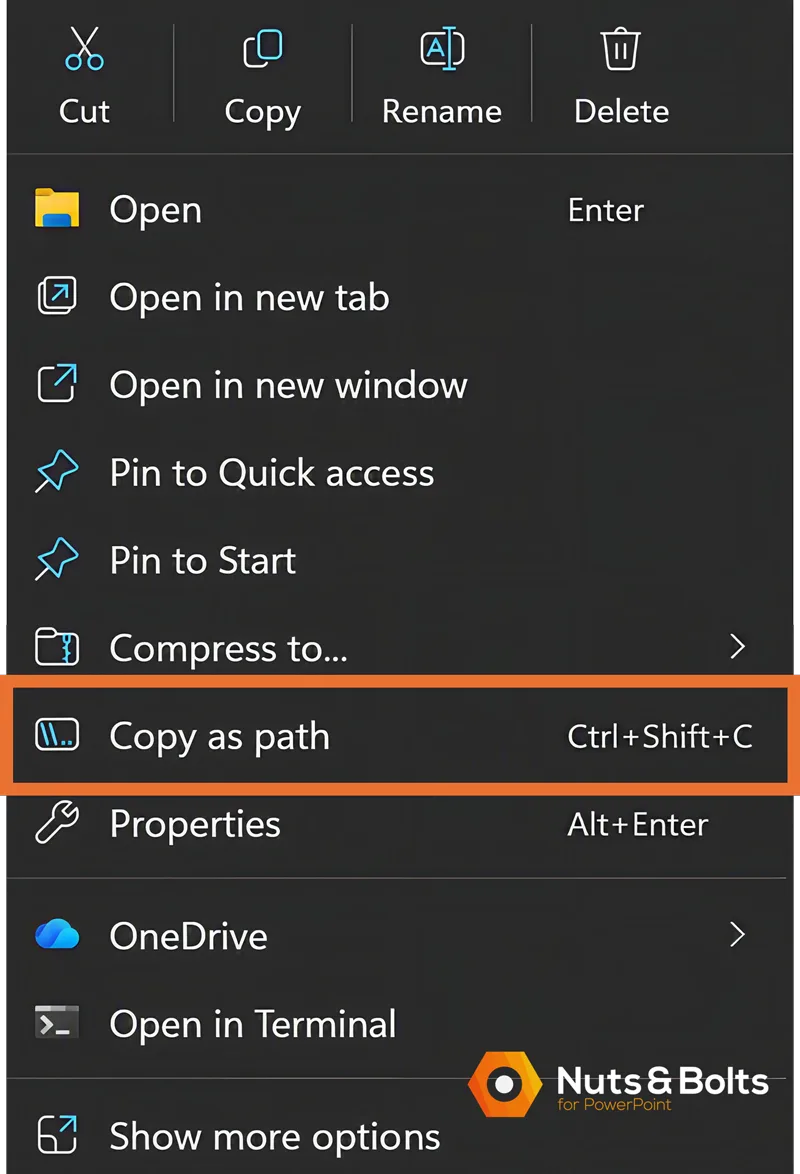
⌨️ SHORTCUT: Copy File or Folder Path
PC (Windows 11): Ctrl + Shift + C (with a file or folder selected)
Mac (Finder): Cmd + Option + C (or Option + right-click → "Copy [filename] as Pathname", according to Apple’s official Mac shortcuts guide)
This works for single files, multiple files (wink), and entire folders.
The twist is, this is the same keyboard shortcut as the Format Painter in PowerPoint and Word. Another great use of a keyboard shortcut you are hopefully already regularly using.
The AI payoff: point your AI at a whole folder
Some desktop AI desktop apps can work with your local files after you grant them access. This is often powered by protocols like MCP (Model Context Protocol) that connect desktop tools to local file systems. The path tells the AI where the folder is; the permission is what lets it open it.
On August 6, 2026, I copied the path of a meeting folder on my desktop and pasted it into the ChatGPT desktop app. It ran a command, worked for about 50 seconds, and came back with a full inventory: 4,482 files across 684 folders, 62.38 GB, including 1,479 PowerPoint decks, 630 PDFs, 559 Word documents, and 383 Excel workbooks.
In under a minute, I had an inventory I would never have counted by hand.
Claude Desktop, in regular Chat mode: refused and asked for drag-and-drop instead. Same app, opposite answer. (August 6, 2026.)
Claude Code (running in a VS Code terminal, which communicates directly via an API): took the path instantly. (August 6, 2026.)
The Copilot app on Windows: did not open the folder from a pasted path in my August 6 test. Upload or drag and drop only.
Same keystroke, same paste, opposite results depending on one toggle. The path is the address, and a mode with file permission is the key.
Two habits before you let an AI desktop app touch your real work.
Start with a test folder, or a copy of a folder, not a live client folder. A pasted path can reveal your Windows username and your folder, client, and project names before the AI reads a single file, so stick to folders your organization allows.
When you ask for changes to your files, ask for proposed changes first. Then review AI's proposal before you approve. Trust, then verify.
I guess Ctrl + Shift + C finally found its 'file' path in life too.
Using AI in the browser? The path still pays off
Pasting a local path into a normal browser chat does not give it access to the file; you'll usually just get a shrug.
But you didn't waste the keystroke. If you hate navigating through folders when attaching a file, copy the file's full path first. Then click Attach, paste the path into the File name box in the Windows file picker, and press Enter or Open.
I did this in Expensify and again in Gmail on August 6, 2026. Worked like a charm both times. I can't believe I never thought of that one.

This works in many Windows apps that use the standard file picker, AI or not.
Bonus: four AI prompts to run on your messiest folder
Below are four AI prompts you can test out with your Desktop AI assistant.
You can either do this by selecting a folder on your computer, or selecting multiple files you want to feed into a desktop app.
You can select multiple individual files and copy all of their file paths at once.
Below are four copy-and-paste prompts you can use. Just remember to include the full path to the folder or the files you want your AI desktop app to analyze at the end
Prompt #1. Turn a folder of documents into a briefing:
Please review the documents in this folder and give me a short summary of each one, including any deadlines or action items: [paste the folder path]
Prompt #2. Finding the file you need without opening every file yourself
Which of the decks in this folder contains the pricing slides? List the file and the slide numbers: [paste the folder path]
Prompt #3. Consolidating a pile of final_final_v2 files in a folder
These files are all versions of the same presentation. Tell me which is most recent and what changed between the last two versions: [paste the folder path]
Prompt #4. Reorganizing a messy archive folder
Do not move anything yet. Review the files in this folder and propose a logical subfolder structure by project, client, or file type. Show me the folders you would create and where each file would move. Wait for my approval before changing anything: [paste the folder path]
Bonus Tip: Ask for a Markdown file
For any of the above prompts, you can also ask your desktop AI app to generate its response as a clean Markdown file. It keeps the text structured, readable, and easy to paste into tools like Notion or Obsidian.
Common questions
Q: What does Ctrl + Shift + C do in Windows 11?
A: In File Explorer, Ctrl + Shift + C copies the full path of the selected file or folder as plain text you can paste anywhere. It's the keyboard shortcut for the right-click command "Copy as path."
Q: What does Ctrl + Shift + C do in PowerPoint and Word?
A: In Word and PowerPoint (not Excel), Ctrl + Shift + C copies the formatting of a selected object, or block of text.
Just keep in mind when copying text formatting, PowerPoint and Word can only copy one style of text formatting at a time. It always copies however the first character of text is formatted.
Q: Why doesn't a file path do anything when I paste it into ChatGPT in my browser?
Pasting a local path into a normal browser chat does not give it access to the file. The path tells the AI where the file is; the permission is what lets the AI open it, and a browser chat doesn't have it.
Takeaways for working with the Full Path
Ctrl + Shift + C has new juice in the age of working with AI desktop apps. That's because it eliminates a surprising amount of clicking, uploading, and folder hunting.
Copy the exact location of any file or folder. Select it in File Explorer and press Ctrl + Shift+ C . No digging through five folders trying to find it again.
Point desktop AI at the work you actually want it to use. In AI modes with local file access, a pasted folder path can give the AI a whole folder to review, compare, summarize, or organize.
Skip the file-picker scavenger hunt. Paste a copied path into the Windows file picker to jump straight to the file you want to attach.
Hand AI several files at once. Select multiple files, copy their paths together, and ask AI to compare versions, find the right deck, or tell you what changed.
Let AI do the folder grunt work, but review before it changes anything. Ask for proposed file names or folder structures first, then approve what you want.
The shortcut isn't new. What you can do with it is.
Once Ctrl + Shift + C becomes muscle memory, you spend less time hunting for files and more time actually working with them.
One shortcut down. One less folder hunt between you and happy hour.
About the Author

Taylor Croonquist
Co-Founder, Nuts & Bolts Speed Training
Taylor Croonquist is a PowerPoint expert and trainer. Over a career spanning the globe, from consulting in New York and investment banking in China, Taylor has truly seen it all in PowerPoint. Through necessity and a natural tech savvy, Taylor honed his PowerPoint skills to the point of even blowing the minds of the Microsoft PowerPoint programming team. When he's not busy crafting PowerPoint training, you can find him reading a sci-fi series or scuba diving.