An API is a defined way for one software program to request information or actions from another. It’s the connection that lets one program ask another for something and get an answer back.
You use APIs all day without seeing them, and you don’t need to see them.
Say you ask ChatGPT to draft a presentation outline, then click Export to PowerPoint. (Some tools hand you a Markdown file instead, which you drop in yourself.) A few seconds later, poof, the outline appears in Microsoft PowerPoint. You see a button. The API is what actually moved the outline between two programs owned and operated by different companies.
That same exchange happens whenever you:
Export an AI outline to PowerPoint
Drop a stock photo onto a slide from an add-in
Generate a meeting link
Process a payment
Major technology companies like Google, Microsoft, and OpenAI design their ecosystems around APIs because they provide a secure, standardized way to integrate tools. According to software industry standards, APIs are essential because they allow third-party applications to interact with a core system without exposing the underlying source code or compromising security.
What is an API?
An API is a defined way for one software program to request information or actions from another. API stands for Application Programming Interface, though the full name matters less than the idea.
The important word is defined. An API spells out what requests are available, how to make them, and what comes back. The company that creates the API controls every one of those choices.
A weather service might let another program request today’s forecast for Chicago. It won’t let that program request private customer records. A photo library might let a PowerPoint add-in search for images, but not change the library’s billing details.
So an API is a controlled doorway: a specific list of things one program is allowed to ask another for, and nothing beyond it.
This is why APIs come up constantly now that AI tools are everywhere. When an AI searches your files (processing and sending data in chunks called AI tokens), a slide add-in pulls from a photo library, or a dashboard retrieves live numbers, an API is usually handling that exchange.
You don’t need to build an API or read its code to benefit from understanding one. You only need to recognize what’s happening: one program is requesting information or an action from another, through a connection built for exactly that purpose.
Why should a non-coder know this?
Fair question. You’re probably never going to build an API.
It matters because “API” now turns up in ordinary work conversations — vendor demos, IT tickets, any meeting about connecting two systems — the way “the cloud” did fifteen years ago. Knowing what it means changes what you can do in those conversations:
You can evaluate software properly. Before you buy a tool that promises to “integrate with Salesforce,” you can ask what its API actually reads and whether it can write anything back. Those are very different products at very different prices.
You can troubleshoot. When two connected tools stop syncing, you’ll know to check whether a permission was revoked or a key expired, instead of filing a ticket that says “it’s broken.”
You can talk to IT without a translator. You’ll use the same words they do, which means fewer meetings.
It also gives you better questions to ask:
What can this integration access?
Can it only read information, or can it make changes?
Who built the connection, and who maintains it?
What permissions are we granting, and to whose account?
What happens if the connection stops working?
You don’t need to understand the code underneath, just what the connection makes possible.
Two examples you’ve already seen
Connecting Google Calendar and Zoom
This is an API you’ve probably already set up without thinking about it.
Step #1. Install the app. Before Google Calendar can ask Zoom to create a meeting, you need to install the Zoom app for Google Calendar.
Step #2. Approve the permissions. Google shows you exactly what the Zoom app will be allowed to access. Click “review access details” for a description of each one. This screen is the API’s boundary, written in plain language.
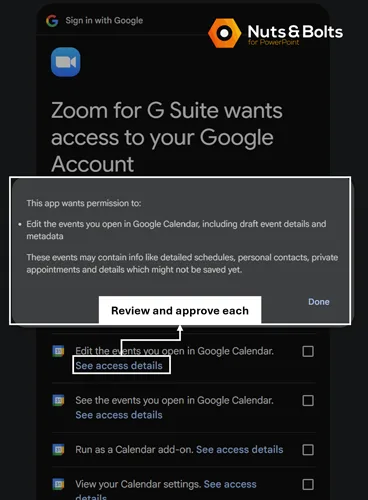
Step #3. Use it. Once installed and authorized, a new button appears in Google Calendar: Make it a Zoom Meeting. Clicking it sends a request through Zoom’s API, and Zoom sends back a meeting link.
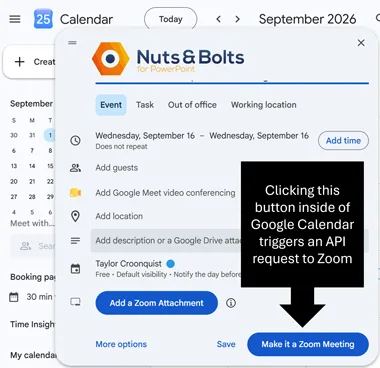
⚡ Quick Tip Need all the steps to hook up Zoom inside Google Calendar, not just the API permission screens? See Santa Clara University’s guide to scheduling Zoom from within Google Calendar.
How Copilot turns a Word doc into slides
Ask Copilot to build a PowerPoint presentation from a Word document and you’re watching a more complicated exchange happen in real time.
Copilot asks Microsoft’s API layer — called Microsoft Graph — for the document’s contents. It gets them back, drafts the presentation, then uses PowerPoint’s own interfaces to build the slides.
You never see the requests or the permission checks. You see slides appear. That’s the point.
API key and MCP, explained
Once APIs make sense, two related terms get much easier.
API key
An API key is a secret credential that identifies the app, account, or project making a request. The service uses it to decide whether to accept the request, and to track usage.
Think of it as an ID badge for software. It identifies the source of the request, which isn’t always the same as identifying you.
If an app ever asks you to paste in an API key, it doesn’t mean you need to understand code. It usually means the app needs permission to use another company’s service on your behalf. (More on that in our guide to what an API key is.)
MCP
MCP stands for Model Context Protocol. It’s an open standard that gives AI applications a consistent way to connect to outside tools and data.
APIs are the broad way software programs communicate. MCP is built specifically for AI applications — it gives them a standard way to discover what’s available and then use it. An MCP connection often relies on ordinary APIs underneath.
MCP doesn’t replace APIs. It gives AI applications a standard way to find and use what those APIs already provide. For the full comparison, see our plain-English guide to what MCP is and how it differs from an API.
How to connect an AI tool
You probably won’t build an API or an MCP connection yourself. In most AI tools, someone already did. Your job is to choose the tool, sign in, and approve what it’s allowed to access.
⚡ Quick Tip Click paths verified July 2026. These menus change often; if yours looks different, the sequence is still sign in → review → approve.
How to set up Claude Connectors (connect Claude to Google Drive, Slack, and more)
In Claude, these connections are called Connectors (you’ll also hear them called integrations).
Click the + menu beside the chat box
Choose Connectors
Select Manage Connectors
Click Connect, then sign in to that service
Review the requested permissions and approve the connection
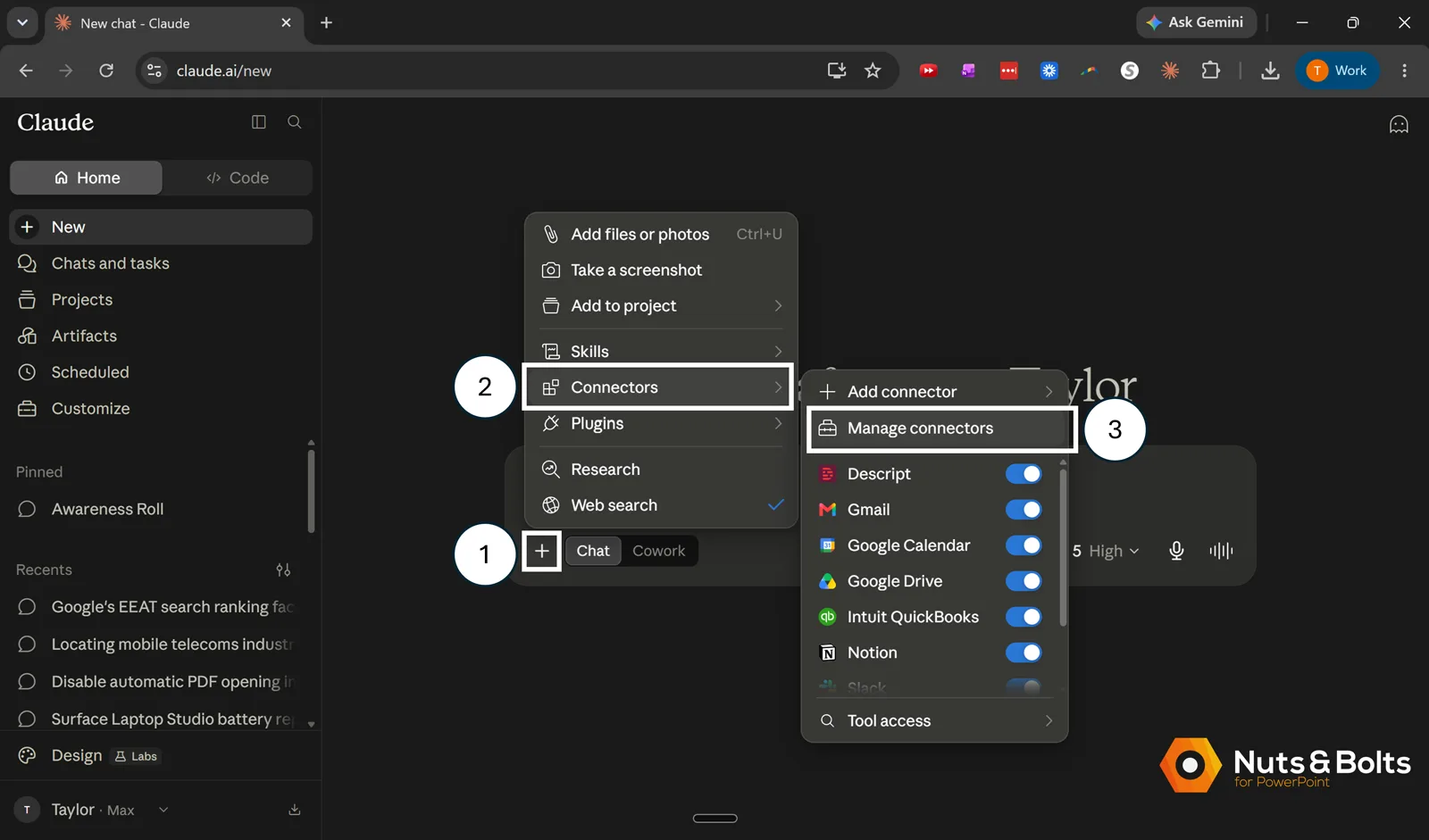
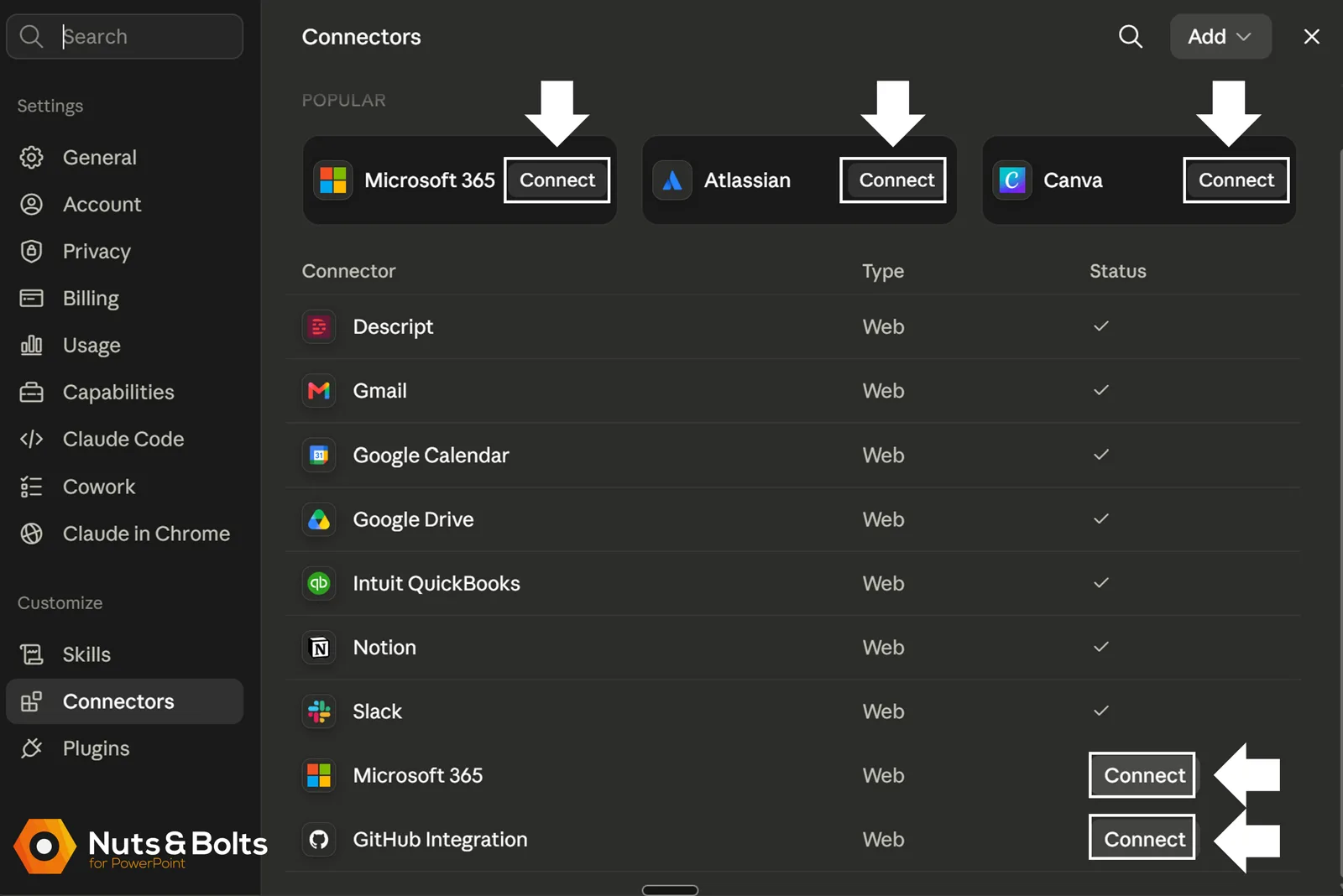
Once connected, Claude can search for information or take approved actions, depending on what that Connector supports — searching files in Google Drive, retrieving information from Slack, creating a task in Asana.
How to connect apps to ChatGPT
ChatGPT calls its connections to services like Gmail, Google Drive, and Outlook Apps. These were previously called Connectors, and you now discover and add them through ChatGPT’s Plugin Directory.
The ChatGPT Plugin Directory launched in July 2026. It is not the old 2023 ChatGPT plugins feature, which OpenAI retired in 2024 — so ignore any older articles telling you plugins are gone.
Open the Plugin Directory from the ChatGPT sidebar (or Settings > Plugins)
Find the plugin containing the App or service you want, such as Gmail
Open it and click Connect, if that option is available
Sign in to the service and review the access being requested
Approve the connection, and enable syncing if the App requires it
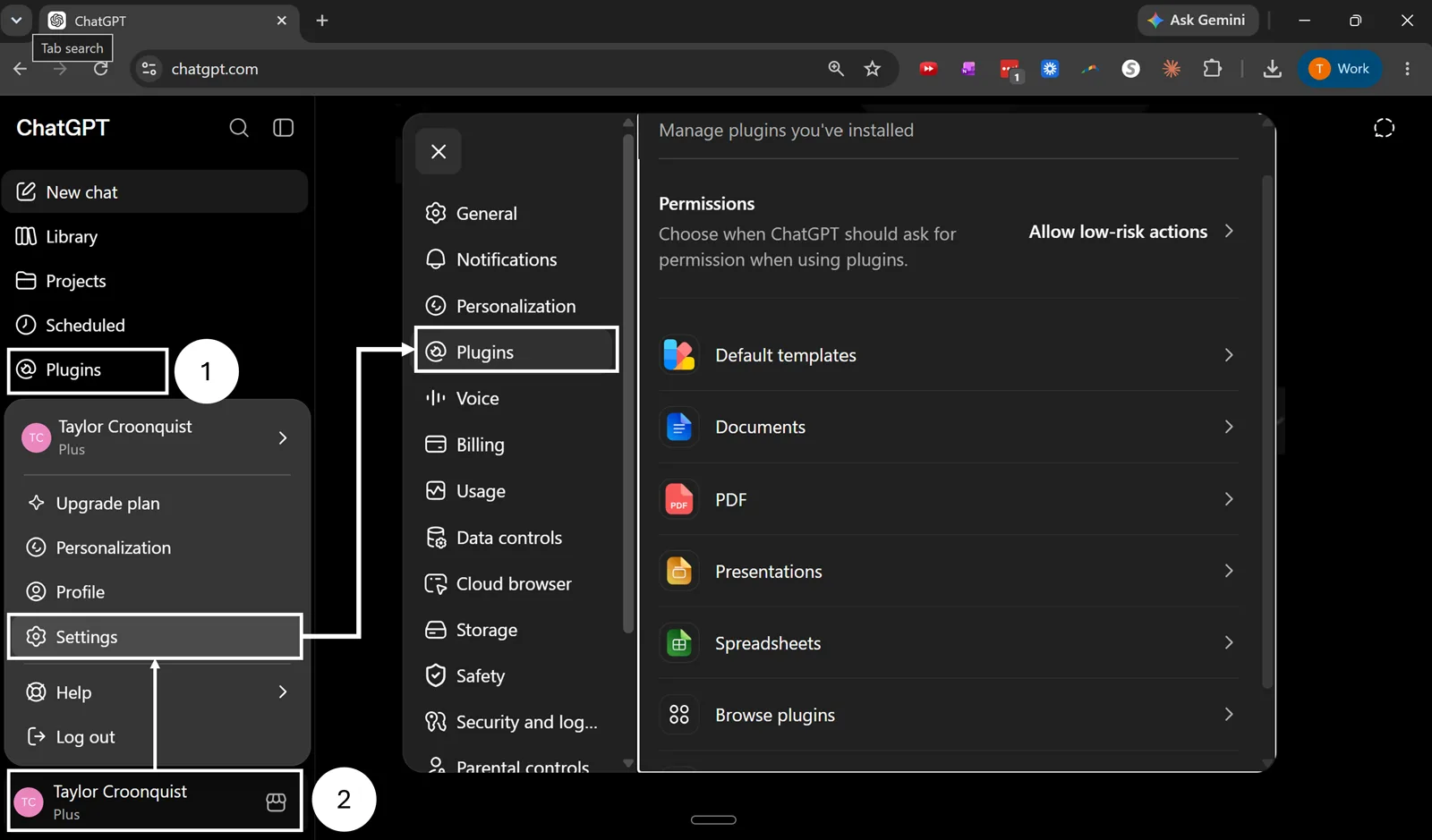
Once connected, you can use the App in a conversation by mentioning it with @, or by selecting +, then More, and choosing the App.
Availability varies by ChatGPT plan, region, workplace settings, and permissions.
What you’re agreeing to when you click Approve
That permissions screen is the most important part of the whole process, and it’s the one I clicked past for years without reading. Four things worth ten seconds:
Read or write? “View your files” is a very different grant from “create, edit, and delete your files.” Read access means the tool can look. Write access means it can change things, and changes are harder to undo than you’d like.
Which account? Check the email address at the top of the screen. Connecting a personal Gmail when you meant to connect your work account is an easy mistake to make and an annoying one to unwind.
How wide is the scope? “Access all files in your Google Drive” is a much bigger grant than “access files you specifically select.” When a tool offers the narrower option, take it. You can always widen it later.
Can it act without you? Some connections only respond when you invoke them. Others act on a schedule or in the background. If the screen mentions ongoing or background access, know that going in.
If a permission screen asks for something unrelated to what you’re doing — a note-taking app asking to send email on your behalf — stop and look into it before you approve.
You can revoke any of these later. Both Google and Microsoft 365 let you review and remove connected apps from your account’s security and privacy settings. Reviewing that list once a year is a good habit.
Connecting is not the same as building
When you click Connect, you aren’t building an API or writing an MCP server. You’re switching on a connection someone else already built.
The technical work happened before you arrived. The companies involved decided what could be requested, what actions were allowed, and how permission would be handled. Behind those few clicks sits the API or MCP plumbing that lets the two programs work together.
This article won’t teach you to build that — only to recognize what you’re switching on, what access you’re granting, and what’s happening when one tool reaches into another and gets useful work done.
Why did my connection stop working?
Connections break, and almost always for boring reasons. Before you file a ticket, check these:
The API key expired or was rotated. Many services expire keys on a schedule, or invalidate them when someone regenerates one. Pasting in a fresh key fixes most of these.
Someone revoked the permission. If you or an admin cleaned up connected apps, the connection is gone even though the button still looks fine.
The password changed. Changing your password on the connected account can invalidate the authorization. Reconnecting usually resolves it.
The app’s permissions changed. When a service updates what it requests, the connection can sit in a half-broken state until someone re-approves it.
You hit a rate limit. Services cap how many requests an app can make in a given window. Hit the cap and requests get refused until the window resets.
An admin locked it down. In corporate accounts, IT can restrict which third-party apps are allowed. This is the one you can’t fix yourself.
The fix is almost always the same: disconnect, reconnect, sign in again, re-approve.
Frequently asked questions
What is an API in simple terms?
An API is a defined way for one software program to request information or actions from another. One program sends a request in a format the other understands, and gets a response back. That’s what lets connected tools exchange information without a human copying and pasting it manually.
What does API stand for?
API stands for application programming interface. The full name matters less than the idea: it gives one program a defined way to ask another program for something.
What's the difference between an API and an API key?
The API defines what can be requested and how. The API key identifies who is asking. The API provides the rules; the key proves the requester is allowed to use them.
Do I need to know how to code to use an API?
No. You already use tools built on APIs every time an add-in searches a photo library, a chart pulls fresh numbers, or an AI tool reaches an outside service. Connecting an existing tool is usually sign in, review, approve. Building the connection is the technical part.
Is an API the same as an MCP?
No, though they’re related. An API defines how software can request specific information or actions. MCP is an open standard that helps AI applications connect to outside tools consistently, often using ordinary APIs underneath.
What are Connectors in Claude?
Connectors are Claude’s name for ready-made connections to tools like Google Drive and Slack. You click Connect, sign in, and approve what Claude is allowed to access. Underneath, a Connector runs on the same plumbing this article covers: APIs, and sometimes MCP.
Is it safe to connect my email to an AI tool?
It depends on what you approve. The connection can only do what the API allows and what you granted on the permissions screen. Grant read-only access where it’s offered, check you’re connecting the right account, and revoke connections you’ve stopped using.
The key takeaways
An API is a defined way for one software program to request information or actions from another.
You are already using APIs all day (for example, the stock-photo add-in searching an image library or the calendar connecting to your emails). Those are software connections doing exactly what someone designed them to do, and now you have a name for them.
The next time someone says “we’ll connect through their API,” you can follow the conversation, ask what the connection actually allows, and judge whether a vendor’s promise holds up. That’s a useful workplace skill wearing a nerdy name. It may also save you twenty minutes of pretending to understand the meeting, which gets everyone to happy hour sooner.
For more plain-English guides to PowerPoint, AI, and the tools you use every day, see our other tutorials.
About the Author

Taylor Croonquist
Co-Founder, Nuts & Bolts Speed Training
Taylor Croonquist is a PowerPoint expert and trainer. Over a career spanning the globe, from consulting in New York and investment banking in China, Taylor has truly seen it all in PowerPoint. Through necessity and a natural tech savvy, Taylor honed his PowerPoint skills to the point of even blowing the minds of the Microsoft PowerPoint programming team. When he's not busy crafting PowerPoint training, you can find him reading a sci-fi series or scuba diving.