A Markdown file is a plain text document that uses a few visible symbols for headings, bullets, bold text, links, and other basic structure. It ends in .md and can be opened in any plain-text editor.
You may have discovered one after asking ChatGPT, Claude, or Copilot to draft a presentation outline. The answer looked good, but instead of downloading a Word document, you received a file ending in .md.
You double-clicked it, and one of two things probably happened:
It opened in Notepad as a wall of hashtags and asterisks.
Your computer asked which program should open it.
Either way, it looked more technical than the document you thought you had requested.
It is not a broken Word file, and you do not need to know how to code to use it. Below, I’ll show you what the symbols mean, why AI tools use Markdown, what to do when you receive an .md file, and the reason you may actually want to keep it.
In this guide you’ll learn the 10 Markdown symbols worth knowing, see exactly how a .md file compares to the .txt and .docx files you already use, and get answers to 7 of the most common Markdown questions.
What is a Markdown file?
A Markdown file, identified by the .md file extension, is a plain text document that uses a standardized, lightweight syntax to format text. It allows users to create structural elements like headings, bulleted lists, and emphasized text using standard keyboard characters rather than relying on complex, hidden background code.
It’s designed to be readable by a human AND a computer at the same time.
Think of it as the middle ground between two things you already use:
A .txt file is pure text. No headings, no bold, no structure. Simple, but flat.
A .docx file (Word) has all the formatting you want, but it hides that formatting in a tangle of code you never see.
Markdown sits in between. You get real structure (headings, bullets, bold, links), but the "code" is just a handful of symbols you can read at a glance.
And it is not some new AI invention. John Gruber introduced Markdown back in 2004 with one goal: formatted text that is still easy to read as plain text. Twenty years later, that is exactly why AI tools adopted it as their native language.
Markdown = readable plain text + just enough symbols to carry structure. Nothing is hidden. You see exactly what you get, and any plain-text editor can open it.
What those Markdown file symbols actually mean
Here's the moment everything clicks. All those strange symbols in a Markdown file are doing one simple job: describing formatting with characters you can type on any keyboard. Once you can read a handful of them, that wall of hashtags and asterisks turns back into a document.
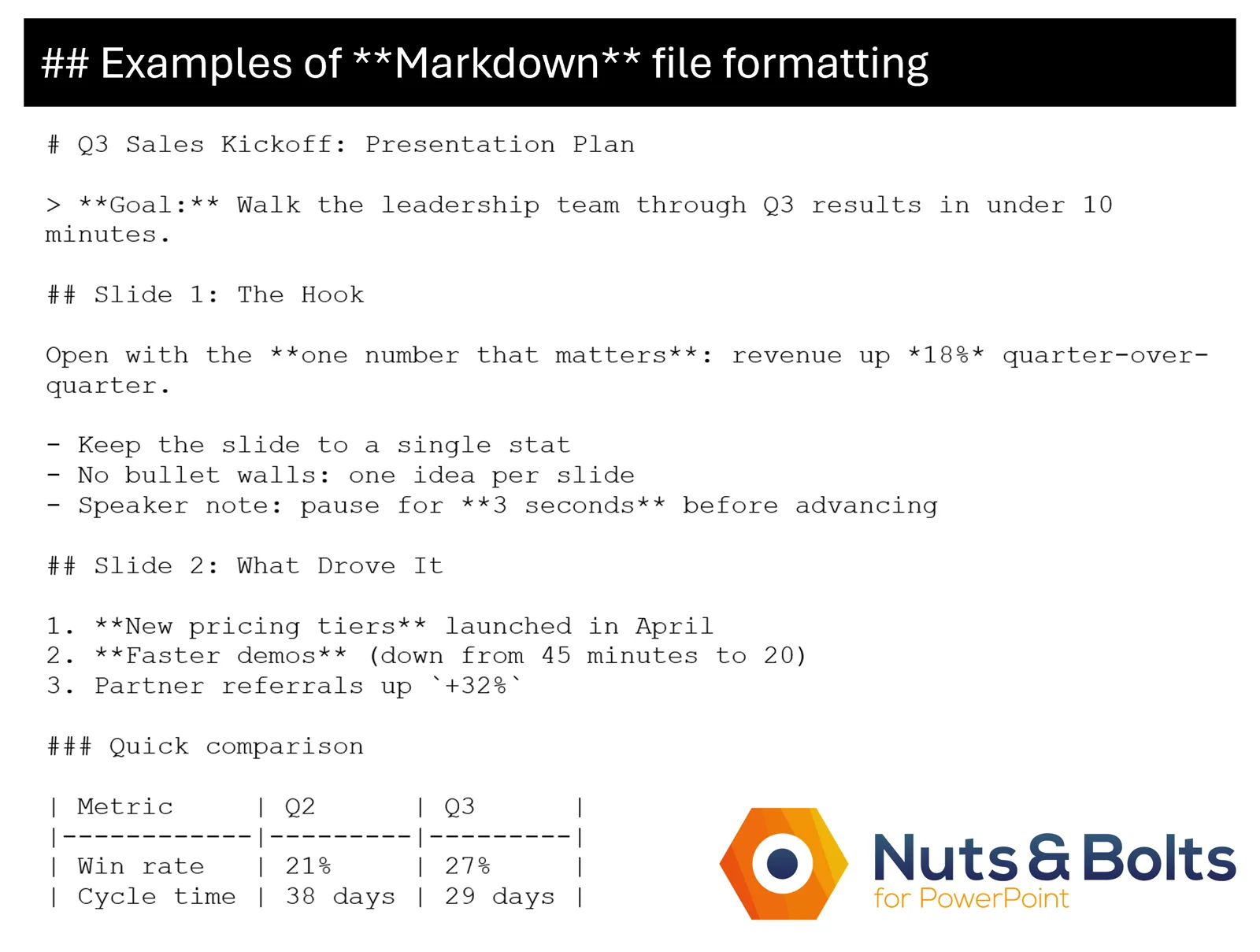
Here is a list of the most common Markdown file formatting, see if you can read the formatting in the picture above using the file formatting symbols below:
# The hashtag: a heading. One hashtag (#) marks the top-level heading on the page. Two (##) is the next level down, three (###) the level below that. It has nothing to do with social media. More hashtags equals a smaller heading, which surprises most people.
**Double asterisks: bold. Wrap a phrase in double asterisks and it renders as bold text. This is the one that litters your pasted documents when the formatting doesn't survive the trip.
*Single asterisks: italic. Same trick, half the asterisks, italic result.
- The dash: a bullet point. A dash (or an asterisk) at the start of a line becomes a bullet. Simple as that.
1. A number with a period: a numbered list. Type 1., 2., 3. at the start of lines and Markdown builds the list for you.
> The angle bracket: a quote. A line starting with > renders as an indented quote block. AI uses it whenever it's citing something back to you.
`Backticks: exact text.Those slanted quote marks under the Esc key wrap anything meant to be typed or clicked literally, like a filename or a shortcut key.[Brackets followed by parentheses: a link. The words in [brackets] are what you see; the address in (parentheses) is where it goes.
| Pipes: a table. Vertical bars are column dividers, and a row of dashes under them marks the header. (Table support varies: some Markdown apps draw these as real tables, others leave them as text.) This is the one that looks most broken in raw form and most impressive once rendered.
--- Three dashes alone: a divider. A clean horizontal line between sections.
Now scroll back up to that deck-plan image above. Read it again with the decoder in hand and it isn't code at all. It's a heading, a quote, three bullets, and a small table. You just read Markdown. That is the whole decoder. Ten symbols, and these files stop looking like code.
What is the difference between plain text, Markdown, and Word?
The three formats differ in one important way:
A plain text (.txt) file contains pure, unformatted text characters with no structural elements.
A Markdown (.md) file combines readable plain text with visible, lightweight symbols to create basic document structure.
A Microsoft Word (.docx) file is a compressed package containing rich formatting, images, and complex structural code designed to be read by a specific application.
That last one is the one that surprises everyone. Here's what it means.
The thing that surprises people: your Word doc is secretly a zip file
Here's a detail that reframes the whole thing. That .docx presentation or report on your desktop? It isn't one file; it's a folder full of files, zipped up, wearing a .docx costume.
Don't take my word for it. Make a copy of any Word document and change its file extension to .ZIP.
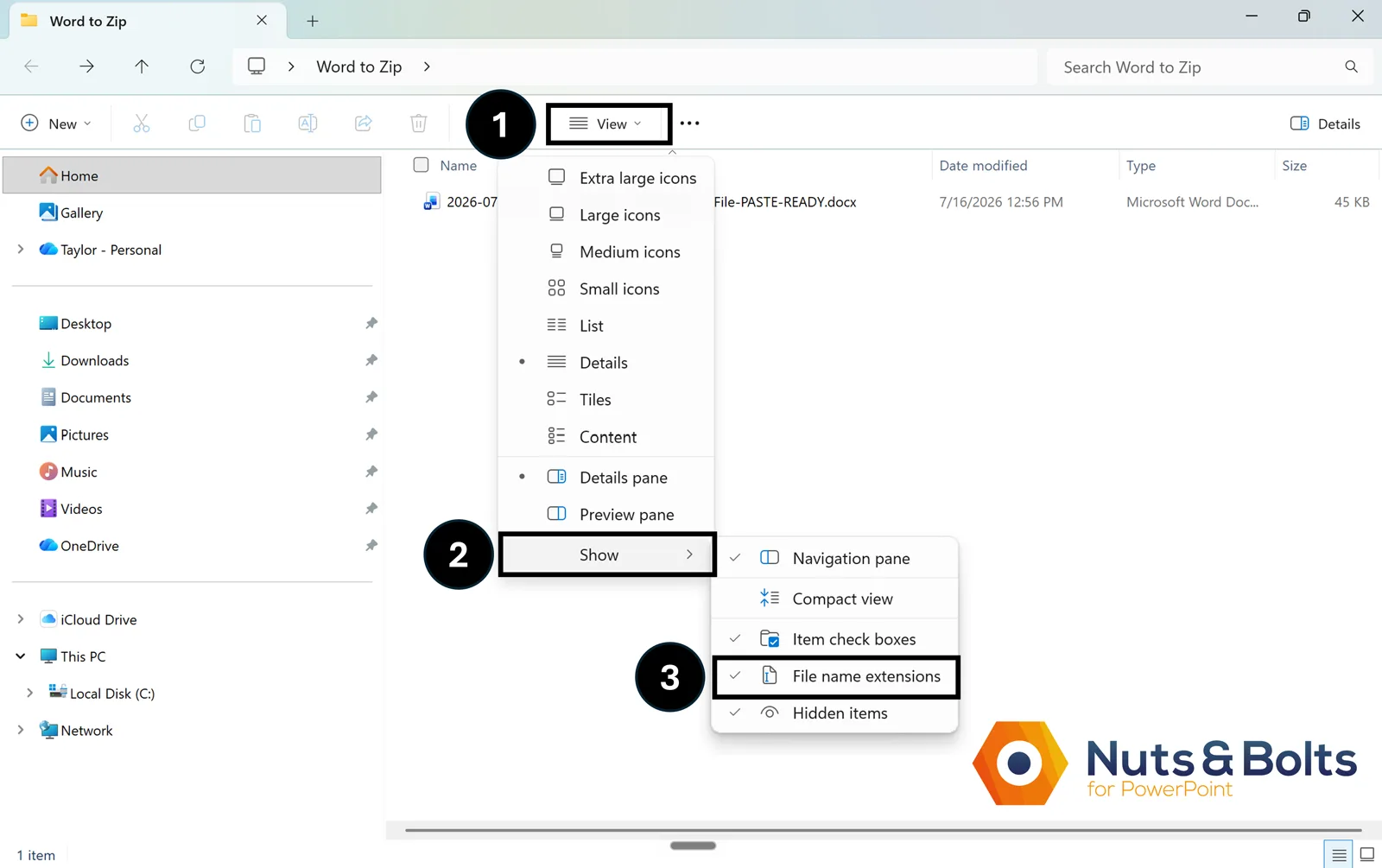
To display file name extensions in Windows:
Open a File Explorer window
Open the View options
Select Show
Ensure you have a checkmark next to File name extensions
Next, change your Word document file name from .docx to .zip and select Yes in the rename dialog box to convert it.
Open the ZIP folder and you'll see the pile of folders Word assembles into your document. When you're done exploring, change the .zip back to .docx.
![File explorer window showing the contents of Quarterly-Report.zip archive, displaying folders (_rels, customXml, docProps, word) and [Content_Types].xml file](https://sbkzpwvmgvofkcncknrh.supabase.co/storage/v1/object/public/media/a7934812-3782-4863-82cf-360ff1206469-A-word-document-as-a-zip-folder.webp)
Essentially, a .docx is a ZIP-based document package: a zipped bundle of text, images, and formatting instructions built for word-processing programs to read, not for you.
A Markdown file is the opposite. It's a plain text file (no zip, no hidden folders, and nothing assembled behind the scenes). What you see is what's there. That's exactly why it travels so well between programs, is super lightweight, and was chosen by AI.
A two-minute mistake that taught me this the hard way
I learned how sealed-up a Word file really is the embarrassing way.
I asked Claude (my AI assistant tool of choice) to find a specific email for me inside of a specific folder full of Word documents. It went and looked. Then it came back and told me, with a completely straight face, that the email didn't exist.
I looked and found the email myself in less than three minutes.
For the record, here is the exact setup, because a claim like this deserves receipts.
It was July 7, 2026. I was using Claude Code, which is Claude with access to my file system. The folder held about 150 Word documents, and I asked it to find one specific email I knew was in there.
Claude reported the email did not exist. I found it by hand in under three minutes. And it was not a one-off: the same confident "it’s not there" miss had burned me five days earlier, on July 2, when Claude found the right document and dismissed it by its file name alone, without ever opening it.
Here's what actually happened, because the lesson is worth more than the story. Claude ran a plain keyword search across the files. But a .docx isn't a plain text file, it's a zipped XML format. And more specifically, in this case the content was inside of a table inside the Word document.
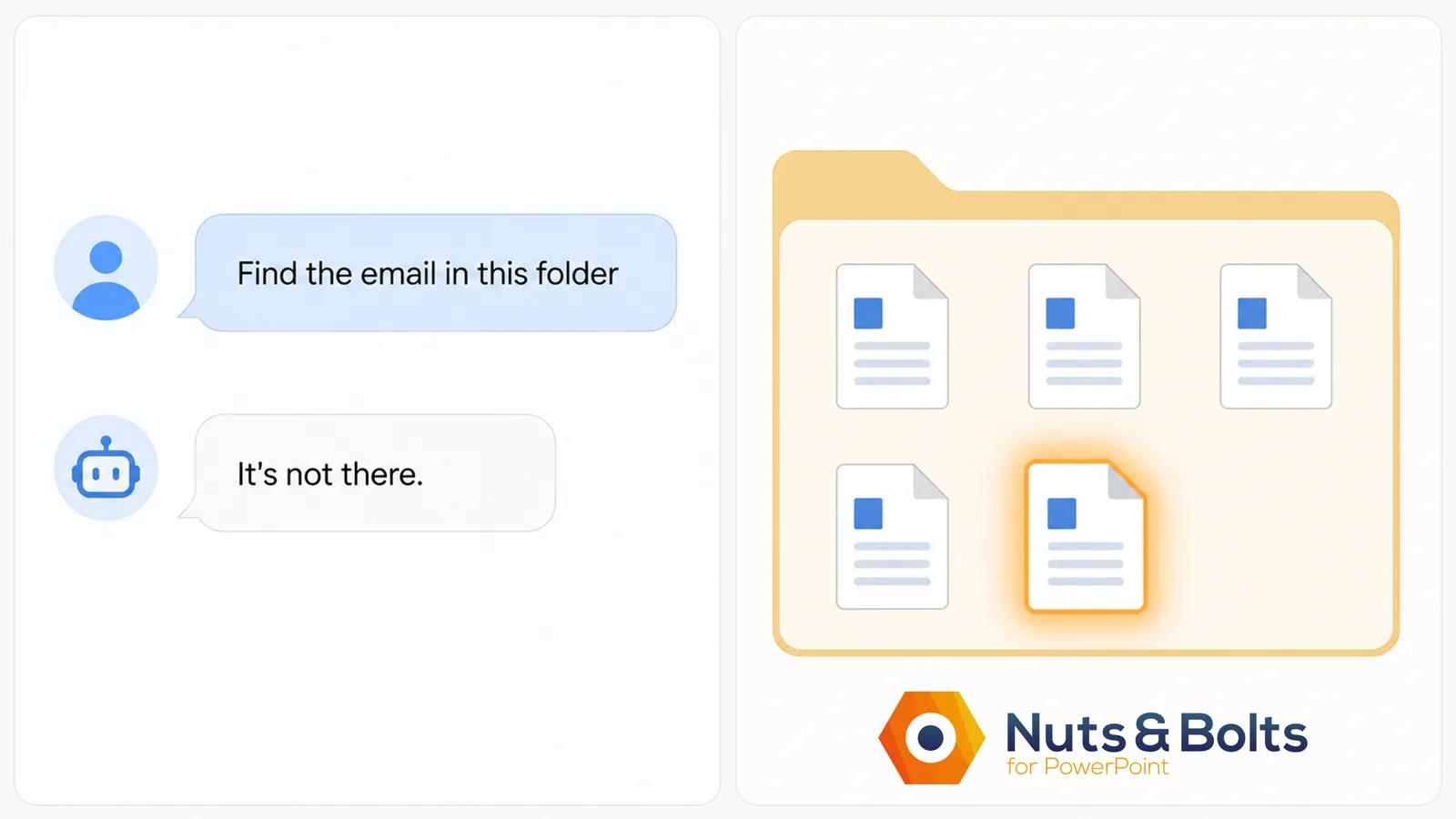
The reason this is a problem is that a raw text search (also known as grep) DOES NOT unzip Word documents first. Instead, it just reads the sealed package, finds nothing it recognizes, and reports back that "it doesn't exist." The words it was looking for were right there the whole time inside the document; the search was just blind to it as I have pictured below.
The trap isn't that the AI can't read the file, because it can look through Word documents if you tell it to. The confident silence is the trap.
Claude didn't say "I'm not sure." Instead, it literally told me "no standalone email with this exact structure exists."
When I pointed out that I found the file myself in a few minutes, Claude then backtracked and acknowledged the issue (but I had to push it). The way Claude searched for the file never actually opened the Word documents themselves.
Instead, Claude ran a raw keyword search that can't look inside of Word documents. That doesn't mean that Claude (or other AI tools) can't read Word documents. It can, when you upload the file directly or when you explicitly ask the tool to. The lesson: before you accept a confident "not found," ask whether the AI actually opened the files.
Knowing this in the beginning would have saved me 10 minutes or so waiting around for Claude to "not find" the file, and then hunting for myself.
Why AI keeps using Markdown
Major AI tools like ChatGPT, Claude, and Copilot format their answers in Markdown by default. This drove me crazy when I first started working with AI tools as I also found the Markdown style formatting distracting and difficult to read. So I started asking for my documents as formatted Word documents instead.
The practical reason for AI doing this is that it (or they) work in plain text. It doesn't "see" a formatted Word page the way you do. Markdown lets it add structure (this is a heading, this is a list, this is bold) using plain characters it can already type. No hidden Word formatting codes required. It's the lightest possible way to say "here's how this should be organized." It's becoming enough of a default that the tools and docs built for AI agents increasingly assume Markdown as the common tongue.
Here's why that helps you: anything an AI hands you in Markdown pastes cleanly into almost anything else. And when a tool moves that content automatically from one program into another, an API is often handling the handoff behind the scenes.
A plain .txt loses the structure. A copied .docx chunk usually drags along messy formatting you then have to strip out by hand. Markdown lands as clean, structured text. This is important the moment you're moving an AI's outline into a real deck (if you run into formatting glitches along the way, see our guide on how to paste AI content into PowerPoint and Word).
How to open a Markdown file
You don't need to install anything. A .md file is just text, so you have options depending on how you want to see it.
You can open a Markdown file in three simple ways. 1. Use a standard text editor like Notepad on Windows or TextEdit on Mac to view and edit the raw text. 2. Use a free online Markdown viewer by pasting your text into the browser to see the formatted version. 3. Open it in a dedicated workspace app like VS Code, Obsidian, or Notion to edit and preview the formatting simultaneously.
If you only ever do one of these, do the first. Opening a .md file is not the mystery it looks like. It's a text file with an unfamiliar extension.
"Stop giving me Markdown": the set-it-and-forget-it fix
Maybe you don't want the symbols at all. You want the AI to just hand you clean text you can drop into a document without cleanup. That's fair.
Here's the thing most people get wrong: they type "stop using markdown" into the chat, it behaves for a message or two, and then it slips right back. An in-chat ask is a dead end. It forgets. The fix that actually sticks is a persistent instruction you set once in your AI's settings (you can usually find this setting under custom instructions, personalization, or saved info) so it applies to new chats automatically.
Here's the exact phrase to paste:
Never format responses using Markdown syntax; output clean plain text with standard paragraph breaks.
Set it once and forget it. This is the difference between fighting the same battle every session and never seeing a stray asterisk again.
Where this setting lives, and how strictly your AI tool obeys it, varies by tool, so give it a quick test in a fresh chat.
The one that actually pays off: saving your AI chat as a Markdown file
Here's where this stops being trivia and starts saving you real time.
Imagine you have just had a great working session with ChatGPT or Claude or Copilot. You've talked through the structure of your client presentation. Your AI tool helped you shape the argument, decide the section order, tighten the takeaway on each slide. Then you close the tab.
Next week you go back to build on it and the thread is buried, or the AI has clearly lost the structure you decided on. You find yourself re-explaining everything from scratch.
Save the conversation as a Markdown file and that never happens. You get a clean, portable copy of the whole planning session that you own, one that opens anywhere and pastes anywhere.
The reliable way to do it, one that doesn't depend on any particular menu that might've moved since I wrote this:
Ask the AI to turn the part of the conversation you want to keep into a Markdown summary. (If you copy the chat straight off the screen, you usually get the pretty formatted version without the # and ** symbols underneath, so the structure is lost.)
Copy the Markdown it gives you (Ctrl + C on Windows, Cmd+ C on Mac).
Open a plain text editor (Notepad or TextEdit), paste it in (Ctrl + V or Cmd+ V ), and save the file (Ctrl + S ). Instead of saving it as a .txt file, save it as a .md file.
Name it something like q3-deck-plan.md or client-pitch-structure.md: anything that tells you what the file is about.
One Windows gotcha: Notepad likes to quietly tack .txt onto the end, leaving you with q3-deck-plan.md.txt. In the Save dialog, set Save as type to All files and the .md sticks.
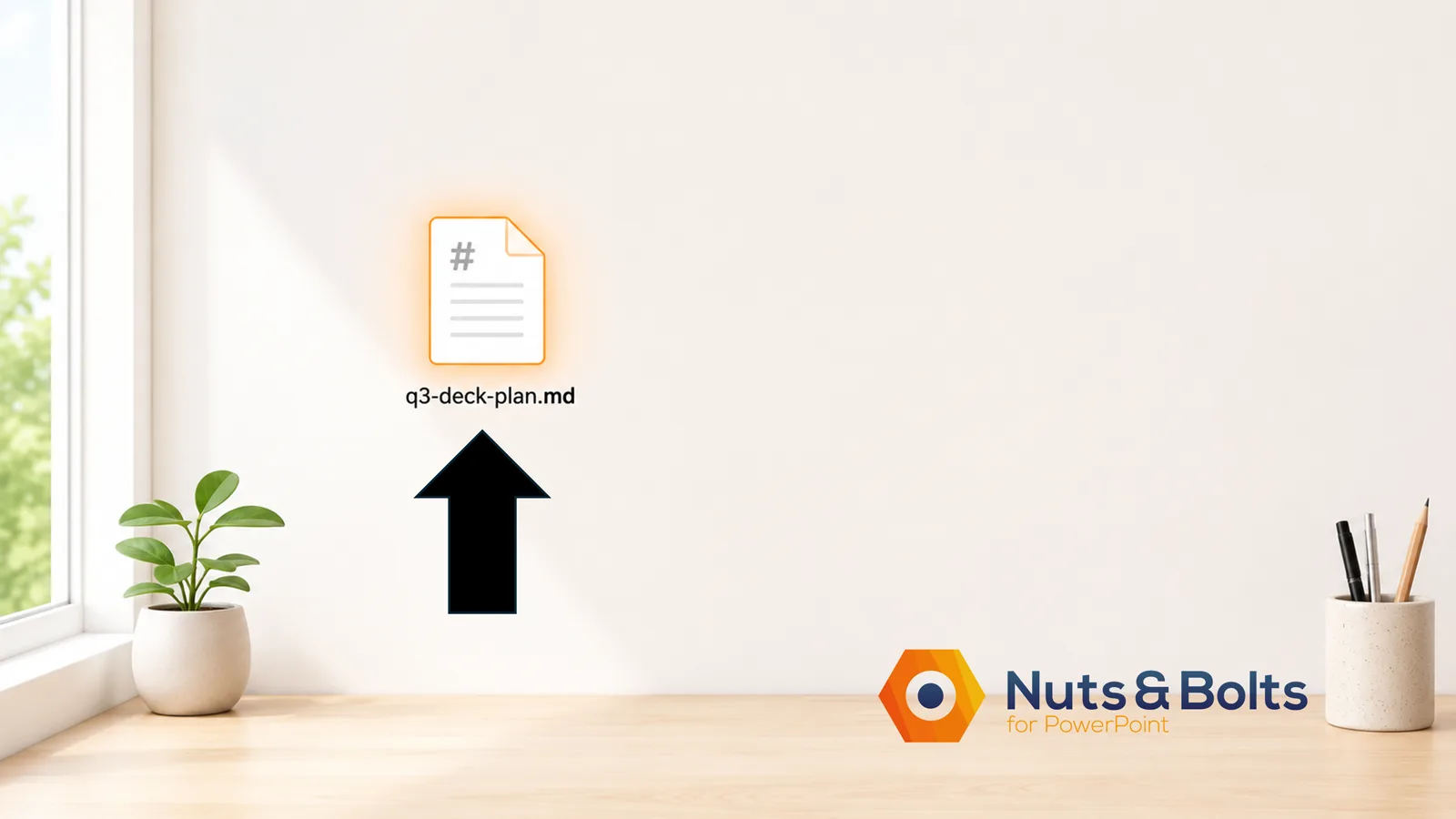
That's it. You now have a Markdown file of your presentation's plan.
Most AI tools also have a built-in export and there are browser extensions that save a whole conversation straight to Markdown in one click. You will just need to check the specific steps for the AI tool you regularly use, especially as these menus change often. The copy-paste method above always works, which is why I lead with it.
Why a presenter should care
Because that saved .md file is portable memory for your AI tool of choice.
Next time you sit down to work on your deck, you don't have to start all over again. Instead, you paste your saved plan back into a fresh chat and say "here's where we landed last week. Let's keep going." Your AI companion digests the .md file and is instantly back up to speed with where you left off.
One caution as you start saving things into .md files: Markdown is still readable plain text, so never store secrets in one, especially an API key. New to those? Here's what an API key is and how to handle it safely.
And when you're ready to actually build, don't try to open the .md file in PowerPoint. I tested it: PowerPoint won't even show Markdown files in its Open dialog (Ctrl + F12 if you are function locked), and if you force it open, you get a wall of raw text dumped onto a slide, hashtags and all.
If you want to import your outline into your own PowerPoint template, ask your AI tool to turn the Markdown outline into a Word document with real heading styles: Heading 1 for slide titles, Heading 2 for the bullets.
Then, inside your company PowerPoint template:
On the Home tab, click the arrow under New Slide
Choose Slides from Outline
Pick your Word document (the outline you asked for)
Every Heading 1 becomes a slide title and every Heading 2 becomes a bullet. For more help see our post on converting word to PowerPoint.
Two quick cleanup notes:
If PowerPoint refuses to import the file from a synced folder like OneDrive, copy it to your Desktop first.
Once the slides land, select them and hit Reset on the Home tab so the imported Word formatting snaps back to your template (wink).
Getting a real Word doc back
Sometimes you don't want to keep the Markdown at all — you want a proper Word document to hand a colleague.
The fastest way is the one no converter tool will ever tell you about: just ask the AI that made it to give you a .docx.
The same tool that handed you the .md can usually hand you a real Word file if you ask for one directly: no download site, no conversion step.
The other direction: turning your files INTO Markdown for AI
One more thing you'll start seeing, because it's the mirror image of everything above: there's a growing trend on TikTok now of people converting their Word docs and PDFs into Markdown before they upload them to an AI, because the stripped-down format is lighter for the AI to digest and thus consumes fewer tokens.
The short version
Markdown is the plainest possible way to write structured text (including a few symbols and no hidden code) and it opens anywhere. AI uses it because AI thinks in plain text, and that same simplicity is what makes it so easy for you to save, move, and reuse.
The people who get faster with AI usually just understand the plumbing a little better than everyone else. They see a .md file and think "good, I can keep that," instead of closing the tab. Know your tools, and your tools start working for you.
Markdown Takeaways: 7 Questions You’ll Probably Ask Next
Q: Is a Markdown file the same as a Word file?
A: No. A Word (.docx) file is a ZIP-based package holding your text, formatting, and images, built for word-processing programs like Word. A Markdown (.md) file is plain text you can open and read in any editor. Markdown is simpler and more portable; Word has richer formatting.
Q: What program opens a .md file?
A: A Markdown file can be opened and edited using standard plain text editors like Notepad for Windows or TextEdit for Mac. To view the rendered formatting, you can open the file in dedicated applications like Obsidian, Notion, or Visual Studio Code, or by pasting the text into any free online Markdown viewer.
Q: Why does ChatGPT give me Markdown?
A: Because AI works in plain text, and Markdown is the lightest way to add structure to a document. The way it does that is by using plain characters to denote headings, lists, bold text, etc. It's usually writing Markdown behind the scenes and your screen renders it.
Q: How do I stop ChatGPT from answering in Markdown?
A: Set a persistent instruction in your AI's settings (usually called custom instructions or personalization) such as "Never format responses using Markdown syntax; output clean plain text." A one-off request inside a chat tends to slip after a message or two; the saved setting holds much better.
Q: Why can't my AI find text in my Word document?
A: A raw keyword search is blind inside a .docx, because a Word file is a sealed zip container, not a plain text file. That means that the AI's search reads the sealed package and comes back empty, even when the words are located inside of the file (which is exactly what happened to me). To fix this, either upload or instruct your AI tool to open and read all files so it can read the text. The full story is above.
Q: Why did my AI create a file called README.md?
A: README.md is just a Markdown file with a conventional name: the "read me first" note that travels with a project. It's the same .md format described here; the name is the only special part.
Q: Can I turn a Markdown file into a Word doc or PDF?
A: Yes. The quickest route is to ask the AI that made it for a .docx directly. You can also open the .md file as plain text and format it in Word yourself, or use a trusted converter tool.
The Bottom Line: You Now Speak Markdown
Now that you know what a Markdown file is, you won't freak out the next time AI hands you one. That little .md file isn't a mess to clean up. It's just plain text wearing a little structure, and now you know exactly what to do with it.
Here's a quick refresher of the moves you now know:
Markdown is just plain text with a few symbols: # for headings, ** for bold, - for lists. No hidden code, and it opens anywhere.
AI defaults to Markdown because AI thinks in plain text. It's not being difficult. It's speaking its native language.
Your Word doc is actually a zip file. That's exactly why a raw search inside a .docx can come back empty, while a plain text file hides nothing.
Any Markdown file (.md) opens in seconds in Notepad, Word, or a free browser viewer. Don't close the tab.
You can make the Markdown stop with one persistent instruction in your AI's settings. Set it once, forget it.
Saving a chat as a .md file is a power move. Your work survives the chat, and you can re-feed it to any AI later.
Need a real Word doc? Just ask. The AI that made your Markdown can usually hand you a .docx directly.
And here's the part nobody tells you: most people never learn any of this. They'll keep closing the tab, copy-pasting by hand, and starting every AI chat over from scratch. Knowing your tools is a quiet edge, and AI is making that edge bigger, not smaller. You just moved to the fast side of it.
To expand your knowledge and improve your skills further, check out our other free tutorials and guides that will help you make it to Happy Hour.
About the Author

Taylor Croonquist
Co-Founder, Nuts & Bolts Speed Training
Taylor Croonquist is a PowerPoint expert and trainer. Over a career spanning the globe, from consulting in New York and investment banking in China, Taylor has truly seen it all in PowerPoint. Through necessity and a natural tech savvy, Taylor honed his PowerPoint skills to the point of even blowing the minds of the Microsoft PowerPoint programming team. When he's not busy crafting PowerPoint training, you can find him reading a sci-fi series or scuba diving.