Master one shortcut. Save hours every week — across PowerPoint, Word, AND Excel.
Ctrl + Alt + V is the universal Paste Special shortcut. It works the same way in PowerPoint, Word, and Excel, and it unlocks dozens of power moves most users never discover:
Paste as Unformatted Text (clean text, your styles intact)
Paste as Picture / PNG (lock logos and graphics in place)
Paste as Enhanced Metafile (then ungroup into editable shapes)
Transpose rows and columns in Excel (one click)
Add, subtract, multiply, or divide values across ranges (Excel power move)
Strip Copilot's table-formatted mess from your slides (the 2026 use case)
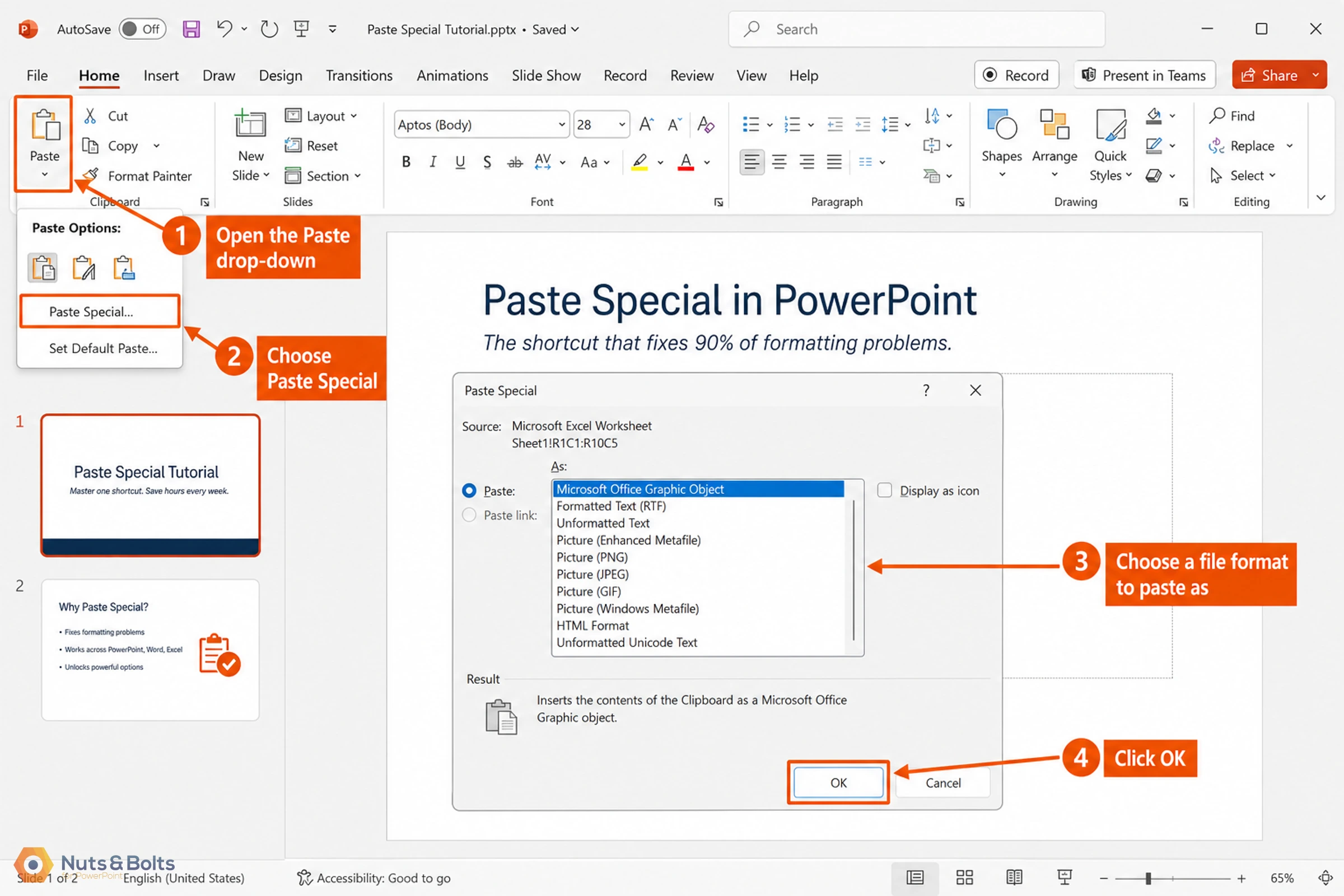
When I was working in consulting and banking, the most powerful shortcut I ever learned was: Ctrl + Alt + V (you can also use Alt, E ,S if you like). Paste Special was a singular shortcut that cleaned up a lot of otherwise tedious formatting maneuvers that can boost your productivity by 3x when copying and pasting between documents. Learn it once and save yourself hours every week — for the rest of your career.
If you have ever caught yourself reformatting the same content over and over after pasting it from one document to another, this is the trick. The fix is the same shortcut whether you are pasting from Word, Excel, Copilot, or ChatGPT: Ctrl + Alt + V.
Paste Special is a command in Microsoft PowerPoint, Word, and Excel (keyboard shortcut: Ctrl + Alt + V ) that lets you choose the file format when pasting.
Pasting from ChatGPT or Copilot? See our updated 2026 guide on pasting AI content into PowerPoint and Word).
So instead of accepting whatever formatting comes with the standard Ctrl + V paste, Paste Special gives you control over whether content is pasted as plain text, an editable graphic, a static image, transposed values in Excel, or in another format entirely.
Why Paste Special is a cross-app power shortcut (not just a PowerPoint thing)
Most blog posts about Paste Special treat it as a PowerPoint trick. That's underselling it. The single most valuable thing about this shortcut is that it works identically in Word, Excel, AND PowerPoint — and each app exposes different power moves once you press Ctrl + Alt + V .
Here's what each app gives you:
In PowerPoint
Paste as Enhanced Metafile, then ungroup (Ctrl + Shift + G twice) into individual editable shapes. This is how pros recover images trapped in SmartArt, animate individual donut chart segments, and rescue stock template graphics. None of that works with standard Ctrl + V .
In Excel
Two killer moves most people don't know exist:
Transpose — flip rows to columns (or vice versa) in one click. Copy your range, click into a destination, Ctrl + Alt + V , check 'Transpose,' click OK. Done. No manual rebuilding.
Operations (Add, Subtract, Multiply, Divide) — apply a math operation between two ranges. Copy the range you want to add, select the destination range, Ctrl + Alt+ V , check 'Add,' click OK. Excel adds the source values to the destination values in place. Same for subtract, multiply, divide. Saves writing a separate formula column.
In Word
Word has a new paste as text only keyboard shortcut: Ctrl + Shift + V . This bypasses the old paste special dialog box, and simply pastes as unformatted text.
The beauty of Paste Special is that it mimics the Ctrl + C to copy shortcut. Just add the Alt key.
The Paste Special command
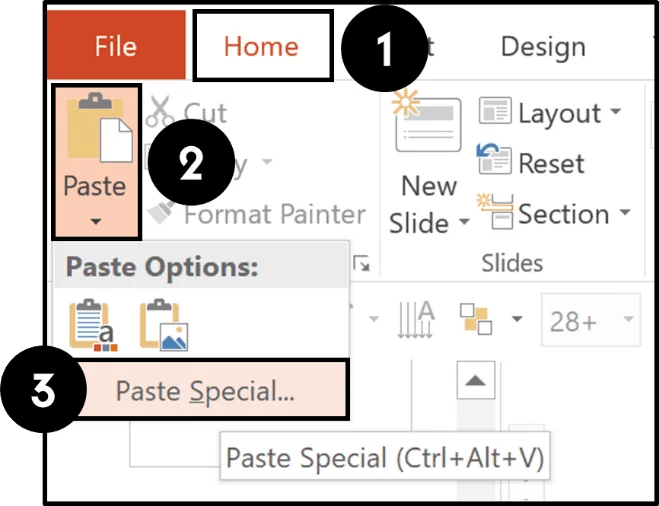
To use the Paste Special command with your mouse, simply:
Copy something in Word, Excel or PowerPoint
Navigate to the Home tab
Open the Paste drop down
Select Paste Special at the bottom
Choose a file format to paste as
Click OK
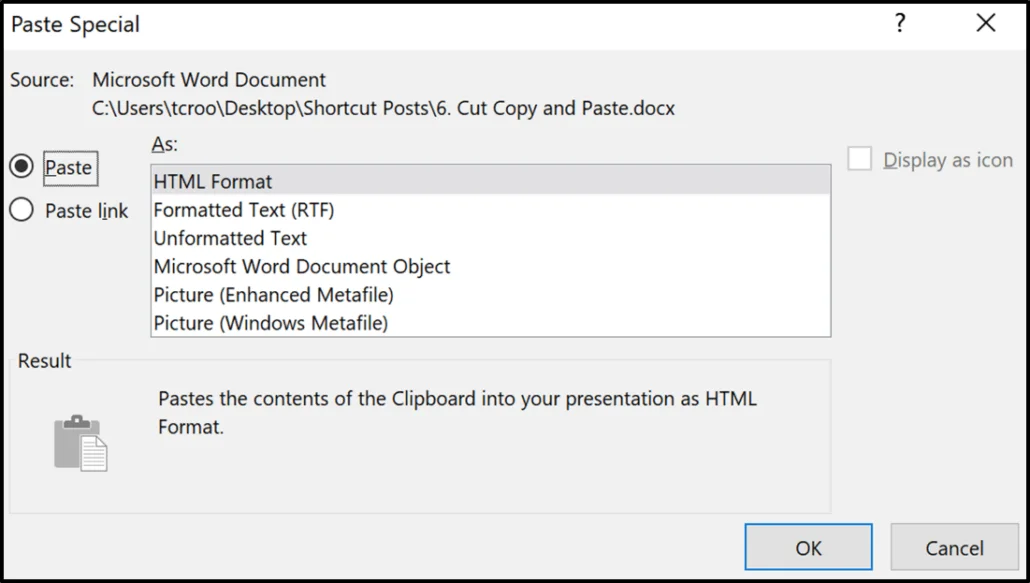
Depending on what you have copied, you will see different file format options in the dialog box. Here are the most common ones:
HTML Format
Formatted Text (RTF)
Unformatted Text
Microsoft Office Graphic Object
Picture (PNG)
Picture (Enhanced Metafile)
Picture (JPEG)
Picture (GIF)
Picture (Windows Metafile)
Device Independent Bitmap
The Enhanced Metafile and Windows Metafile formats can be broken apart in PowerPoint using the ungroup shortcut (Ctrl + Shift + G twice). See the Metafile section below.
Paste Special shortcut
If you use Excel and PowerPoint, learn this keyboard shortcut: Ctrl + Alt + V
Senior bankers and consultants regularly use the legacy keyboard shortcut Alt , E, S as their Paste Special shortcut. Two quick notes on this shortcut:
This is an old legacy shortcut that still works (so that's what they still use)
You do not need to hold the keys down to make it work
This opens the Paste Special dialog box instantly. No ribbon clicking required. It saves you a few seconds every time, and those seconds add up fast when you are building a 50-slide deck.
If Ctrl + Alt + V opens something else, or nothing at all, another program on your computer may have claimed that combination. Here is how to track down a shortcut that is not working.
People often ask: "What is the shortcut to paste as Enhanced Metafile?"
The answer: use Ctrl + Alt + V to open the dialog, then use your arrow keys to select Enhanced Metafile and hit Enter. There is no single shortcut that jumps straight to a specific format.
Ctrl + Alt + V is one of dozens of shortcuts that can speed up your workflow. For more, check out our 80 favorite PowerPoint keyboard shortcuts.
The Paste Options button (the one most people ignore)
This trips people up constantly. When you paste content from Excel, Word, or another PowerPoint file, a small Paste Options button appears near your pasted content. Most people never notice it.
That button gives you quick access to several paste modes:
Keep Source Formatting — preserves the original look from the source
Use Destination Theme — adapts the pasted content to match your current template
Picture — pastes as a static image (small file, not editable)
Keep Text Only — strips all formatting and gives you clean text
The button disappears if you click anywhere else on the slide. If you miss it, Ctrl + Z to undo and paste again. "Use Destination Theme" alone can save you from manually reformatting every pasted element.
Choosing among the Paste Special file formats
The three most commonly used Paste Special file formats in PowerPoint are:
Unformatted Text
This strips away all pre-existing formatting from Excel, Word, or other sources and pastes only the text itself.
For example, if you copy red, 14pt text from a Word document and paste it into PowerPoint as Unformatted Text, only the text comes through. The red color, the font size, the font family are all removed. The text adopts whatever formatting your PowerPoint text box already has.
Format your destination text box first (set the font, size, bullet style, etc.), then Ctrl + Alt + V and select Unformatted Text. The pasted text adopts all of your pre-set formatting automatically.
This is the exact workflow I used in consulting. Format the text box first (font, size, bullet style, color), then paste as Unformatted Text. The text adopts your formatting automatically. Format once, paste forever — that two-step move is what eliminates most of the "formatting cleanup" time that drains an analyst's afternoon
Paste as picture
This pastes objects and graphics as static pictures instead of editable content. Two common use cases:
1. Protecting your content. If you have a company org chart and you are sending the file to someone else, paste the org chart as a picture. Nobody can accidentally edit the underlying data.
2. Fixing logos that keep resizing. You paste a company logo, resize it, compress your images, and the next time you open the file the logo has ballooned back to its original size. Fix: resize the logo, select it, Ctrl + Alt + V and select PNG. Now PowerPoint remembers the displayed size.
Always paste logos and graphics as PNGs, not JPEGs. JPEG introduces compression artifacts (the fuzzy, grainy look) that make text and lines look terrible. PNG is always the better choice for logos, text-heavy graphics, and anything with sharp edges.
Keep in mind that pictures can be large and make it difficult to email your presentation. To manage file size, see our guide on compressing images.
Metafile formats
The great thing about Enhanced Metafile (EMF) and Windows Metafile (WMF) formats is that you can ungroup them. After pasting an object as a Metafile, hit Ctrl + Shift + G twice to ungroup it into individual PowerPoint shapes. You can then edit, recolor, and animate each shape independently.
Not familiar with the group and ungroup shortcuts? See our guide to the group shortcut in PowerPoint.
You must use Enhanced Metafile, not Windows Metafile. Enhanced Metafile preserves higher quality and supports ungrouping more reliably.
This unlocks several advanced tricks:
The donut chart animation trick
PowerPoint's built-in chart animation does not work on donut charts. You cannot animate individual segments the way you can with a bar or pie chart. The workaround:
1. Select your donut chart and cut it (Ctrl + X )
2. Ctrl + Alt + V and select Enhanced Metafile
3. Ungroup twice (Ctrl + Shift + G )
4. Each segment is now a separate shape you can animate individually
5. Use Wipe from Left for large segments, Wheel for small ones
Recovering images trapped in SmartArt
If you insert images into SmartArt shapes and then need those images back as standalone pictures, you cannot just right-click and save them. Workaround:
Ctrl + C the SmartArt graphic
Ctrl + Alt + V as Enhanced Metafile
Ungroup twice (Ctrl + Shift + G )
Pull the individual images out.
This also works for recovering icons and shapes embedded in stock PowerPoint templates.
The Designer slide workaround
If you ungroup vector graphics and they break PowerPoint's Designer feature, select those ungrouped pieces and Ctrl + Alt + V as Enhanced Metafile. This converts them back into a single image that Designer can process again.
Having other issues with Designer? See PowerPoint Design Ideas not working? Try these 9 fixes.
Flattening for animations
Need to cover part of a slide cleanly before an animation reveals it? Place a shape over the area you want to hide, select both the shape and the content underneath, then Ctrl + Alt + V as PNG. This flattens everything into a single image you can animate to appear or disappear. No seams, no gaps.
Excel Paste Special power moves (the ones most people miss)
Most Paste Special tutorials skip Excel entirely. That's a mistake — Excel is where Paste Special has its most underrated power moves. Three you should know:
Transpose: flip rows to columns in one click
This is the killer move. If you have a horizontal range that should be vertical (or vice versa), don't rebuild it manually:
1. Select and copy your range (Ctrl + C
2. Click into an empty destination cell
3. Ctrl + Alt + V
4. Check the 'Transpose' checkbox at the bottom-right of the dialog
5. Click OK
Excel pastes the data flipped — rows become columns, columns become rows. No formulas, no manual cell-by-cell rebuild. One of the most consistent time-savers in the entire shortcut library.
Operations: Add, Subtract, Multiply, Divide across ranges
This one is even more underused. You can apply a math operation between two ranges in one click:
1. Copy the source range (the values you want to operate WITH)
2. Select the destination range (the values you want to operate ON)
3. Ctrl + Alt + V
4. Under 'Operation' in the dialog, choose Add / Subtract / Multiply / Divide
5. Click OK
Excel applies the operation in place — no separate formula column needed. Use cases: increasing every value in a range by 10% (paste a cell with 1.1, choose Multiply), subtracting one budget from another (paste source, choose Subtract), reconciling two data tables.
Operations work on values, not formulas. If your destination cells contain formulas, the result of Paste Special > Add will be the result of the operation overwriting the formula. Make sure that's what you want.
Paste Special → Values (the safety net)
If you only want the numbers — no formulas, no formatting, no cell references — copy your range and press Ctrl + Alt + V, then choose Values. It strips everything down to raw cell values. Use it when handing a workbook to someone else so live formulas don't break on their end.
Paste Special for Excel charts: link, embed, or picture?
Pasting Excel charts into PowerPoint is its own scenario. Three options, each with trade-offs:
Linked chart — Pastes a chart that stays connected to the original Excel file. Best for live or recurring presentations where numbers will change.
Embedded chart (default) — Pastes a chart you can edit inside PowerPoint without going back to Excel. The chart's data lives inside the PowerPoint file. Best for self-contained presentations — but see the warning below.
Picture (PNG) — Pastes a static image of the chart. Cannot be edited; no data travels. Best for final presentations you are sharing externally
When you paste an Excel chart using the default embedded method, the entire Excel workbook comes along for the ride. That includes any hidden sheets with confidential data. If you are sharing the presentation externally, paste as a picture instead.
Before pasting a chart as a picture, keep the original chart on a hidden slide as a backup — once it's a static image, the underlying data is gone for good.
In consulting and finance work, this is a real issue. Investment banking analysts paste charts from workbooks with sensitive financial data, and that data travels with the presentation. For most corporate presentations, paste as picture (PNG) is the safest choice.
Large charts and embedded data can also bloat your file size. See how to compress your entire PowerPoint file.
Pasting AI-generated content from Copilot (and ChatGPT)
This is becoming one of the most common Paste Special scenarios in 2026. You use Copilot inside PowerPoint, copy the response, click into a slide title, and hit Ctrl + V . Instead of clean text, you get a table. Or a text box with a background color. Or markdown symbols scattered through your content.
The fix is the same shortcut you have been learning throughout this article. Click into the text box or slide title where you want the content, press Ctrl + Alt + V, select Unformatted Text, and it pastes directly in. Clean. Every time.
This works for content copied from Copilot, ChatGPT, Gemini, or any other AI tool. The underlying problem is that these tools format their responses using markdown file formatting and HTML. When you use Ctrl + V, PowerPoint tries to interpret all of that formatting. When you paste as Unformatted Text, you skip all that interpretation and just get the text you wanted.
(See the DEEP DIVE callout near the top of this post for the full 2026 status across all three apps, including the new Set Default Paste link in Word and the Match Destination Formatting trick in Excel.)
Frequently asked questions about Paste Special
Q: What is the keyboard shortcut for Paste Special in PowerPoint?
Ctrl + Alt + V opens the Paste Special dialog box in PowerPoint, Word, and Excel on Windows. On Mac, the shortcut is Cmd+ Opt + V .
Q: How do I transpose rows and columns in Excel?
Copy your range (Ctrl + C ), click into a destination cell, press Ctrl + Alt + V , check the 'Transpose' checkbox at the bottom-right of the Paste Special dialog, and click OK. Excel pastes the data flipped — rows become columns, columns become rows.
Q: How do I paste as Enhanced Metafile in PowerPoint?
Press Ctrl + Alt + V to open the Paste Special dialog, use your arrow keys to select Enhanced Metafile, and press Enter. There is no single shortcut that jumps directly to Enhanced Metafile.
Q: Why does my logo keep resizing in PowerPoint?
When you paste a logo and compress images, PowerPoint may revert the logo to its original size on reopen. Fix this by selecting the resized logo and pressing Ctrl + Alt + V , then selecting PNG. This re-pastes the logo at its displayed size so PowerPoint remembers the correct dimensions.
Q: Should I paste as PNG or JPEG in PowerPoint?
Always paste as PNG. JPEG compression creates visible artifacts (fuzzy, grainy appearance) on text, logos, and anything with sharp edges. PNG preserves full quality.
Q: Can I ungroup a pasted image in PowerPoint?
Only if you paste as Enhanced Metafile (EMF). After pasting as EMF, press Ctrl + Shift + G twice to ungroup it into individual editable shapes. This does not work with PNG, JPEG, or other image formats.
Q: Does Paste Special work in Word and Excel too?
Yes. Ctrl + Alt + V opens the Paste Special dialog in PowerPoint, Word, AND Excel — same shortcut, three apps. Each app exposes different file format options and power moves (transpose and operations in Excel, destination styles in Word, Enhanced Metafile ungrouping in PowerPoint).
Quick reference: when to use each format
Pasting text from Word, Copilot, or ChatGPT — Unformatted Text
Inserting logos or branded graphics — Picture (PNG)
Animating chart segments (donut charts, etc.) — Enhanced Metafile, then ungroup twice
Recovering images trapped in SmartArt — Enhanced Metafile, then ungroup twice
Fixing a logo that keeps resizing — re-paste as Picture (PNG)
Flipping rows to columns in Excel — Transpose
Adding / subtracting / multiplying across ranges in Excel — Operations
Stripping formulas, keeping numbers only — Values
Sharing Excel charts externally — Picture (PNG)
Live-updating Excel charts in PowerPoint — Paste link
Conclusion
Paste Special is one of those features that separates beginners from power users. The shortcut (Ctrl + Alt + V ) is worth memorizing. But the real value is knowing which format to choose, when, and in which app.
Three things to remember:
1. Ctrl + Alt + V opens Paste Special in PowerPoint, Word, AND Excel. Same shortcut, three apps, different power moves in each.
2. PNG over JPEG. Always. For logos, charts, screenshots, and anything with text or sharp edges.
3. Enhanced Metafile + Ungroup (Ctrl + Shift + G twice) is your workaround when PowerPoint's built-in tools cannot do what you need. Transpose and Operations are your workaround when Excel's built-in formulas would take longer.
Format once, paste forever.
That's the rhythm. Format your destination first, then paste as Unformatted Text. Set up your workbook's default font once, then transpose and operate without rebuilding. Master one shortcut. Save hours every week — for the rest of your career.
If you enjoyed this tutorial and want to learn more about our other PowerPoint tutorials and free resources, visit us here.
About the Author

Taylor Croonquist
Co-Founder, Nuts & Bolts Speed Training
Taylor Croonquist is a PowerPoint expert and trainer. Over a career spanning the globe, from consulting in New York and investment banking in China, Taylor has truly seen it all in PowerPoint. Through necessity and a natural tech savvy, Taylor honed his PowerPoint skills to the point of even blowing the minds of the Microsoft PowerPoint programming team. When he's not busy crafting PowerPoint training, you can find him reading a sci-fi series or scuba diving.