The Design Ideas command (also known as Designer) is a new feature of PowerPoint inside the Microsoft 365 subscription that gives you layout ideas for your slide, based on your content. The problem is, in many situations you will find that the PowerPoint Design ideas command is not working, denoted by being greyed-out.
A greyed-out command or feature in PowerPoint simply means that you have not selected something that that command can be used on. This is confusing when you simply want Designer to crank out some layout inspiration for you. To help you out with this, I’ve pulled together nine ways to fix the PowerPoint design ideas when it is not working, so you don’t pull your hair out the next time you get the following error message.
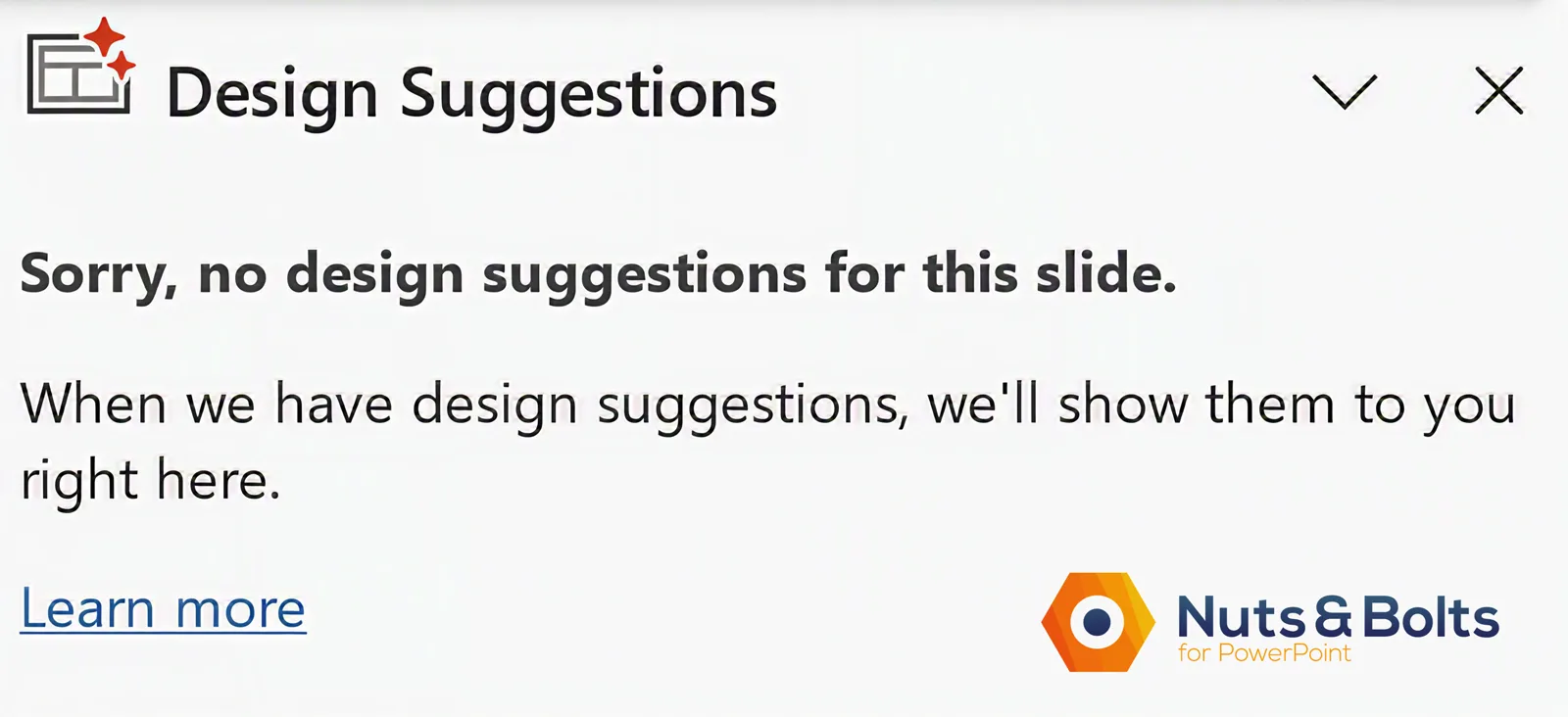
If you have the latest version of PowerPoint and want to see what kinds of layouts Designer can produce for you, you will need to understand how the command works so you can fix it when it is broken.
I personally don’t find the Design Idea layouts to be useful, but this could change as Microsoft continues to integrate AI features into the Microsoft Office Suite.
Looking for Copilot instead? If you see Design Suggestions but not the Copilot button, Copilot may simply be floating somewhere else. See the three places the Copilot button can live in PowerPoint.
To quickly fix PowerPoint Design Ideas when it is greyed out or not working, you should verify the nine common issues (all described below):
Ensure you have an active Microsoft 365 subscription
Check your internet connection while disabling VPNs
Remove mixed shapes from the slide
Follow the maximum content limits
Use one of the six default slide layouts
Enable the automatic pop-up setting
Save the file as a standard .pptx format
Ensure no one else is co-editing the slide
Verify that your IT department has not disabled Office Intelligence Services.
What is PowerPoint Designer?
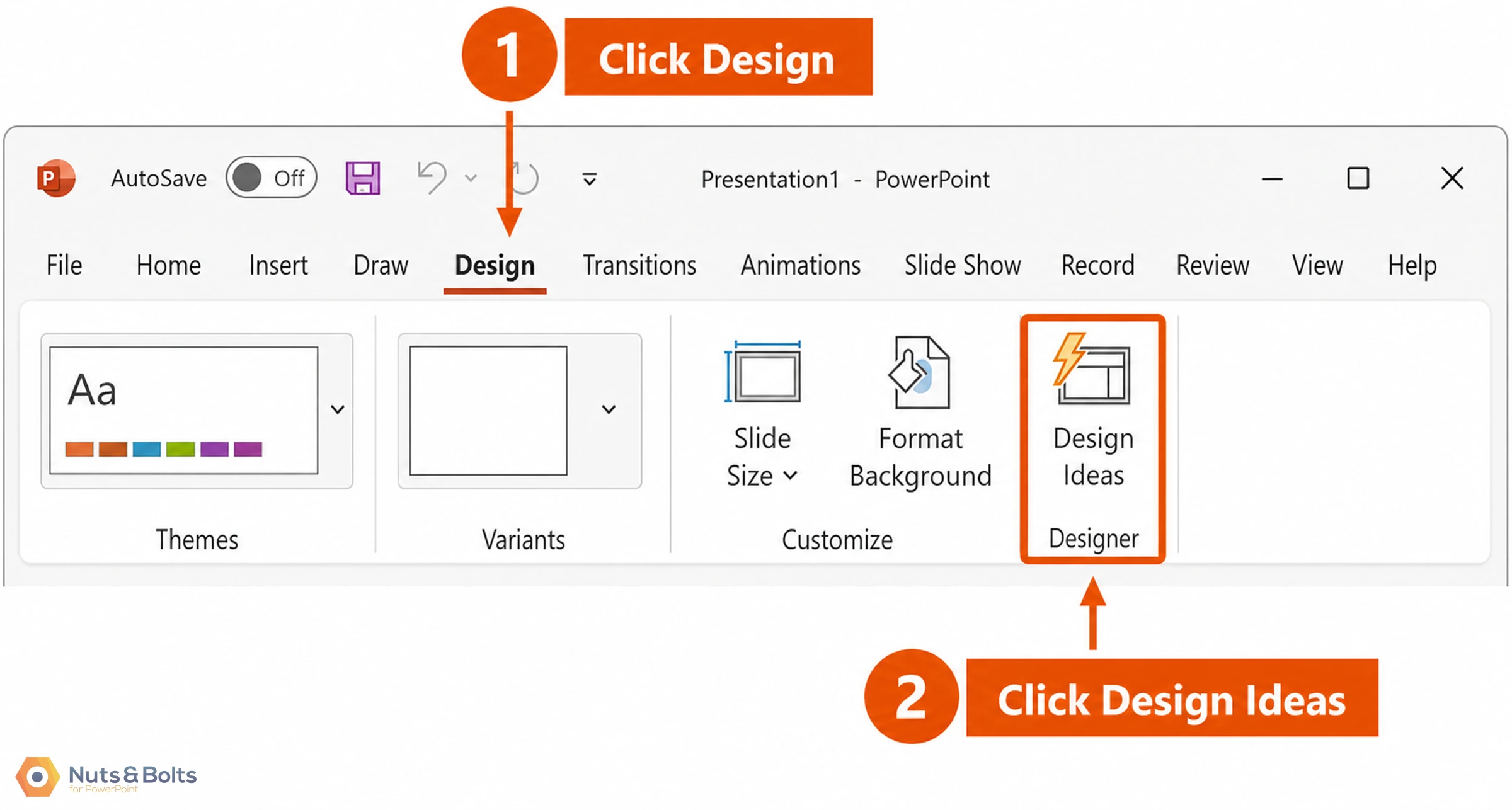
Designer is the same as the Design Ideas command. It can also be called the Designer Pane. I will be referring to these interchangeably throughout this article.
One thing that trips people up: Designer does not need a picture to work anymore. In the early days it only ever moved your pictures around, so a slide with nothing but text got nothing. That is no longer true.
Put a title and a few bullets on a Title and Content slide, open Design Ideas, and you get layout ideas built around your text. Most of the examples below use pictures and icons because that is where Designer shines, but a plain text slide is fair game too.
So if your slide is text only and the pane is empty, that is not the reason. Keep going down the list.
The Design Ideas command (or Designer) is a new PowerPoint feature that generates slide layout ideas for you. The coolest thing about this feature is that it uses the content currently on your slide to create fast PowerPoint backgrounds.
Designer runs on Office Intelligence Services, which means it is pinging a database every time you open it. That is why the ideas change from one open to the next. Close the pane, open it again, and you get a different batch.
Two things follow from that. If a colleague sees a layout you do not, you are probably just looking at different batches, not a broken feature. And if you like a layout, apply it while it is in front of you. There is no guarantee it comes back.
Designing slide layouts is one of the biggest challenges in PowerPoint, so hats off to Microsoft for creating this handy tool!
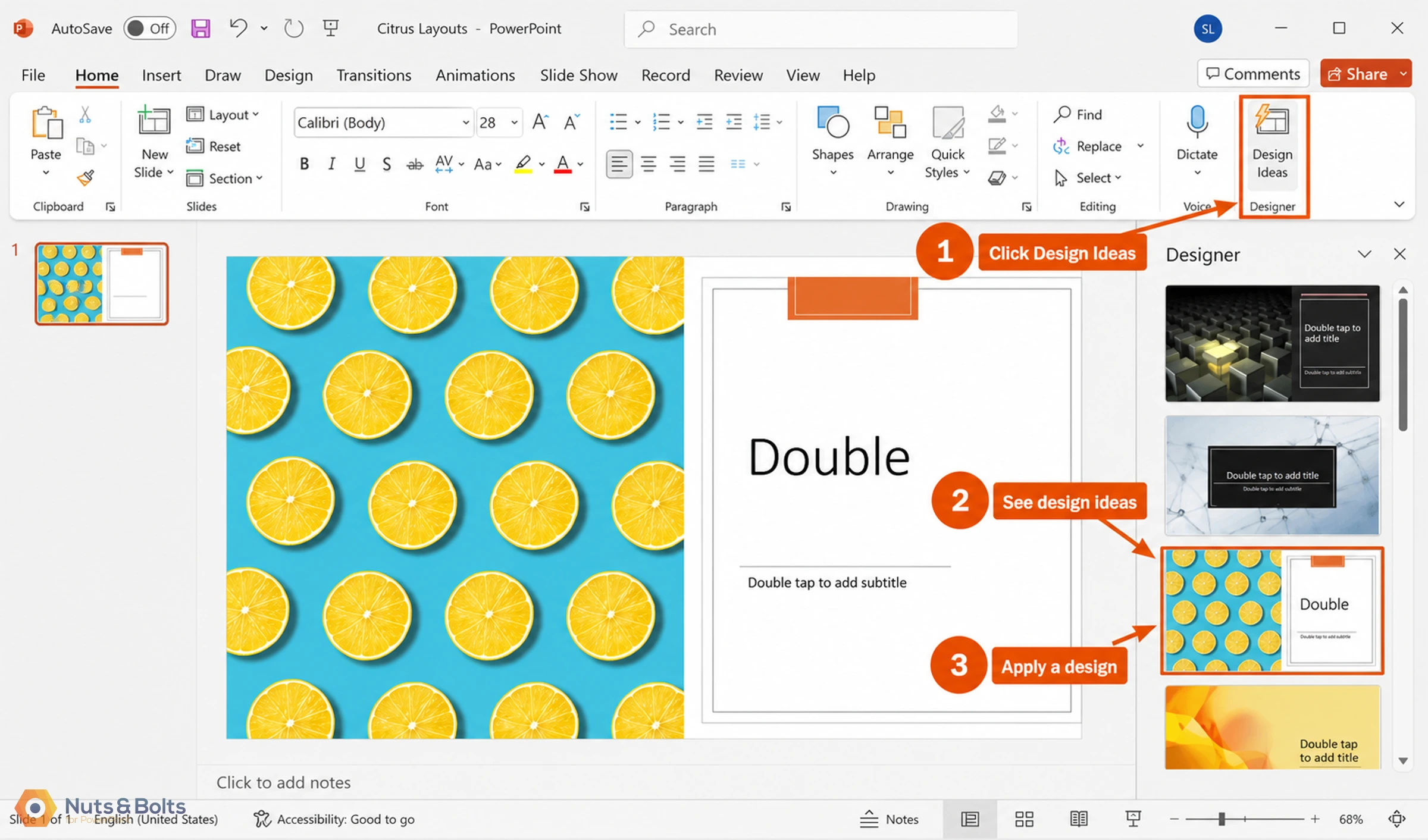
As you can see in the picture above, the command gives you a variety of layout ideas based on the content of your slide. If you then click on a layout in the Design Ideas pane, it is immediately applied to your slide as a slide background.
That phrase matters: slide background. Designer does not create a new slide layout, and it does not touch your Slide Master. Everything it adds is painted onto that one slide as a background.
So if you go looking for the layout in Slide Master view, it is not there. And if you want the same look on more slides, Designer will not hand it to you. The quickest route is to rebuild the pieces you like as a custom layout on your Slide Master, then apply that layout wherever you need it.
When it works, it’s great. When it doesn’t work, it sucks (big time). So, let’s look at how to quickly fix it if it is not working for you.
PowerPoint Design Ideas NOT working
In addition to the six fixes discussed in the video above, I’ve included three additional fixes in the article below. I will continue adding to this article, so I recommend bookmarking this page.
As a presentation design expert and PowerPoint trainer who has troubleshot thousands of slide decks, I have personally tested and verified these specific solutions to resolve the most common PowerPoint Designer errors.
Microsoft Office 365 subscription only

If you do not have a Microsoft 365 subscription, you do not have access to the PowerPoint Design Ideas command.
That means that unless you purchase (or have access to) the latest version of Microsoft Office, you will not be given the automatic layout ideas for your slides. This is one reason why I recommend getting a subscription if you don't already have one.
Design Ideas requires internet access

The Design Ideas command is powered by what is called Office Intelligence Services. That means that to generate layout ideas for you based on the content of your slides, PowerPoint requires internet access.
If you are working offline or have a spotty internet connection, try troubleshooting your internet connection or finding a better Wi-Fi zone.
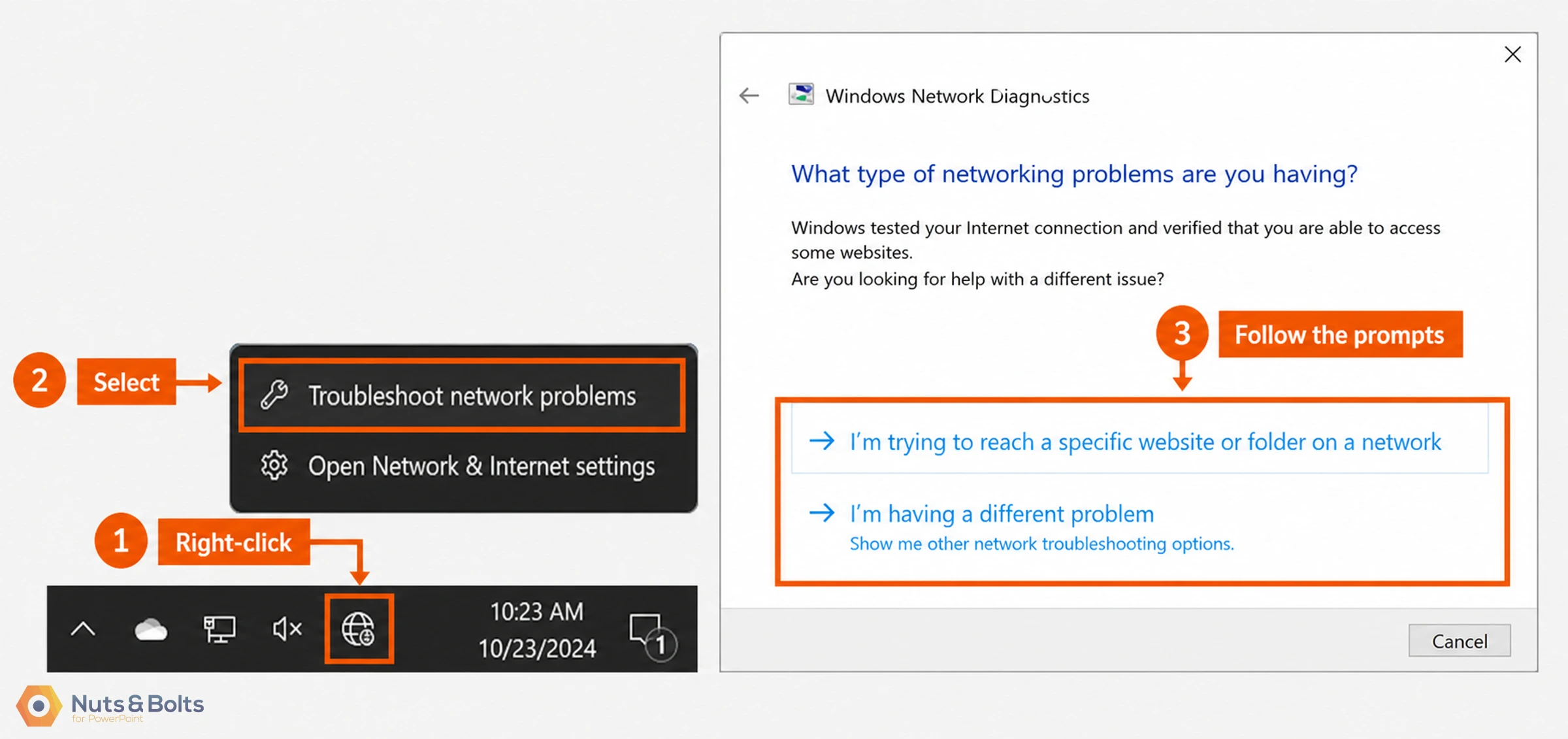
To troubleshoot your internet connection in Windows 10, simply:
Right-click the Internet Access icon in your taskbar
Select Troubleshoot Problems
Follow the prompts to fix your internet
Warning: Using a Virtual Private Network (VPN) to access the internet will also disable the Design Ideas tab. As of right now, the Office Intelligent Services do not work with VPN connections. So that is something else to check if Designer is not working for you.
Remove mixed shapes from your slide
PowerPoint Designer does not work with mixed shapes or other objects on your slide. If you add a shape, line, text box, ink or video to your slide, the Design Ideas command will likely not work. That’s because it’s designed to work with placeholders (editable elements set on the Slide Master) only.
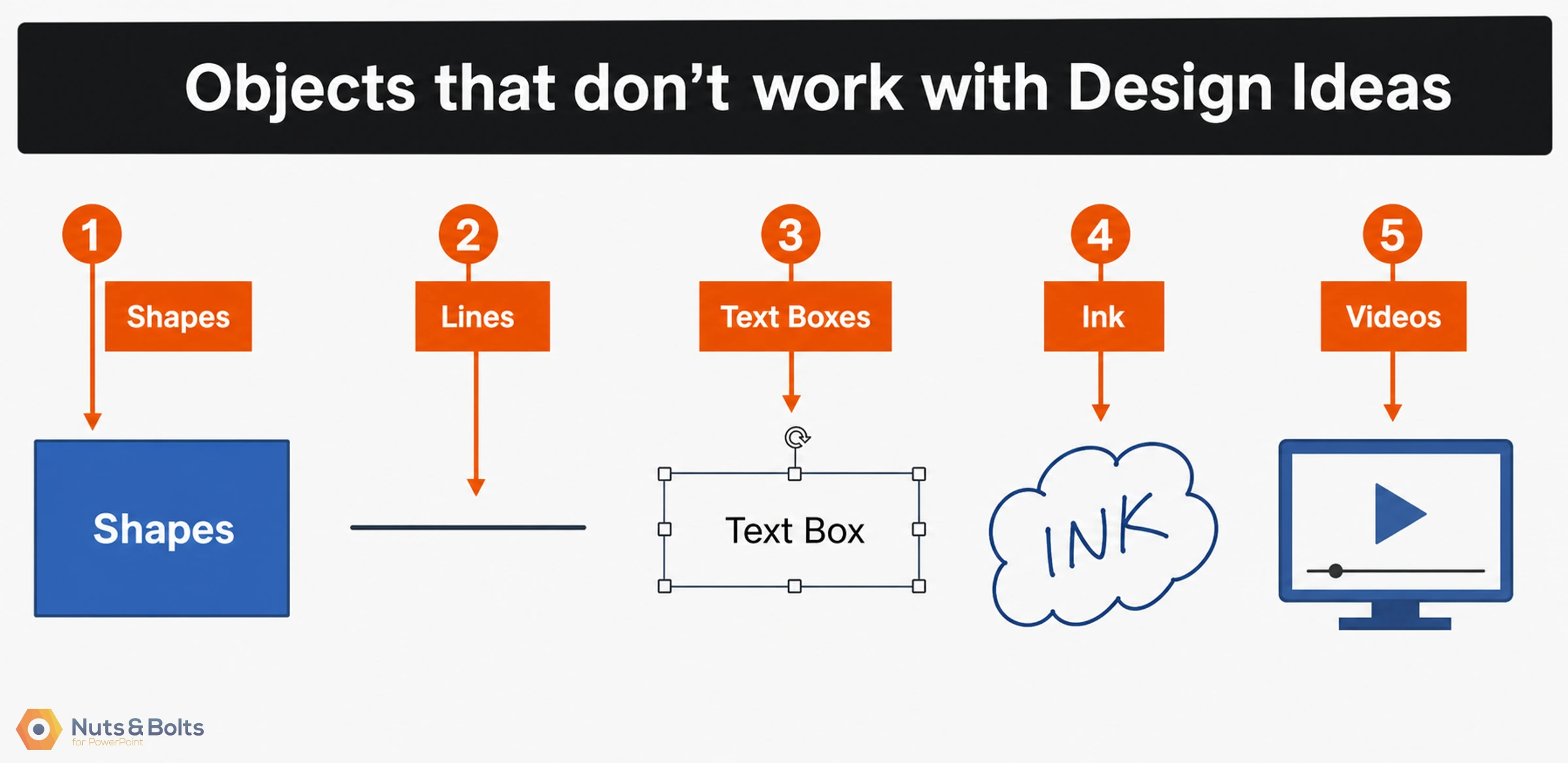
So, if your Designer is not working, double-check that you don’t have any of these objects on your slide.
Alternatively, you can try copying and pasting your content on a blank slide to see if Design Ideas works there.
Microsoft is pushing out monthly updates as part of the Office 365 subscription, so hopefully they fix this issue in one of their future updates.
The 10-6-1-1-1 content rule
The 10-6-1-1-1 rule for PowerPoint Designer states that the Design Ideas feature will only work if your slide contains a maximum of 10 pictures, 6 icons, 1 SmartArt graphic, 1 table, or 1 chart. Furthermore, these specific elements cannot be mixed together on the same slide.
This is important as the Design Ideas command can only generate slide layout ideas for certain types of PowerPoint objects and only a certain number of each of those objects.
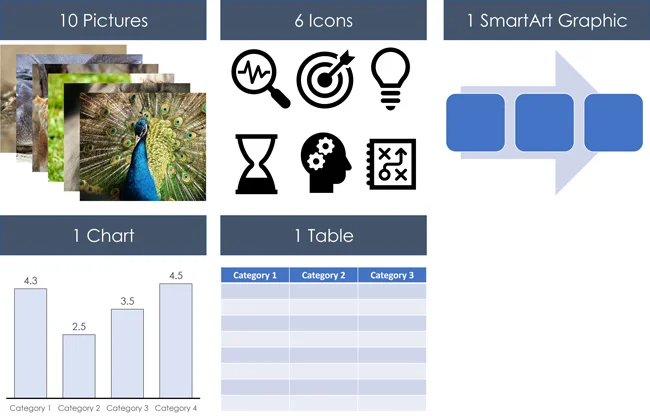
Designer only works for up to 10 pictures, 6 icons, 1 SmartArt graphic, 1 table or 1 chart on a slide. I call this the 10-6-1-1-1 rule for PowerPoint Designer.
Additionally, you cannot mix and match any of these shapes on a slide for Designer to work.
Grouping changes what Designer gives you. Take two pictures that Designer is happy with, group them (Ctrl + G), and the pane does not go empty, but the ideas change. Designer now treats the group as one picture and builds every layout around that single block. Ungroup them (Ctrl + Shift + G) and the full set comes back, including the layouts that use the pictures separately.
So if the suggestions look thin or oddly cropped, grouping is one of the first things to check, because it is such a reflex. Select everything on the slide, ungroup, and open Design Ideas again.
The picture below shows the variety of layout ideas that Designer provides with 10 images.
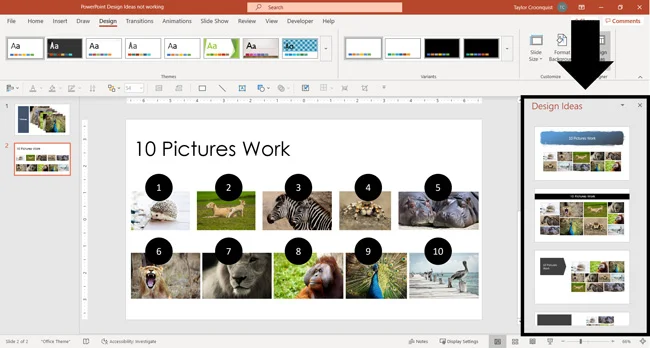
But as soon as you add an 11th picture, Designer doesn’t work anymore. Hopefully, this is something that Microsoft fixes with a future update.
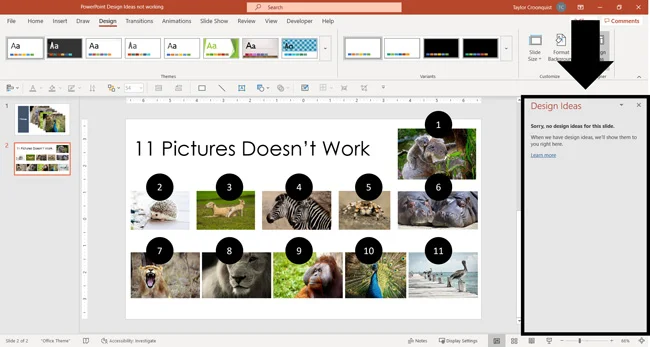
Depending on the size of your picture, sometimes you can only get 6 pictures on a slide before Designer stops working.
So that’s another reason why your Design Ideas might not be working: You’re either not using the right type of content, or you’re using too many objects.
NOTE: If you are using lots of large images in your presentation, you can compress them to decrease the size of your deck. For help with this, see our guide on compressing images in PowerPoint.
Change Your PowerPoint Layout
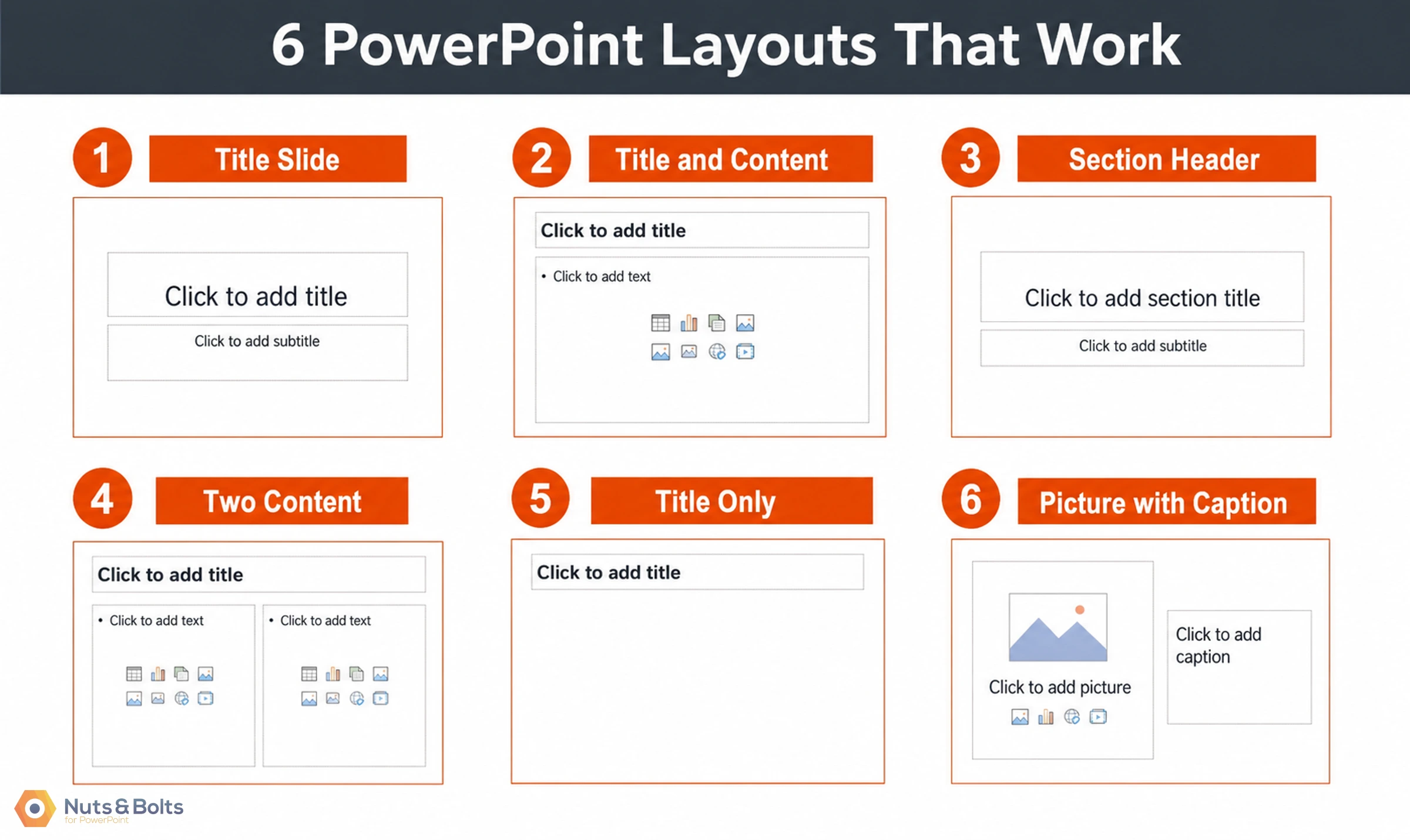
Designer only generates design ideas for the 6 default slide layouts that come with PowerPoint. These 6 slide layouts include:
Title Slide
Title and Content
Section Header
Two Content
Title Only
Picture with Caption
The flip side: two of PowerPoint's default layouts do not work with Designer at all, even untouched. They are Comparison and Content with Caption. Switch to Title Only or Title and Content and try again.
Blank is different. An empty Blank slide gives you nothing, because there is nothing to design yet. Put something on it, a shape, a picture, a line of text, and the ideas appear.
If you are using a custom PowerPoint layout or have tweaked one of these default layouts on your Slide Master, Design Ideas will not work.
If you add an extra placeholder to one of the default 6 PowerPoint layouts on the Slide Master, that is the same as creating your own custom slide layout, and it will not work.
The PowerPoint Design Ideas command does not work with custom slide layouts. Therefore, make sure you don’t add placeholders to your slide layouts if you want Designer to work for that type of slide.
To be clear about what breaks it: styling is fine, placeholders are not. You can add a logo, a color bar, a footer rectangle or any other formatting to one of the default layouts on your Slide Master and Designer keeps working. What kills it is adding a content placeholder to that layout. The moment you do, PowerPoint treats it as a custom layout and Designer switches off for every slide that uses it.
So before you strip the branding off your template to get Designer back, check the placeholders first. If the layout has only the ones Microsoft put there, the branding is not your problem.
If you think you are using the right type of content, you can always copy and paste it into a blank presentation to see if that fixes the issue.
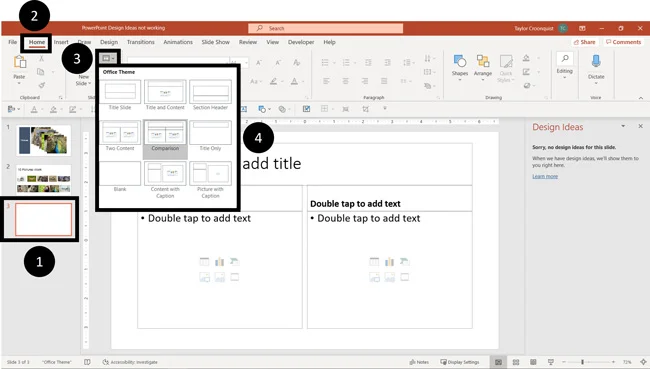
To change your PowerPoint layout to one of the 6 layouts that work, simply:
Be active on the slide layout you want to change
Navigate to the Home tab
Open the Layout dropdown
Select one of the 6 default PowerPoint layouts
If you select one of the 6 default PowerPoint layouts and Designer still doesn’t work for you, you’ll want to double-check your content. See Fix #3 and Fix #4.
Set Design Ideas to Automatically Pop Up
If the Design Ideas command is working for your colleague but not for you, it’s probably related to this setting. That’s because you can choose to use the Design Ideas command in one of two ways:
Have it automatically pop up whenever it has layout ideas for you
Only open when you select it in your Ribbon
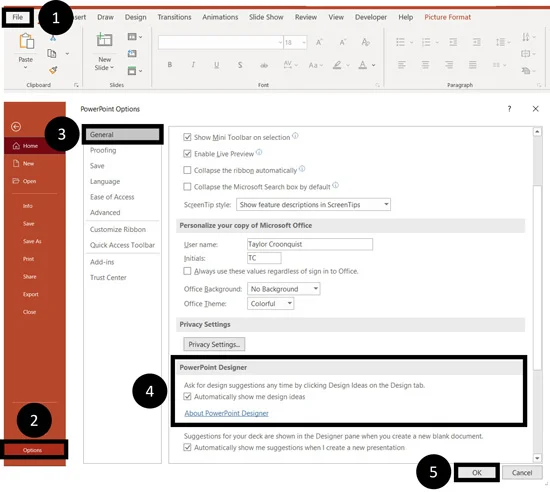
To have Design Ideas automatically pop up for you in PowerPoint, simply:
Navigate to the File tab
Select Options
Navigate to the General tab
In the PowerPoint Designer group, select Automatically show me design ideas
Click OK
With this feature active, any time that Designer can give you layout ideas based on the content on your slide, it will pop open. Keep in mind that anything you change inside File and Options is a program-level setting, so it only applies to PowerPoint on your computer and not to the presentation itself.
In addition, checking the Automatically show me design ideas gives you a second option to show you suggestions for the entire presentation.
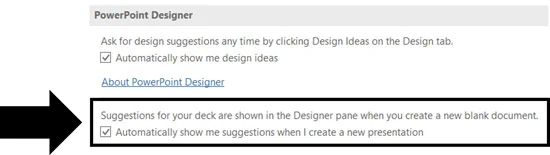
With this option selected, when you start a brand-new presentation, Design Ideas will give you the usual layout ideas for your one slide.
However, when you choose one of those layouts, Designer will then apply an entire theme to your presentation. Furthermore, that same style will be applied to all your slide layout options.
The theme includes slide layouts in the Slide Master, a font combination and a color palette.
NOTE: You don’t have to have Design Ideas set to automatically show up to use Designer in PowerPoint.
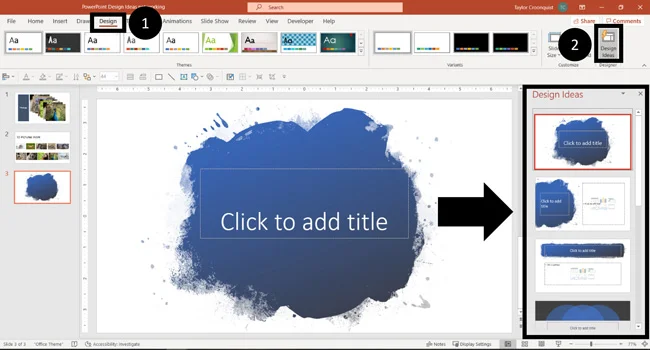
At any time you can open the Designer Pane for a specific slide To do that, simply:
Navigate to the Design tab
Click the Design Ideas command
Whether or not you see layout ideas for your slide will again depend on your content, your layout, and other factors as discussed in this article.
Check Your PowerPoint File Type
PowerPoint Design Ideas does not work with the following two PowerPoint file types:
PowerPoint 2003 to 2007 Presentation (.ppt)
While you can save your presentations this way, the Design Ideas tab will not work in those types of presentations. It will simply appear grayed out.
To fix this, all you need to do is save your presentation in the regular .pptx file format.
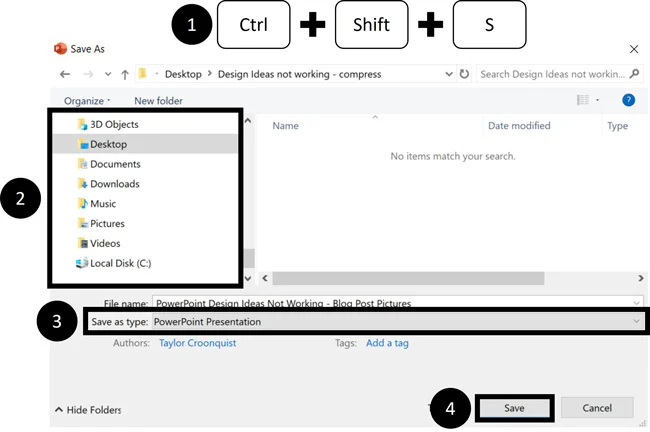
To save your presentation in the PowerPoint Presentation file format, simply:
Hit Ctrl + Shift + S (or F12) on your keyboard
Navigate to where you want to save your file
Change the Save as Type to PowerPoint Presentation
Click Save
If you were previously using a Macro-Enabled or 2003 to 2007 presentation, you should now find that the Design Ideas works again.
Look out for Multiple PowerPoint Collaborators
If you are collaborating on the same slide with one or more people, Designer will not display Design Ideas . This is true for you and any of the other collaborators.

As soon as you are the only person working on your slide again, the Design Ideas command will open itself back up.
Have Your Company Turn Design Ideas on
If you have the latest Microsoft 365 subscription at your office and you don’t see the Designer group in your Design tab, it’s likely that your company has turned the feature off.
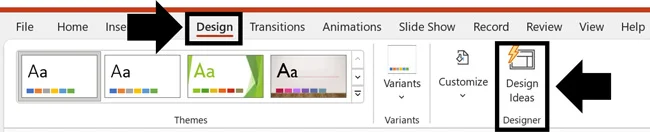
The Office Intelligence Services is something that an IT administrator can turn off within your company. Therefore, if nothing else in this post works double-check with the IT department in your company.
Final thoughts
So those are nine different ways to fix the PowerPoint Design Ideas command if yours is not working.
Assuming you have a Microsoft Office 365 subscription and your company has NOT turned this feature off, the main thing to remember is to check your content and your layouts.
If Designer is not working, it can almost always be traced back to one of these two things. However, as you can see above, there are several other issues you might face. That’s why it’s good to know how to troubleshoot Designer when it’s not working.
If you enjoyed this article, you can learn more about our PowerPoint training courses and other presentation resources by visiting us here.
About the Author

Taylor Croonquist
Co-Founder, Nuts & Bolts Speed Training
Taylor Croonquist is a PowerPoint expert and trainer. Over a career spanning the globe, from consulting in New York and investment banking in China, Taylor has truly seen it all in PowerPoint. Through necessity and a natural tech savvy, Taylor honed his PowerPoint skills to the point of even blowing the minds of the Microsoft PowerPoint programming team. When he's not busy crafting PowerPoint training, you can find him reading a sci-fi series or scuba diving.
Take your PowerPoint skills to the next level
Get access to our complete training library, new tutorials every month, and the same techniques we teach in our corporate workshops. Join the 260,000+ professionals who have trained with us.
See Membership Options