You are not going crazy. Microsoft moved the Copilot button (again).
As of September 2026, the Copilot button in PowerPoint can live in three different places:
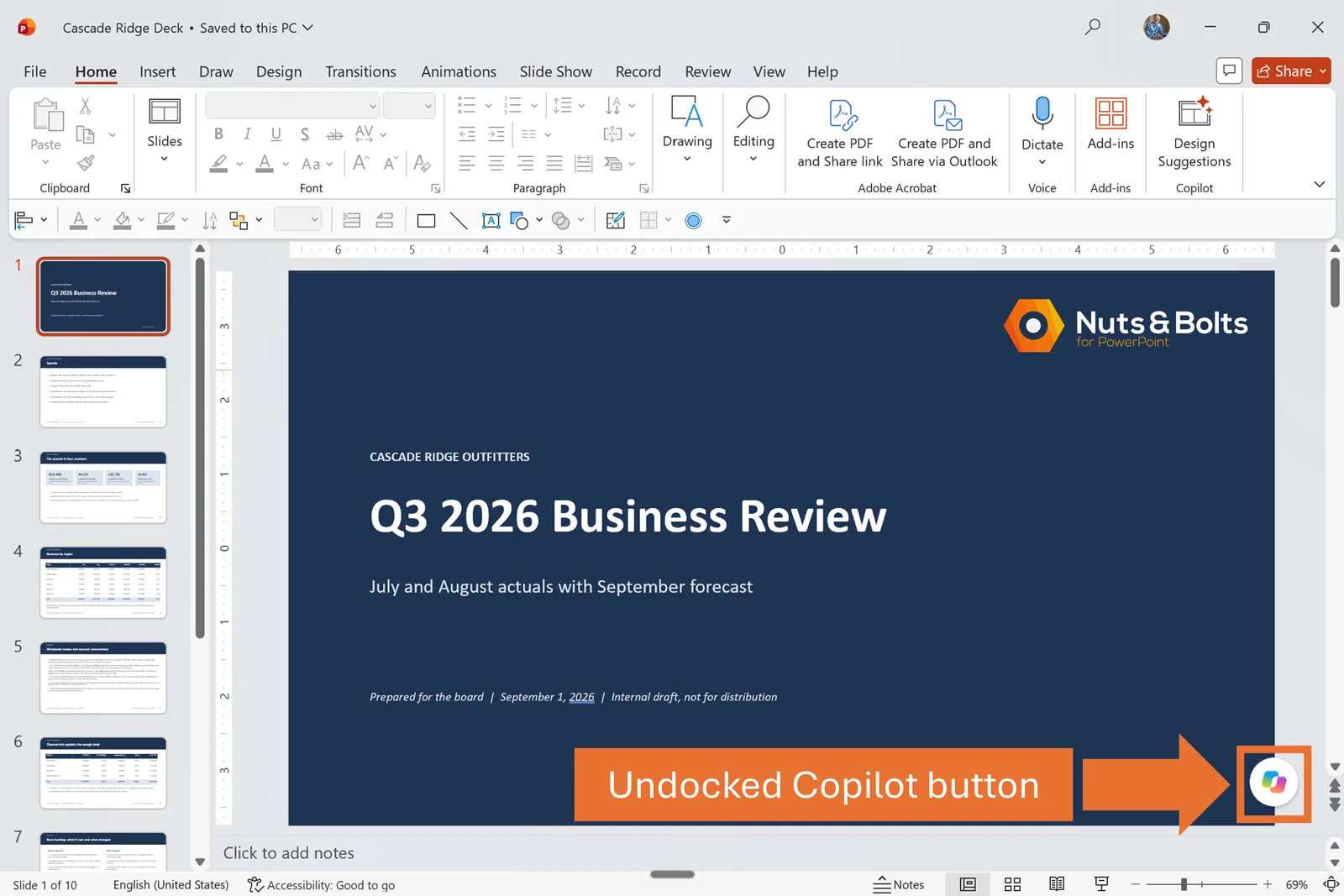
Floating in the lower-right corner of your slide
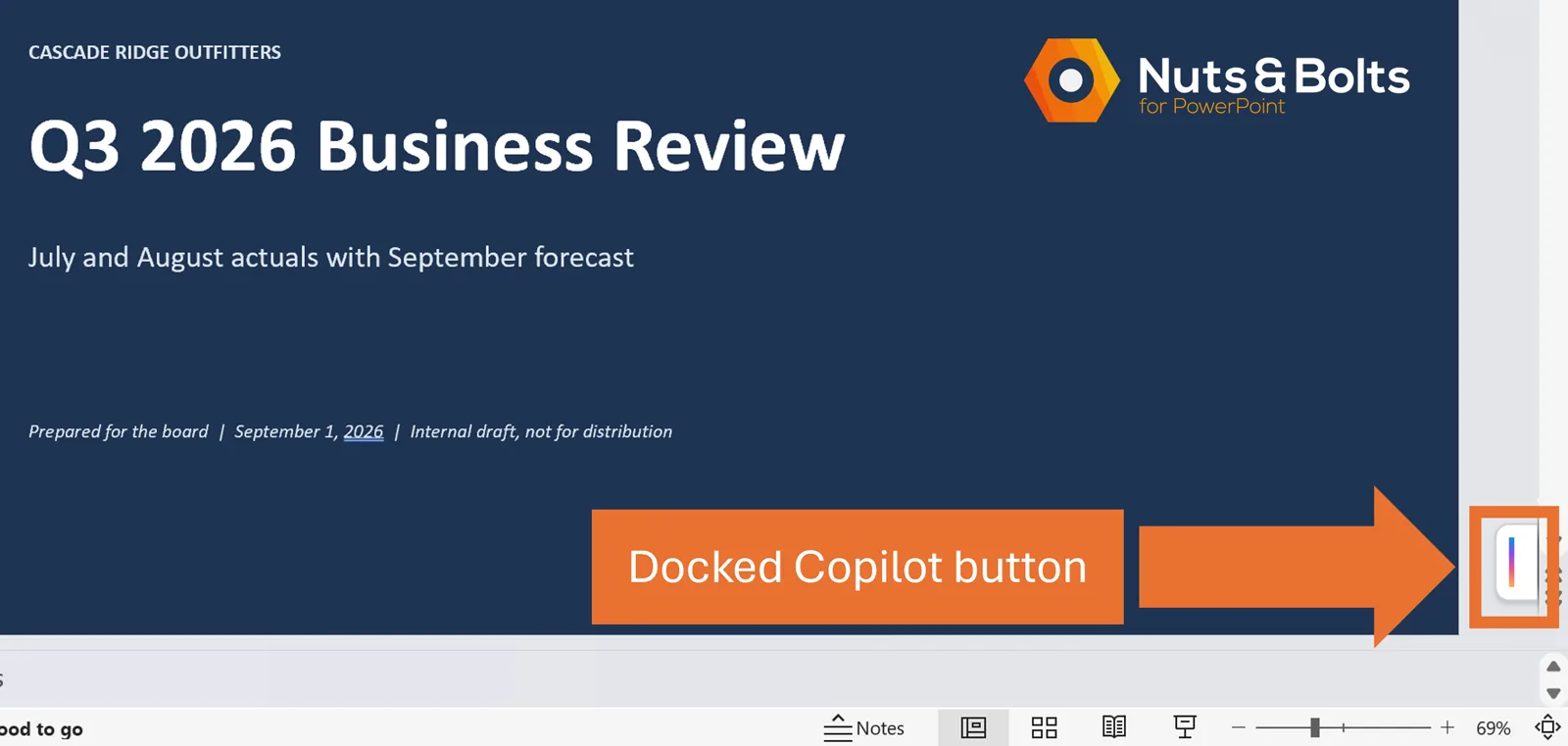
Docked as a small icon on the edge of the window
Move to top which parks it on the Home tab of the Ribbon.
You can technically put it on your Quick Access Toolbar too, but it doesn't work the way you would expect it to so I don't recommend it. See details below.
All that is to say that if you watch a Copilot tutorial, the location of their button might be different than yours.
PowerPoint is always a work in progress interface, so kudos to you for looking this up.
The three places the Copilot button can live
Microsoft calls this the Copilot Dynamic Action Button. Everyone else calls it the Copilot button, so that is what I will call it from here on.
1. Floating in the corner (undocked)
Fresh install, nobody has touched it: the Copilot button floats in the lower-right corner of the slide area. This is the default state (and state that it returns to even if you dock it).
On a busy slide, that can also be exactly where your footer, page number, source line, or other small-but-important detail lives.
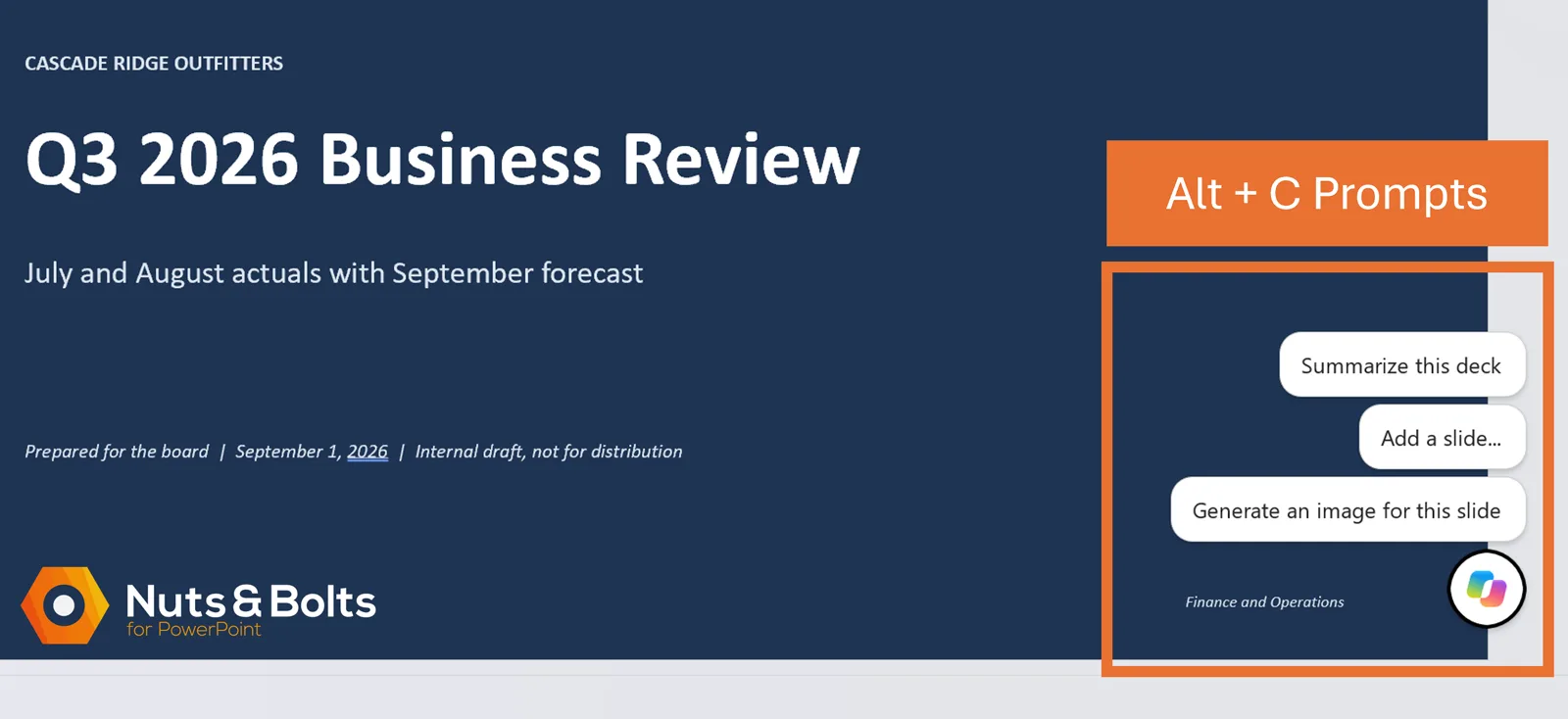
The floating state has one keyboard advantage that is easy to miss. Press Alt+C and three starter prompts appear above the Copilot button. Use the Up and Down Arrow keys to highlight one, then press Enter to trigger that prompt.
For example, choose “Add an image about” and press Enter. The Copilot chat pane opens with “Add an image about” already in the prompt box and your text cursor active at the end. You can immediately type a space and finish the prompt.
SHORTCUT: Use Copilot while it’s floating (undocked)
Alt + C: Show the three starter prompts.
Up / Down Arrow: Move through the prompts.
Enter: Open Copilot with the selected prompt already started and your cursor ready to type.
Esc: Close the starter prompts.
2. Docked on the edge
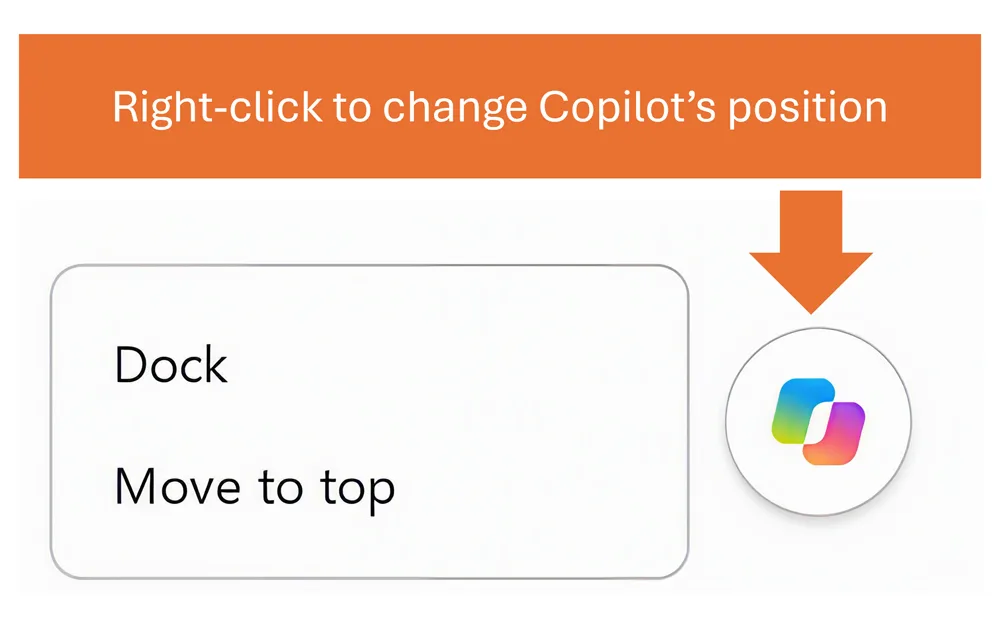
Right-click the floating Copilot button and choose Dock. It shrinks to a small icon parked on the side of the window, getting it off your slide without sending it back to the ribbon.
Docking is temporary. In my testing, if I close PowerPoint and reopen it, Copilot returns to the floating, undocked position.
The keyboard behavior changes too. With Copilot docked, Alt + C activates the docked button. Press Enter to open the Copilot pane. If you change your mind, press Esc to deactivate it.
SHORTCUT: Use Copilot while it’s docked
Alt + C: Activate the docked Copilot button.
Enter: Open the Copilot pane.
Esc: Cancel and deactivate Copilot.
3. Moved to the ribbon
If you want to move the Copilot button off of your slide space, right-click the Copilot button and choose Move to Top. Doing so, Copilot snaps back into the Home tab on the ribbon.
Unlike docking, this placement is permanent until you move it back out. In my testing, I could close PowerPoint, reopen it, and Copilot stayed in the ribbon until I deliberately moved it back out.
To send it back to the floating position, right-click the ribbon control and choose Move out of Ribbon.
Putting the Copilot button in the Ribbon is a program level setting. That means it will always be in the ribbon whenever you open a PowerPoint presentation, regardless of where someone else has placed it on their computer.
There is one wrinkle for keyboard users. The ribbon Copilot control is a split button. Clicking the top half opens Copilot Chat. Clicking the lower half exposes the Move out of Ribbon option.
On my current PowerPoint build, the obvious ribbon KeyTip shortcut Alt, H, F, X, lands on that lower part of the split button instead of opening Copilot Chat. It was the same-same on my Quick Access Toolbar too.
So moving Copilot to the ribbon does not give you the keyboard shortcut you expect.
That feels inconsistent with how ribbon commands normally behave, so I would not be surprised if Microsoft changes it in a future update. For now, I would not move Copilot to the ribbon just to get a keyboard shortcut.

Which Copilot position should you use?
The three positions are not just cosmetic. They change how you interact with it.
Keep it floating if you like Alt+ C and want the three starter prompts.
Dock it if you want Copilot off your slide for the current PowerPoint session, while keeping Alt+ C .
Move it to the ribbon if you want the position to persist after closing PowerPoint, and you are happy to click the button with your mouse.
My pick for keyboard users right now: floating or docked. Alt + C is simply more useful there.
If you live on the keyboard like I do, here are my favorite PowerPoint keyboard shortcuts.
How to move Copilot where you want it
Here is the whole move.
Right-click the Copilot button.
Choose Dock if you only want it out of the way for this session.
Choose Move to Top if you want Copilot to stay in the ribbon after you close and reopen PowerPoint.
To undo either choice, use Undock or Move out of Ribbon.
You do not need to reinstall Copilot, reset PowerPoint, or start hunting through every ribbon tab.
What about the Quick Access Toolbar?
I stress-tested that route too, because normally the Quick Access Toolbar is where I go when I want a command to become easier to reach.
There are two ways to add the Copilot group to the QAT.
If you want to right-click it, first use Move to Top so Copilot is sitting in the ribbon. Then right-click the Copilot group and add the group to the Quick Access Toolbar.
Go through File → Options → Quick Access Toolbar → All Commands, where the command is actually listed as Copilot.
In PowerPoint, the resulting QAT item is just a blue circle. Not exactly Microsoft's finest moment in icon labeling (and different than Microsoft Excel and Word). In those two apps the same group is called Assistance. See where the Copilot button is in Word and where the Copilot button is in Excel.
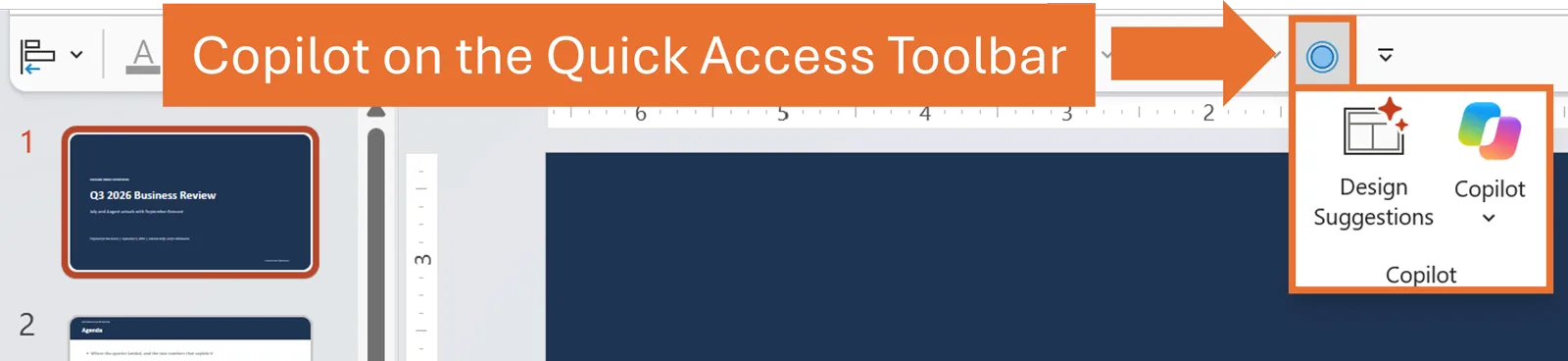
More importantly, it does not currently give keyboard users a faster way into Copilot Chat. On my build, activating the QAT group with its Alt-number shortcut and then selecting Copilot (F, X) lands on the lower half of the split button, which exposes Move out of Ribbon instead of opening Chat.
As of right now, it is only useful on your QAT as a clickable mouse target (not a shortcut).
If you want the full QAT setup, including how to position and customize it, see my Quick Access Toolbar tutorial.
Why did my Copilot button disappear?
The one mistake: deciding Copilot is missing when it is just somewhere else
The Home tab trap is the one I see most. You look at the Home tab, see a Copilot group that contains Design Suggestions but not the Copilot button itself, and conclude Copilot is gone.
It is not gone. When Copilot is floating in PowerPoint, the actual button is down in the lower-right corner of your slide area. You will know it is floating because either:
You see it floating in the lower-right hand corner
You look in PowerPoint Ribbon and only see Design Suggestions
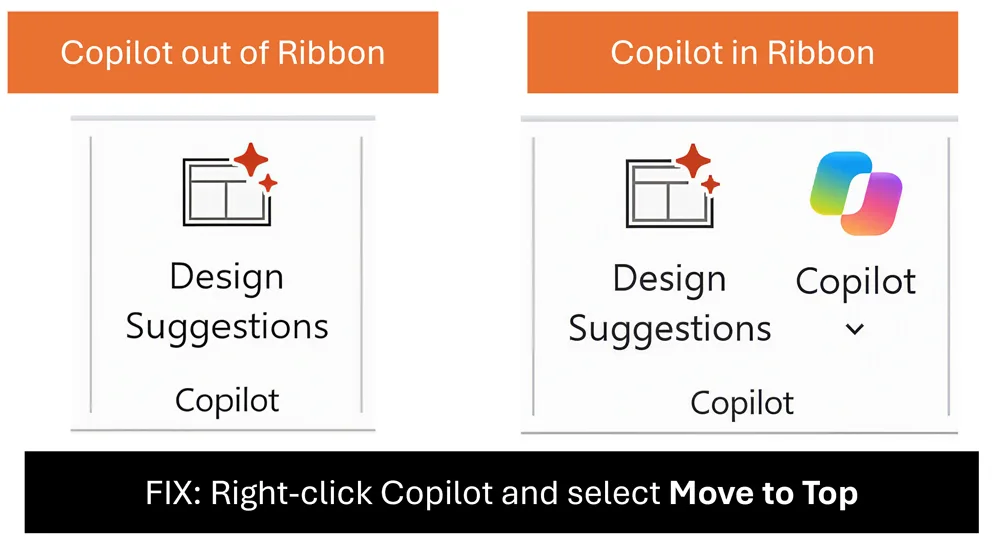
Look down and to the right before you start troubleshooting.
If Copilot is truly missing from the corner, docked edge, and ribbon, then it is no longer a placement problem. Microsoft recommends checking your Office build, Copilot license, update channel, and connected-experiences privacy settings. See Microsoft's missing Copilot button troubleshooting guide for the full checklist.
Copilot only stays available on the Quick Access Toolbar while it is also in the ribbon. If you choose Move out of Ribbon, Copilot disappears from the QAT group too and returns to its floating or docked position.
So if you added Copilot to your Quick Access Toolbar and suddenly cannot find it there, check whether Copilot is still set to Move to Top.
Common questions
Q: How do I access Copilot in PowerPoint?
If Copilot is floating, press Alt+ C to activate the starter prompts, use the arrow keys to pick one, and press Enter. You can also click the button.
If Copilot is docked, press Alt+ C and then Enter. If Copilot has been moved to the ribbon, click the top half of the Copilot split button to open the chat pane.
Q: Why did Copilot disappear from my Quick Access Toolbar?
Copilot only appears on the Quick Access Toolbar while it is also in the ribbon. If you choose Move out of Ribbon, Copilot disappears from the QAT too and returns to its floating or docked position.
To get it back on the QAT, right-click the Copilot button and choose Move to Top again.
Q: Why is the Copilot button missing from PowerPoint?
First, look in the lower-right corner of your slide. The Copilot button may be floating there even if the Home tab only shows Design Suggestions.
If it is not floating, docked, or on the ribbon, check your Office build, Copilot license, update channel, and connected-experiences privacy settings.
Q: Is docking the Copilot button permanent?
No. In my testing, docking only lasted for the current PowerPoint session. After I closed and reopened PowerPoint, Copilot returned to the floating, undocked position.
If you want the location to persist, use Move to Top instead. That keeps Copilot in the ribbon across sessions until you choose Move out of Ribbon.
Q: Does moving Copilot to the ribbon give me a keyboard shortcut?
Not a useful one on my current PowerPoint build. The obvious ribbon KeyTip route (Alt, H, F, X) lands on the lower half of the Copilot split button and exposes Move out of Ribbon instead of opening Copilot Chat.
The Quick Access Toolbar behaves the same way in my testing, so keyboard users are better off keeping Copilot floating or docked and using Alt + C for now.
Q: Does the Copilot button position save with my presentation?
No. The Copilot button position is a PowerPoint program-level setting, not something saved inside the .pptx file.
I tested this across two machines. I moved Copilot to the ribbon on one computer, opened the same presentation on another computer, and Copilot appeared in that computer's own default position.
Takeaways
The Copilot button can live in three places in PowerPoint, but the positions do not behave the same way.
Floating is the default and gives you Alt+ C plus three keyboard-selectable starter prompts.
Docked gets Copilot off your slide and keeps Alt+ C, but the position resets when you close PowerPoint.
Move to Top puts Copilot back in the ribbon and that placement persists across sessions.
The ribbon and QAT routes do not currently give keyboard users the clean Copilot shortcut you would expect on my build.
The button position is your PowerPoint setting. It does not travel with the presentation.
Once you know which behavior you want, move Copilot once and get back to the deck.
About the Author

Taylor Croonquist
Co-Founder, Nuts & Bolts Speed Training
Taylor Croonquist is a PowerPoint expert and trainer. Over a career spanning the globe, from consulting in New York and investment banking in China, Taylor has truly seen it all in PowerPoint. Through necessity and a natural tech savvy, Taylor honed his PowerPoint skills to the point of even blowing the minds of the Microsoft PowerPoint programming team. When he's not busy crafting PowerPoint training, you can find him reading a sci-fi series or scuba diving.