If Copilot disappeared from Word's Home tab, look in the lower-right corner of your document first.
That round button hovering near the page is Copilot's new default position. And if you swear it was docked on the side yesterday but is floating again today, you are not imagining that either.
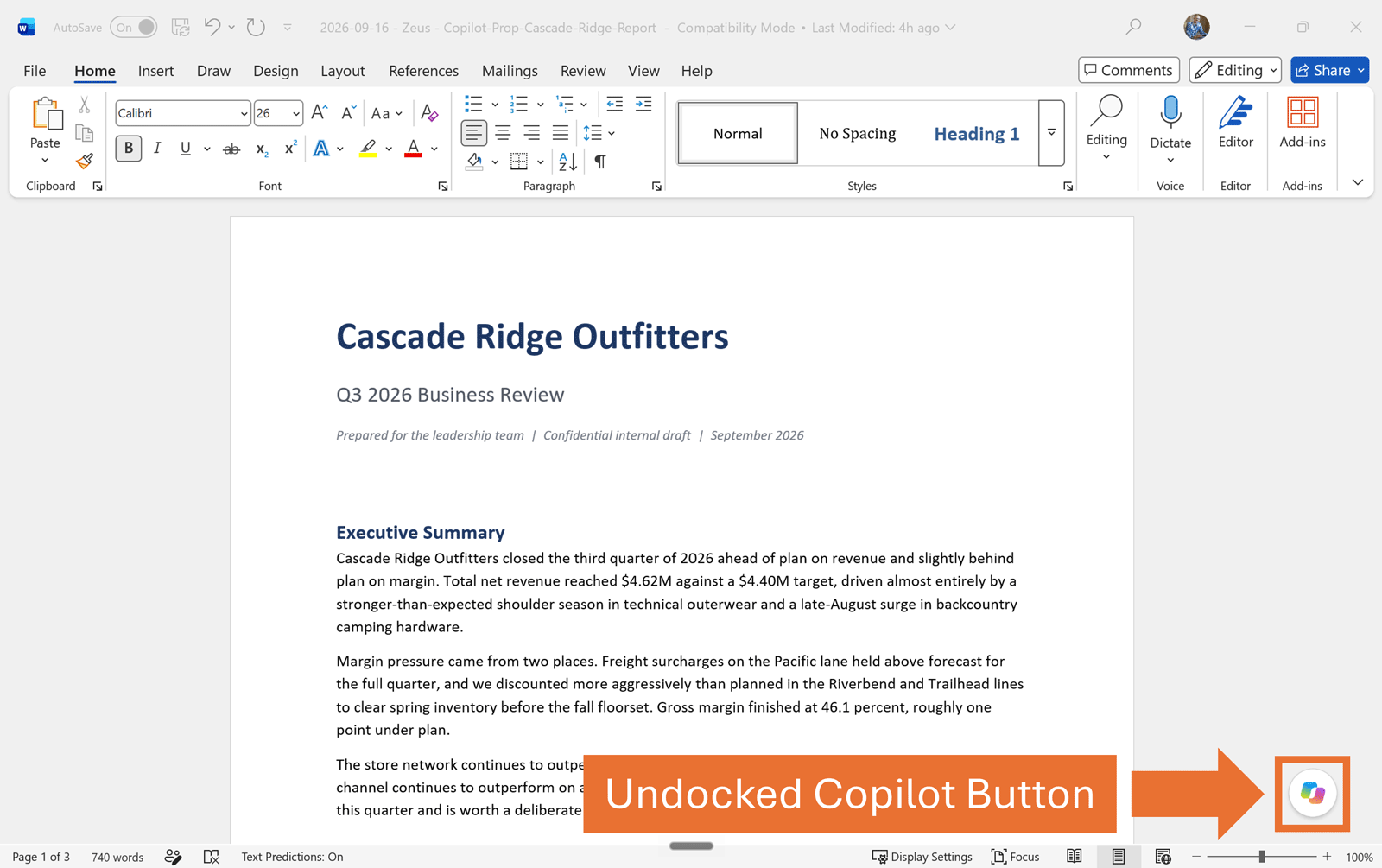
As of September 2026, the Copilot button in Word can live in three places:
Undocked and floating over your Word document
Docked as a small icon on the edge of the window
Moved to top in the Home tab of the Ribbon
The confusing part that I found is that two of those positions behave differently when you close Word. That is why Copilot can feel like it keeps moving even when you did not deliberately move it.
Credit to you for looking this up and not just throwing your computer out the window.
How to move the Copilot button in Word
If Copilot is floating beside your document, you can move it in a few clicks:
Right-click the floating Copilot button in the lower-right corner of the document.
Choose Dock if you only want it off the page for the current Word session.
Choose Move to Top if you want Copilot on the Home tab and want that placement to stick after you close Word.
To move it back out of the Ribbon, right-click the Copilot control and choose Move out of Ribbon.
That’s the whole move. The important difference is what happens tomorrow. Docking is temporary, while Move To Top keeps the Copilot command in your Ribbon until you move it out of the Ribbon.
The important Word difference: not every Copilot position sticks
If you only remember one thing from this article, make it this: docking Copilot and moving Copilot to the ribbon are not the same kind of choice.
Dock it when you only want it out of the way for now
Right-click the floating Copilot button and choose Dock. The control shrinks into a small icon on the edge of the Word window, which gets it off the document without sending it all the way back to the ribbon.
On my current build, that choice lasts for the working session. Close Word and come back later, and Copilot returns to the floating position. Microsoft describes docking the same way: it persists for your current session rather than becoming a permanent placement preference.
Keyboard-wise, docked is useful. Alt+ C activates the Copilot control, and Enter opens the pane.
Move it to the ribbon when you want the choice to persist
If you want Copilot to stop reappearing over the document, right-click the floating control and choose Move to Top on my current build. Copilot moves to the far-right side of the Home tab.
That placement persists when Word closes and reopens. To send it back out of the ribbon, right-click the ribbon control and choose Move out of Ribbon.
So if your complaint is 'Why does this button keep coming back?', docking is not the fix. Moving it to the ribbon is.
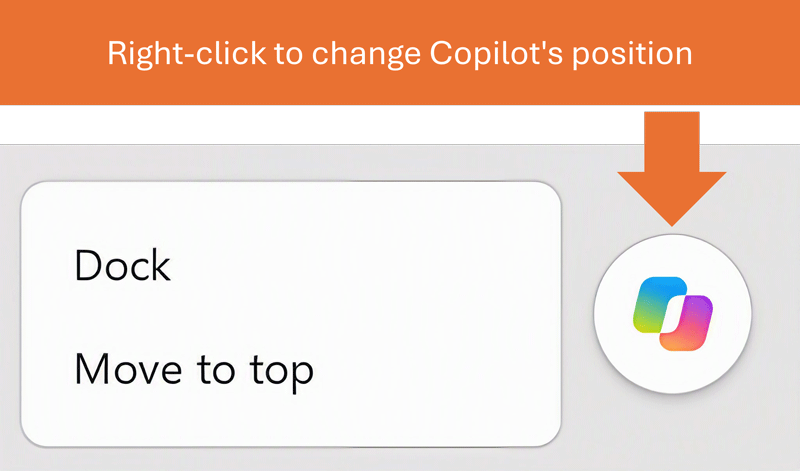
Where the Copilot button can live in Word
Microsoft calls this control the Copilot Dynamic Action Button. In normal-person English, it is the Copilot button.
Word gives you the same three basic positions as Excel and PowerPoint, but the useful question is not just where the button sits. It is what you gain and give up in each spot.
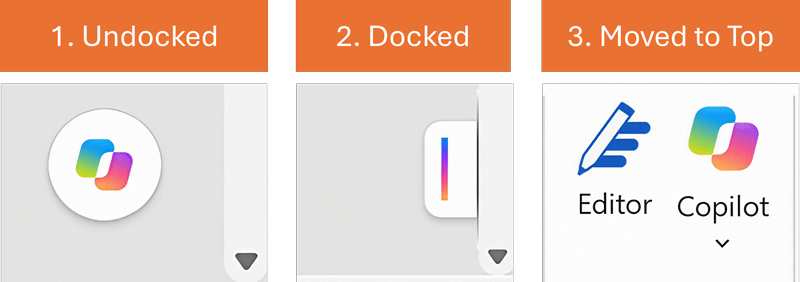
1. Undocked floating over the document
This is the default. The button sits near the lower-right corner of the document area, close to the page you are actively writing or editing.
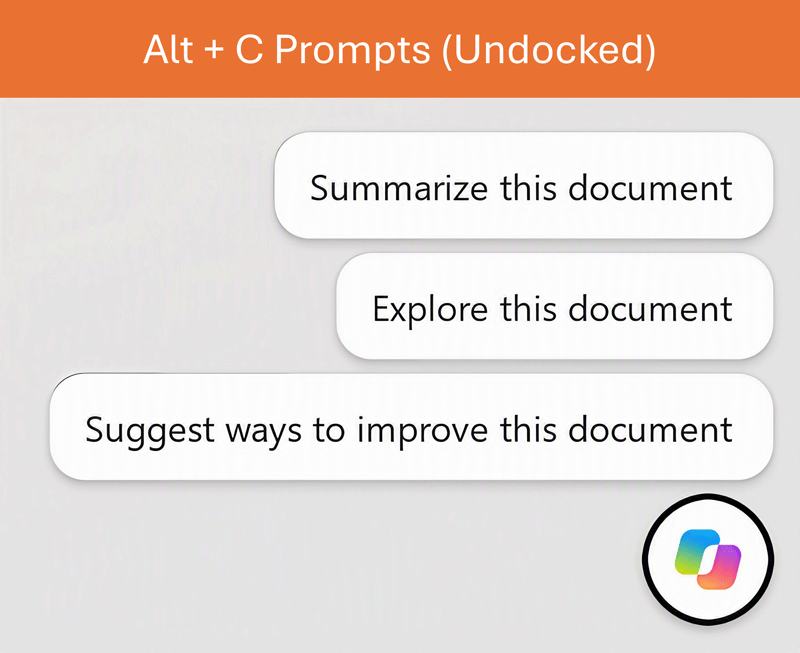
Floating gives you the richest Alt + C behavior. In my testing, Alt + C activates the floating control and exposes starter prompts. You can move through them with the arrow keys and press Enter to continue.
2. Docked on the edge
Docking keeps Copilot close without leaving it on top of the page. Alt + C still works, but the placement resets after the Word session ends.
3. Moved to the Home tab
Moving Copilot to the ribbon clears the document area and remembers your preference across Word sessions.
The tradeoff is keyboard shortcuts. On my current build, Alt + C is only useful while Copilot is floating or docked. Once Copilot is in the Ribbon, the keyboard shortcut to access it is Alt, H ,F, X . The only problem is that this shortcut doesn't open Copilot.
Instead of opening the Copilot chat, Alt, H, F, X only gives you the option to move the Copilot command out of the Ribbon (which doesn't make any sense).
You can technically add the Copilot button to the Quick Access Toolbar in Word too, but because the shortcut doesn't work there, I don't recommend it. See details below.
Which Copilot position should you use in Word?
For Word, I would choose based on how often the floating control interrupts the page and how much you care about keyboard access.
Keep it floating if you like the Alt + C starter prompts and the button does not bother you while writing.
Dock it if you want the page clear for the current session but still want Alt + C.
Move it to the ribbon if you want Copilot off the page every time you reopen Word.
For long reports, proposals, and documents I am actively cleaning up, I prefer the persistent option. Once I decide I do not want a floating control sitting beside the page, I do not want to make that decision again tomorrow.
If you are moving AI-generated text into an existing Word document, how you paste it matters too.
The Quick Access Toolbar does not turn Copilot into a one-step shortcut
The Quick Access Toolbar is usually one of my favorite ways to turn buried Office commands into easy keyboard shortcuts. Copilot is a strange exception.
You can add the Copilot-related group to the Word Quick Access Toolbar. You can also go through File > Options > Quick Access Toolbar. In that dialog, the command I found is labeled Assistance rather than Copilot.
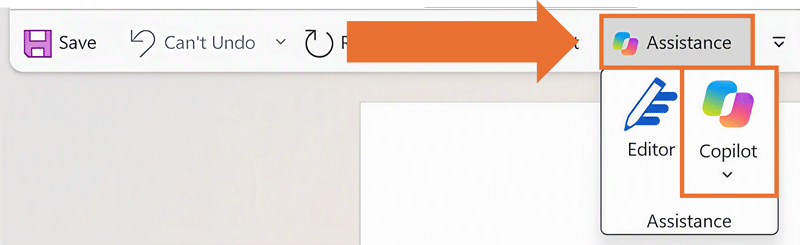
Word then gives you an even stranger result: the Quick Access Toolbar control can expose both Editor and Copilot rather than behaving like one clean Copilot button.
Pressing Alt plus the QAT number gets you to that group, but it does not jump straight into Copilot Chat. In my testing, the only way to open the Copilot chat command off of the QAT is to click it with your mouse.
If you use the QAT shortcut to open the Assistance group, you still have to hit F, X to activate the Copilot command, and all it allows you to do is move it out of the Ribbon (which makes no sense).
If keyboard speed is the goal, floating or docked plus Alt + C is simpler.
If you don't want to navigate to the Home tab, or have the Copilot button docked or floating over your Word document, it still might make sense for the QAT as you can always click it with your mouse.
One more catch. Copilot only works from your Quick Access Toolbar while it is also sitting in the Ribbon. If the button is floating or docked, the Assistance button on your QAT turns grey and opens an empty box. Right-click the floating button and choose Move to Top first. And if you later choose Move out of Ribbon, it goes grey again.
Why the Copilot button can look like it keeps disappearing in Word
There are two different problems that feel like the same problem.
Placement problem: Copilot is still available, but it moved between the page, window edge, and ribbon. This is the first thing to check.
Availability problem: Copilot is not present in any of those places. That is when license, Office build, update channel, or privacy settings become relevant.
The placement problem is especially easy to misread after docking. You tuck Copilot against the side, close Word, reopen it later, and the button is floating again. Nothing vanished. Docking simply was not a permanent setting.
Likewise, if an older tutorial tells you Copilot should be on the Home tab, do not start troubleshooting your license until you have checked the lower-right corner of the document.
If Copilot is truly missing from Word
If Copilot is not floating, docked, or on the ribbon, then moving the button will not help. You are dealing with availability rather than placement.
Microsoft's current troubleshooting guidance points to the Office build and signed-in Copilot license first, then the Office update channel and connected-experiences privacy settings. Business users on slower update channels can see different Copilot availability than users on Current Channel or Monthly Enterprise Channel.
Using Copilot in the other Office apps?
The three basic placements are shared across Word, Excel, and PowerPoint, but I would not assume the keyboard and Quick Access Toolbar behavior is identical. It is not.
PowerPoint has its own split-button and keyboard quirks. See where the Copilot button is in PowerPoint for that version. Excel adds its own twist with three Copilot modes. See where the Copilot button is in Excel for that version.
Common questions
Q: Where is the Copilot button in Word now?
By default, look in the lower-right corner of your screen. Copilot can also be docked on the edge of the Word window or moved to the Home tab of the ribbon.
You can also add it to your Quick Access Toolbar if you want to, but its QAT shortcut doesn't work the way I expected it to.
Q: Why did the Copilot button disappear from the Word ribbon?
It may not be missing at all. Check the lower-right corner of the document first. Copilot can now float over the page rather than living on the Home tab.
Q: Why does my Copilot button keep moving in Word?
If you dock Copilot, that placement lasts for the current Word session rather than permanently. When you reopen Word, Copilot can return to the floating position. Move it to the ribbon if you want the placement to persist.
Q: How do I get the floating Copilot button off my Word document?
Right-click the floating control. Dock moves it to the edge for the current session (it resets the next time you close and reopen Word). Move to Top on my current build moves it to the Home tab and keeps it there until you choose Move out of Ribbon.
Q: Does Alt + C open Copilot in Word?
On my current Windows build, Alt + C is useful while Copilot is floating or docked. Once Copilot has been moved into the ribbon, the keyboard path changes because you are navigating the ribbon instead of activating the floating control.
The Ribbon KeyTips (Alt, H, F, X) land on the Move out of Ribbon option, not in Copilot Chat.
Q: Can I add Copilot to the Word Quick Access Toolbar?
Yes, but it does not become a clean one-step Copilot shortcut. In my current Word build, the related command is labeled Assistance in the QAT options, and the resulting toolbar control can contain both Editor and Copilot.
From the keyboard, Alt, its QAT number, then F, X lands on the Move out of Ribbon option, not in Copilot Chat.
Q: Why is Copilot not showing on my Quick Access Toolbar in Word?
Because Word only turns Copilot on in the QAT when the button also lives in the Ribbon. If yours is floating in the lower-right corner of your document, the Assistance button on your QAT is greyed out and empty. Right-click the floating button and choose Move to Top. Once it is on the Home tab, the one on your Quick Access Toolbar is back in color and you can click it.
Q: Why is Copilot not showing in Word at all?
If Copilot is not floating, docked, or on the ribbon, check your Office build, Copilot license, update channel, and connected-experiences privacy settings.
Takeaways
The Copilot button in Word can float over your document, dock on the edge, or live on the Home tab. The part that matters is which choices persist.
Floating is the default and gives you the richest Alt + C behavior.
Docked clears the page and keeps Alt + C, but only for the current Word session.
Moving Copilot to the ribbon keeps it off the page across sessions.
The Quick Access Toolbar can make Copilot easier to click, but it does not currently create the direct keyboard shortcut you would expect.
If Copilot is nowhere in Word, then move on to license, build, update-channel, and privacy troubleshooting.
Once you know the difference between temporary and persistent placement, the button stops feeling quite so slippery.
About the Author

Taylor Croonquist
Co-Founder, Nuts & Bolts Speed Training
Taylor Croonquist is a PowerPoint expert and trainer. Over a career spanning the globe, from consulting in New York and investment banking in China, Taylor has truly seen it all in PowerPoint. Through necessity and a natural tech savvy, Taylor honed his PowerPoint skills to the point of even blowing the minds of the Microsoft PowerPoint programming team. When he's not busy crafting PowerPoint training, you can find him reading a sci-fi series or scuba diving.