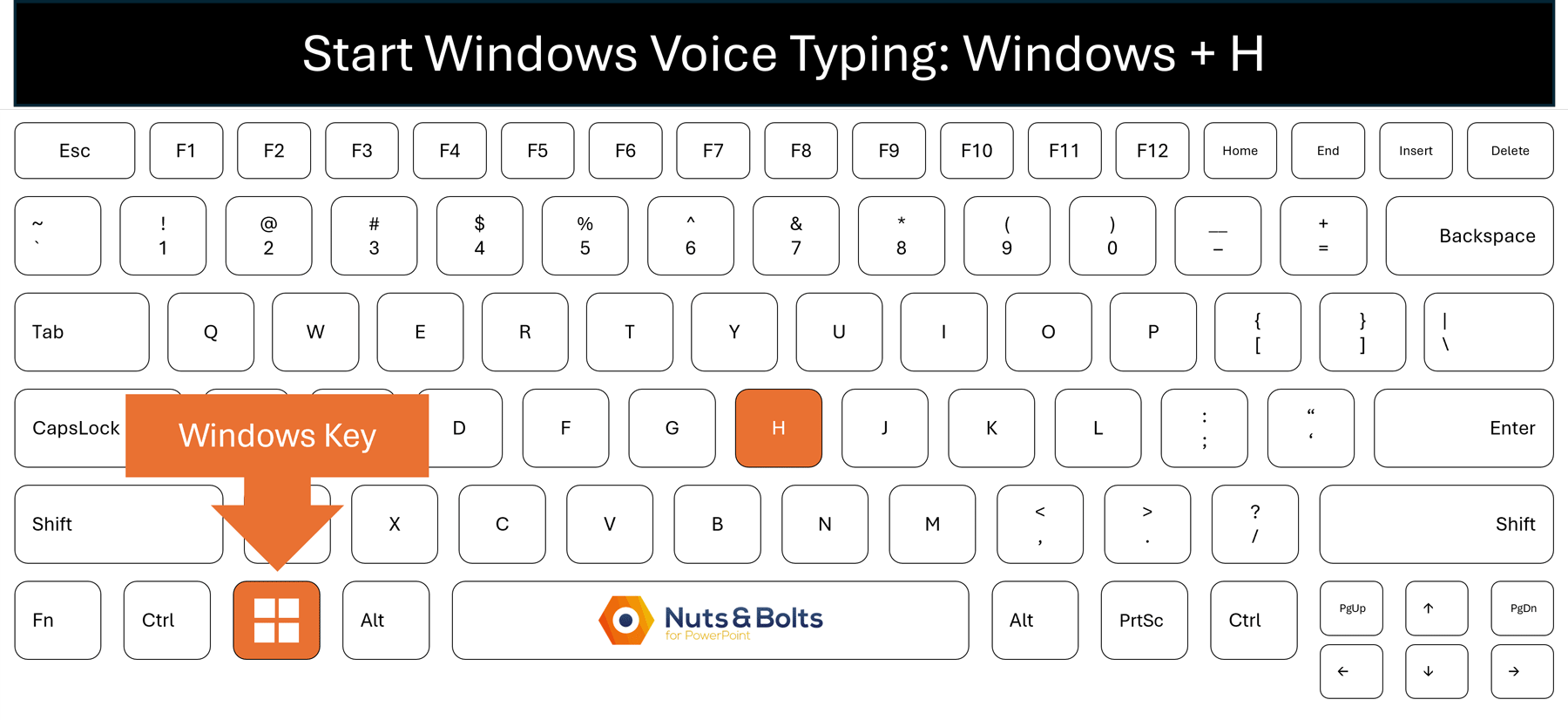
Windows has voice typing built in, and I think Windows + H is one of the most useful Windows shortcuts for working with AI.
What do I mean? Click into ChatGPT, Copilot, Claude, or almost anywhere else you can type, press Win + H , and start talking. Your words appear as editable text wherever your cursor is.
Why does this matter? Because manually typing on a keyboard limits how much context you are willing to type into your AI prompts. In a nutshell, because typing takes work, you can't help but:
Shorten the background context of your task
Skip that weird exception you had once
Leave out fully explaining the example because it feels like effort
Talking removes a lot of that friction. It becomes much easier to give AI the longer, messier, more detailed version of what is actually in your head. That gives the AI more context to work with, which can radically improve what comes back.
The shortcut is simple. The useful part is what you do with it.
Below, I will show you how to use Windows voice typing for AI prompts, turn on automatic punctuation, and troubleshoot Win + H if it does nothing.
How to use Windows + H for voice typing
Using Windows voice typing is almost ridiculously simple once it is turned on.
Click inside the text box where you want your words to appear. That could be a ChatGPT prompt, a Claude chat, an Outlook email, a Word document, or almost anywhere else you can type.
Press Win + H.
Wait for the voice typing panel to show that it is listening.
Start talking. Your words appear as editable text wherever your cursor is.
Give it a quick read before you send anything. Fix a name, number, or mangled word if necessary, then carry on like you typed the whole thing yourself.
To stop dictating, click the microphone button in the voice typing panel or say, "Stop listening."
That is the entire trick.
For AI prompts, I prefer this to immediately starting a voice conversation. I can see the full prompt before I hit Send. If I forgot a constraint, changed my mind halfway through, or Windows misunderstood something important, I can fix it first.
And because Windows + H is built into Windows, the same shortcut follows you from ChatGPT to Claude to Copilot. You do not have to learn a different microphone button in every AI tool.

See our guide to learn other useful Windows keyboard shortcuts.
Turn on automatic punctuation
If you do not want to say "period," "comma," and "question mark" while you dictate, Windows voice typing can add punctuation for you automatically.
To turn it on:
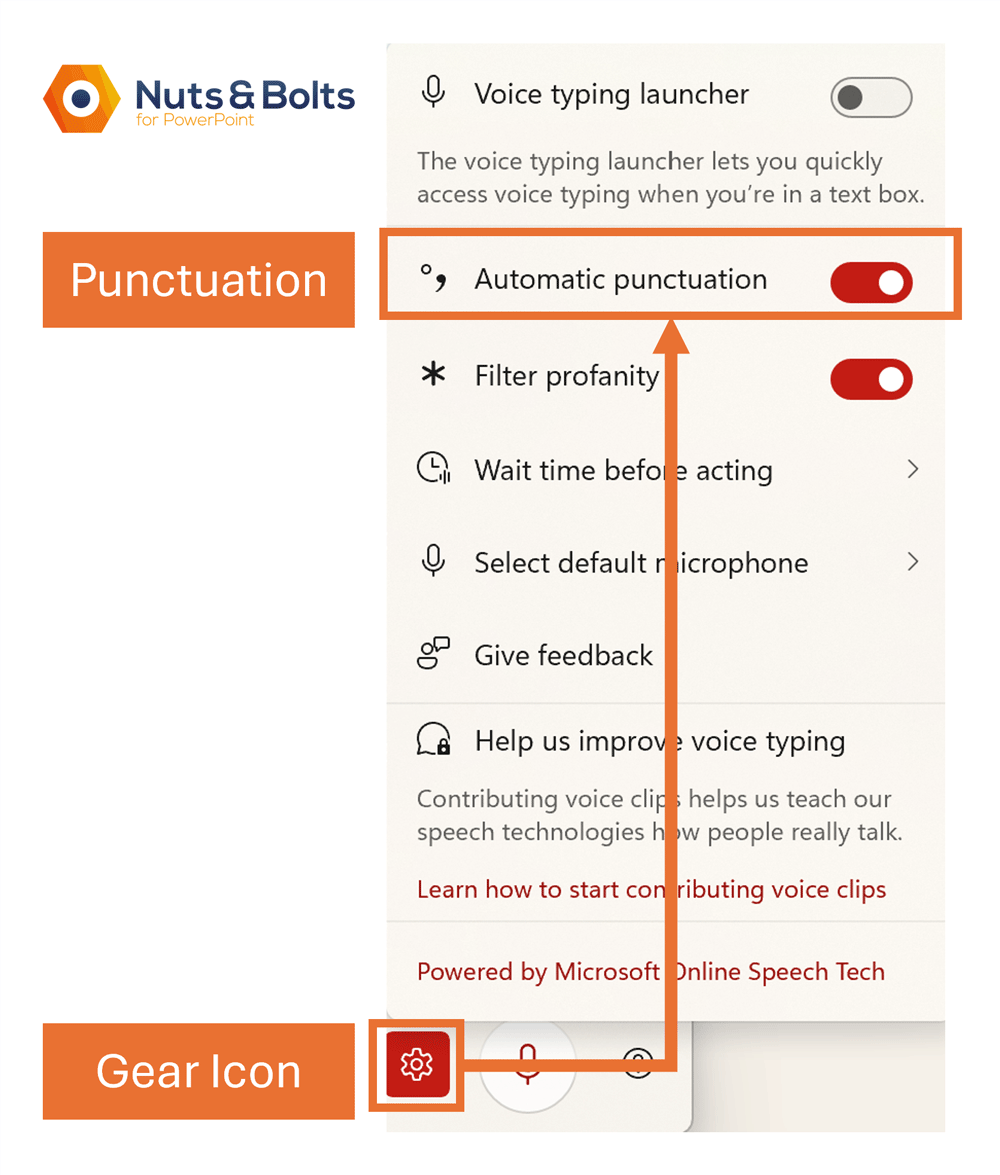
1. Press Win + H to open the voice typing panel
2. Click the gear icon
3. Turn on Automatic punctuation
For longer AI prompts, I recommend turning this on. The whole point is to keep your thoughts moving, not interrupt yourself every few seconds to narrate the punctuation.
On top of that, I recommend getting everything out that you want to say first, and worry about editing your thoughts later.
Why Windows voice typing is so useful for AI prompts
An AI prompt box is just another text box, but it has a very different job. You are not writing finished prose. You are loading context into a tool that can organize it for you.
Keep in mind that AI can only work with the context you actually give it.
When you type a prompt, you are doing two jobs at once:
Thinking through the task
Editing the explanation as it lands on the screen
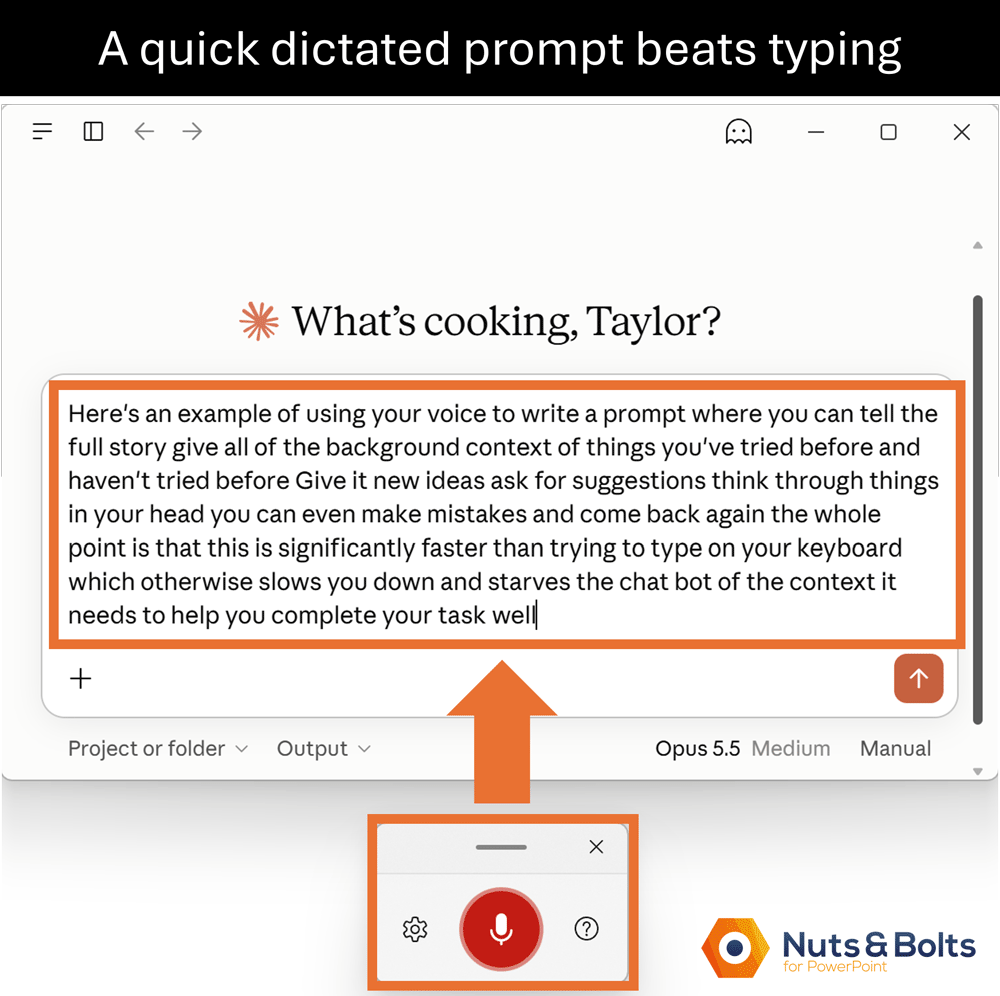
When you dictate, you free yourself from constantly editing until you get your whole idea out. Think of it like explaining a task to a coworker:
Who the work is for
What you are trying to accomplish
What has already gone wrong
The weird exception that matters
What you already tried
What you absolutely do not want
What a good answer would look like
A messy prompt full of useful context is often more helpful than a tidy prompt with half the story, unless you have lost your patience with AI and are now rage prompting (hint: it never works).
And because Windows voice typing leaves the prompt as editable text, you still get a chance to fix the parts that matter before you send it. Correct the name. Check the number. Add the deadline you forgot. Delete the tangent that truly went nowhere.
The AI does not need your prompt to be beautiful. It needs the information that would have disappeared if typing felt like too much work.
Use Windows + H as the free starting point
Windows voice typing is not the dictation tool I personally use all day long (on my phone and on my computer). I use Wispr Flow, a separate paid app that not only lets you whisper dictate in quiet environments, but it also cleans up the filler words, punctuation, and mid-sentence corrections before the text lands.
Full disclosure: That is my Wispr Flow referral link above, so I may earn a commission if you sign up for the service. It costs you nothing extra, and you'll notice I still tell you to start with the free option.
If you are new to dictating, start with Win + H but specifically start with talking a FULL task into AI instead of slowly typing a shortened version of it.
Here is the workflow:
Click inside the AI prompt box and press Win + H.
Explain the task the way you would explain it to a capable coworker. Include the background, audience, stakes, constraints, and what you want back.
Keep talking when another detail occurs to you. Change your mind. Correct yourself. Add the exception you almost forgot.
Scan the text for anything that changes the meaning. Check names, numbers, deadlines, and badly misunderstood words.
Send it.
Do not spend five minutes cleaning up a prompt you dictated to save five minutes.
AI does not require (or need) a cleaned up and tidy prompt from you. It will bulldoze through whatever you give thousands of times faster than you could ever fix the punctuation or clean up the formatting. If anything, just have AI ask you to clarify anything it didn't fully understand.
Win + H lets you try that workflow without buying or installing anything. If dictation becomes something you use throughout the day, a paid tool like Wispr Flow reduces even more of the cleanup (and allow you to whisper dictate in quiet environments like the library too which is why I love it).
Windows + H works almost anywhere you can type
The other reason Win + H is worth remembering is that it is not tied to one app.
The same shortcut can follow you through your workday:
Word: dictate a rough first draft instead of staring at a blank page.
Outlook: talk through a longer email, then clean it up before sending.
Browser forms: fill in longer text fields without typing everything manually.
AI tools: dictate prompts into ChatGPT, Claude, Copilot, and other chat boxes.
PowerPoint: talk through rough speaker notes the way you would actually present the slide.
That PowerPoint example is especially useful. Instead of trying to write polished speaker notes, click into the notes pane and explain the slide out loud. You can clean up the wording afterward.
The point is not that voice typing replaces your keyboard. It gives you another option whenever talking is faster than typing.
When Windows + H does nothing
If you press Win + H and absolutely nothing happens, start with the boring stuff before digging through every speech setting in Windows.
Click inside a text box first. Voice typing needs a blinking cursor and somewhere to put the words.
Check microphone access. Go to Settings > Privacy & security > Microphone and make sure microphone access is on.
Check the microphone Windows is using. Open Win + H, click the gear icon, and choose Select default microphone. You can also check Settings > System > Sound > Input.
Check your internet connection. Microsoft currently documents Windows voice typing as an online feature that requires an internet connection.
The Online speech recognition toggle under Settings > Privacy & security > Speech is less straightforward.
In my September 2026 testing, Win + H still worked while Online speech recognition was turned off and the computer remained connected to the internet. So I do not recommend turning that setting on by default.
My practical recommendation is simple:
If Win + H is working, leave the Online speech recognition setting alone.
If Win + H is completely dead after you check the cursor, microphone, and internet connection, the setting is worth trying as one troubleshooting step, not as a universal requirement.
For Microsoft's current requirements and troubleshooting steps, see Microsoft's voice typing guide.
Common questions
Q: What is the keyboard shortcut for Windows voice typing?
Press Windows + H after clicking inside a text box. Wait for the voice typing panel to show that it is listening, then start talking.
Q: Does Windows voice typing work in ChatGPT and other AI tools?
Yes. Click inside the prompt box in ChatGPT, Claude, Copilot, or another AI tool, press Windows + H, and dictate. Your speech lands as editable text before you send it.
Q: Is Windows voice typing the same as an AI voice conversation?
No. Windows voice typing converts your speech into editable text inside the prompt box. A voice conversation is a spoken back-and-forth with the AI. For a detailed work prompt, I usually prefer seeing the full text before I send it.
Q: Do I have to say "period" and "comma" while dictating?
Not if you turn on Automatic punctuation. Press Win + H, click the gear icon, and switch on Automatic punctuation. You can then speak punctuation commands when you need something specific.
Q: How do I stop Windows voice typing?
Click the microphone button in the voice typing panel or say "Stop listening."
Q: Does Windows voice typing work offline?
I did not verify offline use. Microsoft currently lists an internet connection as a requirement for Windows voice typing, so I would assume you need one unless your own machine proves otherwise.
Q: Does Online speech recognition have to be turned on?
Not necessarily. In my September 2026 test, Win + H worked with Online speech recognition turned off while the computer was still online. If voice typing is working, leave the setting alone. If the shortcut is completely dead, it is one troubleshooting option worth checking.
Voice Typing Takeaways
Windows + H is not the fanciest dictation tool, but it is one of the easiest ways to test whether talking makes you faster with AI. The real advantage is not perfect transcription. It is getting more of the useful context out of your head before you edit it away.
Press Windows + H inside almost any AI prompt box to turn your speech into editable text before you send it.
Use dictation to give AI more context, faster. Talk through the background, audience, constraints, examples, and exceptions you might otherwise leave out.
Turn on Automatic punctuation if you want to speak naturally without saying "period" and "comma" every few seconds.
Fix only what could change the meaning. Check names, numbers, dates, and badly misunderstood words, then send the prompt.
Treat Windows voice typing as the free starting point. If dictation becomes part of your daily workflow, a paid tool such as Wispr Flow can add cleanup and remove even more friction.
The shortcut is Windows + H. The better habit is talking before you start editing.
About the Author

Taylor Croonquist
Co-Founder, Nuts & Bolts Speed Training
Taylor Croonquist is a PowerPoint expert and trainer. Over a career spanning the globe, from consulting in New York and investment banking in China, Taylor has truly seen it all in PowerPoint. Through necessity and a natural tech savvy, Taylor honed his PowerPoint skills to the point of even blowing the minds of the Microsoft PowerPoint programming team. When he's not busy crafting PowerPoint training, you can find him reading a sci-fi series or scuba diving.