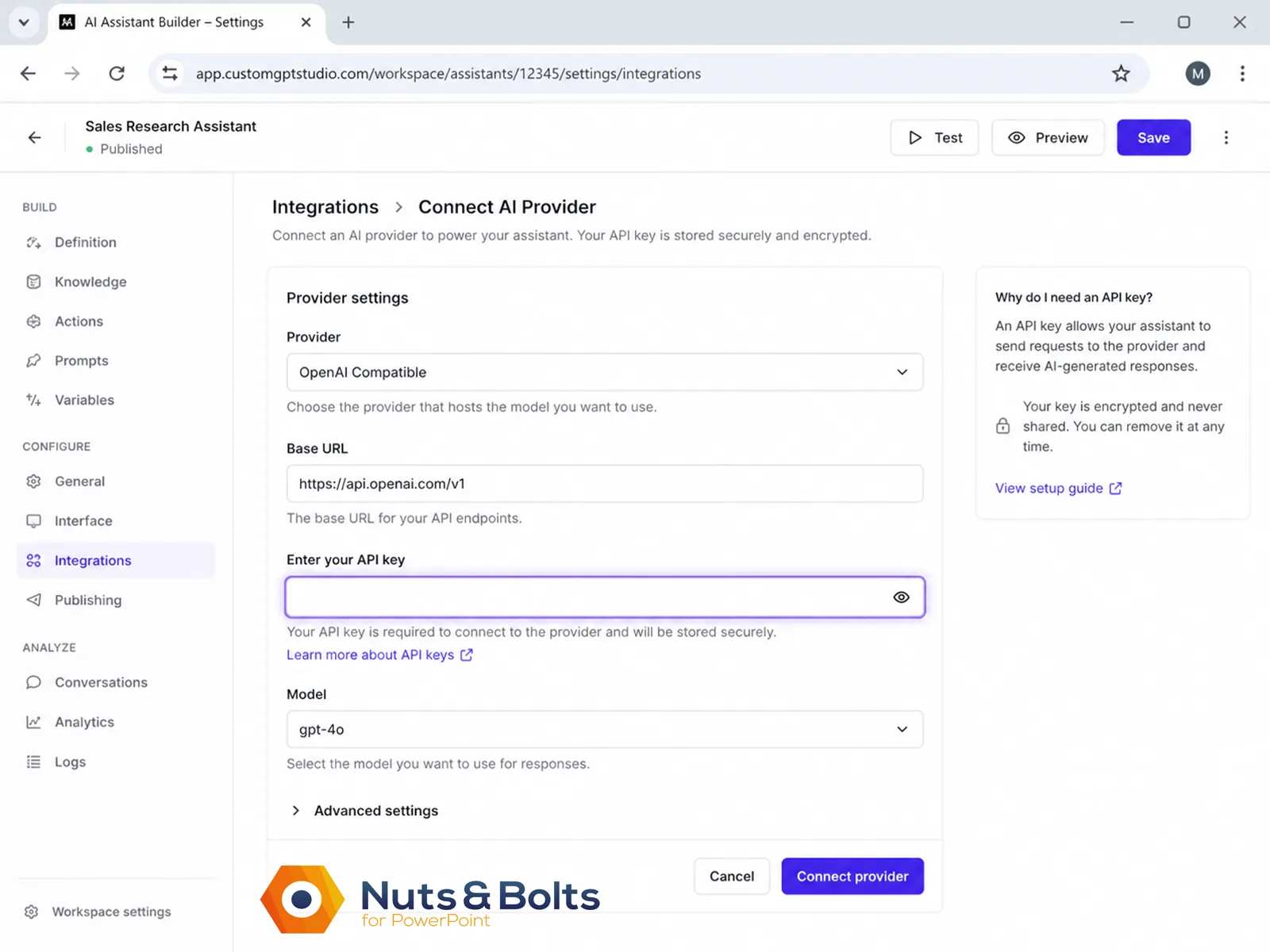
You finally found a tool that takes your messy meeting notes and turns them into a clean slide outline — the part of deck building you hate most. You sign up, you start connecting it, and halfway through setup it stops you with a little box: Enter your API key.
And you're thinking: “I don't have an API key. I build presentations. Nobody said anything about keys.”
Deep breath. This is normal, it's not a scam, and you can set it up safely in about five minutes — we've been training corporate professionals on their tools at Nuts & Bolts since 2013, and lately that includes this exact screen.
An API key works like a company card you issue to one specific app: everything the app spends lands on your account, and if the card ever leaks, you cancel that one card, not the whole account. Every answer on this page comes back to that.
So what actually is an API key?
An API key is a long, unique code that tells an AI service (OpenAI, Google, or Anthropic) which account to bill when an app uses that service on your behalf. It's an account number for machines: the app presents your key with every request, so the service knows who's asking and where to send the charge.
The "API" part is how two programs talk to each other. That's its own topic, covered in plain English in our guide to what an API is, and you don't need any of it to use a key safely.
The key itself looks intimidating: a string of random characters, something like sk-proj-Xk93f..., which is exactly why it feels like developer territory. But you never memorize it, never type it by hand, and never need to understand what's inside it. You copy it once from the provider's website, paste it once into the app, and you're done.
Two things follow from the billing part, and they run the rest of this page:
Anyone who has your key can spend on your account.
You create a separate key for each app. Stop trusting one, delete its key, and nothing else breaks.
One pleasant surprise: you may not see a charge at first. Google's AI Studio key is free within generous limits, and Anthropic starts new users with a small amount of free test credit. Treat every key like a secret anyway. Free usage still runs through your account.
Why is this app asking me for a key?
Because until now, the app was doing its AI work on someone else's account (usually the developer's), and it wants both the usage and the bill to run through yours instead.
Here's what happens behind the curtain when a tool turns your notes into a slide outline:
You hand the app your meeting notes.
The app sends them to an AI provider (OpenAI, Google, or Anthropic).
The provider writes the outline and sends it back.
The usage lands on the account connected to the API key.
The app supplies the workflow. The provider supplies the model that does the writing. Each round trip costs a fraction of a cent based on how AI usage is measured in tokens. Multiply that by every user, every day, and the developer is quietly paying for everyone's AI out of pocket.
So a lot of tools flip the arrangement: you supply the AI account the app runs on. The industry calls this BYOK, "Bring Your Own Key," which is shorthand for "you pay for your own usage, directly, at cost."
We're in the middle of this exact handoff ourselves. As I write this in July 2026, the AI tools on our newly rebuilt website have been running on our developer's API keys: every image they generate gets billed to his account, not ours. So this week he sent me instructions to create keys of my own at all three providers and paste each one into the site's settings. The moment a key is saved, that provider runs on our account instead of his.
And that's exactly what the app on your screen is asking of you:
Create a key in your account with the AI provider,
Ctrl + C to copy it
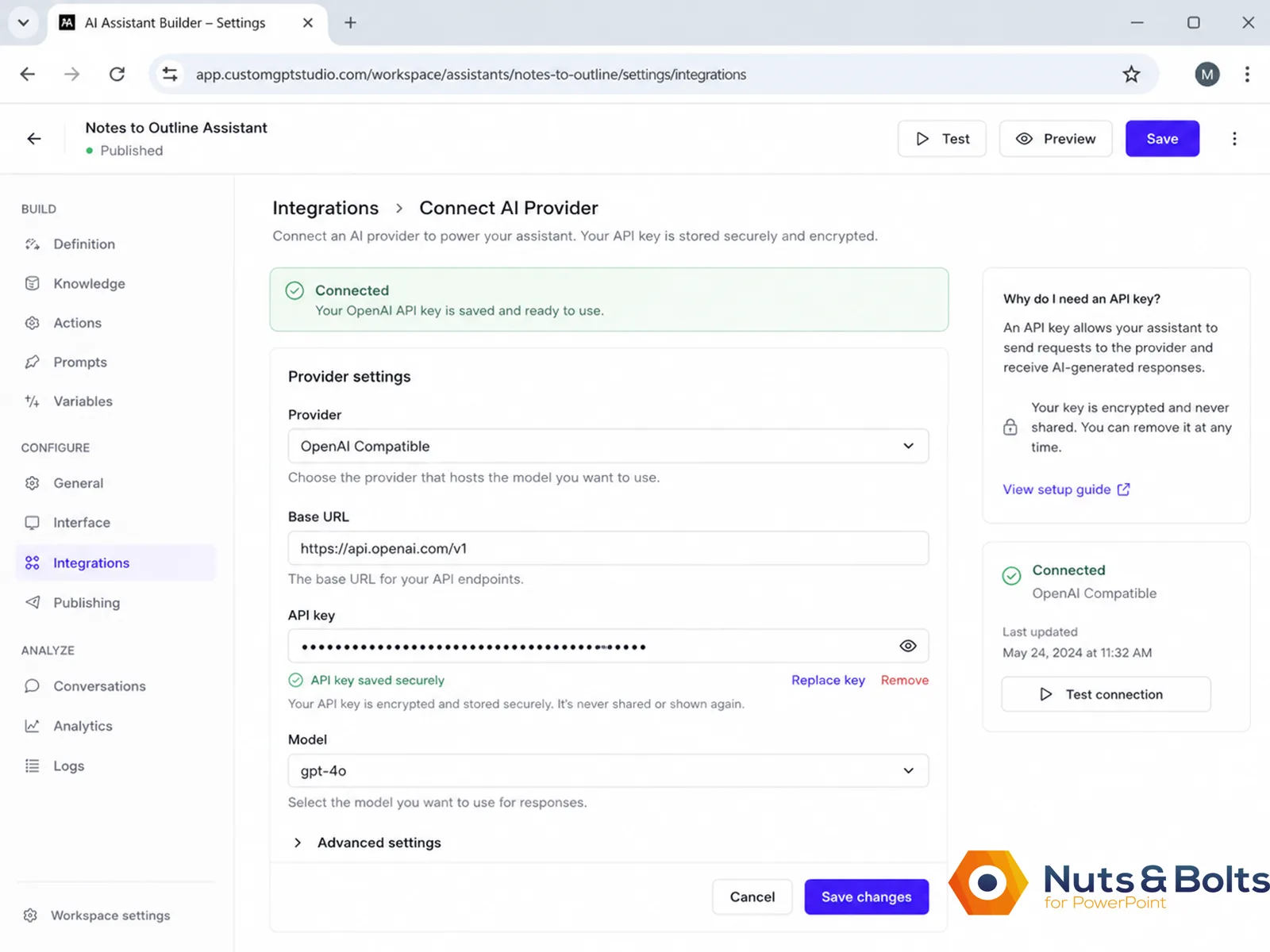
Ctrl + V to paste it into the trusted app, and it runs on your account from then on.
This hands you the bill for your own usage, and with it, the dashboard where you watch spending, set limits, and shut the key off. It also hands you the key itself, and keeping that secret is now your job. More on that in a minute.
Is an API key the same as my password?
No. An API key is a separate credential you create for one specific app, and deleting it never touches your login.
Separate doesn't mean less sensitive, though: a key can spend money on your behalf, so it deserves the same secrecy.
Here's the side-by-side:
What it protects. Your password guards your whole account: settings, billing, history. A key guards one connection between one app and your account.
What happens if it leaks. A leaked password lets someone into everything, and maybe locks you out. A leaked key lets someone run up usage on your bill, but they can't log in with it.
How you kill it. A password takes a reset, plus updating it everywhere you reuse it. A key takes one delete and one replacement.
That last one is the whole story. A leaked password is a scramble: resetting logins, watching for damage. A leaked key is a sixty-second fix: delete it, make a new one, done.
Where do I actually get an API key?
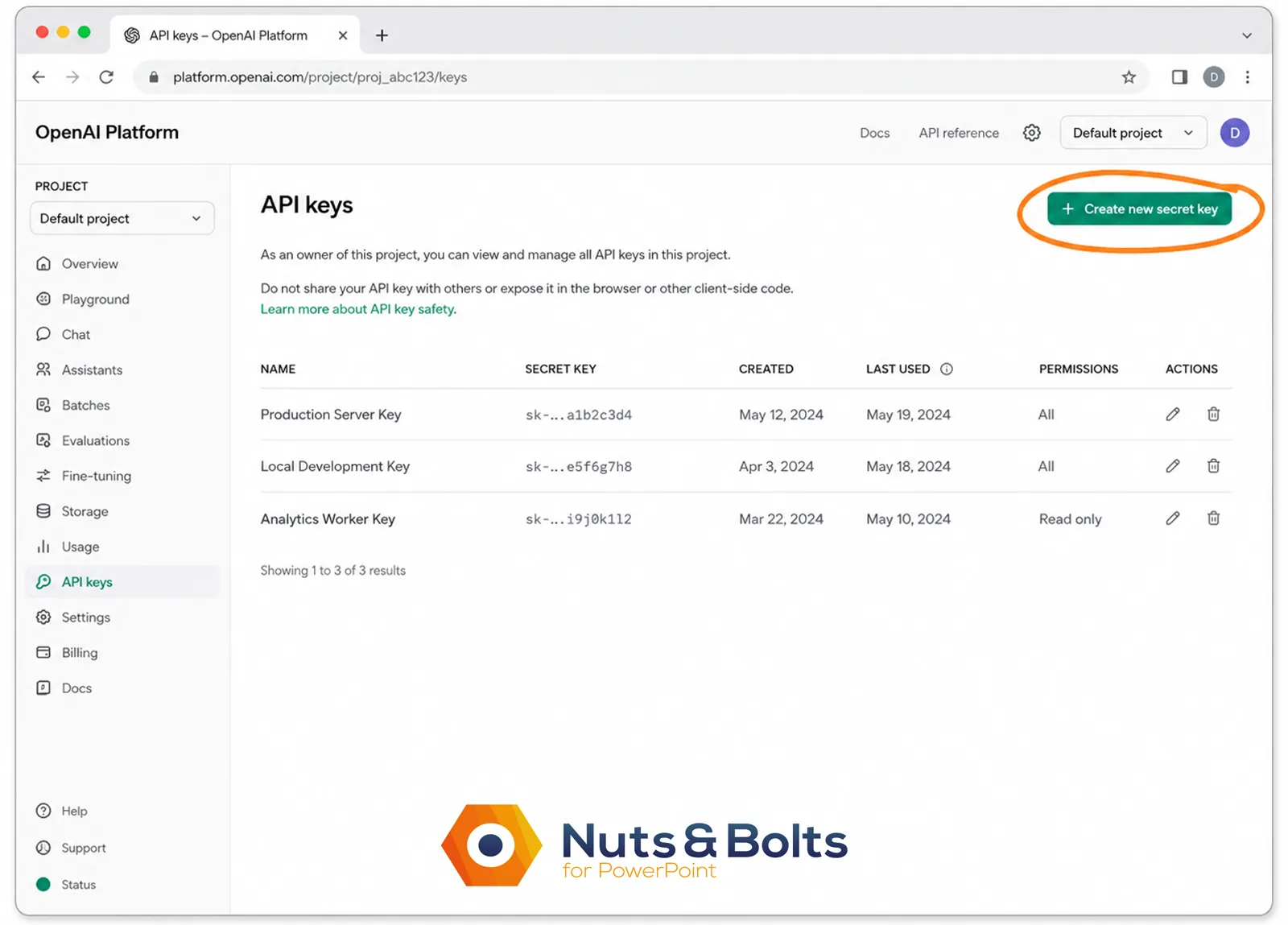
From the AI provider's own website. You log in with the account you already have (or create a free one), find the API keys page, and click one button. No developer credentials, no approval process, no code.
The process is the same everywhere (OpenAI keys live at platform.openai.com/api-keys and Google keys at aistudio.google.com/apikey, if you want to skip straight there):
Sign in to the provider's platform.
Open the API keys section.
Click Create API key.
Copy the key and paste it into the trusted app that asked for it.
Add billing or prepaid credits if the provider requires them. Click Test if the app offers it to test whether the key works.
One heads-up: these API platforms are separate from the ChatGPT, Gemini, and Claude chat apps you already know. Same company, same login, different front door. Here's where to start with the three major providers.
OpenAI - Go to platform.openai.com. Prepaid credits with a $5 minimum purchase, billed separately from a ChatGPT subscription. First time through, OpenAI asks you to verify a phone number before it will create a key.
Google AI Studio - Go to aistudio.google.com. Free to start, no card required; the paid tier begins with a $10 prepaid credit.
Google is retiring its older standard keys and says the Gemini API will reject them from September 2026. Create a fresh key rather than reusing one you made earlier in the year.
Anthropic - Go to platform.claude.com (the old console.anthropic.com address redirects there). Prepaid credits, and new users get a small free test credit.
Two quirks before you go key-hunting:
First, keys aren't interchangeable. An OpenAI key won't work in a field asking for a Google key, and the app tells you which one it needs. (The key itself hints at its owner: OpenAI keys start with sk-, Anthropic keys with sk-ant-.)
Second, copy the key the moment you create it. OpenAI and Anthropic show you the full key exactly once, at creation. Google's AI Studio usually lets you view yours again later, but treat every key as show-once and save it right then.
Closed the window without saving? Don't dig for the old one. Create a fresh key and use that instead.
And if you go looking and can't find the key screen, you're in good company: "where do I find my API key" is asked so often that OpenAI wrote a help article with exactly that title, on top of the running threads in its developer forum and Zapier's help docs.
These dashboards were built by developers, for developers, and it shows. If it feels like you wandered into the wrong building, that's the dashboard's fault, not yours.
How do I keep my API key secret?
✓ Best Method Only paste a key into a tool you trust, for a purpose you understand, using a key you can delete later. That one sentence covers nearly everything an office professional needs to know about API key safety.
Everything below is that rule applied. Five habits cover it:
Never send a key by email, text, or chat. A developer we work with once told me to text him a key instead of emailing it, and I remember thinking that sounded safer. It's barely better: the key still sits in plain text in message history, backed up to the cloud, findable by anyone who ever gets into either inbox. Texting is slightly-less-leaky, not safe.
Create a separate key for each app, named for the app ("Slide Outline Tool"). Stop using the app, delete its key, and nothing else breaks.
Don't share your personal key with coworkers. Each person creates their own: two minutes, nothing extra, their own off-switch. If you genuinely must hand one over, use a password manager's secure share or a one-time-view link, then replace the key soon after: once the old one is gone, every copy sitting in an outbox or text thread is useless.
Restrict the key when the provider allows it: limit which services it can call, what it can do, or how much it can spend.
Delete keys you no longer use (create the replacement first, update the app, then delete the old key, so nothing suddenly breaks). Handy side effect: since each app has its own key, the keys page doubles as a list of every app with access, so skim it occasionally and delete any you don't recognize.
One more place a key should never go: an AI chat window. As app builder JJ Englert put it in a public post on X:
“Don't paste your API keys in chat... that key gets sent to their servers and stored as part of your conversation history.”
— @JJEnglert, X, April 2026
That includes asking AI for help with your setup. You don't need to show the real key for anyone to explain where it belongs: use a fake one instead, like sk-proj-1234.... Same rule for screenshots: crop the key out or cover it completely before you share the image.
A Markdown file is not a safe place to store an API key either. Markdown files are useful for prompts, project instructions, and notes, but underneath they are still readable plain-text files. If the file is shared, synced, uploaded, or accidentally made public, the key goes with it.
(New to the format? Our plain-English guide explains what a Markdown file is and why AI tools use them.)
What does a legitimate request look like?
Four tells:
It asks during setup or inside its settings, not out of the blue;
The field is labeled for a specific provider
It explains why it needs the key
You can replace or remove the connection later.
A random website, an email, or a chat message asking you to "verify" your API key is a phishing pattern. No real provider or app does that, and the provider never needs you to send back the key it issued.
When in doubt, don't paste.
Will I get a surprise bill?
Almost certainly not, and two minutes in your billing settings shrinks the worst case to pocket change.
For typical light office use (turning notes into outlines, tightening slide text, a handful of AI requests a day) expect a few dollars a month. A typical text request costs a fraction of a cent, and even an AI-generated image runs from well under a penny to about 25 cents at the very highest quality tiers. Closer to a sandwich than a software subscription.
A single click inside an app may trigger more than one request, and image generation, long documents, and automated workflows cost more than short text asks. So don't guess what each request costs. Limit what the account is allowed to spend:
Start with the smallest prepaid balance you're comfortable with.
Turn off auto-recharge (or cap it low) so an empty balance is a hard stop. Check this one even if you think you skipped it: setting up billing switches auto-recharge on by default.
Set a hard spending limit when the provider offers one; some "budget" settings only send alerts.
Use the app normally for a week, then check the usage dashboard before adding more credit. That first glance usually settles the money fear for good.
The exact controls differ by provider:
OpenAI. You're prepaid: load credit before anything runs, and when it's gone, requests stop (billing can lag briefly, so a small overage is possible before the cutoff). Know the difference between OpenAI's two "limits," though. Monthly project budgets are alerts, not brakes; OpenAI's own help docs say requests past the budget "continue to be processed without interruption." The opt-in "Enforce a hard limit" spend control, added in July 2026, is a real brake: turn it on and requests past the cap are refused.
Anthropic. Prepaid credits plus a true spend limit: hit the limit and usage pauses until next month. Auto-recharge is optional, and you can leave it off.
Google. The free tier doesn't even need a card. On the paid tier your prepaid balance is the ceiling: when it hits $0, the keys on that account stop working, and you can cap how much auto-recharge adds per month (Google's classic Cloud budgets only send alerts).
The worst case, scoped: You've probably seen headlines about surprise five-figure API bills. Those come from keys leaked in public code and hammered by bots at scale, or automated workflows left running, not from pasting one key into one trusted app.
A small prepaid balance with auto-recharge off caps the damage at money you already loaded (billing lag can let a small overage slip past the line, not a five-figure one). And if usage ever looks wrong, revoke the key first and investigate second.
I think I shared my key. What do I do?
Revoke it and reissue it. The whole fix takes about 60 seconds:
Sign in to the provider's dashboard.
Open the API keys page.
Delete the exposed key (it's one trash-can click).
Check your recent usage and billing for anything unfamiliar.
Create a new key and paste it into the one app that's supposed to have it.
Nothing else in your account is touched. This is the company card move: you don't close the account, you don't change your password, you don't call anyone. You cancel the one card, and the moment it's gone, every copy of it everywhere (the email you regret, the text thread, the chat log) goes dead at the same time.
Every API key comes with an undo button. Rotating a key (delete it, create a new one, update the app) is routine maintenance, not an admission you messed up: developers do it on a schedule.
This isn't just our advice, either. Anthropic's official guide, "API Key Best Practices," tells users exactly this: if you suspect a key is compromised, revoke it immediately and create a replacement. OpenAI's version adds two steps: review your recent usage, and contact support if you see activity that isn't yours.
When should I change my password too?
Only if you think someone got into your provider account itself: unfamiliar logins, account changes, purchases, or keys you didn't create. If only the key leaked, revoking the key is the whole fix, and don't wait on support before shutting it off.
Frequently asked questions about API keys
Will an API key charge my credit card automatically?
Not by itself. Whether requests create charges depends on the billing connected to your provider account. Start with a small prepaid balance, turn off automatic reloading, and check the usage dashboard after your first few sessions. Prepaid accounts generally stop when the balance runs out, though billing can lag slightly, so a small overage is possible.
Do I need to know how to code to use an API key?
No. You create the key in the provider's dashboard, copy it, and paste it into the app's settings field. You may need to choose a project or set up billing, but you never write code or need to understand how the API works behind the scenes.
Does my ChatGPT Plus, Claude Pro, or Google AI Pro subscription include API usage?
No. I completely misunderstood this in the beginning too. The paid chat subscription and the provider's API are separate products with separate billing: ChatGPT and the OpenAI API Platform use different billing systems, Claude Pro doesn't include usage through the Claude API or Console, and Google AI Pro pays for the Gemini app while Gemini API usage runs through a Google Cloud project.
Depending on the provider, the API may include a free tier or require separate credits. Either way, don't assume the chat plan covers it.
The free Google API key sounds too good to be true. What's the catch?
The catch is privacy, not price. On the free Gemini API tier, Google's own terms say your prompts, uploaded files, and generated responses may be used to improve its products, and human reviewers may read and process that content. Google specifically warns users not to submit sensitive, confidential, or personal information through its unpaid services.
On the paid tier, Google says your prompts and responses are not used to improve its products. So experiment freely on the free tier with made-up or non-sensitive material. Before you touch client decks, move to the paid tier (currently a $10 minimum for many new users) and confirm your organization allows that information to be uploaded at all.
Is an API key the same as adding an app or connector in ChatGPT or Claude?
No. With a connector, you click Connect, sign in, and approve what the AI can access. With an API key, you create a secret credential and paste it into another app, where usage may be billed through your provider account.
The quick tell: sign-in-and-approve means a connector; copy-and-paste-a-secret means an API key. Some newer connectors use MCP, which gives AI tools a standard way to discover and use outside tools, with APIs and authentication still working behind the scenes.
The takeaway: you know what an API key is now
An Application Programming Interface (API) key is a unique digital code used to authenticate and connect a third-party app to a software service. In AI tools, it acts like a company card number: separate from your password, billed to your account, cancelable in sixty seconds.
More importantly, you know what to ask before pasting one anywhere: which provider is this key for, what will the app use it to do, whose account gets billed, and can I restrict or revoke it later?
And the next time someone conflates an API and an API key in a meeting, you can untangle it in one line: the API is how two programs talk to each other, and the API key is the credential that says which account is asking.
So the next time a tool stops you mid-setup and asks for a key, you don't need to close the tab. Five minutes to set up, a quick fix if you ever slip, and every tool you've bounced off because of that one scary field is back on the menu.
And once your new tool starts producing outline text, make sure it lands on your slides cleanly: that's covered in our guide to pasting AI content into PowerPoint and Word without the formatting mess.
You're not in the wrong place; you just speak API key now.
Last verified: August 2026.
About the Author

Taylor Croonquist
Co-Founder, Nuts & Bolts Speed Training
Taylor Croonquist is a PowerPoint expert and trainer. Over a career spanning the globe, from consulting in New York and investment banking in China, Taylor has truly seen it all in PowerPoint. Through necessity and a natural tech savvy, Taylor honed his PowerPoint skills to the point of even blowing the minds of the Microsoft PowerPoint programming team. When he's not busy crafting PowerPoint training, you can find him reading a sci-fi series or scuba diving.