MCP, or Model Context Protocol, is an open standard that gives AI applications a consistent way to connect with outside tools, information, and actions.
In plain English, it gives your AI assistant a standard way to reach tools such as Google Drive, SharePoint, Descript, or a company database, without developers having to build a completely different connection between every assistant and every app.
As AI starts acting more like your personal assistant, that connection matters. An assistant that cannot reach your files, calendar, and work tools can only help so much.
You may have already noticed what this looks like.
Open Claude or ChatGPT and you might see a little menu you do not remember being there:
“Connectors.” “Apps.” “Plugins.” “Add tools.”
Maybe you even recognize a name, Google Drive, your company’s SharePoint, or some other tool your team pays for, sitting right there inside the chat window, waiting to be connected.
And you did what most of us do with a button we do not understand.
You left it alone.
Here is what that button means: your AI is gaining permission to reach beyond the chat window and work with the other software you already use.
What is MCP?
MCP, short for Model Context Protocol, is one of the main technologies making that permission possible. It comes from Anthropic, the company behind Claude, which published it as an open standard in late 2024. OpenAI, Google, and Microsoft have since adopted it, which is why the same idea keeps showing up no matter which AI tool you open.
And it’s a genuine change in how we use software.
Think about how you have used online tools for the last twenty years. When you wanted something from a tool, you had to go to wherever that tool lived: open another tab, visit the website, log in, and do the work there.
Then, when you needed that work somewhere else, in a presentation, document, or email, you exported it, downloaded it, copied it, or uploaded it all over again.
You went to the tool.
MCP helps flip that relationship.
Take the video-editing platform Descript. Without a connection, your AI assistant can explain how to add captions or clean up a recording. With Descript connected through MCP, the assistant can perform supported tasks from inside the conversation where you are already working.
You do not have to leave the chat, find the right project, and start again from scratch.
You used to visit your tools. Now your tools visit you.
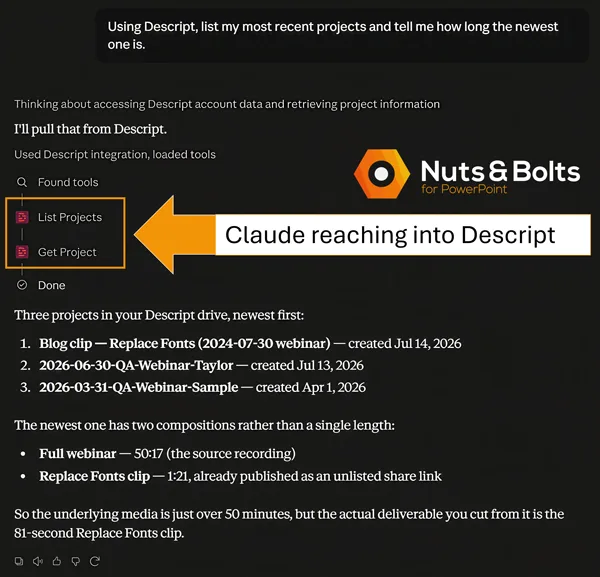
You may also hear people refer to “an MCP.” Technically, they usually mean an MCP server, connection, or integration. MCP itself is the shared standard that makes those connections possible.
That is the concept. Everything else is just technical details.
“Wait, isn't that just an API?”
If you read our post on API keys, you might be squinting right now.
Didn’t we already say APIs are how programs talk to each other?
Yes. And that’s still true.
MCP doesn’t replace APIs. In many cases, it gives AI assistants a more consistent way to use them.
Here’s the difference.
An API is a road one developer builds between two specific buildings. Someone at Company A and someone at Company B agree on exactly how their two systems will talk, and they build a custom connection between those two: that road. It works great. But it only connects those two buildings, and somebody had to build it by hand. Want to connect a third building? That’s a whole new road.
Google Drive has its own road. Salesforce has another. Your company database might have its own. Each one may organize its requests differently, use different instructions, and describe its capabilities in a different way.
A developer connecting an AI assistant to all three may therefore need to learn three different systems and teach the assistant how to work with each one.
An MCP is more like a standard on-ramp that every building agrees to install. Instead of one custom road between two specific places, you get a common shape that any AI assistant can plug into and any tool can offer.
Instead of every AI assistant needing a completely different set of instructions for every outside tool, MCP gives them a shared way to ask:
What information do you have?
What actions can you perform?
How should I request them?
The systems behind that on-ramp may still use APIs. MCP simply gives the AI a more consistent way to find and use what they offer.
The on-ramp also settles the naming confusion from earlier. MCP is the standard, the agreed shape of the on-ramp. An MCP server is one building’s actual on-ramp: the piece of software Descript, Google, or your company builds so assistants can pull in. One standard, many servers.
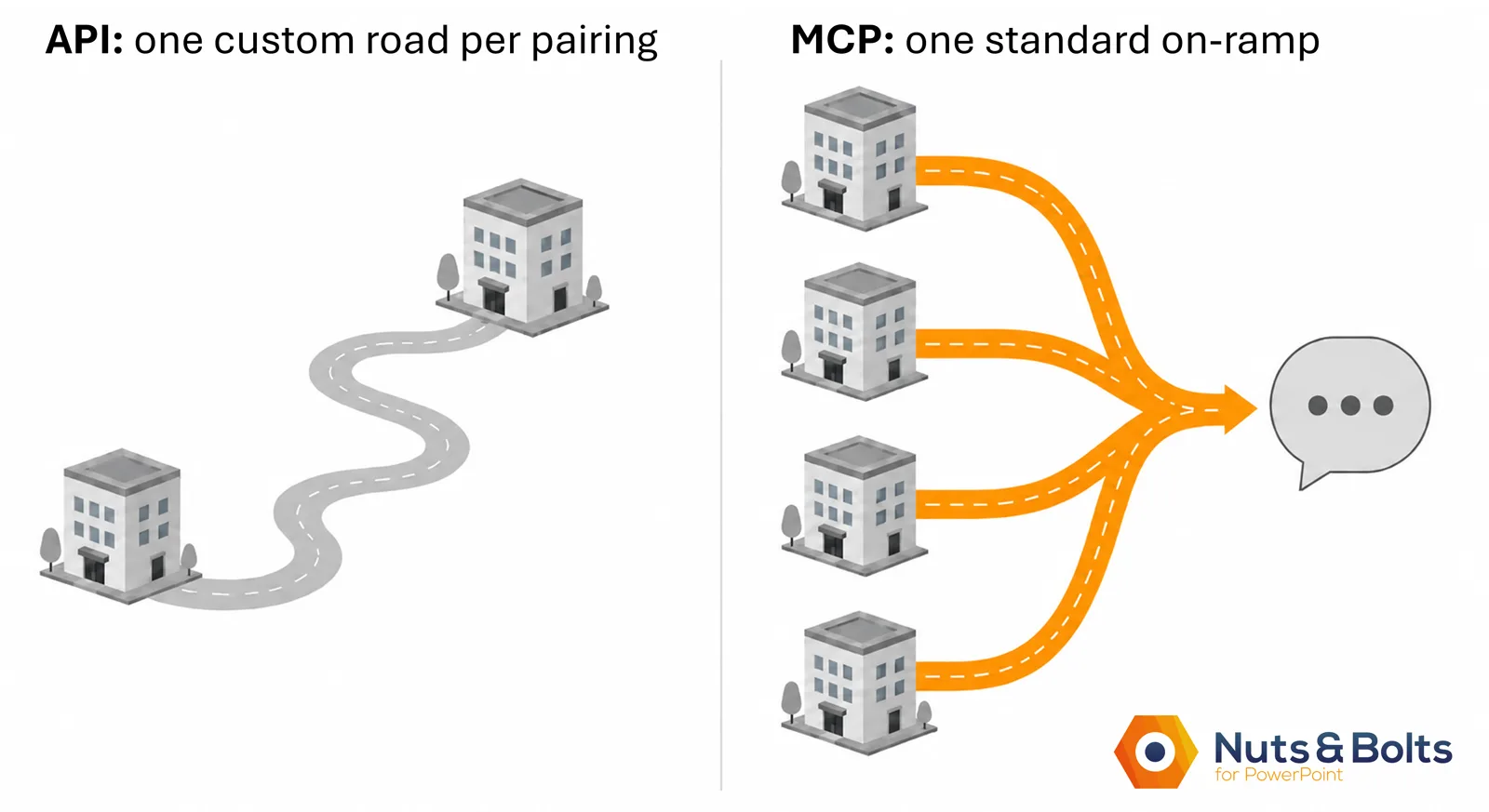
That is a big step towards the personal AI assistant we have been promised: one that can do more than answer questions because it can reach the tools where your actual work lives.
API vs. MCP at a glance
Here is a direct comparison of how APIs and MCP differ:
Connection Type: APIs provide a one-to-one connection between specific programs, while MCP provides a universal one-to-many connection.
Development: APIs require developers to build custom code for every integration, whereas MCP allows tools to connect with any compatible AI using a single standard.
Purpose: APIs handle general software communication, while MCP is specifically designed to securely feed context and actions to AI assistants.
The first two are about who does the building. The third is the real difference, and it deserves another beat.
An API assumes a human developer reads the documentation and writes code ahead of time. MCP assumes the AI does the reading: when it connects, the tool describes its own data and actions in a format the assistant can understand on the spot, and the permission prompts you click through are part of the same design. The tool explains itself to your assistant, and you stay in charge of what it’s allowed to do.
The simplest way to think about it
The MCP connection may still rely on an API behind the scenes.
The AI sends a request through MCP. The MCP server translates that request into whatever format the outside system expects. The system completes the request, and the result comes back to the AI.
So this isn’t really API versus MCP. It’s often API plus MCP.
People often call MCP “USB-C for AI,” and the comparison is useful. Before USB-C, every device seemed to require its own oddly shaped cable. A shared connection didn’t eliminate the electronics inside each device, but it gave more devices a common way to plug in.
MCP is trying to do something similar for AI tools.
That doesn’t mean every MCP connection automatically works with every assistant. The connection still has to be supported, configured, and given the right permissions.
But developers no longer have to invent the basic shape of the AI connection from scratch every time.
You don’t need to know whether an API, an MCP server, or both are operating behind a particular button.
You only need to understand why those buttons are suddenly appearing: AI assistants are gaining a more consistent way to reach the tools and information you already use.
Where you’ll actually bump into MCP: Connectors, apps, and plugins
You probably won’t go looking for something labeled “MCP.”
It usually shows up wearing a friendlier name.
In Claude, you’ll see Connectors. Connect one, and Claude may be able to search information or perform approved actions in another tool without making you leave the conversation.
That could mean finding a document in Google Drive, searching your company’s SharePoint files, checking your calendar, or working with another service your organization uses.
In ChatGPT, these connections are generally called apps. You may find them through the Plugin directory or see them available while working inside a conversation.
But the underlying idea is more important: Your AI assistant is being given permission to work in an outside tool directly, instead of relying on you to do the transfer (pasting your source material into the chat, then pasting the AI's content into PowerPoint or Word when it's done).
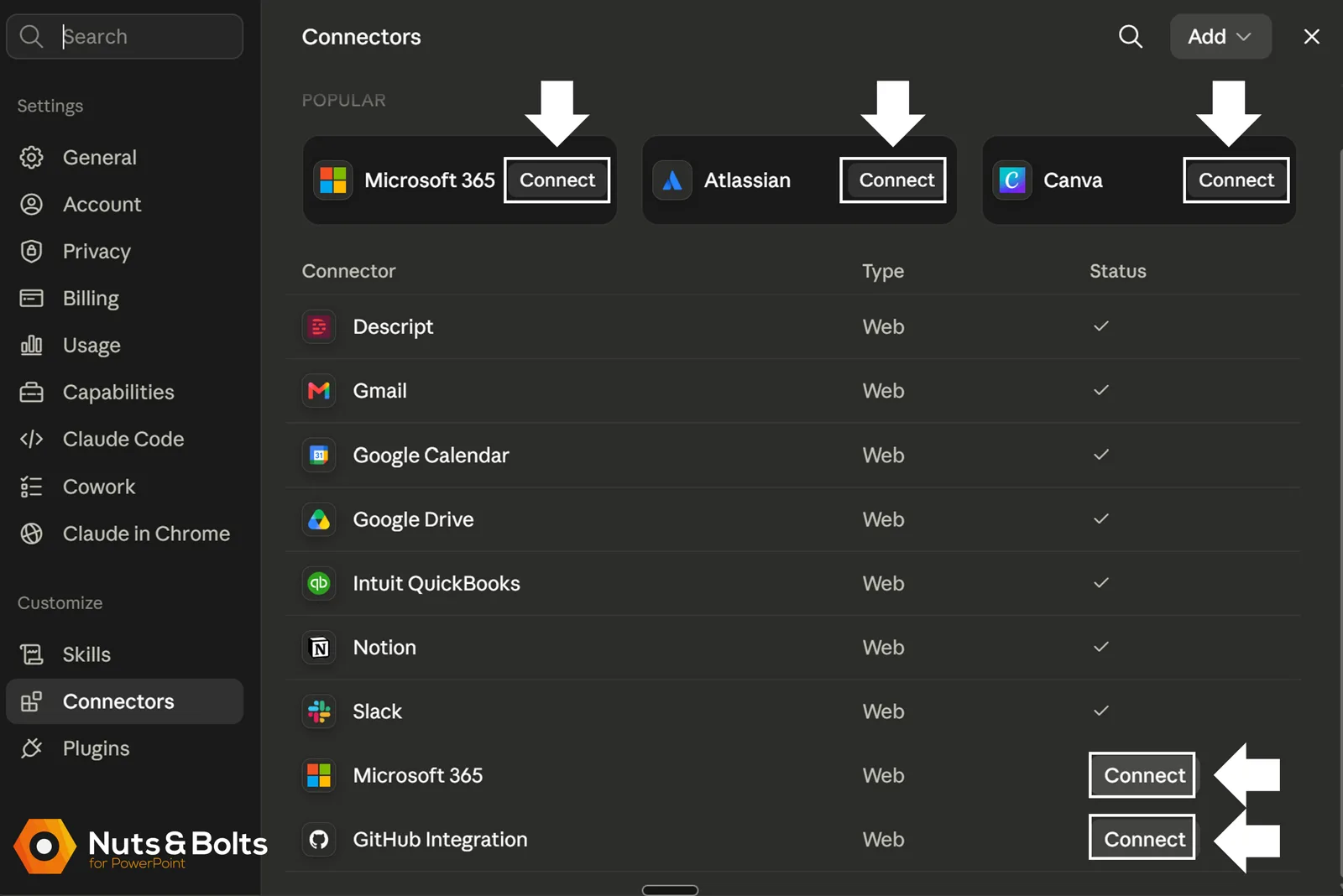
If the above screenshot looks familiar, you’ve seen it in our API post.
That’s not a mix-up, it’s the point. Every connector in that list still runs on an API underneath. What MCP adds is a standard shape, so one assistant can find them all in one place instead of learning each one separately.
Same screen, two true things about it.
In Microsoft Copilot, the same idea is why Copilot can reach into your SharePoint or OneDrive and answer from documents you never pasted in: it’s connected to them, not guessing.
Some individual software companies also offer MCP connections of their own.
Descript, for example, offers an MCP connection that can let an AI assistant import media, edit projects, and perform other supported tasks without requiring you to open Descript for every step.
ShareGate, the SharePoint migration and management tool, ships one too. And Google has introduced a Workspace MCP Server, designed to let AI applications work with services such as Drive, Gmail, Calendar, and Chat.
The list will keep changing, which is why memorizing today’s collection of connectors isn’t especially useful.
Understanding what they represent is.
Picture yourself drafting a presentation outline in an AI chat. You need your team’s approved slide library, the latest product information, and a folder of brand-approved photos.
The old process looks like this:
Open another tab. Find the right website. Sign in. Search for the files. Download them. Return to the chat. Upload everything again. Try to remember what you were doing before this little scavenger hunt began.
Not to mention, repeatedly uploading large files this way is one of the fastest ways to burn through your AI token limits.
With the right connections and permissions, you can simply ask the AI to search those approved sources and retrieve what you need while you continue working.
You may still need to review the results, approve an action, or open the original tool for part of the job. MCP doesn’t magically remove every step.
But it can remove a surprising amount of the back-and-forth shuffle.
That’s a tool now visiting you (which is the point of the whole thing).
Before you connect anything: a 30-second safety check
Here’s the part I’d want a colleague to tell me, so I’ll tell you.
Turning on a connector means giving your AI a door into something real: your files, your drive, your calendar, or your company’s systems.
That’s exactly why it’s useful.
It’s also why it deserves thirty seconds of thought before you click Connect.
MCP provides a standard way to make the connection, but it can’t guarantee that every connector is trustworthy or configured safely. The safety depends on who built the connection, what it’s allowed to reach, and what your AI is allowed to do once it gets there.
Before connecting anything, check three things:
Who built it? Is it offered by the company whose tool you’re connecting, by your employer, or by an unfamiliar third party?
What permission does it want? Can it only search and read information, or can it also create, edit, send, or delete things?
TCYikes!The permission to watch for on an email connection is "send." Drafting emails is fine. Letting an AI actually send them on your behalf is not.
Is it approved for this account? A personal notes app connected to a personal account is one decision. A connector that can reach client files, company email, SharePoint, or confidential documents is another.
For work accounts, follow your company’s approved-tool policy. When the answer isn’t clear, send a quick message to whoever handles IT, security, or data governance:
“Is this connector approved to access our files?”
That’s their call to make, not a checkbox you want to guess your way through.
MCP is the shape of the door, not the lock. The safety depends on who installed the door, which keys it accepts, and what’s waiting on the other side. That’s not fear. It’s the same habit we teach everywhere: understand what your tool can reach and what it can do before you let it run.
How MCP fits with API keys and AI agents
If you’ve been following along, you’ve now got the shape of the whole thing.
An API key is the credential you paste to let one app use another, the thing that stopped you cold during setup. An MCP is the newer, standardized way your AI reaches a whole set of tools without a developer hand-building each connection, the reason those tools are showing up inside your chat. And the next word you’ll keep hearing, the AI agent, is what happens when the assistant uses those connections to go do multi-step work for you instead of just answering questions.
MCP is the plumbing underneath that. It’s how the agent gets its hands on your tools in the first place.
None of this requires you to write a line of code. It just requires you to know what the buttons mean, so the next time your chat window offers to connect something, you’re deciding on purpose instead of leaving it alone because it looked technical.
Common questions about MCP
Do I need to be a developer to use MCP?
No. If the connection is available and approved, using it may be as simple as clicking Connect, signing in, and reviewing the permissions.
The technical work happens behind the scenes, where developers build and maintain the connection. Your part is usually a menu, a sign-in screen, and a permission prompt.
What is an MCP server?
An MCP server is a lightweight software component that exposes a tool’s specific data and capabilities to an AI assistant.
It acts as a translation bridge, taking standard MCP requests from the AI and converting them into the exact actions required by the external application, such as fetching a document or updating a database.
Put simply: MCP is the standard; an MCP server is one tool’s implementation of it.
Does MCP replace APIs?
No. Many MCP connections still use APIs behind the scenes.
Without MCP, developers may need to build a separate adapter that teaches an AI assistant how to work with each API. With MCP, a tool describes its information and actions in a shared format that compatible MCP-ready assistants can discover and use.
It is often API plus MCP, not API versus MCP.
Do connectors cost extra?
Sometimes, but usually not in the same way an API key does.
API usage is often billed separately based on how much you use it. A connector, by contrast, may be included with your AI subscription.
What varies is access. Some connectors require a paid AI plan, a paid account with the service you are connecting, or approval from your employer. A particular connector may also have its own usage limits or charges.
Check both your AI plan and the connected service before assuming it is included.
Do I have to install anything?
For most connectors, no. You turn them on inside your AI app, sign in to the service, and review the permissions.
Some connections, especially local tools or custom company systems, may require additional setup. Your IT team may also need to approve or enable a connector before you can use it.
If you do not see the tool you want, it may not be supported, included with your plan, or enabled by your employer.
Is MCP safe?
MCP itself is a standard, so the answer is: it depends on the connector. Safety comes down to who built the connection, what permissions it asks for, and whether it is approved for the account you are using.
Run the 30-second safety check above before you click Connect. For work accounts, when in doubt, ask whoever handles IT or security first.
Can I disconnect a connector later?
Yes. You can usually disconnect it from your AI app’s settings or revoke its access through the connected service.
Disconnecting stops the AI from accessing that tool in the future. It does not delete anything inside the tool, and it may not remove information already used in previous conversations.
If you are unsure about a connector, you can try it, review what it can access, and change your mind later.
The takeaway: you speak MCP now
A few minutes ago, terms like API key, MCP, connector, and AI agent may have sounded like technical language meant for someone else.
Now you know what they mean, how they fit together, and why they’re starting to appear in the tools you use every day.
If you’ve ever left one of those unexplained buttons alone, you’re in good company. The difference now: you can make smarter decisions about which connections to turn on, ask better questions when something is unclear, and get more value from the AI tools your company is already paying for.
And when these terms come up in a meeting, training, or conversation with IT, you don’t have to quietly nod along and hope nobody asks you a question. You know enough to join the discussion, spot what matters, and help your team think through how these tools could improve the work.
That’s AI literacy in practice: enough to ask the right questions and hold your own when the vocabulary starts flying.
And when you’re ready for the next plain-English win like this one, the rest of our tutorials are waiting for you on the tutorials page.
Your tools are learning to come to you.
Now you know how to answer the door, put them to work, and maybe even make it to happy hour a little sooner.
About the Author

Taylor Croonquist
Co-Founder, Nuts & Bolts Speed Training
Taylor Croonquist is a PowerPoint expert and trainer. Over a career spanning the globe, from consulting in New York and investment banking in China, Taylor has truly seen it all in PowerPoint. Through necessity and a natural tech savvy, Taylor honed his PowerPoint skills to the point of even blowing the minds of the Microsoft PowerPoint programming team. When he's not busy crafting PowerPoint training, you can find him reading a sci-fi series or scuba diving.