In Microsoft PowerPoint, Ctrl + D (Cmd+ D on a Mac) is the keyboard shortcut used to instantly duplicate selected shapes, text boxes, images, or slides. It serves as an integrated copy-and-paste action, executing both steps in a single keystroke to save design and editing time.
Read on to learn why.
There are a few benefits to the Duplicate shortcut in PowerPoint specifically.
Benefit #1. The Duplicate shortcut is twice as fast as using Ctrl + C to Copy and Ctrl + V to Paste as it is two keystrokes instead of four (so it is twice as fast).
Benefit #2. The Duplicate shortcut includes a hidden jump feature in PowerPoint, allowing you to jump your content into place without having to use the Align Objects tool (see example below).
Ctrl + D is the root shortcut for the Ctrl + Shift+ D Duplicate Slide shortcut, which is the fastest (and easiest way) to save your work in PowerPoint (see details below).
The two downsides to the duplicate when compared to the classic Copy and Paste shortcuts are:
Downside #1. The Duplicate shortcut does not give you access to the Paste Options button when you paste your content to control the formatting of your duplicated content.
Downside #2. Ctrl + D does not allow you to copy and paste things between your documents (instead you simply duplicate what is already on your slide). That is why all three shortcuts are important (the Duplicate shortcut, Copy shortcut, and Paste shortcut) as each has specific use cases to save you time.
To be clear: Ctrl + D works a little differently in Microsoft Word and Excel. That said, it is a gold standard shortcut for any Excel user as it allows you to Copy Down your formulas within a selected range. Write your formula once, then Ctrl + D your formula down your selected range.
Where is the Duplicate command in PowerPoint?
If you do not want to learn the Ctrl + D shortcut, you can find the Duplicate command in the PowerPoint ribbon by clicking the Home tab and opening the Copy dropdown.
To open the dropdown, simply click the downward facing arrow to the right of the word Copy.
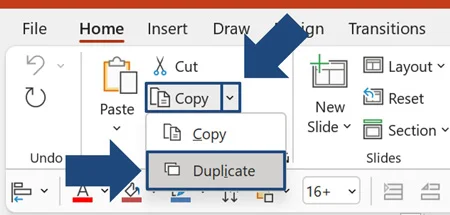
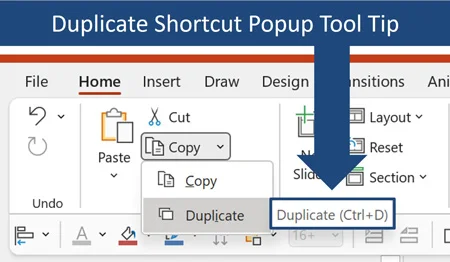
The fact that Microsoft tells you exactly what the Duplicate shortcut is when you hover over the command is a hint and a half that it is an important keyboard shortcut.
They only do that for 13 commands in the PowerPoint Ribbon (yes... I counted).
Regardless of whether you use the Duplicate command or the keyboard shortcut, you can still take advantage of the command’s hidden jump feature that I’ll cover next.
Check out our post to learn other useful PowerPoint shortcuts that will save you a ton of time. The more shortcuts you learn, the faster you will work.
Duplicate's Hidden Jump Feature (PowerPoint only)
The Duplicate shortcut in PowerPoint includes a hidden jump feature you can use to quickly layout content on your slides.
To use the Duplicate shortcut's hidden jump feature, follow these steps:
1. Select the slide element or object you wish to duplicate.
2. Press Ctrl + D to create your first duplicate object.
3. Drag or nudge the duplicated object to where you want it.
4. Press Ctrl + D again immediately (do not unselect the object). PowerPoint will automatically duplicate the object and place it at the exact same distance and direction as your manual movement.
The way this jump feature works is that PowerPoint mimics your last manual movement. That is, after you Duplicate an object and move it somewhere on your slide, each time you Duplicate it again, PowerPoint jumps the next duplicate of your object in the same direction and same distance as your last manual movement.
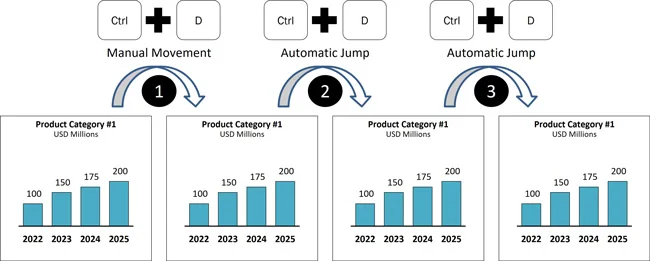
When I teach this live, the #1 mistake is that professionals click away from their duplicated object. To make this jump feature work, you cannot click away from the object (or unselect the object by hitting the Escape Esc key).
In this way, you can use the Duplicate shortcut to quickly scale out the content on your slide, without having to manually perform a bunch of adjustments. The less work you are forced to do, the more time you’ll save and the sooner you’ll make it to Happy Hour.
PowerPoint does NOT include a beautification algorithm when using this shortcut. It simply mimics your last manual movement. That means that if you move your content out of alignment, PowerPoint will duplicate all your future content out of alignment as well.
The Duplicate Slide Shortcut (Ctrl + Shift+ D )
Once you have Ctrl + D down for duplicating objects in PowerPoint, you can simply throw in the Shift key to quickly duplicate the slide you are currently working on.

When working in the Normal View of PowerPoint (editing a slide), Ctrl + Shift+ D automatically creates a copy of your slide that you can work on regardless of what you are doing. In this way, you can quickly create iterations of your layouts without ever losing your original content.
If Ctrl + Shift + D does nothing on your computer, another program may be grabbing it first. See our guide to keyboard shortcuts not working to find the culprit.
Ctrl + Shift + D is a much safer way to ensure you do not lose your work than Ctrl + Z for Undo shortcut. That is because the Undo shortcut is limited in how many times you can Undo your last action. In contrast, when you duplicate your slide, you can make hundreds of adjustments to your new slide without ever messing up the original.
If you have a boss or client that likes to see lots of variations of the same slide, the Duplicate Slide shortcut is the best way to do it. Once your boss or client chooses the layout they like, simply delete all the other duplicate layouts you created and you are off to the races.
Common questions about Ctrl + D in PowerPoint
Q: What does Ctrl + D do in PowerPoint?
In PowerPoint for Windows, Ctrl + D duplicates selected shapes, pictures, text boxes, or other objects on your slide. If you select a slide thumbnail in the left pane instead, it duplicates that slide. What you select determines what gets copied.
Q: What is the difference between Ctrl + D and Ctrl + Shift + D in PowerPoint?
Ctrl + D duplicates your selection, which can be an object on a slide or a selected slide thumbnail. Ctrl + Shift + D duplicates the current slide while you are editing it in Normal view. Use it before trying a different layout so you can experiment on the copy and keep your original intact.
Q: When should I use Ctrl + D instead of Copy and Paste?
Use Ctrl + D when you want another copy of an object on the same slide. Use Ctrl + C and Ctrl + V when you want to place content on another slide or in another presentation. Copy and Paste also gives you access to Paste Options when you need to control the formatting.
Q: How do I duplicate objects with the same spacing in PowerPoint?
Select an object, press Ctrl + D, and move the first copy into position. Keep that copy selected and press Ctrl + D again. PowerPoint repeats the distance and direction of your movement.
Continue duplicating without clicking away or pressing Esc. Get the first copy lined up carefully, because PowerPoint repeats your placement, including any misalignment.
Q: Why is Ctrl + D duplicating my slide instead of an object?
Check what you have selected. If a slide thumbnail is selected, Ctrl + D duplicates the slide. To duplicate an object, select the shape or picture on the slide first. For a text box, click its outside border to select the whole box, then press Ctrl + D.
Q: Can I duplicate several objects at once in PowerPoint?
Yes. Select the objects you want to copy, then press Ctrl + D. PowerPoint duplicates the selection together, so you can reuse a set of shapes, pictures, or text boxes without copying each one separately.
Takeaways
The Duplicate shortcut saves you from rebuilding things you have already created. Here are the habits worth remembering:
Use Ctrl + D for another copy on the same slide. Select your shape, picture, or text box and duplicate it with one shortcut.
Position the first copy, then repeat. Duplicate an object, move the copy into place, and keep pressing Ctrl + D without clicking away. PowerPoint repeats that movement, so get the first copy lined up before making five more.
Duplicate your slide before experimenting. Press Ctrl + Shift + D to create a version you can change while keeping the original layout intact. Remember to save your presentation, too.
Keep Copy and Paste for other destinations. Use Ctrl + C and Ctrl + V when content needs to go onto another slide or into another presentation, or when you need Paste Options.
Build it once. Get the spacing right. Then let Ctrl + D handle the repetition.
About the Author

Taylor Croonquist
Co-Founder, Nuts & Bolts Speed Training
Taylor Croonquist is a PowerPoint expert and trainer. Over a career spanning the globe, from consulting in New York and investment banking in China, Taylor has truly seen it all in PowerPoint. Through necessity and a natural tech savvy, Taylor honed his PowerPoint skills to the point of even blowing the minds of the Microsoft PowerPoint programming team. When he's not busy crafting PowerPoint training, you can find him reading a sci-fi series or scuba diving.