The Popup Toolbar in PowerPoint is a hidden set of presenter controls — laser pointer, pen, See All Slides, and more — that appears in the lower-left corner of your screen while you're in Slide Show mode. It is easy to miss this toolbar and all its useful features that will make you look good during your presentation.
The Popup Toolbar only displays when running presentation in Slide Show mode. To see the toolbar, simply hover your mouse in the lower left-hand corner of your presentation to see all the commands. Just note, that it can be turned off (see below).
If you regularly present in PowerPoint for your job, I recommend reading this blog post in its entirety so you are familiar with all of these useful presenter tools and features that will make you look good during your next big PowerPoint presentation.
PowerPoint's popup toolbar for presenters
What is the popup toolbar in PowerPoint

The toolbar is on by default (until you turn it off) and only displays when you hover your mouse cursor in the lower left-hand corner of your screen when in the PowerPoint slide show mode (when you are giving your presentation).
While most of these commands have keyboard shortcuts associated with them, the toolbar bails you out in the event that you forget them (or just don’t like keyboard shortcuts).
The popup toolbar is a program level setting (not a presentation level setting). That means that turning it off only affects PowerPoint presentations you run on your computer. To learn more about the two types of PowerPoint settings (and how they will impact your clients), read our guide.
What do the popup toolbar commands do?
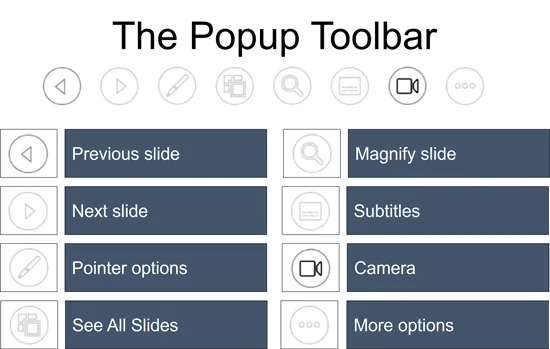
The Popup Toolbar contains the following Slide Show commands in PowerPoint:
Previous Slide – takes you to the previous slide in your presentation.
Next slide – takes you to the next slide in your presentation.
Pointer Options – includes the laser pointer, pen, highlighter, and other tools you can use to point at and or highlight things during your PowerPoint presentation.
See All Slides – displays all of the slides in your presentation without leaving slide show mode.
Magnify slide – allows you to zoom in on your slide in slide show mode.
Subtitles – turns the subtitles feature on or off during your presentation.
Camera – turns on your computer camera to show you in the lower right-hand corner of your slide.
More options – includes all the other slide show options you can use during your presentation.
Try these Slide Show Keyboard Shortcuts
Prefer the keyboard? Most of these commands have a shortcut you can use mid-presentation — no toolbar hover required. These shortcuts will also make you look like a smooth operator too.
A shortcut is only useful if you use it. Please don't try and cram all the below shortcuts into your head. Find the commands you actually use when running your slide shows, and memorize them first.
Next slide: N, Enter, Spacebar, Page Down, or the Right / Down arrow
Previous slide: P, Backspace, Page Up, or the Left / Up arrow
Locked laser pointer: Ctrl + L
Pen: Ctrl + P
Arrow (normal) pointer: Ctrl + A
Eraser: To control your eraser hit Ctrl + E (erase all ink: Ctrl + M or hit E )
See All Slides: Ctrl + S
Subtitles menu: Ctrl + J
Camera source (Cameo): Ctrl + X
Black out the screen: B or the period key ( . ) (white out: W or comma )
End the slide show: Esc
How to turn on/off the popup toolbar in PowerPoint
By default, the Popup Toolbar displays whenever you run a PowerPoint presentation in Slide Show mode. That said, you can turn the toolbar off if you don't like it.
I personally like to turn these icons off during my PowerPoint speed training workshops, as they interfere when I’m trying to use my pen to draw on my slides.
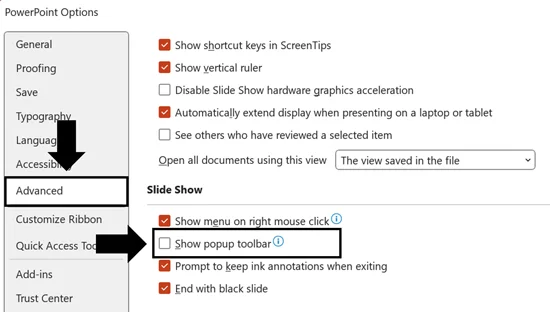
To turn on or off the Popup Toolbar, simply:
Click the File tab
Select Options to open the PowerPoint options dialog box
Select Advanced options
Scroll down to the Slide Show section
Check or uncheck the Show popup toolbar box
Click OK
Unchecking the Show popup toolbar means it will not display the next time you run your slide show.
The Show Popup Toolbar option is a system level setting. Turning it off on your machine means it will be turned off for all your future presentations on your computer, until you turn it back on again.
Final thoughts on the Popup Toolbar
Now that you are familiar with what the popup toolbar is, and all the useful presenter tools and features on it, you will be better prepared to impress during your next presentation.
Just remember that the popup toolbar is a program level setting. That means that if you turn it off, it will only be off for presentations you run on your computer, until you turn it back on again.
PowerPoint is packed full of useful tools and features like this that most professionals still haven’t figured out. If you would like to level up your team’s skills with one of our live corporate speed training workshops, you can learn more here.
About the Author

Taylor Croonquist
Co-Founder, Nuts & Bolts Speed Training
Taylor Croonquist is a PowerPoint expert and trainer. Over a career spanning the globe, from consulting in New York and investment banking in China, Taylor has truly seen it all in PowerPoint. Through necessity and a natural tech savvy, Taylor honed his PowerPoint skills to the point of even blowing the minds of the Microsoft PowerPoint programming team. When he's not busy crafting PowerPoint training, you can find him reading a sci-fi series or scuba diving.