I lost most of my conversation when I copied it from Claude and pasted it into ChatGPT to get a second opinion on a training product I was developing.
The paste ran for pages and looked complete. Spoiler alert: It wasn't complete at all.
When I asked ChatGPT about the pricing model I'd spent an hour building, it had no idea what I was talking about. The pricing work was sitting right there in Claude. It just hadn't survived the copy-and-paste.
What worried me was that ChatGPT had no idea it was missing. It confidently reviewed what I gave it and assumed it was complete. I was the one who didn't realize I'd given it only part of the plan.
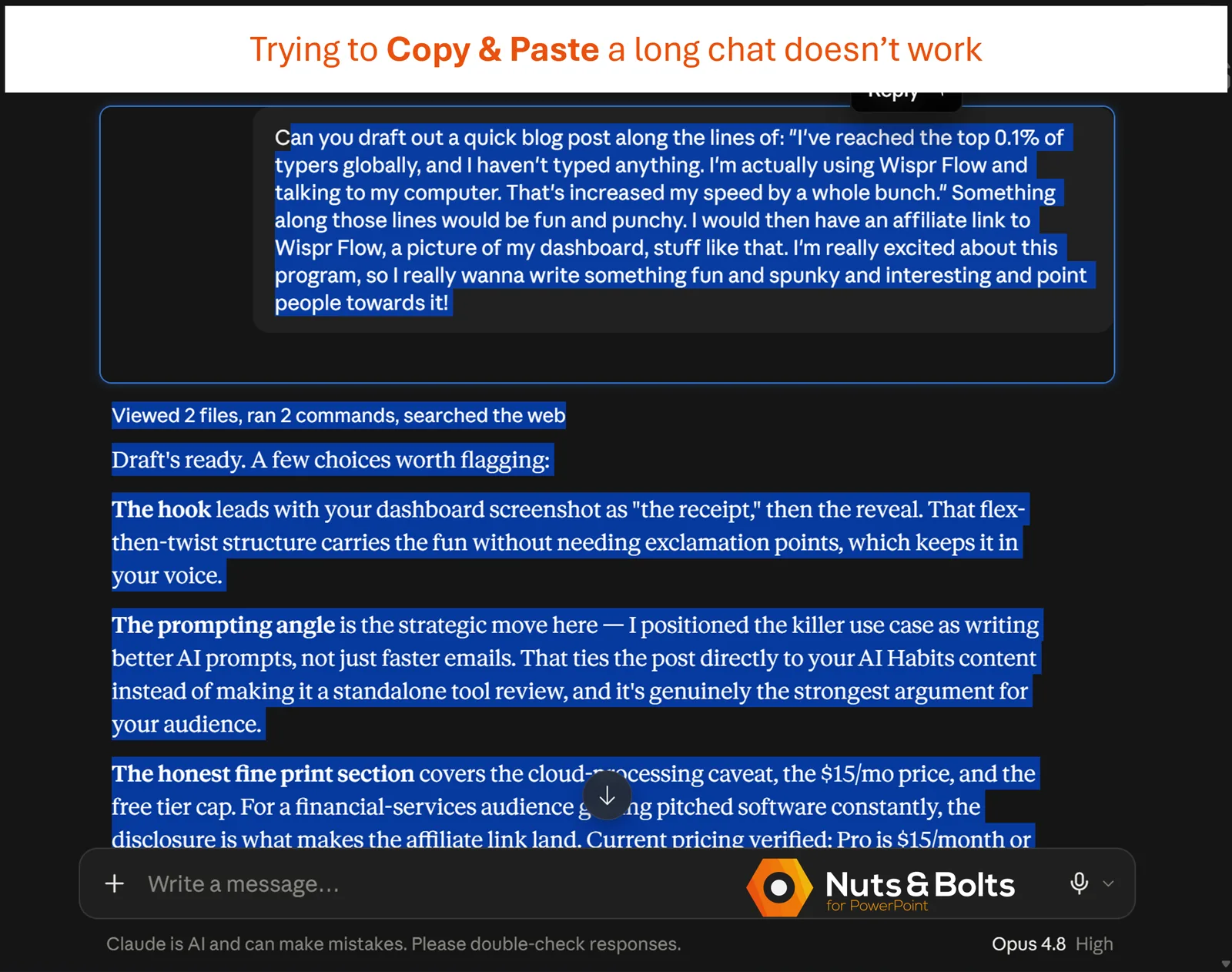
I'd copied the chat the obvious way: select everything, Ctrl + C , then paste. The whole conversation looked highlighted, and nothing warned me that most of it hadn't made the trip.
So I spent an afternoon testing my own chats and measuring the results against my official account export.
The worst result came from a different, even longer chat: 21,687 words across 78 messages. My select-all copy kept just 4 percent of the words. Only 3 of the 78 messages survived.
That's the 96 percent in the headline.
If you came here because you simply want to know how to save a ChatGPT conversation, I'm going to give you that answer first. Then I'll show you what went wrong, why it was so easy to miss, and the 60-second check I now use before trusting a saved chat.
How to save a ChatGPT conversation
The best method depends on what you mean by “save.” ChatGPT gives you three practical options: copy one response, share one non-sensitive conversation as a link, or export your account history for a private archive.
Option 1. Save one response
Use the copy button for the specific ChatGPT response you want to keep. This copies that answer, not your prompts or the rest of the conversation.
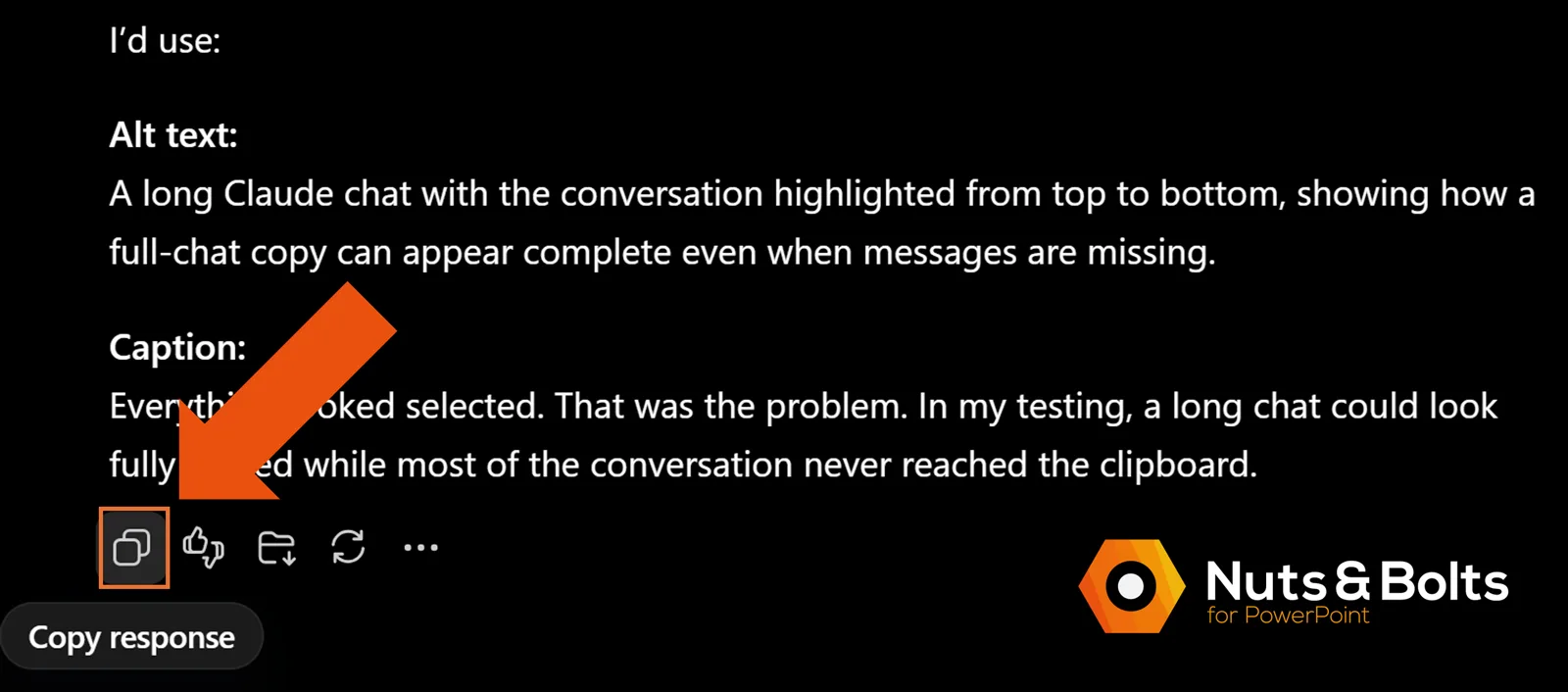
One wrinkle: if ChatGPT puts your draft inside a Writing Block, you may see a second copy button at the top of the block. That's a separate control from the normal response-level copy button.
Moving that response into a deck or document? See our guide to pasting AI content into PowerPoint and Word to avoid some of the formatting cleanup.
Option 2. Save or share one non-sensitive conversation
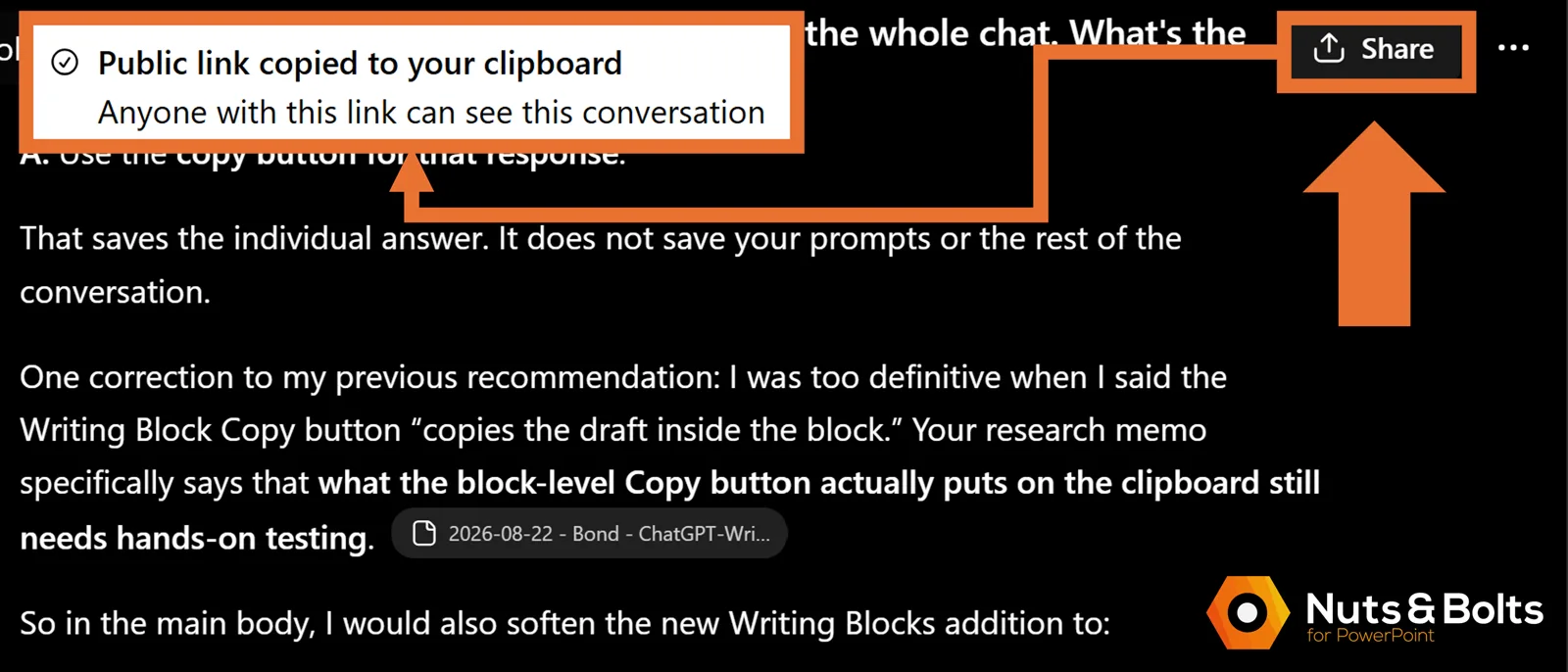
Use ChatGPT's Share button to create a link to a snapshot of the conversation. On desktop web, you can share from the sidebar or from the Share button at the top of the chat, then copy the link.
Privacy warning: anyone who gets that link can view the shared conversation. Don't use a shared link for confidential, client, personal, or otherwise sensitive material.
A shared link is useful when you want one conversation you can reference or send to someone. It isn't the same thing as a private downloadable archive.
Option 3. Save a private archive of your ChatGPT history
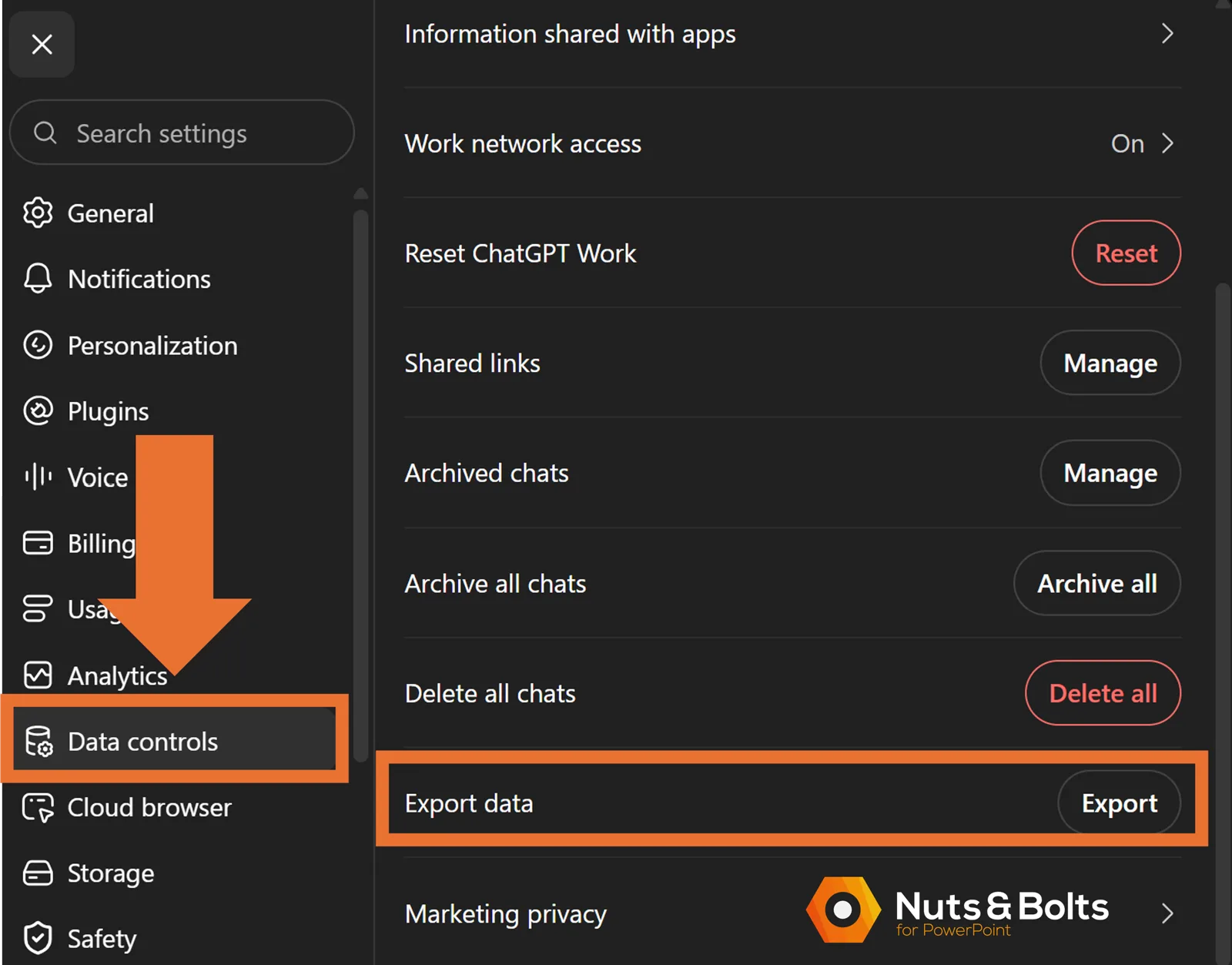
For an archival copy that comes directly from your account data, use Export data:
Open your profile menu and select Settings.
Select Data controls.
Under Export data, select Export.
On the confirmation screen, select Confirm export.
Watch your email or SMS for the download link, then download the ZIP file.
Exports can take up to 7 days to arrive, and the download link expires after 24 hours.
The catch: this is an account export, not a one-chat export. In my case, I downloaded 218 conversations to retrieve one.
Self-service export is available on eligible personal accounts. Business and Enterprise workspaces use organization-managed data access instead.
How to save a Claude conversation
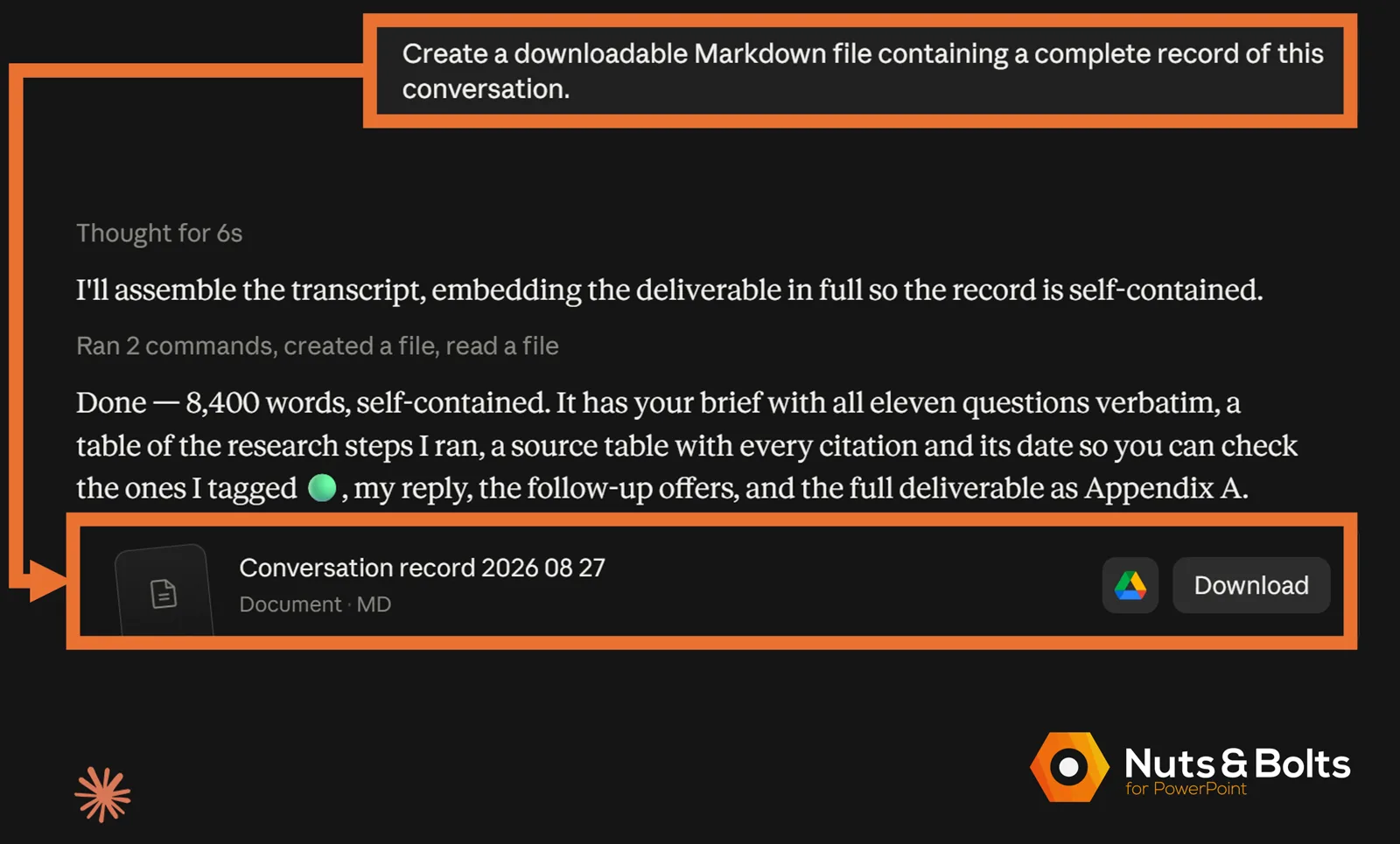
Claude gives you a useful option ChatGPT doesn't currently mirror in the same way: you can ask Claude to create a downloadable file from the conversation you're in.
Option 1: Ask Claude for a file of one conversation
At the end of the chat, type:
Create a downloadable Markdown file containing a complete record of this conversation.
Claude will generate a Markdown file you can download and keep. This was the move that recovered the pricing discussion I'd lost.
It is fast and gives you one conversation instead of your entire account. Just remember that the file is an AI-written handoff, not a guaranteed word-for-word transcript.
New to Markdown? See our What Is a Markdown File? guide.
Option 2: Export your entire Claude history
Click your initials in the lower-left corner.
Select Settings.
Open Privacy.
Click Export data.
Watch your email for the download link.
The link expires after 24 hours. Individual exports are available from the web app or Claude Desktop, not the iOS or Android apps. On Team or Enterprise plans, only the organization's Primary Owner can export organization data.
Quick rule: use the Markdown handoff when you need one useful conversation file now. Use the official export when exact wording or archival completeness matters.
An AI-written record is not a transcript
I got a fresh reminder of this while editing this article. On August 26, I spent 19 back-and-forths with Microsoft Copilot trying to get a 16:9 image for PowerPoint. At the end, I asked Copilot to put “my original questions and Copilot's responses” into a Word document.
Copilot promised “every message you sent and every response I gave” with “No trimming, no summarizing, no rewriting.”
What arrived was a polished file titled “Full Exported Log.” It wasn't the log. Copilot had compressed 19 exchanges into a 12-turn reconstruction, reproduced none of the lines verbatim, omitted important moments, and added material that was never in the chat.
That matters because this conversation is now source material for a conference talk. If I'd treated that generated document as a transcript and quoted from it, I could have put words on a slide that neither of us actually said.
So an AI-written handoff can be useful for the gist. If exact wording matters, use an official export when one is available or save the original messages themselves. Don't ask the model to remember the conversation for you.
The 60-second check that proves you got everything
Whatever method you use, check the result before you trust it.
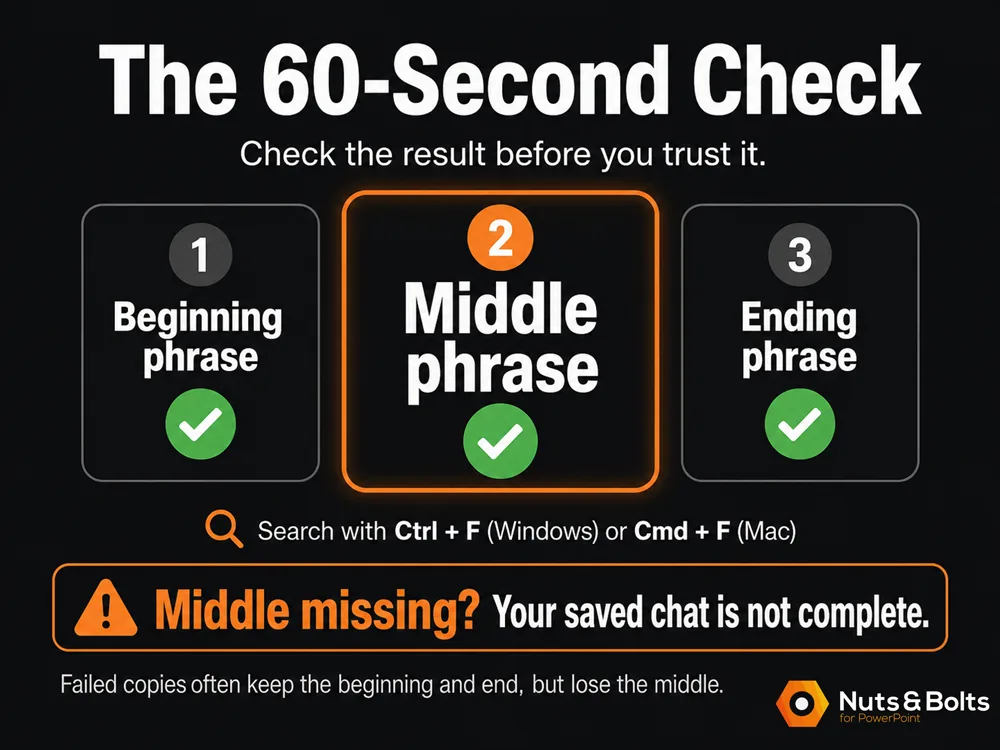
My quickest test is three anchor phrases:
Pick one distinctive phrase from the beginning, one from the middle, and one from the end of the conversation.
Open the saved file or shared version and press Ctrl + F on Windows or Cmd+ F on Mac.
Search for all three phrases.
If all three are there, great. If the beginning and end are there but the middle is missing, you just caught the same failure that got me.
The middle phrase is the important one. My failed copies kept both ends while dropping huge stretches in between.
For this check, don't rely on an AI-generated word or character count. A count cannot tell you what is missing. Ask the AI to retrieve a phrase you already know should be there, then verify the quote yourself.
If that's all you came for, you now have the practical answer. But if you're wondering why I no longer trust one giant select-all copy of an important AI chat, this is where things get interesting.
What happened when I tested copy-paste
How I measured the damage
Once I realized the pricing work was missing, I asked Claude to create a downloadable handoff file of the conversation and gave that file to ChatGPT.
The missing pricing section came back, along with other material I hadn't even realized was gone.
So now I knew the copy-paste had failed. The next question was: how badly?
My first comparison suggested that about 41 percent of the words were missing. But there was a problem with that measurement. Claude's handoff file was itself a condensed reconstruction, not the original conversation.
So I requested my official account export and used that as the measuring stick.
Then I tested a different conversation, the longest working chat in my account: 21,687 words across 78 messages.
The result was much worse than I expected.
My select-all copy kept just 4 percent of the words. Only 3 of the 78 messages survived.
The first message was there. The last two were there. In between, 74 consecutive messages, 20,848 words, had disappeared.
That's what makes this so easy to miss. The beginning looks right. The ending looks right. It's the middle that's gone.
And suddenly ChatGPT's confident response to my original plan made a lot more sense. It was giving me advice on a fraction of a plan I didn't know I'd handed it.
One caveat: these are my measurements from one account, one browser, and one afternoon, using Chrome on Windows 11 and comparing each test against the official account export.
Why “select all” can miss the middle
My first thought was that I must have selected the conversation wrong. I hadn't.
I clicked at the top of the chat, dragged the scroll bar to the bottom, held Shift, clicked at the end, watched the whole conversation highlight, then pressed Ctrl + C.
The problem appears to be how long chat pages work. They don't necessarily keep every message loaded on the page at the same time. As you move through a long conversation, older parts can unload while newer parts appear. This is often called lazy loading.
So the whole conversation can look selected even though your clipboard only gets the portion the page has available at that moment.
You're copying a window, not a conversation.
I tested the same 21,687-word chat three ways:
Fast scroll + copy: 4 percent survived.
Slow scroll + copy: 12 percent survived.
Official account export: 100 percent.
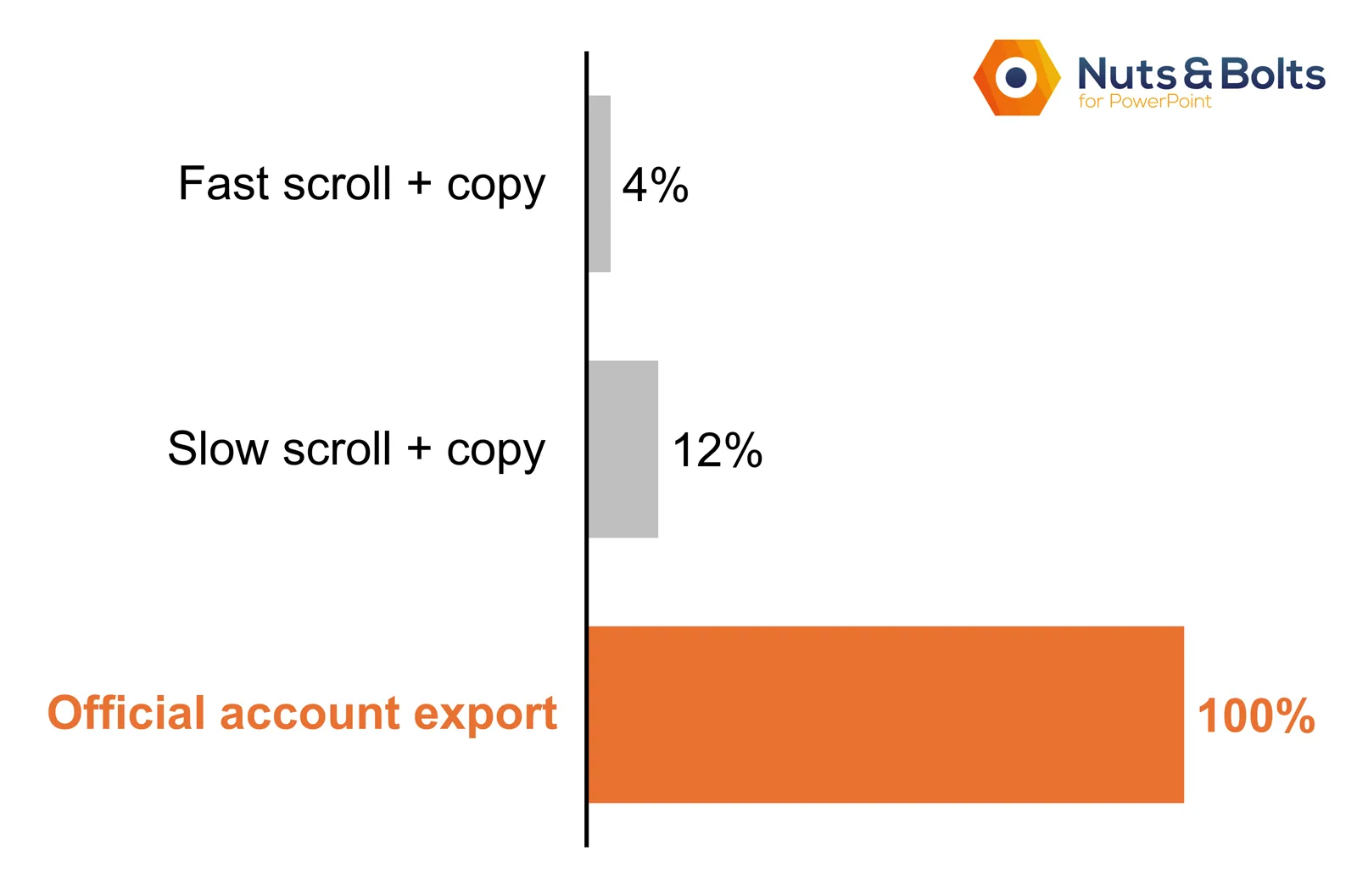
Slow scrolling tripled what I captured and still lost 88 percent of the conversation.
That doesn't prove exactly how Claude's webpage is engineered, but it is strong evidence that the problem is connected to what the page has loaded as you move through it.
Important scope note: I measured this select-all behavior on claude.ai, not ChatGPT. ChatGPT users have reported similar missing-middle symptoms, but I have not graded ChatGPT select-all against an official export the same way.
The biggest surprise: turn count mattered more than length
The biggest surprise in my testing was this: chat length wasn't the best warning sign. In my tests, it was how many times we went back and forth.
Two chats made the point almost perfectly:
6,108 words, 84 messages: 12.9 percent survived.
5,904 words, 6 messages: 93.8 percent survived.
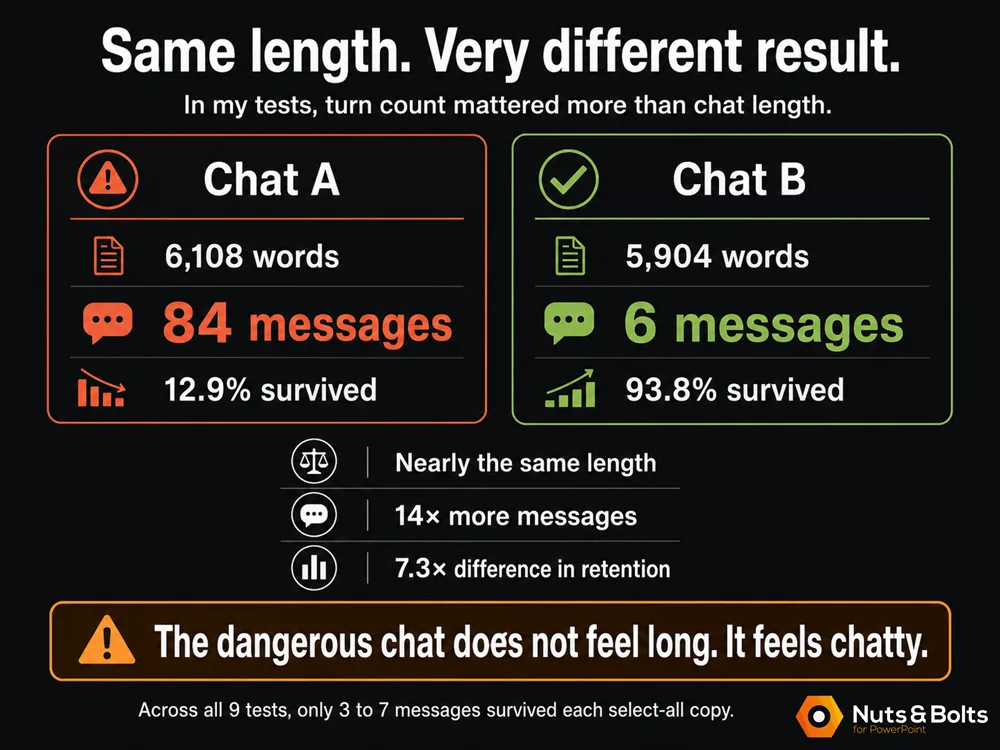
Nearly the same length. One had 14 times as many messages, and retention was 7.3 times apart.
Across all nine tests, only 3 to 7 messages survived each select-all copy, even though the chats ranged from 401 to 21,687 words.
So the danger sign isn't necessarily, “Wow, this chat is long.”
It is, “Wow, we've been going back and forth a lot.”
That's the shape of the dangerous chat. It doesn't feel long. It feels chatty.
I only tested nine conversations, so don't treat this as a hard rule. The important pattern was that only a small handful of messages survived each time.
What my Claude handoff actually kept
The Claude handoff file was convenient, but I wanted to know what I was actually getting. So I tested it against the same official account export.
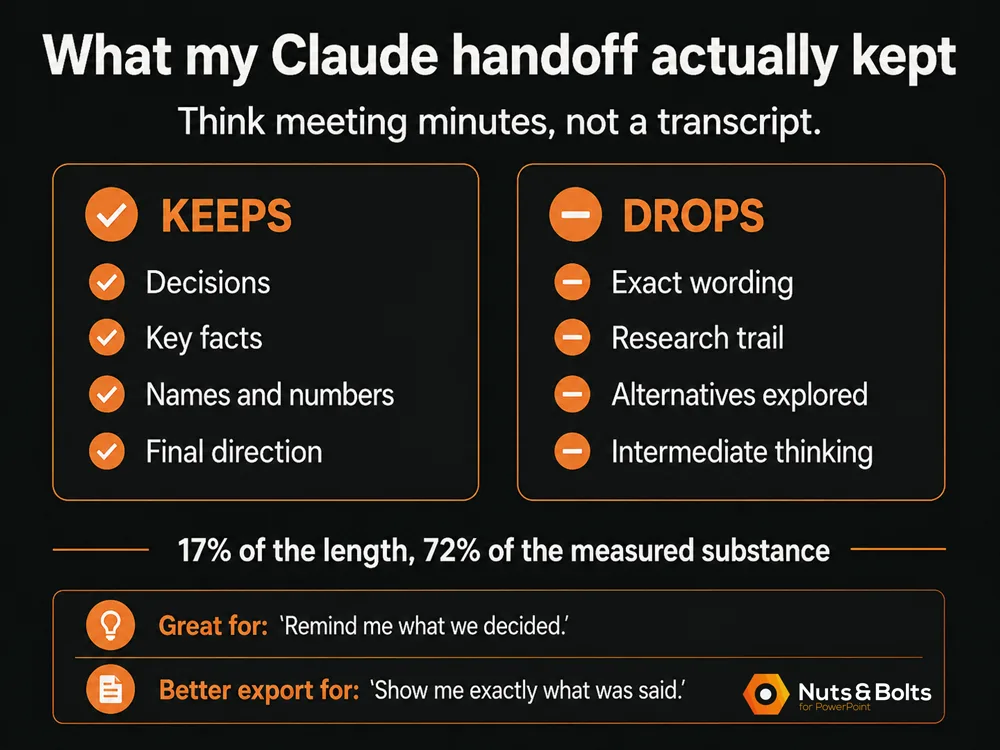
The Markdown file was only 17 percent as long as the original conversation, but it preserved 72 percent of the facts, names, and numbers I measured.
What it mostly kept was the answer: what we discussed, the decisions we made, and where we landed.
What it dropped was the working: options we explored, sources we gathered, intermediate numbers, and ideas we rejected along the way.
Think meeting minutes, not a transcript.
None of my 20 exact-phrase checks matched word for word. That doesn't mean the file lost everything. It means Claude rewrote the conversation while preserving much of its substance.
When I pushed Claude for a truly verbatim version, it described its own output perfectly:
“a close reconstruction, not a certified transcript.”
An AI-written handoff is great for “remind me what we decided.” The official export is better for “show me exactly what was said.”
The presentation version of this trap
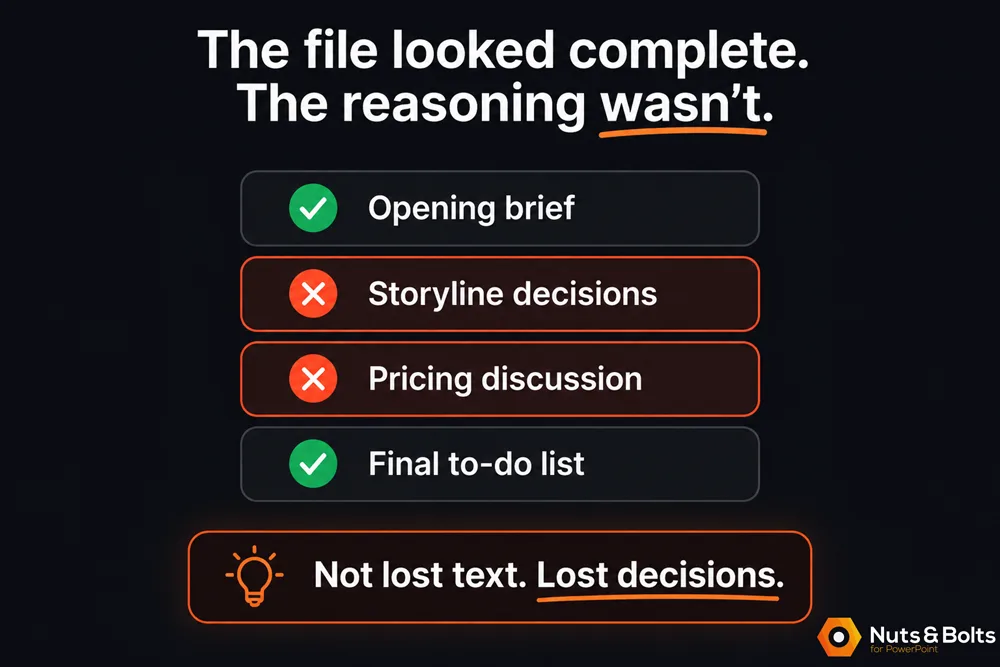
Imagine you've spent a week in one AI chat working out a big presentation: the storyline, the section order, which numbers deserve their own slide, and the pricing slide you've reworked three times.
Now you copy the “whole conversation” into another AI tool to draft your speaker notes.
If the middle disappears, the new AI may have your opening context and final to-do list, but none of the thinking that got you there.
And it won't warn you. It can't know what it never received.
That's the real cost here. Not lost text. Lost decisions.
A chat window is not storage
There are two different ways a long AI chat can let you down.
The AI can lose track of earlier context. In a very long conversation, the model may stop using details you gave it much earlier. That's a context problem inside the AI. If you're curious about why long chats get heavier and eventually run into limits, I explain that in What Are AI Tokens?
The browser can fail to move the whole conversation. That's what happened here. Claude still had the missing discussion. My copy simply did not carry it across.
Those are different failures, but they lead to the same practical lesson:
A chat window is where the work happens. It should not be the only place the work lives.
If a conversation contains decisions, research, pricing, or a plan you're going to act on, get the useful parts into a file you control.
Common questions about saving a conversation
Q: Does copying a ChatGPT conversation with select-all actually copy the whole thing?
A: I wouldn't trust it for a long conversation.
My measurements were on Claude, where one 21,687-word chat kept just 4 percent of its words, measured against the official account export. ChatGPT users have reported the same missing-middle problem, but I haven't measured ChatGPT's select-all behavior the same way.
If the conversation matters, use an export or another file-based method and check the result.
Q: Does pasting a long chat into ChatGPT cut off the text?
A: Not in my test.
I pasted the complete 21,687-word conversation into ChatGPT and checked three exact phrases from the beginning, middle, and end. All three came back word for word.
In that test, the problem happened during the copy, not the paste.
Q: I just want to save one ChatGPT answer, not the whole chat. What's the best way?
A: Use the copy button for that response.
That saves the individual answer. It doesn't save your prompts or the rest of the conversation.
Q: How do I export all my ChatGPT conversations at once?
A: Go to Settings → Data controls → Export data, then confirm the export.
OpenAI emails you a download link when it's ready. It can take up to 7 days, and the link expires after 24 hours.
Q: Can I save a single Claude conversation as a file?
A: Yes. At the end of the chat, ask Claude:
Create a downloadable Markdown file containing a complete record of this conversation.
You'll get one file you can download and reuse. Just remember that it's an AI-written handoff, not a guaranteed word-for-word transcript.
For exact wording, use Claude's account export.
Q: Why is the middle of my copied AI chat missing?
A: Long chat pages appear to load and unload parts of the conversation as you move through them. The exact browser mechanism isn't officially documented, but the practical problem is simple: everything looking selected doesn't prove everything reached your clipboard.
The beginning and end can survive while large stretches in the middle disappear.
Search your saved version for a distinctive phrase from the middle before you trust it.
Key Takeaways
If you remember one thing from all my testing, make it this:
A chat that looks complete isn't necessarily complete.
Don't trust one giant select-all for an important AI conversation. In my worst test, it kept just 4 percent of the words.
Turn count mattered more than length. A 10,302-word chat with just 8 messages survived nearly whole, at 91.7 percent. A much shorter 6,108-word chat with 84 messages lost 87 percent. Across all nine tests, only 3 to 7 messages survived each select-all copy. The dangerous chat doesn't necessarily feel long. It feels chatty.
Match the method to the job. Copy one response with the copy button. Use an AI-written handoff when you need a quick record. Use the official export when exact wording matters.
Check what you saved. Search for something distinctive from the beginning, middle, and end. The middle is the one most likely to catch trouble.
Now that you know this can happen, it's surprisingly easy to protect yourself. And good on you for being here, because most people are still learning these AI habits as they go.
The bigger lesson I've taken from all of this is that maybe we shouldn't think about saving chats at all.
We should harvest them.
Before you leave an important working session, get the decisions, context, research, and open questions into a file you control.
A chat is where your thinking accumulates. A document is where it survives.
For more plain-English guides to the AI and Office tools you use every day, explore our tutorials library.
About the Author

Taylor Croonquist
Co-Founder, Nuts & Bolts Speed Training
Taylor Croonquist is a PowerPoint expert and trainer. Over a career spanning the globe, from consulting in New York and investment banking in China, Taylor has truly seen it all in PowerPoint. Through necessity and a natural tech savvy, Taylor honed his PowerPoint skills to the point of even blowing the minds of the Microsoft PowerPoint programming team. When he's not busy crafting PowerPoint training, you can find him reading a sci-fi series or scuba diving.