The Set Up Slide Show command opens the Set Up Show dialog box, which is where you customize how your PowerPoint presentations run when giving a presentation. In other words, it is how you change the default settings that PowerPoint starts with, to whatever settings make the most sense for your presentation.
Read on to learn more about this command, and a few common things you might want to customize about how your presentation runs.
You can access all my premium PowerPoint training courses (and live monthly training sessions), inside the PowerPoint Pro Membership here. It’s only $37/month and you can cancel at anytime.
What is the Set Up Show dialog box?
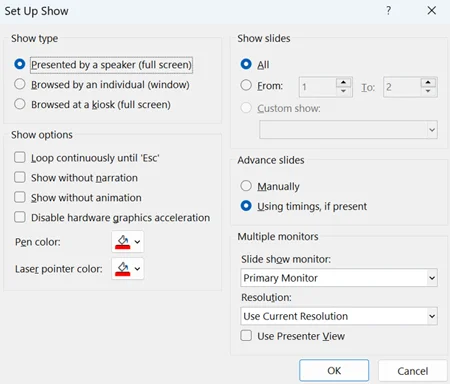
The Set Up Show dialog box is where you customize how your presentation runs, while giving your presentation.
Two of the settings presenters change most often are:
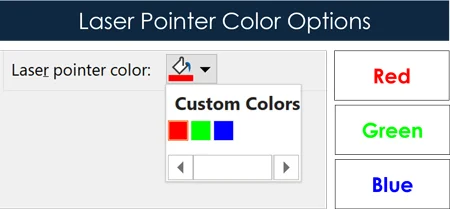
#1. Change the default PowerPoint laser pointer between red, green, and blue. This is useful when the default red laser pointer does not stand out enough against your PowerPoint template. For example, a red laser pointer on a red slide background, is not very easy to see.
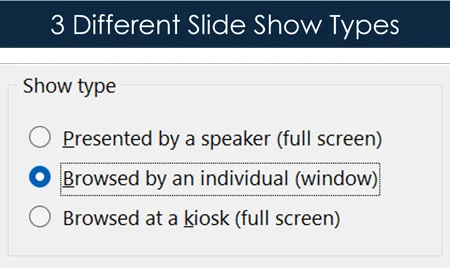
#2. Set your presentations to run in resizable windows on your computer (instead of the default full screen). This allows you to run two or more presentations at the same time on your computer.
For example, let’s say you are working on a project in China, and you are asked to run both an English and Chinese version of your pitch deck to Chinese investors.
This is when you will want to set your presentations to run as window slide shows, instead of full screen slide shows, so that you can run them side by side in presentation view at the same time.
What the Set Up Show dialog actually controls
The dialog is small and it is doing more than it looks like it is doing. Here is the whole thing, section by section, so you know what is in there before you need it.
Show type
Three choices. Presented by a speaker is the normal full-screen mode. Browsed by an individual runs the deck in a resizable window, which is the one that lets you put two presentations side by side. Browsed at a kiosk loops the presentation and takes away click-to-advance, which is what you want for a trade show booth and never what you want in a meeting.
Show options
Loop continuously until Escape, show without narration, show without animation, and the pen and laser pointer colours. The colour setting is the one from the section above, and it is worth repeating that you cannot change it once the slideshow has started.
Show slides
All of them, a numbered range, or a custom show. That last option is the reason this dialog can turn one file into several presentations, and there is a full section on it below.
Advance slides
Manually, or using timings you have already set. If your deck is advancing on its own when you do not want it to, this is the setting doing it. If it is refusing to advance on its own when you do want it to, this is also the setting doing it.
Multiple monitors
Which screen the slideshow runs on, and whether Presenter View is on. Presenter View needs your displays extended rather than duplicated. If they are duplicated you get one or the other, never both at once.
Where is the Set Up Slide Show command?
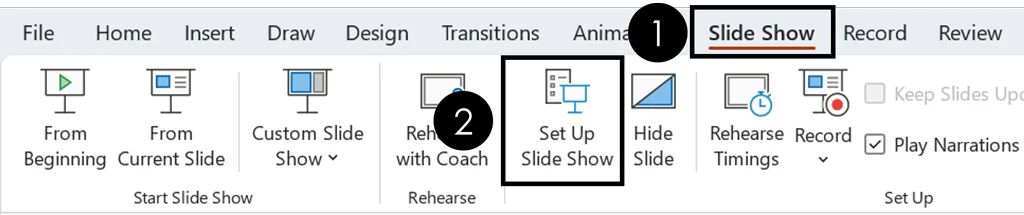
To access the Set Up Show dialog box, you need to use the Set Up Slide Show Command.
Click the Slide Show tab
Select the Set Up Slide Show command
Doing so opens the Set Up Show dialog box, allowing you to customize how your PowerPoint presentation runs.
Where are these slide show settings saved?
When you change the setting for your slide show using this dialog box, those settings are saved only to your current presentation. They do not affect any of your other PowerPoint presentations, because these are presentation-level settings and not program-level settings.
For example, if you change the laser pointer color from red to blue for Project Bluefin presentation, only the laser pointer in the Project Bluefin presentation is changed to blue. All your other PowerPoint presentations are not affected until you change their individual settings.
See my guide on how to use the PowerPoint laser pointer (which will make you look like a pro during your presentations).
Another presentation level setting you might want to turn off, is the Popup Toolbar.
Conclusion
Now you know how to customize the way your PowerPoint presentations run, using the Set Up Show dialog box.
PowerPoint is an amazingly flexible program once you dig beneath the surface, allowing you to customize it to meet your needs. The more of these nuances you understand, tthe better off you are in the corporate world.
About the Author

Taylor Croonquist
Co-Founder, Nuts & Bolts Speed Training
Taylor Croonquist is a PowerPoint expert and trainer. Over a career spanning the globe, from consulting in New York and investment banking in China, Taylor has truly seen it all in PowerPoint. Through necessity and a natural tech savvy, Taylor honed his PowerPoint skills to the point of even blowing the minds of the Microsoft PowerPoint programming team. When he's not busy crafting PowerPoint training, you can find him reading a sci-fi series or scuba diving.