Artificial intelligence is revolutionizing how professionals do everything these days, including the promise of creating business presentations for you. That said, as a presentation designer and hardcore PowerPoint user, I was skeptical.
Sure, you can generate a bunch of slides in minutes by feeding a markdown file (or just simple text) into all the best AI presentation makers on the market, but how visually pleasing and easy to edit are the slides these AI PowerPoint generators actually produce?
To test this out, I fed the same basic prompt into the four most popular AI presentation tools — ChatGPT, Microsoft Copilot for PowerPoint, Gamma, and Canva— to see what kind of slides they would generate in a “crunch time” scenario.
My prompt for each of these AI tools: Create a 5-slide PowerPoint presentation titled “Time Management Tips for Busy Professionals.” Each slide should have a clear title and 3-4 concise bullet points. Include placeholder text for visuals or icons on each slide. Export the presentation as a widescreen 16:9 .pptx file.
I specifically asked for the presentations to be exported as PowerPoint files as that is still the main presentation tool for business professionals. I then looked under the hood to see how hard or easy these slides were to edit in PowerPoint.
ChatGPT Review: The Best AI Presentation Assistant
My verdict: ChatGPT is the best AI presentation assistant. It built a solid outline and speaker notes fast, but the slides it exports are all text with no design features, so finishing the deck still takes real PowerPoint work.
Strengths: Great for brainstorming, drafting content, and refining your presentation outline. ChatGPT does create a set of PowerPoint slides that use template placeholders, even though it uses the Title and Placeholder layout for all the slides.
Weaknesses: The deck it creates is all text with no design features. It tells you what type of picture to add, but finding that visual and placing it in the presentation is still up to you.
Real Experiment: ChatGPT helped build a solid outline and speaker notes quickly, but the slides it produced require a lot of PowerPoint work.
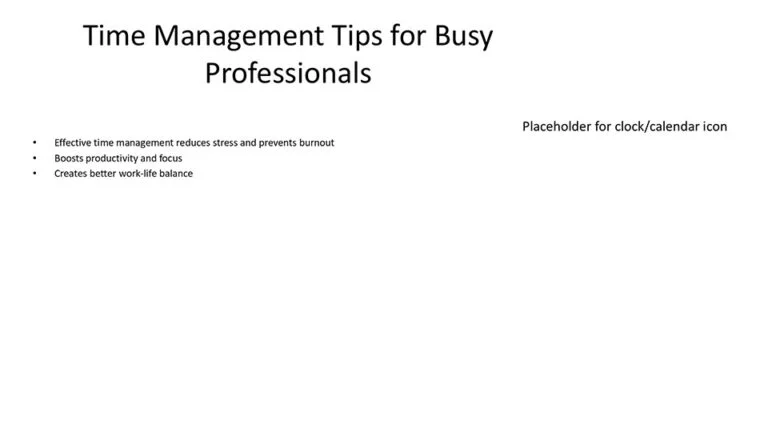
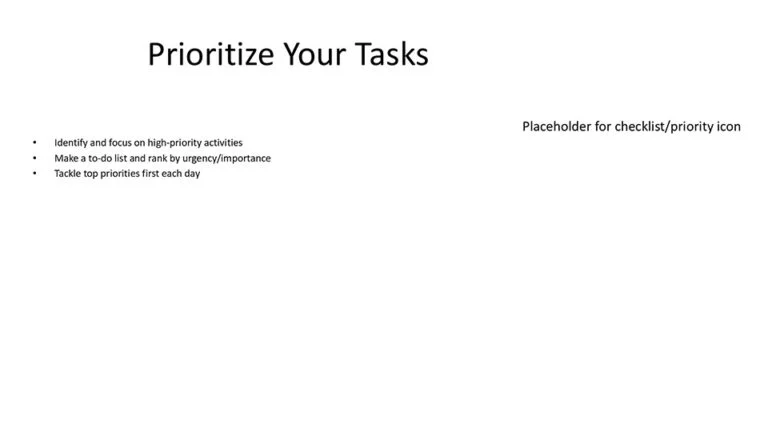
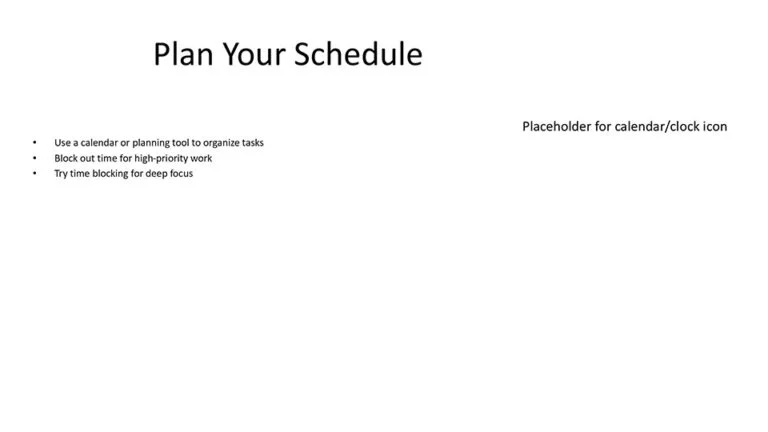
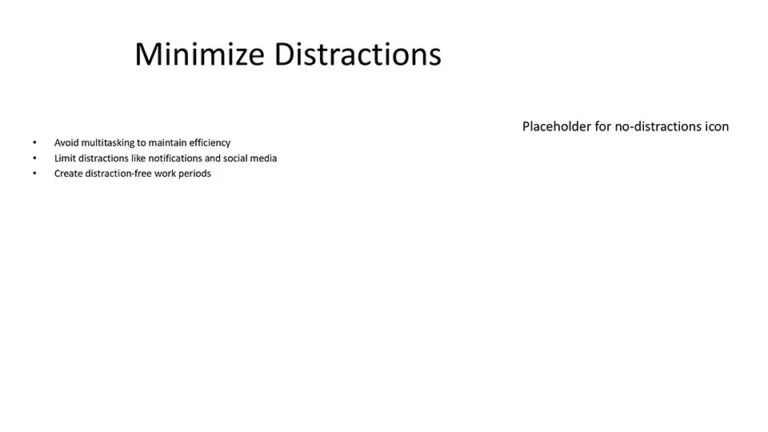
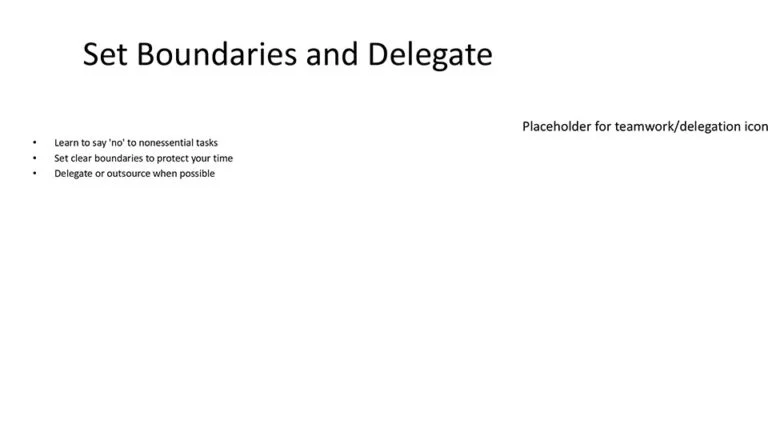
ChatGPT created a presentation based on my prompt (so that was a success). The main issue is that the presentation it produced was all text-based and included no design features. As such, the resulting presentation still requires a lot of work.
From a PowerPoint perspective, you will still need to find visuals for your presentation, apply a PowerPoint theme, create divider slides, apply transitions and animations, and fix the slide master. Overall, a decent start for a presentation, but one that still requires a lot of PowerPoint skills and know-how to complete.
Looking at the slides below, you can see that ChatGPT did give an indication of what image it thought I should add, but finding that visual and properly putting it in the presentation is still up to you.
Microsoft Copilot for PowerPoint Review: Most Editable AI Output
My verdict: Microsoft Copilot produced the most PowerPoint-editable deck of the four tools, with real placeholders, divider slides, and basic transitions, making it my recommended AI presentation tool for beginner PowerPoint users.
Strengths: Used PowerPoint placeholders for adding content, added divider slides, decent visuals, speaker notes, and even added basic animation and fade effects.
If you use Copilot but cannot find the button shown in older tutorials, Microsoft now lets it float, dock, or live in the ribbon.
Weaknesses: Copilot requires a separate license to use.
Real Experiment: Copilot created the most PowerPoint-ready deck. It created 30 slides, added divider slides, visuals, and other common PowerPoint effects.
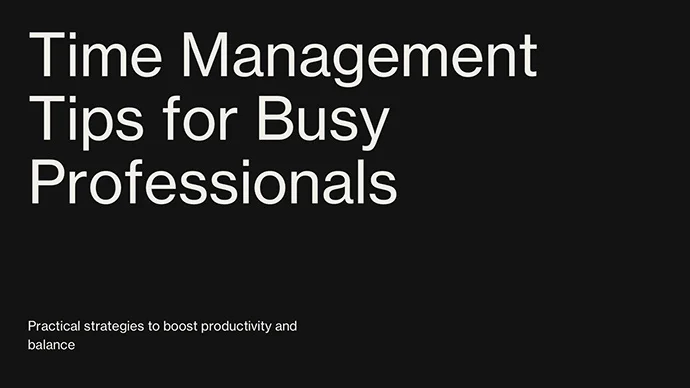
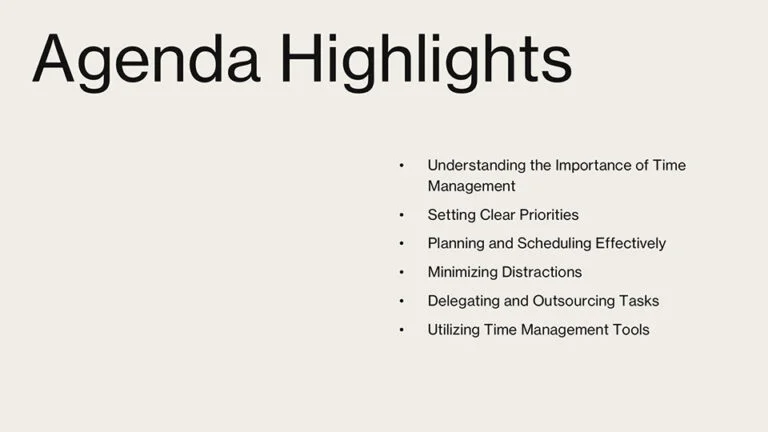
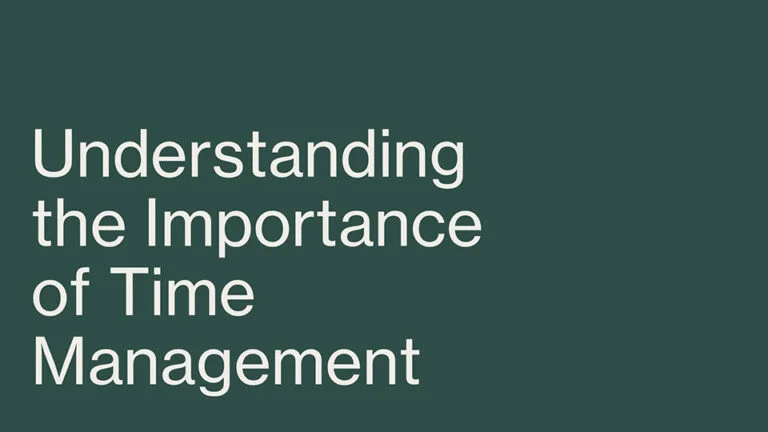
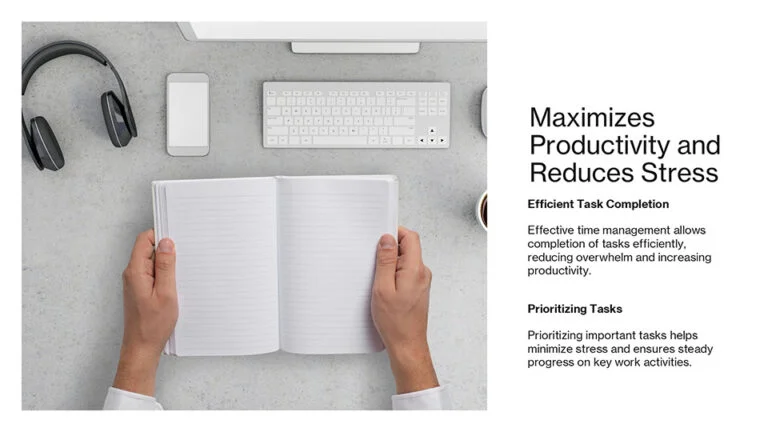
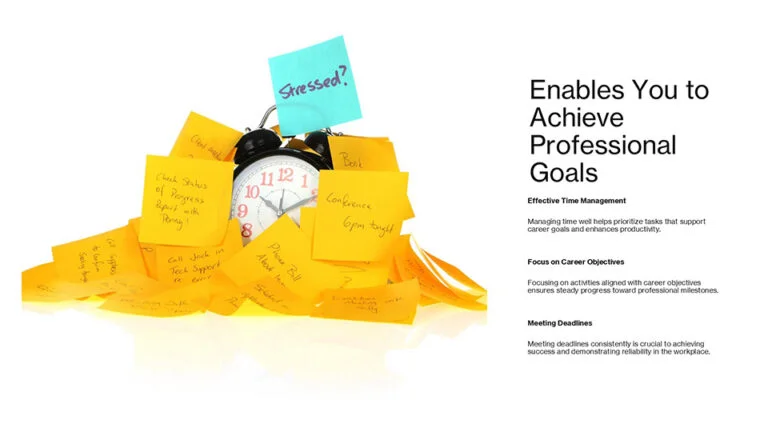
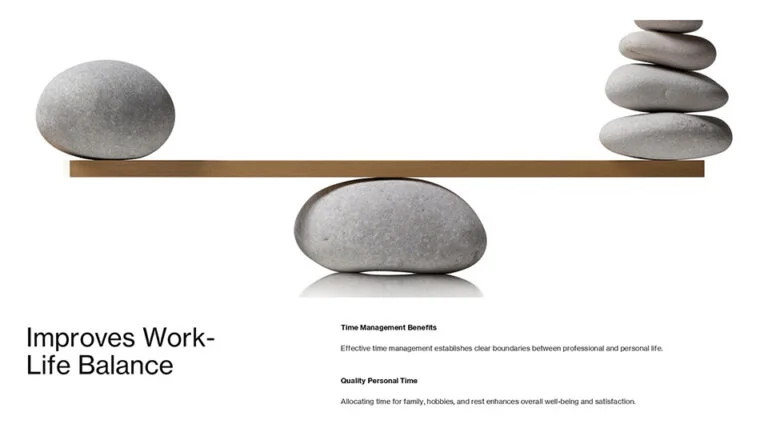
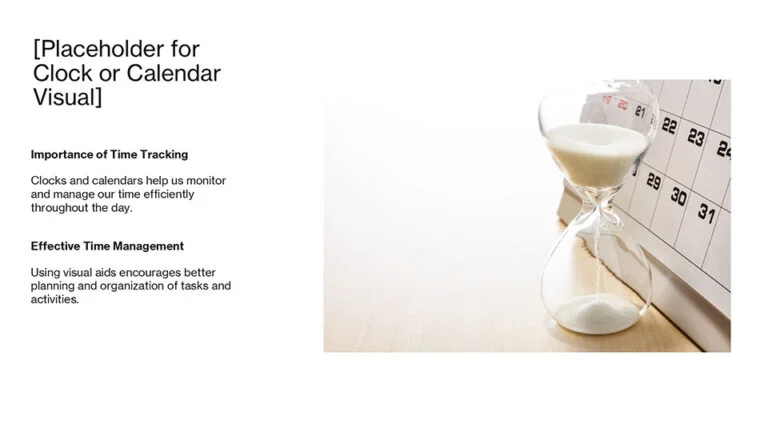
Microsoft Copilot did the best at producing a PowerPoint-editable presentation, so this is my recommended tool for beginner PowerPoint users. The slides it produced were visually pleasing (albeit at a basic level) and it included basic fade transitions and animations to the slides.
Copilot also used PowerPoint’s placeholders, meaning you can perform macro-level edits using the PowerPoint Slide Master.
Gamma AI Presentation Maker Review: Visually Modern Decks
My verdict: Gamma builds the most visually modern deck of the four and asks the right questions before it starts, but its PowerPoint export lands on blank layouts with no placeholders, so editing it in PowerPoint takes a high level of know-how.
Strengths: Creates a polished, modern-looking deck quickly, and asks you smart questions about tone, style, audience, and how much text you want before it builds anything. Exports to PowerPoint, and works well as its own presentation tool if you are not tied to PowerPoint.
Weaknesses: The exported PowerPoint file does not use placeholders or any other basic PowerPoint template features. Every slide lands on a blank layout, so you cannot bulk-edit the deck on the Slide Master.
Real Experiment: Gamma created a polished presentation quickly, but the exported deck requires a high level of PowerPoint know-how to edit, update, and fix
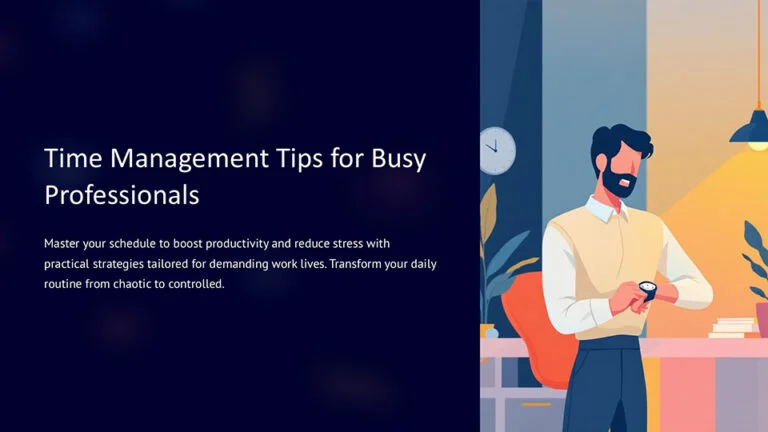
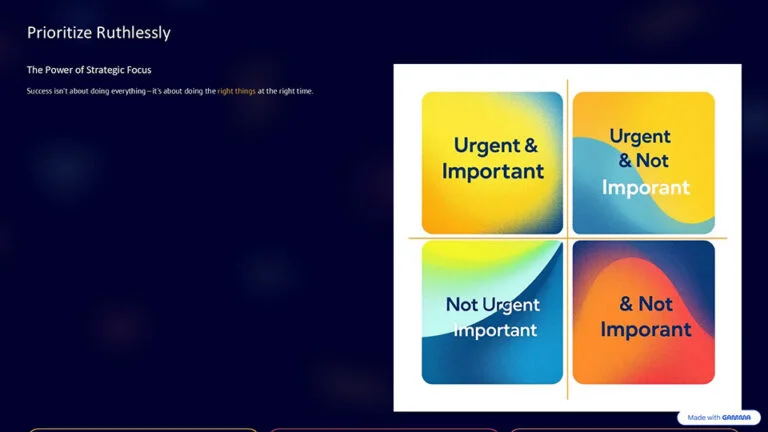
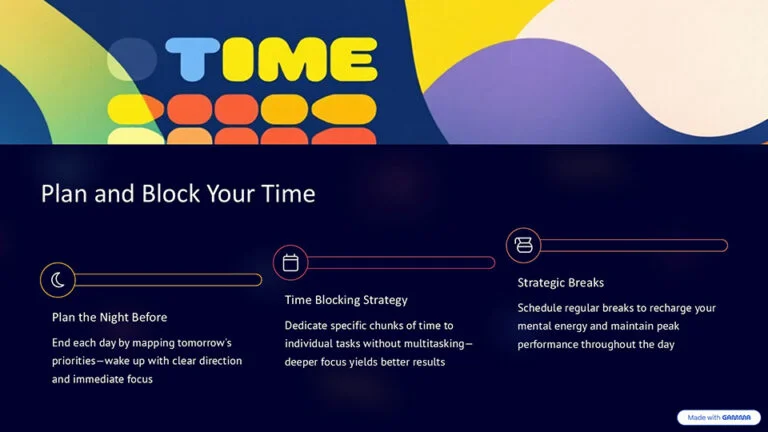
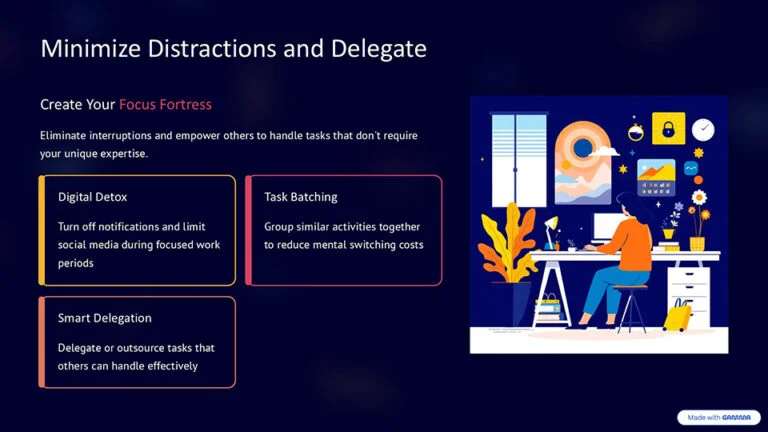
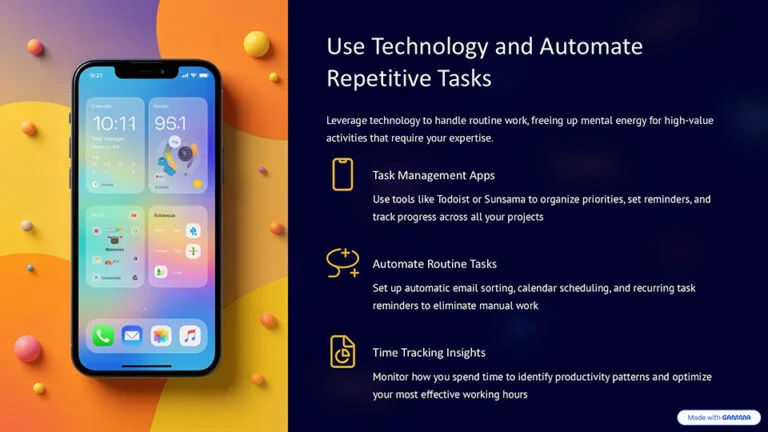
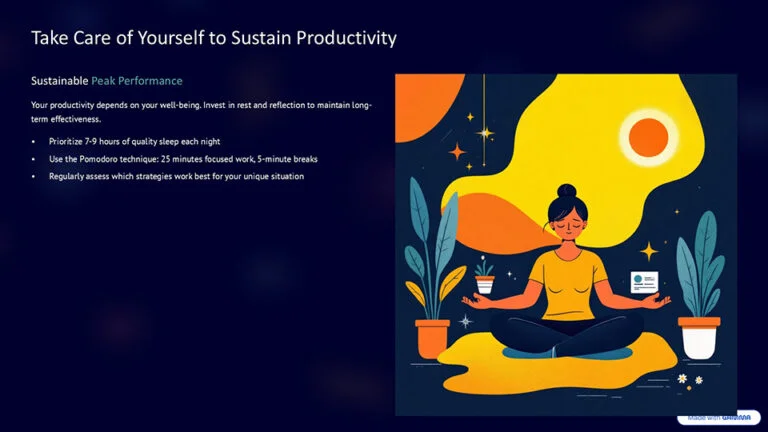
Gamma is an AI tool specifically for creating presentations. Gamma is designed as its own presentation tool, but it also lets you export the result to PowerPoint. That handoff is a good example of why it helps to understand what an API does, although the exact export process can vary by tool.
If you are not currently in the PowerPoint ecosystem, this is a great option you can use as is.
The best thing about Gamma is that it prompts you (as the presenter) to answer some questions about your presentation before it creates it for you (which I love). These are the same types of questions I ask my design clients before I help them with their presentations.
What tone do you want to use?
What style of presentation do you want?
Who is your audience?
How much text do you want on your slides (live presentation vs. printed document)?
While Gamma did a good job at creating a polished presentation quickly, as a PowerPoint file, Gamma did not use placeholders or any other basic PowerPoint template features. The layouts it generated were all on blank layouts, which means that you cannot bulk-edit the slides on the Slide Master.
While the tool did a great job asking questions about your presentation before creating it for you (something that every presenter should do), the resulting PowerPoint deck requires a high level of PowerPoint know-how to edit, update, and fix.
Canva AI Presentation Review: Speed and Branded Visuals
My verdict: Canva creates visually pleasing, branded slides fast, which is excellent if you present from Canva itself, but its PowerPoint export drops all template functionality, so expect real cleanup work.
Strengths: Quick design, branded templates, integrations with wider Canva ecosystem.
Weaknesses: Content can be generic; exports into PowerPoint but without any template functionality
Real Experiment: Canva delivered great-looking slides but failed in the conversion to PowerPoint.
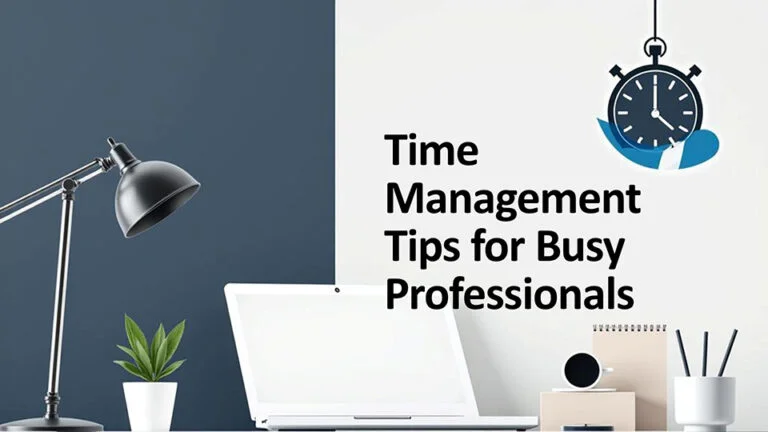
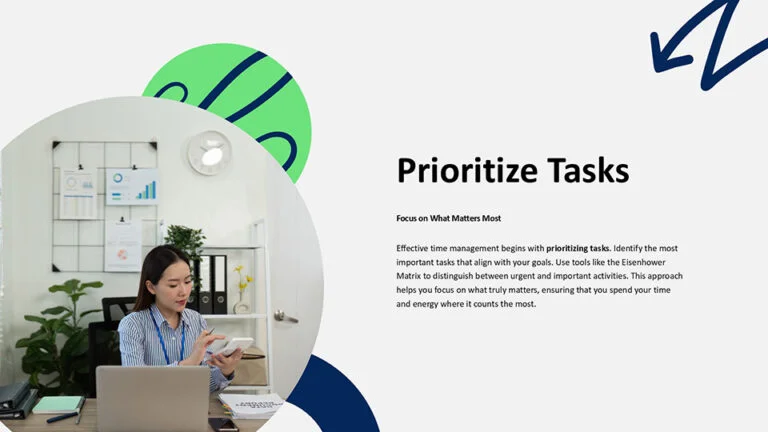
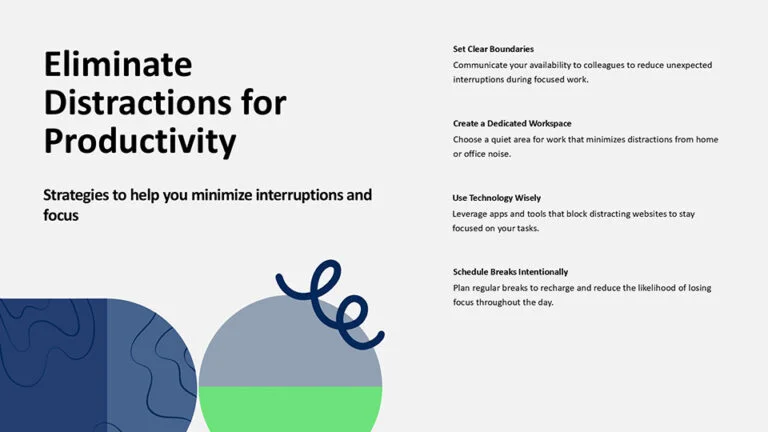

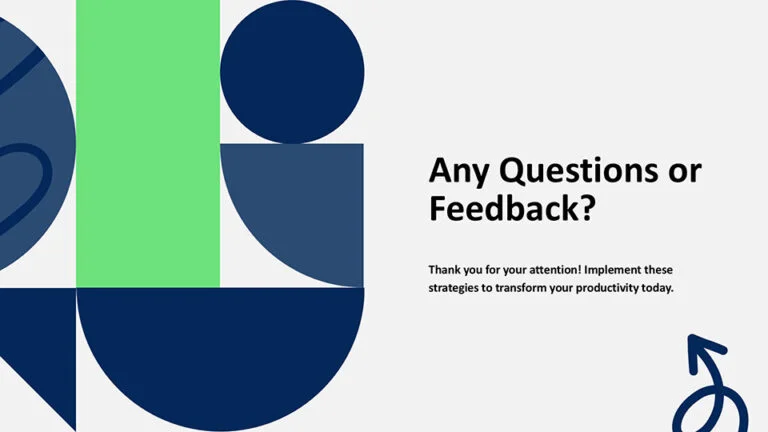
Canva overall did a good job creating a visually pleasing presentation, including visuals, divider slides, and it even added a slide for “questions” at the end. If you are not beholden to PowerPoint, Canva is great as the presentation it creates becomes part of the Canva Suite, which you can use for many other purposes.
Exporting Canva to PowerPoint creates a few issues. For example, Canva used a generic PowerPoint template, using blank slides instead of slides with placeholders. While you can upload a brand kit to Canva to use your own corporate theme colors, you cannot upload a template with standard PowerPoint placeholders.
Overall, Canva created a visually pleasing presentation, which would be excellent if you intend to use Canva to present your presentation. If you are exporting to PowerPoint, the output still requires a lot of work to update and edit.
Comparison: Choosing the Right AI Presentation Maker for PowerPoint
Here is a quick summary of the tools compared to themselves.
ChatGPT
Best for: outlining, exploring ideas, and building text, especially when you are starting from scratch.
Exports to PowerPoint: yes, text-only slides on template placeholders.
Watch out for: no design features. Visuals, theme, and transitions are all still on you.
Microsoft Copilot for PowerPoint
Best for: fast, rich decks if you already live in PowerPoint.
Exports to PowerPoint: native. It builds directly in PowerPoint with real placeholders, so you can bulk-edit on the Slide Master.
Watch out for: requires a separate license.
Gamma
Best for: polished, modern “cards” and quick iterative decks, especially for web-based sharing.
Exports to PowerPoint: yes, but onto blank layouts with no placeholders.
Watch out for: editing the export takes a high level of PowerPoint know-how.
Canva
Best for: beautiful, branded visuals fast, plus everything else in the Canva ecosystem.
Exports to PowerPoint: yes, but without any template functionality.
Watch out for: content can be generic. Expect real cleanup work after the export.
If one of these tools asks you for an API key during setup, here's exactly what that means (and how to do it safely).
Breaking Through the Creative Block with AI Presentation Makers
All four of the AI slide generators I tested can help you create presentations faster. So, if you hate starting with a blank screen, these tools are all a lifesaver. Just keep in mind that the output differs radically (see my results above) and not all AI tools create easily editable PowerPoint slides.
The Benefits
Rapid Ideation: These AI presentation tools excel at generating initial content. I went from zero to five slides in less than five minutes, which is invaluable when you’re under deadline pressure.
Structure and Organization: On the plus side, some of the AI tools added sections I hadn’t thought of, which sparked new ideas, and added some visuals. This demonstrates how AI can function as a brainstorming partner, not just a production tool.
Intelligent Design Suggestions: Once your slides have been created, you can use Design Suggestions to switch up your layouts and get new ideas for visually laying out your content. You can find the Design Suggestions command on the Home tab next to Copilot.
Where They Fall Short
Accuracy Issues: One critical challenge of AI is that it can make up plausible-sounding statistics that are simply not true. For example, I asked Copilot for some market statistics to back up a specific point I was trying to make. It gave me the statistics – just like I asked – but those statistics were not true.
If you are using AI to generate your presentations from scratch, please verify the information it gives you. Don’t let AI’s mistakes become your mistakes. At the end of the day, it is your presentation.
Need for Customization: AI generates basic slide designs and ideas for you, not a finished product. Even the best AI presentation maker requires human refinement to align with your brand and message.
Risk of Generic Design: If you are relying solely on AI to generate your slides for you, your slides may start to look like everyone else’s if you don’t add your own personal touch. This is a common criticism I have after playing around with the different AI presentation maker platforms and solutions.
Limited Depth for Technical Content: You’ll spend some time customizing slides for niche topics, especially in specialized industries where AI lacks deep domain knowledge.
Memory Limits (Context Windows): If you ask ChatGPT or Copilot to analyze a massive 100-slide deck to build a new one, it might suddenly stop, forget instructions, or give you an error. This is a direct result of hitting the tool's hidden AI usage and token limits.
Best Practices: How to Use AI in Presentations Effectively
After exploring these four different AI presentation tools, the key takeaway is this:
AI should never be your autopilot. Use it to boost your ideas but always add your voice and double-check your facts.
Strategic Implementation
When learning how to make a presentation with AI, whether you generate the whole deck or just polish one, follow these guidelines:
Start with AI, Finish with Human Expertise: Use AI PowerPoint generators to overcome the blank-slide problem, then apply presentation design tips and best practices to refine the output.
Verify All Data: Given AI’s tendency to “hallucinate” facts, always verify statistics and claims before presenting. Don’t let AI’s mistakes become your mistakes.
Leverage Multiple Tools: Consider combining several tools – such as Microsoft Copilot for PowerPoint with other AI presentation makers – to find what works best for your workflow. Each of these slide-generating tools excels at different things. For example:
Copilot is the go-to for fast, rich decks — if you already use PowerPoint.
Gamma is excellent for polished, modern “cards” or quick iterative decks, especially for web-based sharing.
Canva is ideal for those who want beautiful, branded visuals fast (and use other Canva marketing tools).
ChatGPT is unbeatable for outlining, exploring ideas, and building text, especially for those starting from scratch.
The best approach for using AI to create business presentations for you, is to combine two or three tools (depending on your design skill level) for the best results. A true Swiss army knife approach.
Three Key Takeaways from My AI Presentation Experiment
A human being is still required: You cannot wave a magic wand and go from prompt to fantastic PowerPoint presentation. Creating fantastic presentations still requires your human creativity, your brainstorming, your research, your expertise, and your experience. AI can help you in each of these areas – as a collaborator – but it cannot do it all for you.
Pick the right tool for the task at hand: Some AI tools are better at generating presentation outlines, doing research, and wordsmithing your content etc., while other tools are better at generating visually pleasing slides, exporting to PowerPoint, incorporating images, etc. Know your tool’s limitations, so you can focus on what it’s good at.
Adopt a Swiss army knife approach: The beauty of having so many AI tools on the market these days is you are not beholden to any one of them. Instead, you can create your own presentation toolkit, leveraging what each tool is specifically good at.
Frequently asked questions about AI presentation tools
Q: Is Gamma AI free?
Gamma has a free plan: you can sign up and generate presentations with AI without paying, on a credit-limited tier, with paid plans lifting the caps. Check gamma.app for the current allowance before you count on it, because those limits move.
Whatever plan you are on, my bigger finding stands. Gamma's PowerPoint export uses blank layouts with no placeholders, so budget real PowerPoint time to edit whatever it gives you.
Q: What is the best AI presentation maker?
It depends on where you will actually present. In my four-tool experiment:
Microsoft Copilot produced the most PowerPoint-editable deck, making it my recommendation if you live in PowerPoint.
Gamma built the most visually modern slides, but its PowerPoint export lands on blank layouts that are hard to edit.
Canva wins for fast, branded visuals if you present from Canva itself.
ChatGPT is the best assistant for outlining and drafting your content rather than finished design. The best results come from combining two or three tools, a Swiss army knife approach.
Q: Can ChatGPT make a PowerPoint?
Yes. In my experiment, ChatGPT generated a real .pptx file from a single prompt, and the slides used template placeholders, though it applied the same Title and Placeholder layout to every slide. What it will not give you is design: the deck it produced was all text, with no visuals, no theme, and no transitions. Treat ChatGPT as your outline-and-content step, then do the design work in PowerPoint.
Final Verdict: The Future of AI in Business Presentations
AI presentation makers like Microsoft Copilot, Gamma, Canva, and ChatGPT are transforming how professionals approach slide design, but they’re tools, not replacements for your strategic thinking and expertise.
As you evaluate any AI tool to create your presentations, you have to keep in mind whether they are saving you time by generating a bunch of slides quickly for you or costing you time by creating a ton of PowerPoint work you need to do.
Hopefully my experiment helps you better understand how to use AI in presentations effectively, leveraging the speed of AI while maintaining quality control. Remember, you are the subject matter expert who has to give the presentation and AI is just another tool to use.
I will keep experimenting with these tools as they continue to evolve and hopefully improve.
About the Author

Taylor Croonquist
Co-Founder, Nuts & Bolts Speed Training
Taylor Croonquist is a PowerPoint expert and trainer. Over a career spanning the globe, from consulting in New York and investment banking in China, Taylor has truly seen it all in PowerPoint. Through necessity and a natural tech savvy, Taylor honed his PowerPoint skills to the point of even blowing the minds of the Microsoft PowerPoint programming team. When he's not busy crafting PowerPoint training, you can find him reading a sci-fi series or scuba diving.