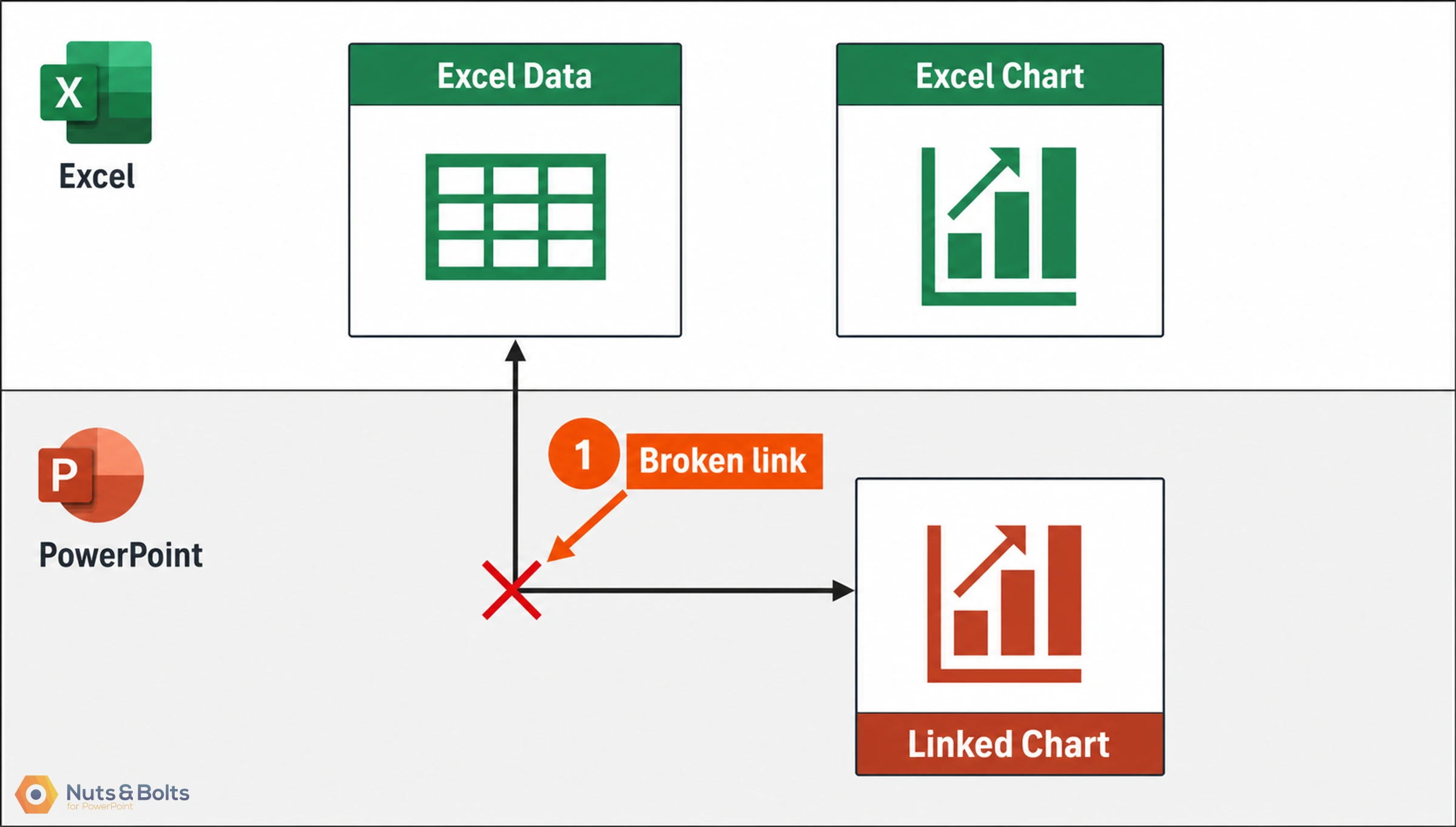
Finding a broken link chart in PowerPoint is the worst. That’s because it means you cannot edit the underlying data, until you fix the broken link.
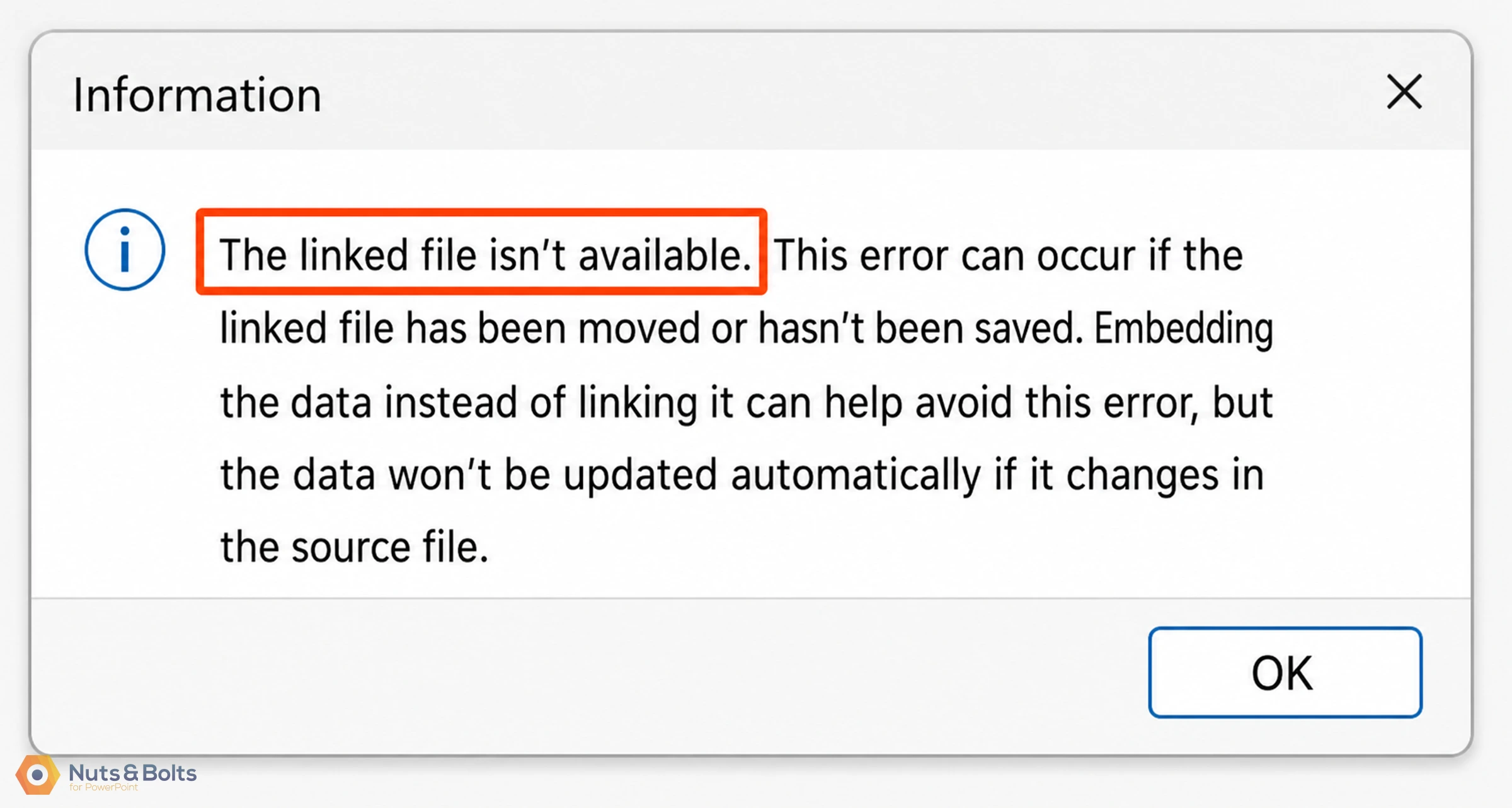
You will know you have a broken link chart when you right-click your chart in PowerPoint, select Edit Data, and receive the following error message (which is extremely annoying).
It is common for people to accidentally link their Excel charts to PowerPoint, creating this broken link effect, simply because they do not understand how their Excel charts get linked to PowerPoint.
To expand your knowledge and learn how to link an Excel chart to PowerPoint (which is easier than you think), read my guide here.
What is a broken link chart?
NOTE: If you want to radically improve your speed in PowerPoint and build marketable skills, join my PowerPoint Pro Membership to get 24/7 access to my premium PowerPoint training courses that will radically improve your PPT skills. It’s only $37/month to join, and you can cancel at any time.
What creates a broken link chart in PowerPoint?
A broken link chart in PowerPoint occurs whenever the external Excel spreadsheet that was used to create the PowerPoint chart, is either renamed and/or moved to a different location on your computer.
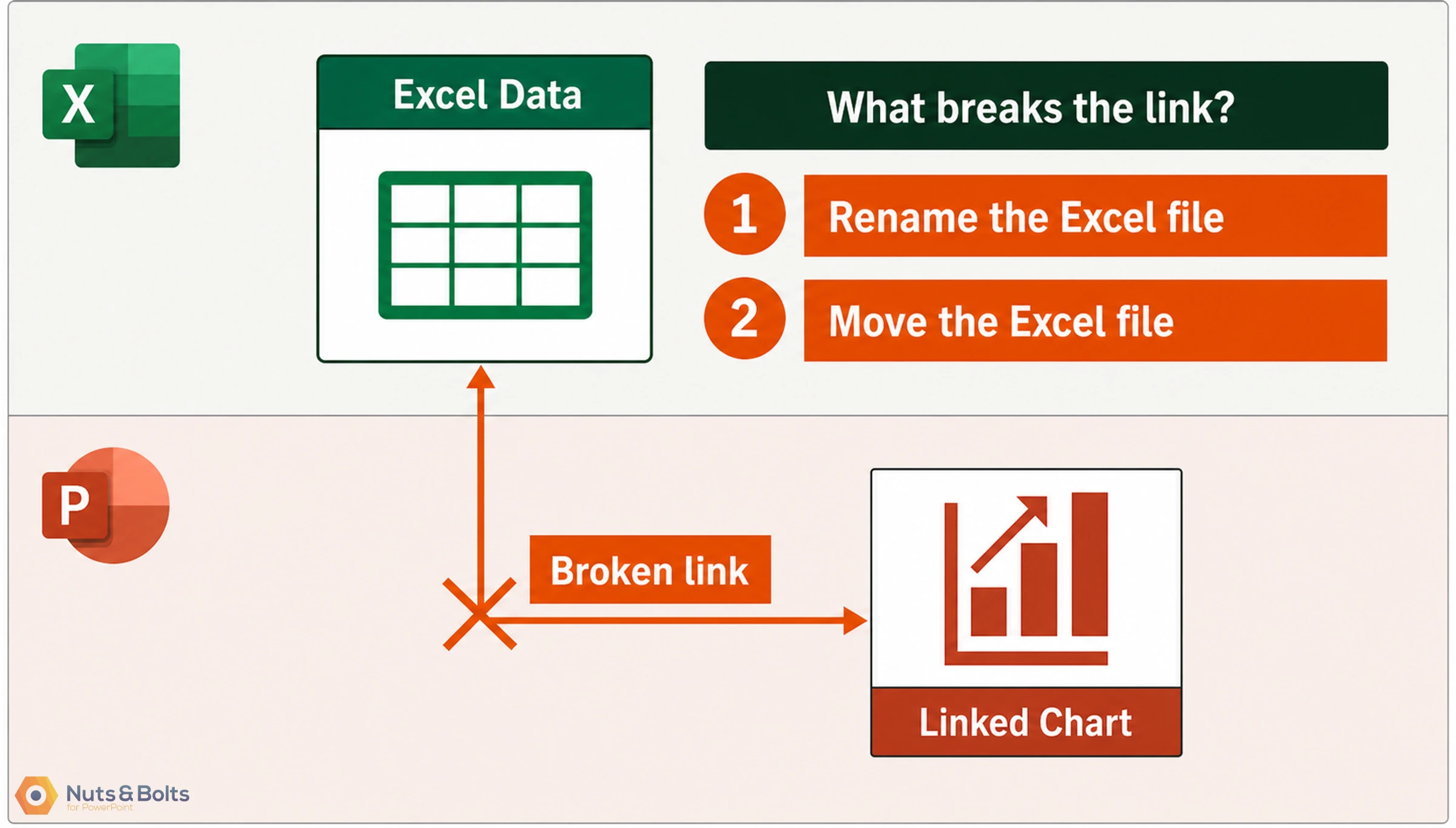
If you are working with a team using linked charts, this means that every time you send your colleague your PowerPoint deck, you will also need to send them the linked Excel file.
Once they receive the files, they will need to reestablish the link between PowerPoint and Excel before they can edit the data.
Sharing Excel and PowerPoint files like this (with linked charts) often creates a never-ending hookup loop. That is, you send the files to your colleague and they have to hook it up to make edits. They send them back to you and you have to hook them back up again to make edits.
How to fix a broken link chart in PowerPoint
To fix a broken link chart in PowerPoint, you simply need to reestablish the link between the PowerPoint deck, and the external Excel spreadsheet. This means you need to have access to the Excel spreadsheet on your computer to re-create the link.
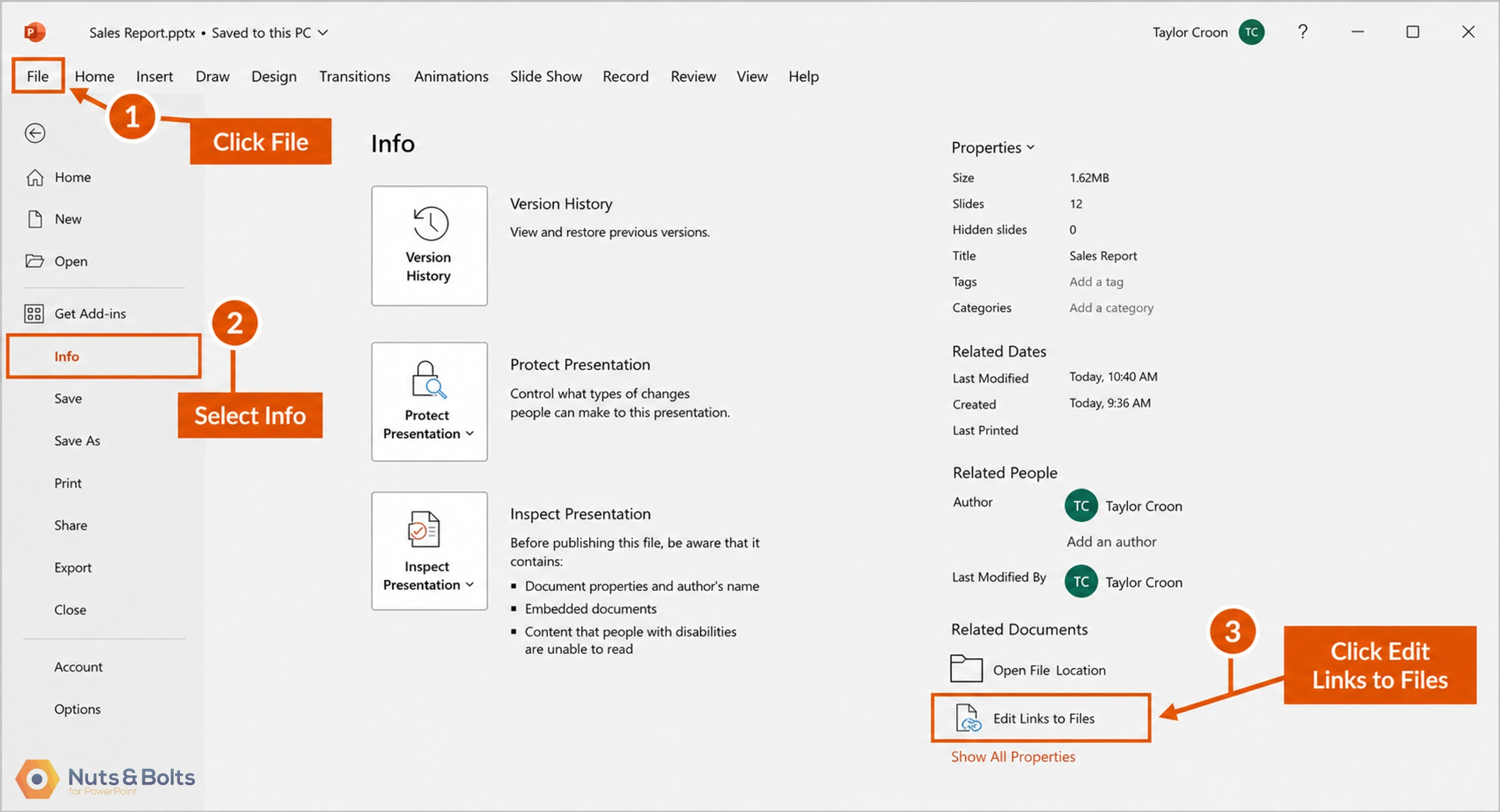
To re-establish the link between PowerPoint and Excel to fix your broken link chart, simply:
Click the File tab in PowerPoint
Select the Info category
Scroll down and select Edit Links to Files
Inside the Link dialog box, simply select Change Source and navigate to wherever the renamed or moved Excel file is.
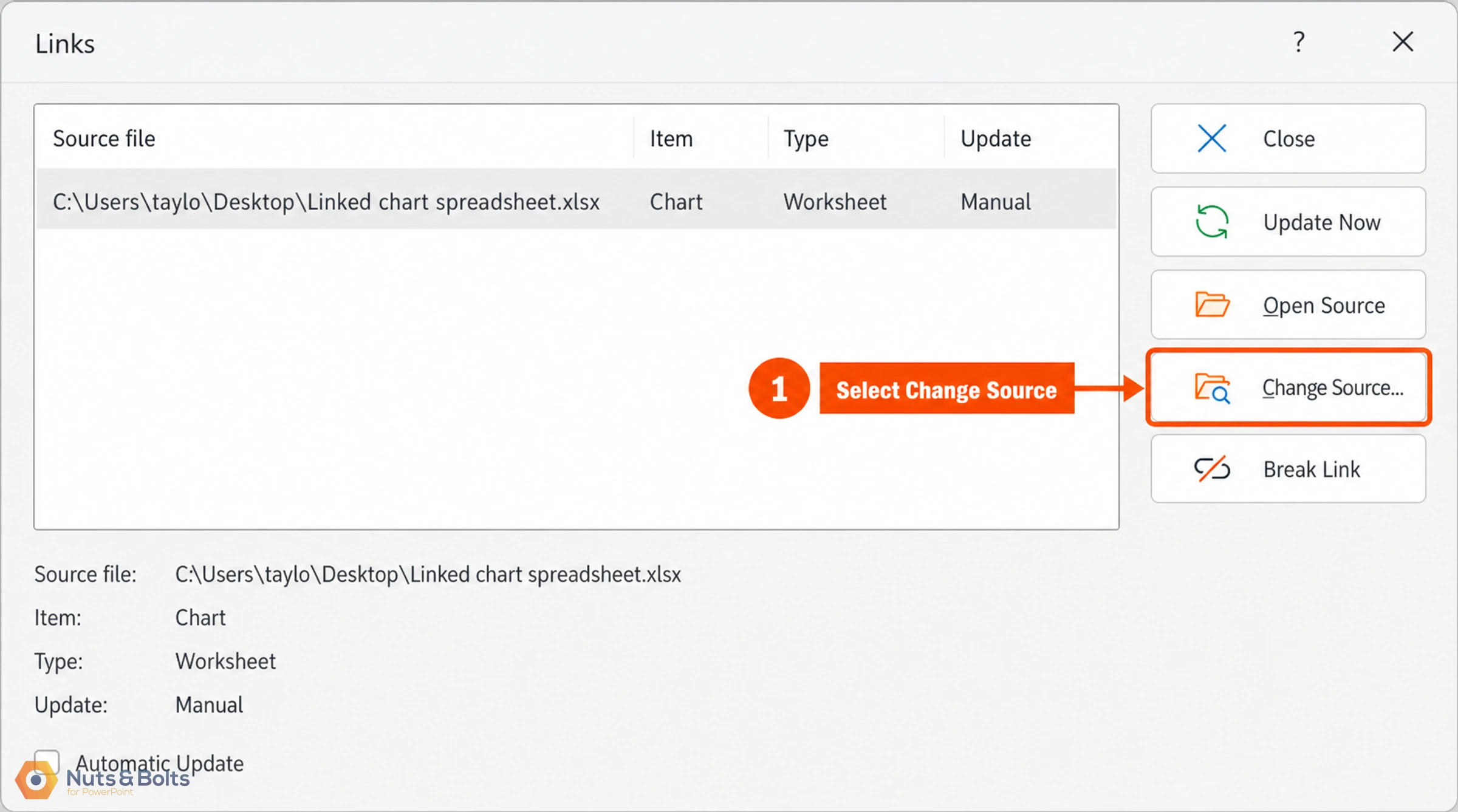
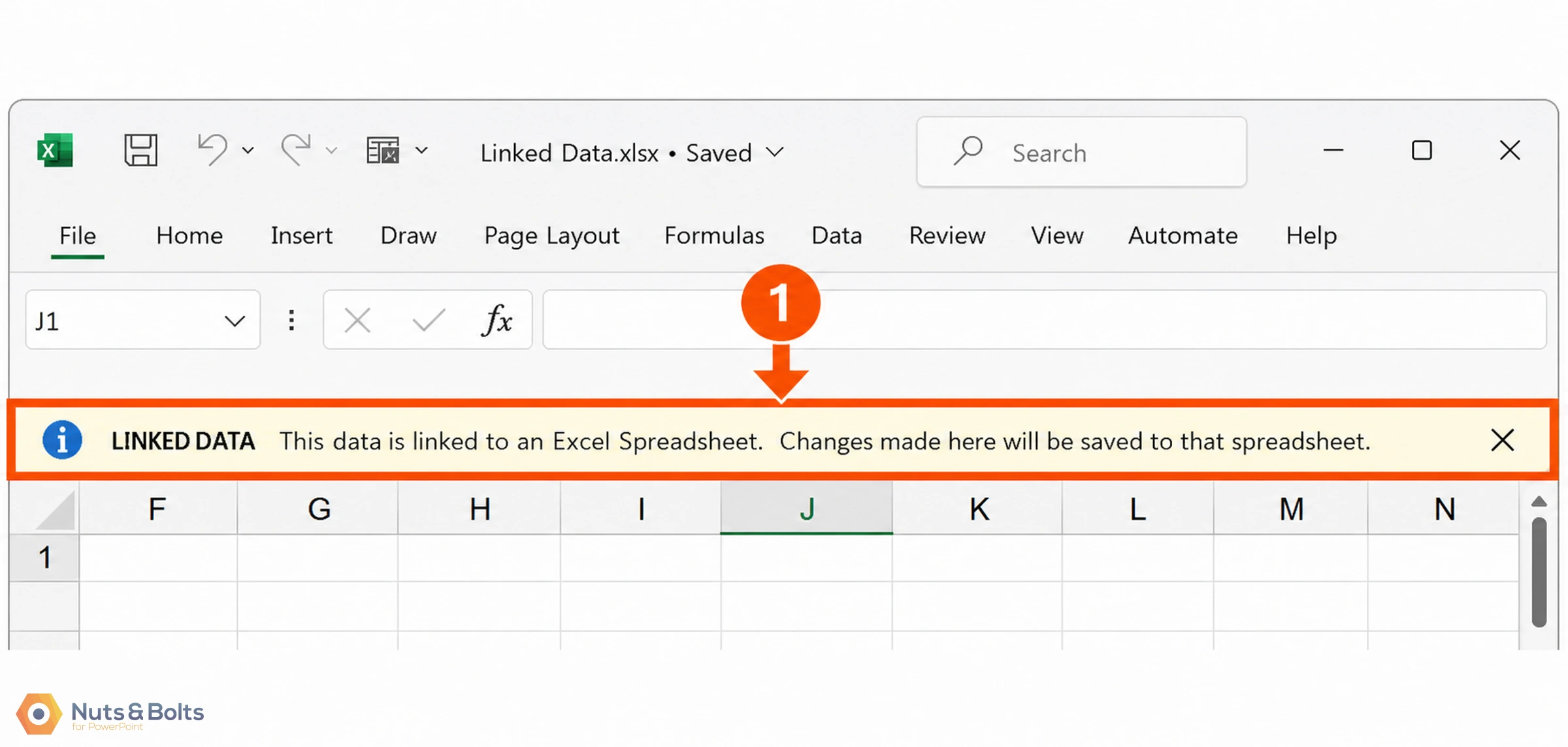
Once you have reestablished the link on your computer, your linked charts will automatically update. On top of that, if you now select Edit Data inside of PowerPoint, you will receive the linked data notification at the top of the Excel spreadsheet, letting you know that you are dealing with a linked chart.
Conclusion
Now you know what a broken link chart in PowerPoint is, and how to fix it.
This is something you will need to coach up your clients and colleagues on, they won’t know their broken linked charts.
If you enjoyed this article and want to learn more about our PowerPoint speed training services check out our other helpful resources, or check out our other free tutorials.
About the Author

Taylor Croonquist
Co-Founder, Nuts & Bolts Speed Training
Taylor Croonquist is a PowerPoint expert and trainer. Over a career spanning the globe, from consulting in New York and investment banking in China, Taylor has truly seen it all in PowerPoint. Through necessity and a natural tech savvy, Taylor honed his PowerPoint skills to the point of even blowing the minds of the Microsoft PowerPoint programming team. When he's not busy crafting PowerPoint training, you can find him reading a sci-fi series or scuba diving.