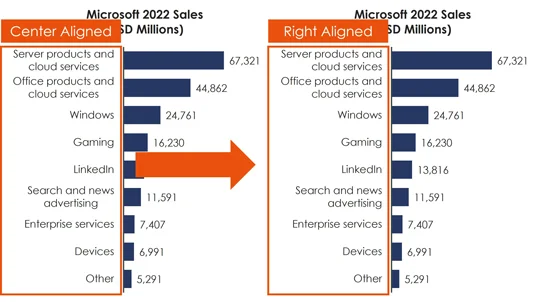
Yes, you can right align your bar chart categories in PowerPoint, Word, and Excel. You are not stuck with the default center aligned categories that come with your chart. That said, if you are using Excel, you will need to move to Word or PowerPoint to get the job done.
Now, the reason why this is tricky is because you cannot use the standard chart formatting options to right align your categories. You also cannot use the Center, Middle, or Right text alignment tools in the paragraph group (which you’ve probably already tried).
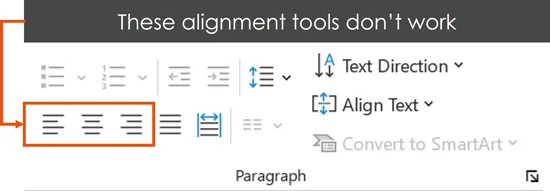
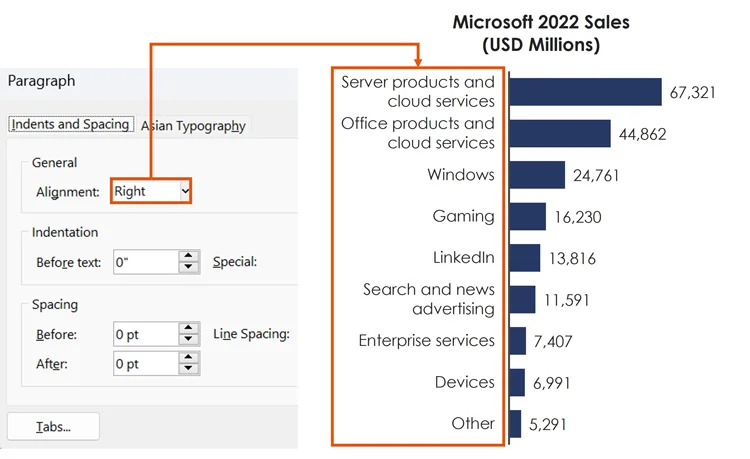
Instead, as you will see below, you need to use the Paragraph dialog box in Word or PowerPoint, to right-align your bar chart categories. The same is true if you are using Microsoft Excel, as the paragraph spacing dialog box does not exist in Excel.
How to right align bar chart categories
Not all your chart formatting happens in the chart formatting dialog boxes. Watch the video above or read further below to see how to right align your bar chart categories.
Right aligning bar chart categories (PowerPoint and Word)
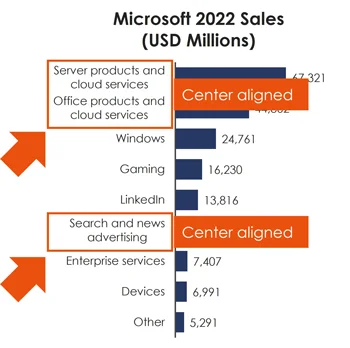
In the picture below you can see what center aligned bar chart categories look like. This is the default alignment for your bar chart categories, which is what we want to fix.
To fix this, you need to be in Microsoft Word or PowerPoint. Even if you are working with an Excel chart, you will need to copy and paste that chart into either Word or PowerPoint to pull this trick off.
The reason is, the Paragraph dialog box you need to change the default center aligned categories, does not exist in Microsoft Excel.
1. Select your Bar Chart category axis
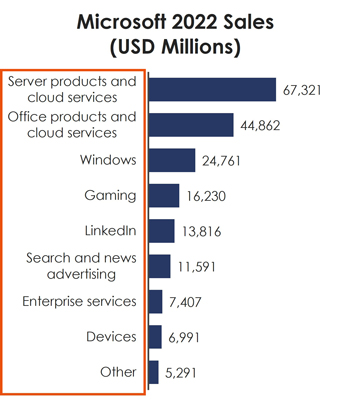
Inside Microsoft Word or PowerPoint, select your bar chart category axis.
2. Open the Paragraph dialog box

To open the Paragraph dialog box in PowerPoint or Word, simply:
- Click the Home tab
- Click the dialog arrow in the Paragraph group
Clicking that arrow opens up the Paragraph dialog box which is where we will make the adjustment.
NOTE: If you are using a PC computer, you can simply hit Alt, H, PG on your keyboard to use your Ribbon Guides to open the Paragraph Spacing dialog box. This is one of the main reasons why PCs are better than Mac computers when it comes to speed in PowerPoint.
To learn all my best PowerPoint hacks, tips, and tricks that will triple your productivity in PowerPoint, grab your PowerPoint Pro Membership today. It’s only $37/month and you can cancel at anytime.
3. Select Right alignment
Inside the Paragraph dialog box, for alignment, select Right. You could alternatively select a different alignment option.
When you are done, click OK.
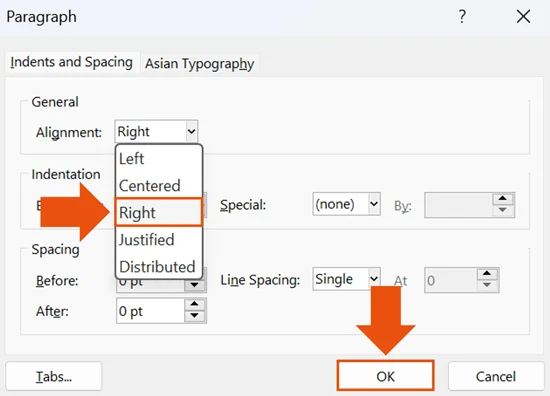
NOTE: the Paragraph dialog box does not include a live preview. That means that you will not see the category label alignment you select until you click OK to exit out of the Paragraph dialog box.
Excel: Right aligning bar chart categories
Right off the bat, you cannot right align your bar chart categories from within Excel. That is because the Paragraph spacing dialog box that you need to use does not exist in Excel. That is why you need to move into Word or PowerPoint first.
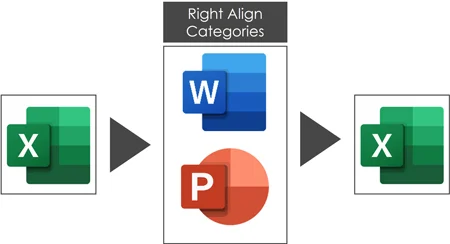
To do this, you still need to use the Paragraph dialog box in PowerPoint or Word, so you will need to:
- Copy and paste your chart into PowerPoint or Word
- Use the Paragraph dialog box (see section above)
- Copy and paste your chart back into Excel
Why does this work for your Excel bar chart?
It works because any chart you copy from Excel into PowerPoint or Word, is by default, a linked chart. That means that the chart you paste into PowerPoint or Word is linked back to the data in Excel.
The benefit of this is, after you align your categories in PowerPoint or Word, pasting the chart back into Excel maintains that same linked range in Excel.
Conclusion
Now you know how to right align your bar chart categories in PowerPoint and Word, which you can use to right align your categories for Microsoft Excel too.
While Excel doesn’t include a Paragraph dialog box because Excel charts are linked to the original data source, you can use PowerPoint or Word to quickly make this adjustment, and then move right back to Excel again.
This is one of those pesky things that can drive you nuts when you are under the gun creating your chart, and it’s easy to fix (once you know how to do it).
To learn more about our PowerPoint training services and how to improve your presentation skills, visit us here.
About the Author

Taylor Croonquist
Co-Founder, Nuts & Bolts Speed Training
Taylor Croonquist is a PowerPoint expert and trainer. Over a career spanning the globe, from consulting in New York and investment banking in China, Taylor has truly seen it all in PowerPoint. Through necessity and a natural tech savvy, Taylor honed his PowerPoint skills to the point of even blowing the minds of the Microsoft PowerPoint programming team. When he's not busy crafting PowerPoint training, you can find him reading a sci-fi series or scuba diving.