Understanding the difference between the two different New Slide shortcuts is a must for anyone who works regularly in PowerPoint.
That’s because you will constantly be adding new slides to your presentations, so the sooner you can nail these shortcuts, the better off you will be.
And while the two shortcuts may seem similar, they are actually quite different.
For a quick review of how these two new slide shortcuts are different, see the short video tutorial below.
New Slide Shortcuts Tutorial
Note: You can also insert new slides in your company template using the Outline View Shortcuts.
To see some of our other favorite PowerPoint shortcuts, see our list here.
New slide shortcut (1 of 2)
Ctrl + M
Inserting new slides using CTRL+M immediately inserts a blank new slide based on the current slide layout that you were working on (unless you were on the title slide).
To expand your knowledge and learn other nuances about the Ctrl+M shortcut, read our guide here.
PowerPoint Tip
When you hit CTRL + M to insert a new slide while active in the Normal PowerPoint working view, the Title Placeholder in the new slide is automatically activated.
That means you can hit CTRL + M and immediately type the title of your next slide, quickly knocking out your draft outline.
If you are starting from scratch and creating an outline for your presentation (especially if you are using a company template) you can do this even faster using the Outline View Shortcuts.
New slide shortcut (2 of 2)
Ctrl + Enter
This is a unique little shortcut.
While working in the normal PowerPoint view, hitting CTRL + ENTER cycles through the content placeholders in your layout allowing you to quickly type text or add content.
Once it cycles through all the available placeholders in your layout, hitting the shortcut again adds a new slide to your presentation.
For example, if you have a slide with 3 content placeholders as pictured below (placeholders marked with black circles).
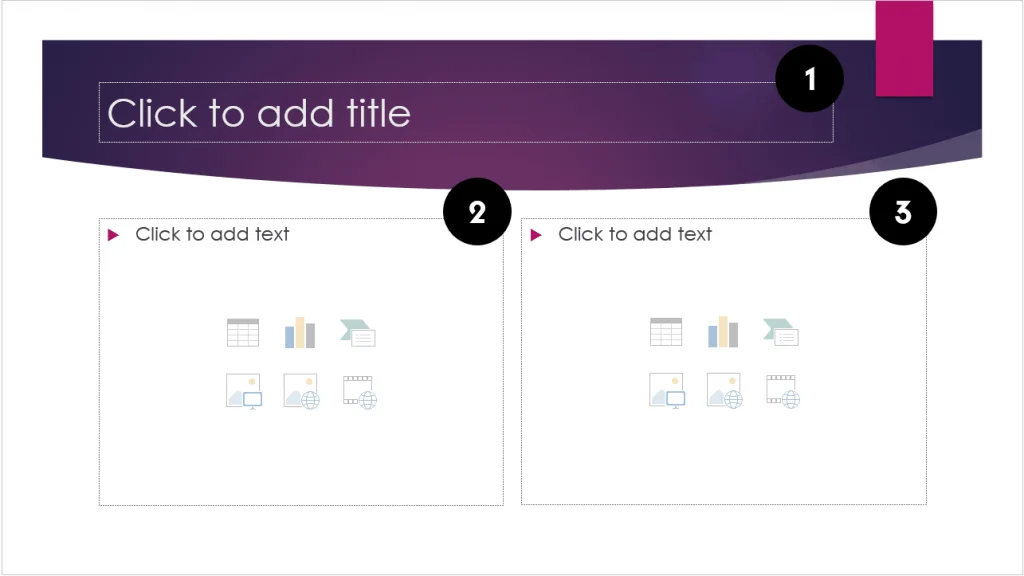
Hitting CTRL+ENTER:
- The first-time cycles to the 1st placeholder (the title in this case).
- The second-time cycles to 2nd placeholder
- The third-time cycles to the 3rd placeholder.
- The fourth time creates a brand new, blank slide.
So, the way the CTRL+ENTER shortcut is different than the CTRL+M shortcut, is that before it creates a new blank slide, it first cycles through all the content placeholders on your slide.
Instead of ending up with a new blank slide, you instead create a duplicate of the slide you were working on (making it easy to save your work).
You can learn more about how to use the duplicate slide shortcut like this here.
What type of new slide is added?
When using the New Slide shortcuts in PowerPoint, the slide layout that is inserted is based on the slide layout you were just on when you used the shortcut.
For example: If you are on the Section Header layout, using the New Slide shortcuts inserts a new blank Section Header layout. If you are on a Comparison layout, using either of the New Slide shortcuts inserts a blank Comparison layout.
The only time this rule doesn’t hold true, is if you use these shortcuts while on the Title slide layout. If you are on the Title Slide layout (for your template), instead of inserting a new Title Slide, the next layout in your slide master will be inserted (most likely a Title and Placeholder layout).
This makes sense too, right?
In a normal presentation you will only have one title slide. So the New Slide shortcuts are smart enough not to insert a second title slide layout, and instead take you to your first content slide layout.
To learn more about our PowerPoint training courses and other free resources, visit us here.
About the Author

Taylor Croonquist
Co-Founder, Nuts & Bolts Speed Training
Taylor Croonquist is a PowerPoint expert and trainer. Over a career spanning the globe, from consulting in New York and investment banking in China, Taylor has truly seen it all in PowerPoint. Through necessity and a natural tech savvy, Taylor honed his PowerPoint skills to the point of even blowing the minds of the Microsoft PowerPoint programming team. When he's not busy crafting PowerPoint training, you can find him reading a sci-fi series or scuba diving.