In this article you’ll learn the workaround to import EPS files into PowerPoint.
It’s sad but true, Microsoft no longer supports EPS files.
That means that if you try to open an EPS file in PowerPoint, you will get an error message.
While this kind of sucks, that doesn’t mean that you can’t use these types of files anymore. Instead, it just means that you have to go through a few extra hurdles to get them into your PowerPoint slides.
What is an EPS file?
EPS stands for an Encapsulated PostScript file.
What that means in PowerPoint is a vector file or graphic (like a map of the United States) that you can break apart by ungrouping it, so that you can format the individual pieces as you can see in the picture below.
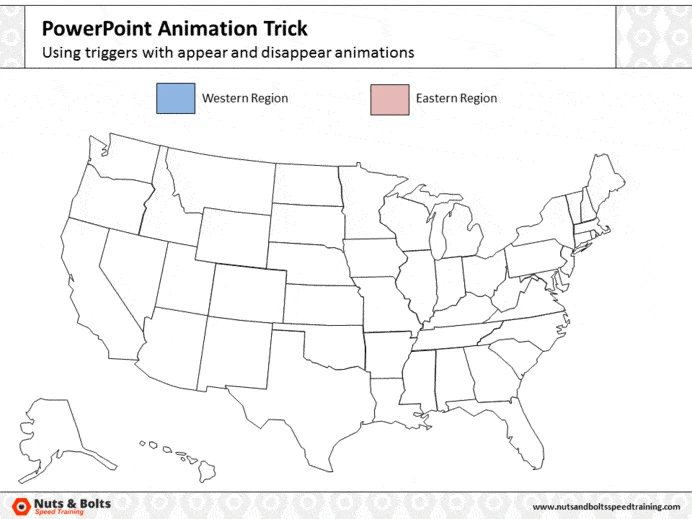
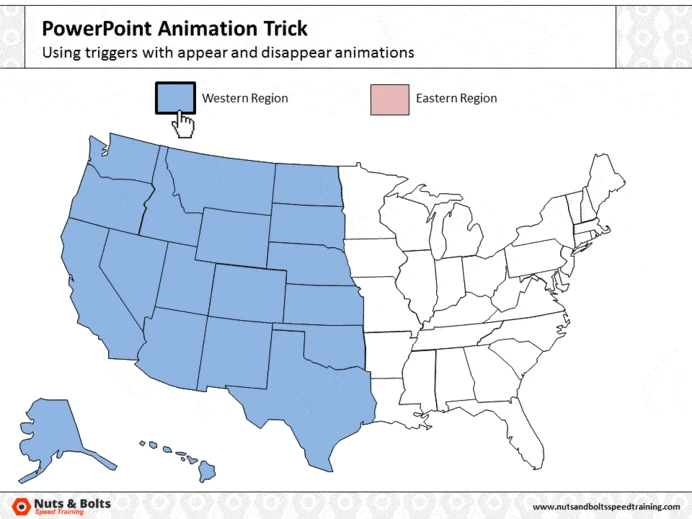
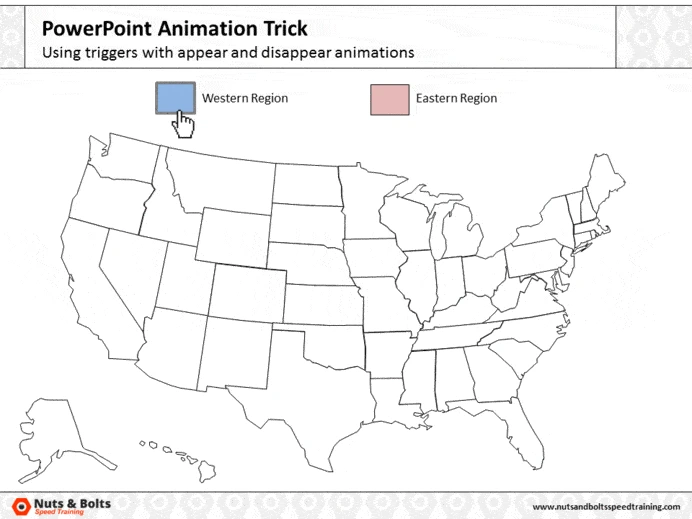
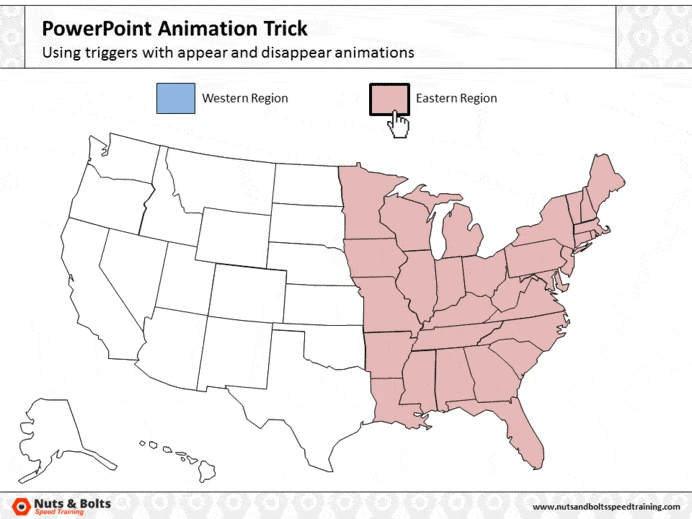
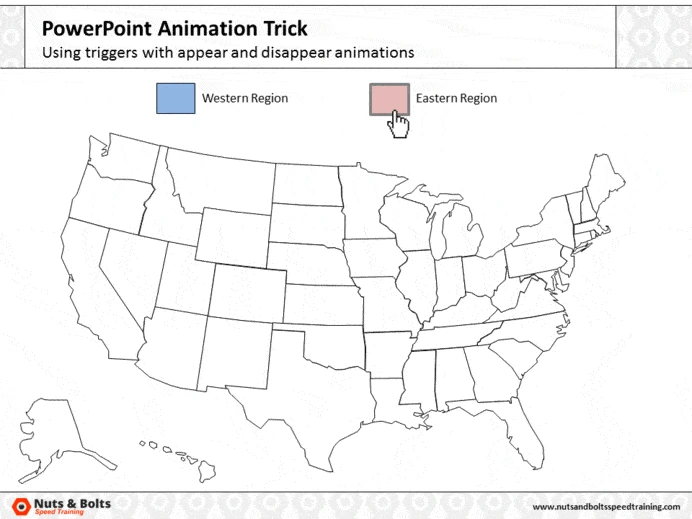
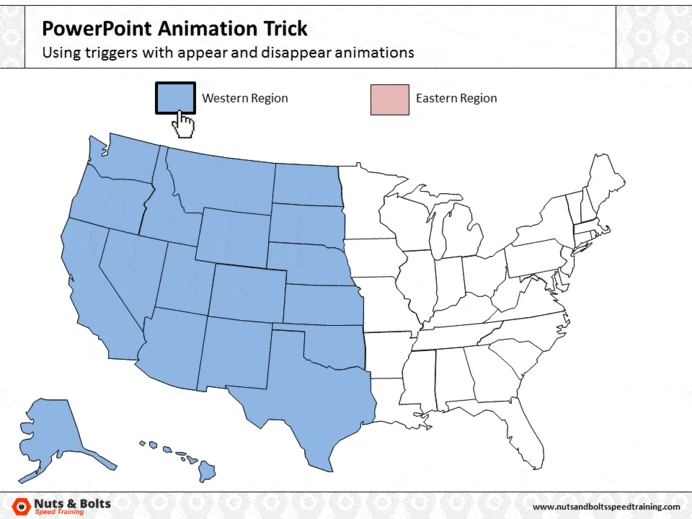
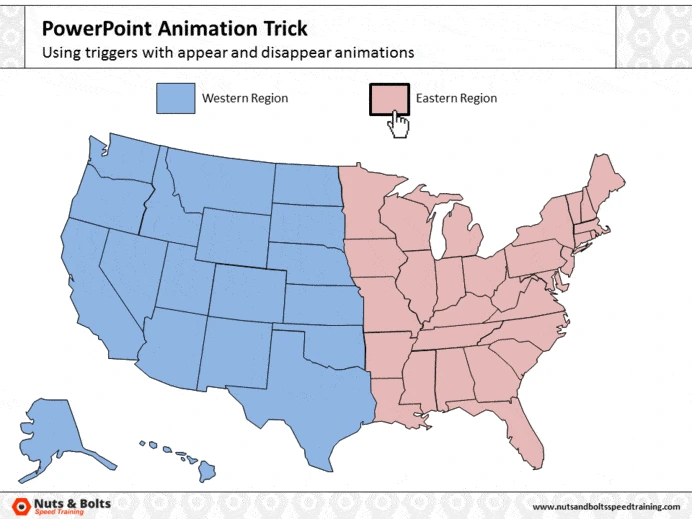
While vector graphics in the standard EMF or Metafile formats are easy to break apart in PowerPoint, if you start with an EPS file, it’s a little bit harder.
By the way, see our guide for how to create the map effect shown above using trigger animations after you break your EPS apart.
Why is importing an EPS file such a pain?
Well, getting high quality EPS vectors and editing them is a KEY part of many of my cool PowerPoint tricks, such as the Splash Effect, Cartoon Effects, the Smoky Letters effect, and many others.
And since I’m not a pro designer, I sadly don’t have apps like Adobe Illustrator to open EPS files like that.
So up till now, here’s what WAS my (quite PAINFUL) workaround:
Using my out-of-date PowerPoint 2013 on my old computer.
Since it hasn’t been updated due to our work security settings, I am still able to open .EPS files on it to import them into my current version of PowerPoint.
That said, I did have to annoyingly toggle between computers to make this work. And since not everyone has an outdated version of PowerPoint 2013 (nor really should), I pulled together this post to help you get your EPS files into PowerPoint.
And there are two NEW AND IMPROVED free workarounds for getting your EPS files into PowerPoint (that should work for everyone).
EPS Workaround #1: CloudConvert

Go to CloudConvert.com
Click on “Select Files” and choose the EPS file you’d like to convert
Then choose ‘EMF’ (part of ‘Vector’) as the output
Hit “Start Conversion” and then click “Download” once it’s ready
Open the EMF file in PowerPoint and ungroup twice to edit it
EPS Workaround #2: Inkscape
Download the Inkscape application (it’s FREE and is available for various platforms)
Go here and convert your .EPS file into a PDF
Take that PDF file and open it in Inkscape
Save it as an EMF in Inkscape
Open the EMF in PowerPoint and ungroup twice to edit
Inkscape has tons of other features for working with vectors, but I’ve yet to fully explore those.
Note: A huge thanks to Tom from Synapsis Creative (an amazing PPT design agency) for the tip about Inkscape
Hopefully these workarounds are useful – they’ve certainly been great time and life savers for me.
If you have other workarounds for us, let us know!
What can you do with a good vector graphic?
Below is an example of what you can do once you’ve properly converted your EPS file into a vector format that you can use in PowerPoint.
Hence why this workaround is worth the effort.
You can use the same idea with editable PowerPoint icons, which can be resized, recolored, and customized without losing image quality.
About the Author

Spicy Presentations
Yulia Barnakova is passionate about helping people develop the skills and learning mindset to thrive in the digital age. She is always experimenting with emerging technologies and has been recognized by Microsoft as a Most Valuable Professional for her creative presentation technology tutorials, which have more than 8 million views on YouTube. Her recent TEDx Talk, Think You're Not Tech Savvy? Here's Why You Are, shows how everyone can (and must) develop the mindset and skill set to embrace technology.