Adding slide numbers in PowerPoint should be an easy and straightforward task, but it is not. The way that PowerPoint manages your slide numbers is confusing.
While confusing and frustrating, the last thing you want to do is do this the old manual way. As a professional presentation designer who has built and troubleshooted corporate pitch decks for over a decade, I have seen every slide numbering error PowerPoint can throw at you. Relying on this automated approach ensures your presentation numbers stay flawless without tedious manual updates.
Manually adding slide numbers is a classic 101 timewaster that you will instantly regret for two reasons.
The first reason is, manually doing anything in PowerPoint that it can automatically do for you (even if it requires a little research), is never an effective use of your time. If you want to have a life outside of the office slaving away in PowerPoint, you will want to push as many of these types of tasks as possible back on to PowerPoint.
The second reason is, after you manually add your slide numbers in PowerPoint, you will have to manually update them again as you add or remove slides from your presentation. If you thought it was tedious to manually add the slide numbers in the first place, believe me when I say that it is ten times as tedious to have to manually update them again, and triple-check that all your slides are numbered correctly.
Follow along with me below and see the advanced troubleshooting video at the bottom of the page if you are still having issues.
To be clear: slide numbers and page numbers are the same thing in PowerPoint. Microsoft officially calls them slide numbers, most people search for page numbers, and PowerPoint drives them both from the same place: your Slide Master. So if you came here hunting for page numbers, you are in exactly the right spot.
When printing your slides as handouts, be aware that it is your slide number (NOT the page number) that displays for each page of the speaker notes you print. For more information check out how to add speaker notes to PowerPoint.
How to add slide numbers (page numbers) in PowerPoint
To quickly add slide numbers in PowerPoint: First, navigate to the Insert tab on the Ribbon. Second, click Slide Number in the Text group to open the Header and Footer dialog box. Third, check the Slide number box. Finally, click Apply to All. If the numbers do not appear, you must enable them in the Slide Master view.
Adding slide numbers in PowerPoint is one of those things that should be simple and easy (like it is in Microsoft Word), but it’s not.
And just so we are on the same page, in this article you can use the term slide number and page number interchangeably. They are the same thing in this case.
While a lot of people can “properly” add them to the PowerPoint Slide Master, they still can’t get them to properly show up in the Normal View. If you work in the professional services industry, this is something you’ll want to get right! The last thing you want to do is torpedo the overall quality of your presentation simply because you can’t properly number your slides.
Setting up your slide numbers in the Slide Master view
When you are adding slide numbers to PowerPoint, or troubleshooting your slide numbers, the first place to check is your Slide Master.
That is because the Slide Number field is driven and controlled by your Slide Master.
Continue reading to see how this is done. If your Slide Numbers are already set up properly on your Slide Master, you move to the next section.
The Slide Master is the foundational template in PowerPoint that stores presentation theme data, slide layouts, and placeholder positioning. Because it controls global presentation settings, structural elements like slide numbers must be enabled in the Slide Master before they can appear on individual slides.
1. Navigate to your Slide Master
In all versions of Microsoft PowerPoint, the slide numbers (or page numbers) for your presentation are driven from the Slide Master View. As such, this is one of the best places to check first if you are having trouble adding slide numbers in PowerPoint, or if your slide numbers are not properly displaying.
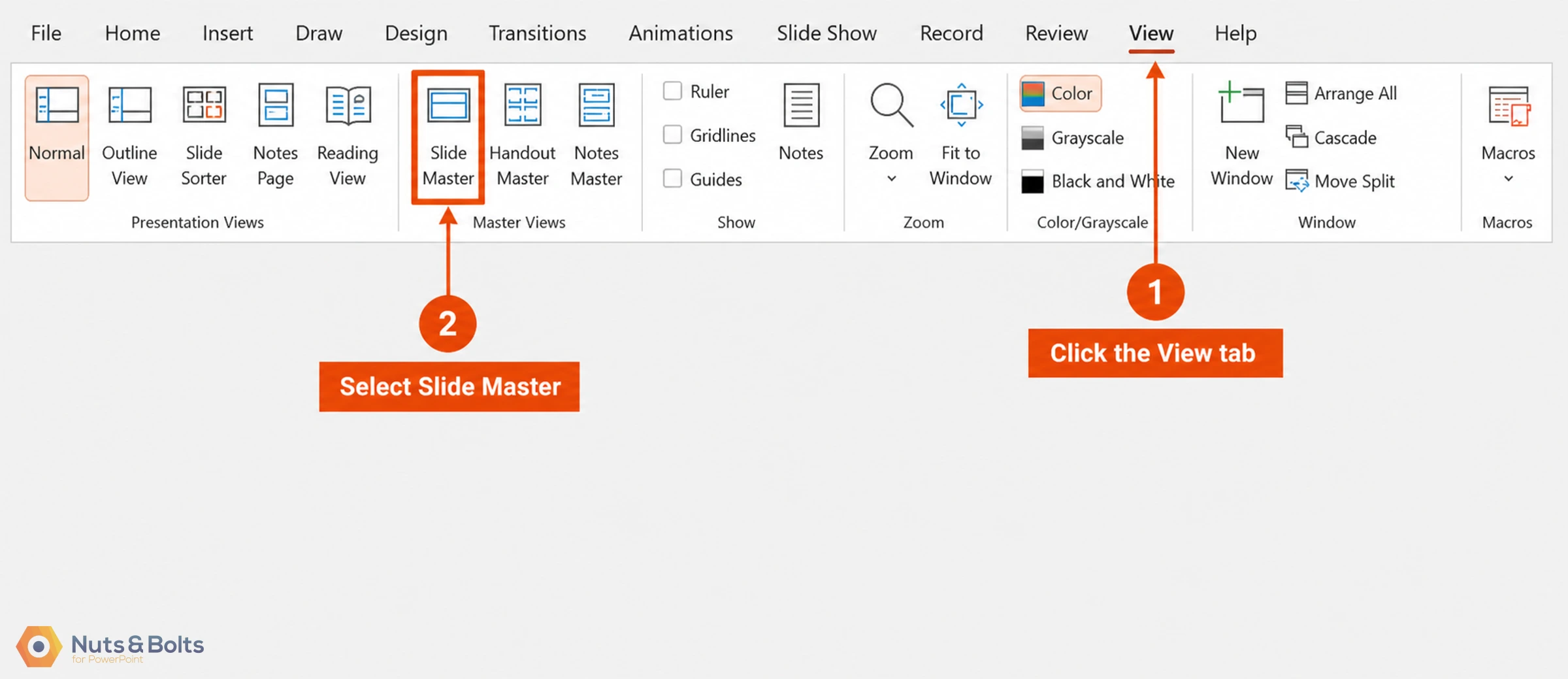
To navigate to the Slide Master view in PowerPoint, simply:
Navigate to the View tab in your Ribbon
Select the Slide Master command
If you frequently need to use your Slide Master, you can use the Shift + Normal icon shortcut to jump to the slide master.
2. Navigate to your Parent Slide (the big slide)
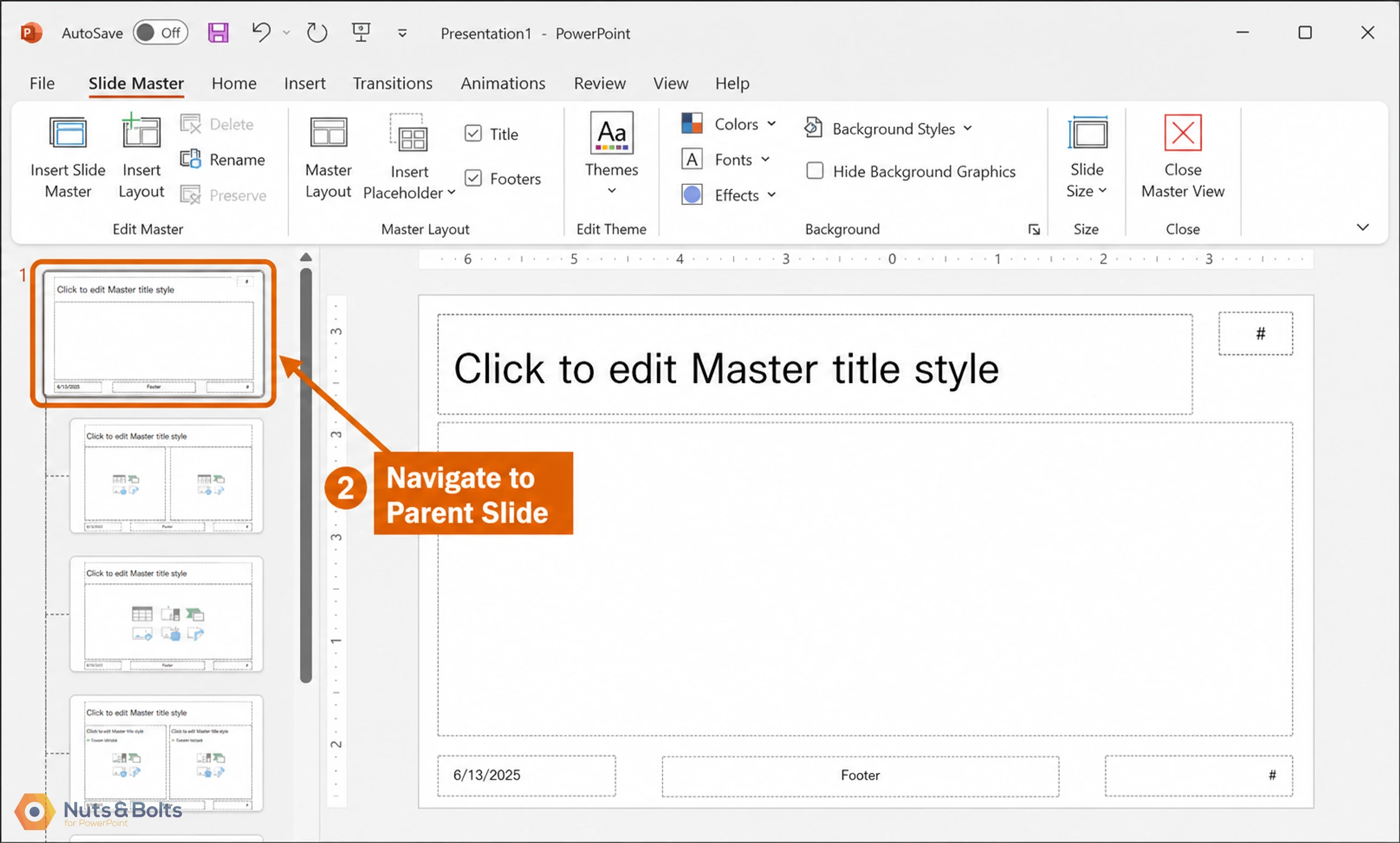
In the Slide Master view, navigate to the Parent slide on the top left. This will be the first and largest slide listed on the left side of your screen.
3. Open the Master Layout dialog box to find the Slide Number field
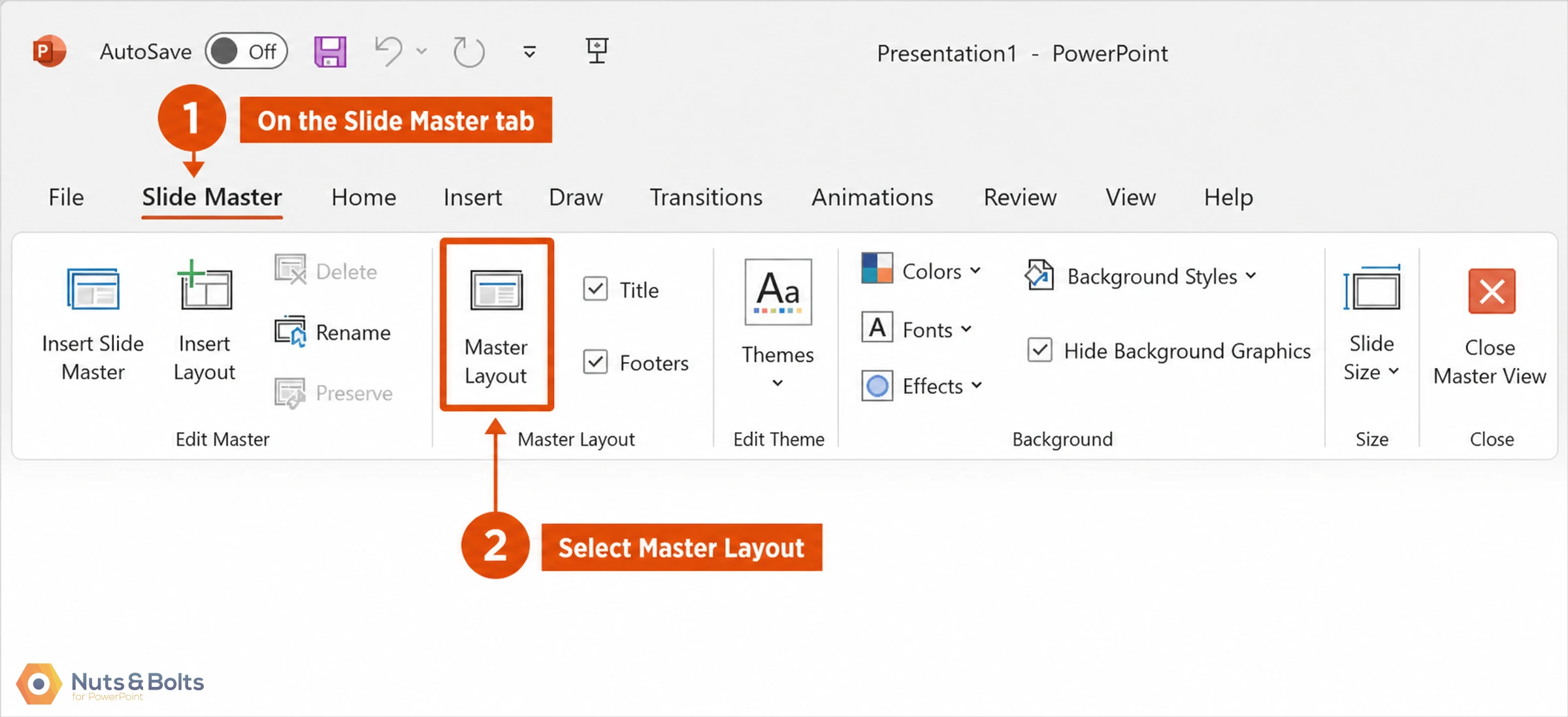
To open the Master Layout dialog box in PowerPoint, simply:
Navigate to the Slide Master tab in your Ribbon
Click Master Layout to open the dialog box
The Master Layout dialog box is where you set the Title, Text, Date, Slide number, and Footer for your PowerPoint presentation. You can learn how to add all of these in our post that explains how to create a template in PowerPoint.
PowerPoint is a contextual program, in that it only displays tabs for the views you are in, or the objects you have selected. If you do not see the Slide Master tab in the ribbon, that means that you have not properly navigated to your Slide Master yet. See step #1 above.
4. Select the Slide Number field
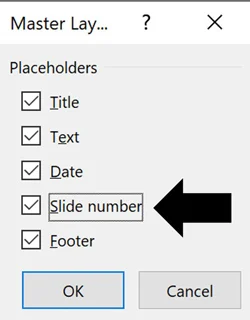
In the Master Layout dialog box, make sure you have a check mark next to Slide number. Selecting this option adds the slide number object to the Parent Slide, that you can then use to automatically add and update all the slides numbers in your presentation (instead of manually adding them yourself).
You can additionally add the Title, Text, Date and/or Footer objects if you don’t already have them on your Parent Slide. These are the fields you will want to set up and properly format if you are building a PowerPoint template for your team or company.
After you select which elements you want to appear on your slides, click OK.
5. Place and format your Slide Number
With the slide number added to your Master Slide, you can now format and/or place it wherever you want. In this case, I’ve placed mine in the upper right-hand corner of my slide.
Where you place it on your Parent Slide determines where the numbers show up (by default) on all of your Child Slides. In the below picture, you can see I placed my slide number in the upper right hand corner of my slide.

By default, your slide numbers populate to all the Child Slides (the little slides in the Slide Master view) in your presentation. If they do not, you will need to cycle through the Child Slide layouts and delete the old page numbers individually, and then click the Footers icon in the Ribbon to add them back (another area where slide numbers in PowerPoint can be a pain).
6. Close out of the Slide Master view

Before you exit out of the Slide Master view, I recommend double-checking that your slide numbers are properly set up both on the Parent Slide, and all the individual Child Slides. If you accidentally missed one, now is the time to catch it.
Once you are sure the slide numbers are all where they are supposed to be, you can click out of the Slide Master View:
Click the Slide Master tab
Select Close Master View
Closing the Slide Master view returns you to the Normal View, where you will next apply the slide numbers you just set up.
Applying your slide numbers in the Normal View
Once you’ve set up and formatted the Slide Number field in the Slide Master view, you are ready to move on and add them to your presentation.
As an analyst or associate who is in charge of the deck, it is important to keep in mind that just because the Slide Number field is properly set up in the Slide Master, DOES NOT mean they will automatically show up in your presentation.
Continue reading to see the next steps to make sure your slide numbers properly display in PowerPoint.
1. Open the Slide Number dialog box

Now that you have set up (or double-checked) that your slide numbers are set up properly in the Slide Master view, now we can add them here in the Normal View of PowerPoint (woo-hoo). Let’s start by opening the Header and Footer dialog box as follows:
Navigate to the Insert tab
Select the Slide Number command
You can alternatively use the Alt + Shift + D keyboard shortcut to open the Header and Footer dialog box. Check our other post to learn additional PowerPoint shortcuts to speed up your workflow.
Regardless of how you get to the Header and Footer dialog box, this is the best and proper place to add, remove, and/or manage your presentations:
Date and time
Slide numbers
Footers
The goal again is to get PowerPoint to do the heavy lifting for you here. Even if this dialog box is new and a little confusing to you, it is worth getting this right as it will save you a ton of time in the future.
2. Apply your Slide Numbers
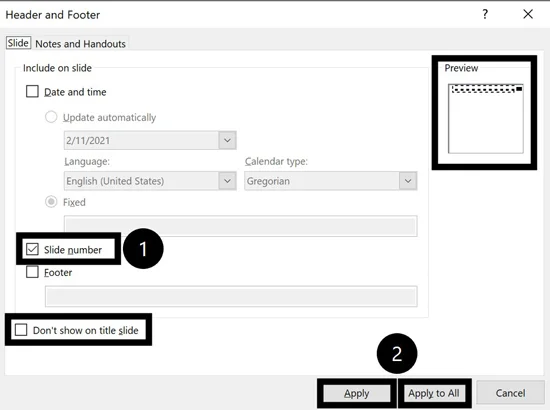
The option to “Don’t show on title slide” can easily catch you off guard. That’s because the title slide in PowerPoint is NOT what you probably think it is. See our other post to learn what the title slide actually is in PowerPoint.
Within the Header and Footer dialog box, make sure there is a checkmark next to the Slide number.
With it selected, you get a preview of where your slide numbers will appear in the upper right-hand corner of the dialog box. After that, select either:
Apply, applies your slide number to the individual slide you are working on.
Apply to All, applies slide numbers to all of the slides within your presentation (assuming that each of the Child Slide layouts has your slide number on it).
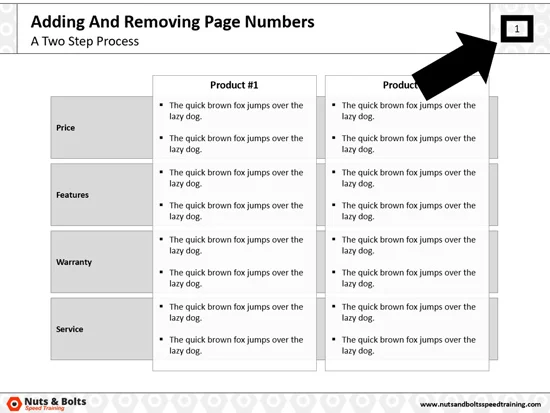
Assuming you want to add slide numbers to all your slides in PowerPoint, click Apply to All. Clicking Apply to All, PowerPoint automatically adds the slide numbers to all your slides, based on the formatting and positioning you set up on the slide master.
As you can see in the picture below, the slide numbers now display (just as I set them up on the Slide Master).
The Title Slide Trap: why "Don’t show on title slide" hides the wrong slides
Remember the "Don’t show on title slide" checkbox in the Header and Footer dialog box? It is one of the sneakiest traps in PowerPoint. Everybody assumes that the title slide is simply whatever is labeled as the title slide, which is not the case. The title slide to PowerPoint is whatever child slide layout is in the first position on your slide master.
The symptom
Slide numbers work on some slides but not others. You open the Header and Footer dialog box, re-check Slide number, and click Apply to All. Some slides now show numbers. Some still don't. So you check "Don’t show on title slide", and all the slides using one particular layout go blank. You uncheck it, and page numbers reappear on your cover slides, exactly where you don't want them.
If that loop sounds familiar, here is what actually happened: somewhere along the way, a child layout that most of your deck uses got dragged into the first position in Slide Master view. As far as PowerPoint is concerned, that layout is now your title slide, so everything you do in the dialog box hits the wrong target.
I see this happen three ways in the wild. Someone drags a content layout up to the top of the master "because we use it more." A layout copied in from another deck lands in the first position by default. Or a template builder deletes the original title layout, and whatever was sitting second in line silently becomes the new "title slide."
The fix
Press Alt W M to open the Slide Master view (or click the View tab - Slide Master)
Scroll to the top and check which child layout sits in the first position, immediately below the Parent Slide (the big one).
Drag your actual title or cover layout into that first position.
Close the Master view, press Alt + Shift + D , re-check Slide number and "Don’t show on title slide", and click Apply to All.
Your slide numbers now populate on every slide that should have one, and skip only your actual title slide.
Template experts Echo Swinford and Julie Terberg have a short list of don'ts in their book Building PowerPoint Templates v2: don't delete the default placeholders, don't duplicate them (insert new ones from scratch instead), and don't rename the default layouts. Based on everything above, I will add one more to the list: don't casually drag layouts around in your Slide Master. The first position is special, whether you meant it to be or not.
Troubleshooting slide numbers that won't show up
If you followed along with me above and you still can’t get your slide numbers to properly display in PowerPoint, I have you covered.
When slide numbers refuse to show up, the fix almost always lives in your Slide Master. Below is the exact repair workflow I teach in Module 11 of our PowerPoint 3X course. Run it in this order, because each step depends on the one before it.
Step 1: Fix the Parent Slide first
Open the Slide Master view (View > Slide Master, or Alt+W, M).
Select the Parent Slide, the first and largest slide at the top of the left-hand pane.
On the Slide Master tab, click Master Layout, check Slide number, and click OK. If the placeholder had been deleted at some point, this is what restores it.
Format the slide number the way you want it to look everywhere. In the course I use 8 point, right-aligned, in a theme color.
One extra trick while you are here: make the slide number placeholder 0.5 inches wide (select it and set the width in Shape Format > Size). By default the placeholder is nearly as wide as the slide itself, which makes it very easy to accidentally select and drag while you are editing in the Normal View. At half an inch, it stays out of your way.
Step 2: Toggle the footer on each child layout, one by one
Fixing only the parent slide is insufficient. This is the step almost everyone skips, and it is the reason the numbers still refuse to appear. Click through each child layout in the master (the little slides), and on the Slide Master tab uncheck the Footers box, then re-check it. That off-and-on toggle forces each layout to re-pull the slide number, with its formatting, fresh from the Parent Slide.
Step 3: Run the remove-and-reapply reset
Close the Master view and reset the numbers across the whole deck:
Press Alt+ Shift + D to open the Header and Footer dialog box.
Uncheck Slide number and click Apply to All. This wipes the deck to a clean slate.
Press Alt+ Shift + D again, check Slide number, and click Apply to All.
Alt+Shift+D is a double-dipper keyboard shortcut: with nothing selected it opens the Header and Footer dialog box, but with your cursor inside a text box it inserts an auto-updating date instead. So if you press it and a date drops into your text box, that is why. Click an empty part of the slide and try again.
The copy-paste mistake that never works
On one of our live Q&A webinars, an attendee named Steve had a deck where the numbers would not behave, and it turned out he was copying the slide number out of the Slide Master and pasting it into the Normal View. Totally reasonable instinct. It just is not how slide numbers work. Set the placeholder up in the Slide Master, then toggle it on and off with Insert > Header & Footer (or Alt+Shift+D). The Slide Master is the prerequisite; the dialog box is the switch.
Still nothing? Two final checks
If the workflow above did not do it, the most common remaining issue is a layered shape or image blocking the text. Navigate to the Home tab, click Select, and open the Selection Pane to make sure the slide number placeholder is at the top of the layer list. And verify that the slide number font color has not accidentally been set to match the slide background color, which renders it invisible.
If you still can’t figure out what is happening with your slide numbers, leave a comment or send me a note and I will do my best to help you out.
How to add "Slide X of Y" totals in PowerPoint
PowerPoint has no built-in Slide X of Y feature. The slide number updates automatically, but the "of Y" total is manual: you type it onto the Parent Slide of your Slide Master, and you update it yourself whenever the deck changes. I did a full deep dive on this in one of our webinars because it is a perennial pain point, and the workflow below is the cleanest path through it.
The manual method
Wait until your presentation is finished. The total is manual, so adding it early just guarantees rework.
Open the Slide Master view (Alt+W, M) and select the Parent Slide.
Click into the slide number placeholder and type "of 12" (your real total) right after the number field, so it reads like <#> of 12.
Toggle the footer off and back on for each child layout so every layout picks up the change. Yes, each one individually. It is the same move as Step 2 of the troubleshooting workflow above.
Close the Master view and run the reset: Alt+Shift+D, uncheck Slide number, Apply to All. Then Alt+Shift+D again, check Slide number, Apply to All.
Fair warning: add slides later and your deck will happily start saying page 20 of 10. The total never updates itself. You have to change it manually on the Parent Slide every time the deck grows or shrinks.
Bruce's better method (the one I recommend)
On that same webinar, an attendee named Bruce shared a cleaner setup, and it has been my recommendation ever since:
On the Parent Slide of your Slide Master, add a separate text box right next to the slide number placeholder.
Type "of 12" (your total) in that text box.
Match the formatting with a format dip: select the slide number placeholder, press Ctrl+Shift+C to pick up its formatting, then select your new text box and press Ctrl+Shift+V to drop that formatting onto it.
Now when the total changes, you edit one text box on one slide. No child-layout toggling, no remove-and-reapply. It is still manual, but it is the version of manual that does not ruin your afternoon.
Slide Number FAQs
Q: How do I remove or hide slide numbers in PowerPoint?
A: To remove all the slide numbers from your presentation, open the Header and Footer dialog box (Insert > Slide Number, or Alt+Shift+D), unselect the Slide number option, and click Apply to All. PowerPoint automatically removes every slide number in the deck. To hide the number on just your title slide, leave Slide number checked and check "Don’t show on title slide" instead, but read The Title Slide Trap section above before you trust that checkbox.
Q: Can I start slide numbering from a number other than 1?
A: Yes. Go to the Design tab > Slide Size > Custom Slide Size, and change the “Number slides from:” field from 1 to whatever number you want. This is the trick when you're consolidating separate decks for printing, or continuing the numbering from a previous deck so page 1 of the second file picks up where the first one left off. It's an edge-case setting most people never find — but when you need it, nothing else works.
Q: My slide numbers won't show up even though I turned them on — why?
A: If you've followed the setup steps above and the numbers still won't appear, the usual culprit is that your Slide Master is missing the slide number placeholder. Re-add it in View > Slide Master, click the Master Layout button, and check Slide Number.
One more gotcha: don't try to add the numbers from inside Slide Master view — turn them on with Insert > Header & Footer > Slide number > Apply to All (shortcut: Alt W M ), and use the Master only to restore a missing placeholder.
Q: Why don't my slide numbers renumber in a custom show?
A: They can't — and it's not something you're doing wrong. When you build a Custom Show (a subset of slides in a custom order), each slide keeps its original position number from the full deck, so a custom show that pulls slides 3, 7, and 12 will show “3, 7, 12” instead of “1, 2, 3.” This is a Microsoft design decision, and there's no setting to fix it. The only real workaround is to remove the slide numbers from the slides you're using in custom shows.
Final thoughts on slide numbers
You did the right thing by looking up how to add slide numbers in PowerPoint. The worst possible thing you can do is get so fed up with the PowerPoint page numbering system, that you manually add them yourself.
Another good point to remember is that you can use the Header and Footer dialog box to quickly remove all the slide numbers from your presentation. Simply unselect the Slide number option and click Apply to All and PowerPoint will automatically remove them all from your presentation.
While we all wish that adding page numbers in PowerPoint was as easy as it is in Word, that’s why you are paid the big PowerPoint bucks.
If you enjoyed this slide number tutorial and want to take your PowerPoint skills to the next level, check out our online training courses and other free tutorials here.
About the Author

Taylor Croonquist
Co-Founder, Nuts & Bolts Speed Training
Taylor Croonquist is a PowerPoint expert and trainer. Over a career spanning the globe, from consulting in New York and investment banking in China, Taylor has truly seen it all in PowerPoint. Through necessity and a natural tech savvy, Taylor honed his PowerPoint skills to the point of even blowing the minds of the Microsoft PowerPoint programming team. When he's not busy crafting PowerPoint training, you can find him reading a sci-fi series or scuba diving.
Take your PowerPoint skills to the next level
Get access to our complete training library, new tutorials every month, and the same techniques we teach in our corporate workshops. Join the 260,000+ professionals who have trained with us.
See Membership Options