If you spend a lot of time in PowerPoint like I do, you’ll want to FULLY understand the difference between the paste shortcut, the copy shortcut and the duplicate shortcut.
That’s because while they are all similar, they all do something slightly different.
To see these different shortcuts in action, watch the short video below (or scroll below for additional copy, paste and duplicate details).
Duplicate vs. Copy and Paste
The Duplicate Shortcut (Ctrl+D)
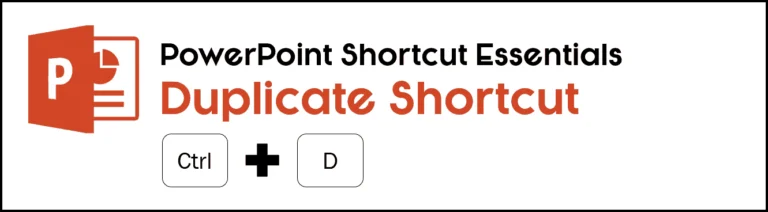
CTRL + D
The duplicate shortcut creates a duplicate copy of your selected object (shape, text box, line, chart, table, etc.) and all of its text and/or object formatting.
On top of that, the duplicate shortcut has a secret hidden feature that kicks in when you use it two or three times in a row (I’ll explain further below).
The Copy Shortcut (Ctrl+C)
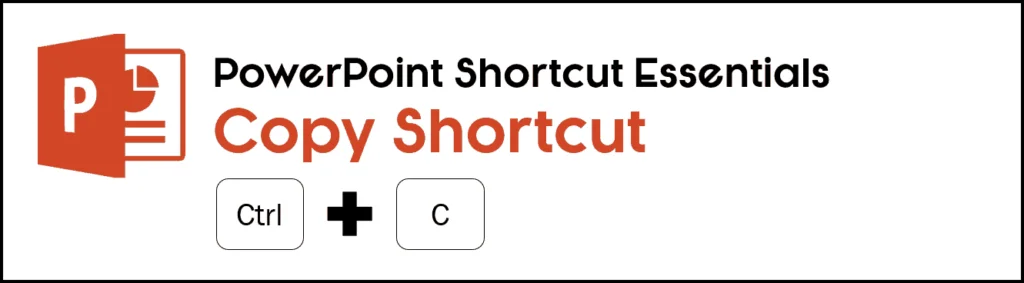
CTRL + C
The copy shortcut creates a copy of your selected object in your system’s memory, allowing you to paste the object in multiple places throughout your different files and documents (Word, Excel, PowerPoint, etc.).
When you copy a new object, the last object you copied is replaced in your system’s memory, unless you are using your Clipboard Copy Shortcut described further below.
To expand your knowledge and learn all the different benefits of the Copy shortcut, read our guide here.
The Paste Shortcut (Ctrl+V)
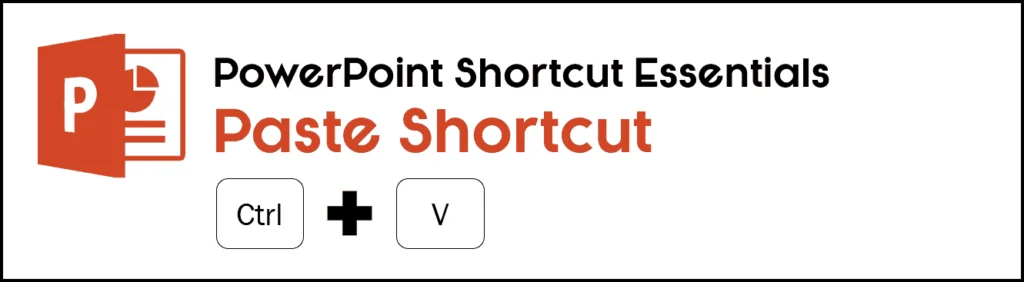
CTRL + V
Once you know the copy shortcut, you’ll want to know what the shortcut for paste is.
That’s because the copy and paste shortcuts go hand in hand (or keystroke in keystroke)
The paste shortcut inserts your copied object onto your slide as a new object that is identical to the object you copied. This saves you from having to recreate the object you copied from scratch.
You can use the paste shortcut as many times as you want throughout your presentation. This is useful when you want to add a bunch of identical objects in various places throughout your presentation.
To expand your knowledge and learn how you can use the Paste shortcut to control your formatting as you paste content between your documents, read our guide here.
With the keyboard shortcuts down themselves, there are two reasons why the duplicate shortcut is superior to the copy and paste shortcuts in PowerPoint.
Why is the Duplicate shortcut better?
There are two main reasons why the Duplicate shortcut is better and faster than the Copy and Paste shortcuts in PowerPoint.
1. Duplicate is twice as fast as a Copy and Paste
Because the duplicate keyboard shortcut copies and pastes your object in just two keystrokes instead of four, right off the bat it’s twice as fast.
Ctrl +D for duplicate (2 keystrokes) vs. Ctrl + C for copy and Ctrl + V for paste (4 keystrokes)
That means that you can cut out a lot of time from your workflow by duplicating objects rather than copying and pasting them, especially when you take advantage of the duplicate shortcut’s hidden feature described next.
Note: Just because it’s twice as fast doesn’t mean that there isn’t a time and place for copy and paste. To learn about that, see the section on when copy and paste beats the duplicate shortcut below.
2. The Duplicate shortcut has a hidden jump feature
On top of being fast, the duplicate shortcut has a hidden feature that helps you fill in your slide layouts fast.
Here’s how it works:
First duplicate an object and then manually move it somewhere on your slide.
Next, hit the duplicate shortcut again, and you’ll find that PowerPoint not only creates another copy of your object, it also moves it the same distance and in the same direction as your last manual movement.
If used strategically when building out your slide layouts, this hidden feature allows you to create perfectly aligned rows or columns of objects without having to worry about manually aligning and positioning objects in your layout.
When used with the concept of Relative Alignment and PositioningTM – something I talk a lot about in my PowerPoint Speed Training courses – you can use this hidden duplicate feature to get PowerPoint to quickly fill in your layouts for you.
When the copy and paste shortcuts beat the duplicate shortcut
Even though the duplicate shortcut is faster AND has a hidden feature, there is still a time and place for the copy and paste shortcuts.
And that’s when it comes to copying and pasting things between your slides and/or other Microsoft Office programs.
Whereas the duplicate shortcut creates a duplicate of your object on your slide, you cannot paste that object anywhere else in your presentation or in any other program. So, in this sense, the duplicate shortcut is limited to the slide you’re on.
On the other side, when you hit CTRL+C to copy an object in PowerPoint, that object is saved in your computer system’s memory. That allows you to use CTRL+V to paste copies of that object on your other slides or in other Microsoft Office programs.
You can also unlock the Clipboard Copy shortcut to pick up even more objects as you work your way through your slides.
The Clipboard Copy shortcut( Ctrl+C, C)

Ctrl + C, C
Another place the copy shortcut shines, is when you use it in combination with your clipboard.
To see how to unlock your Clipboard Copy shortcut (and learn about Paste Special), watch the short YouTube video below.
Once you unlock your clipboard shortcut in PowerPoint, Word or Excel, you can CTRL+C to copy up to 24 different objects or strings of text onto your clipboard – regardless of whether you copy them and then paste them wherever you like.
What that does, is it allows you to quickly sweep through a number of different files, pick up the specific pieces that you want to use, and then paste them into a single document in one go.
Conclusion
So those are the main differences of the copy and paste shortcuts and the duplicate shortcut.
And as you can see, knowing the differences between these shortcuts can save you a lot of time depending on what you are trying to copy and paste.
If you enjoyed this article, you can learn more about our PowerPoint training courses and other free resources here.
About the Author

Taylor Croonquist
Co-Founder, Nuts & Bolts Speed Training
Taylor Croonquist is a PowerPoint expert and trainer. Over a career spanning the globe, from consulting in New York and investment banking in China, Taylor has truly seen it all in PowerPoint. Through necessity and a natural tech savvy, Taylor honed his PowerPoint skills to the point of even blowing the minds of the Microsoft PowerPoint programming team. When he's not busy crafting PowerPoint training, you can find him reading a sci-fi series or scuba diving.