In Windows, the Alt + F4 keyboard shortcut immediately closes the currently active window, program, or application. If no programs are active and you are viewing the Windows desktop, pressing Alt + F4 opens the Shut Down Windows dialog box.
What does Alt + F4 do in Windows? This is one of my all-time favorite Windows keyboard shortcuts for closing things. On top of that, there are a variety of different uses for this shortcut that I have detailed below.

Alt + F4 is your Windows shortcut for closing an active program or application. It is the keyboard shortcut equivalent to clicking the close icon in the upper right-hand corner of a program or application. This makes it the fastest way to close out of your programs and applications, without having to reach for your mouse.
On top of that, if you are active on your Windows desktop, hitting Alt + F4 launches the Shut Down Windows dialog box, which is the fastest way to shut down or restart your computer.
Below are examples of what Alt + F4 does in a variety of different scenarios. Please note that while Alt + F4 and Ctrl + W are similar, they are completely different shortcuts that do two different things. Below I compare both for you, so it is easy to remember what each one does.
Did I mention that learning how to effectively use your keyboard shortcuts like this is the fastest way I know of to DOUBLE your productivity? So, kudos to you for taking the time to nail this.
What does Alt+F4 do?
Using Alt+F4 to Close an Application or Program
Let’s say you have finished working in Microsoft PowerPoint and want to close out of the program, so it is not eating up your computer resources. Instead of reaching for your mouse and clicking the X in the upper right-hand corner of the window, you can simply hit Alt + F4 on your keyboard.
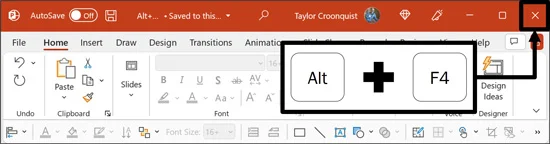
When using this shortcut, you do not need to worry about losing any unsaved work either. Each of the Microsoft Office programs warns you if you have any unsaved work. Just make sure to select Save when this dialog box appears.

Clicking Save, your unsaved work is saved to your document, and then the application itself closes. In this case, your PowerPoint presentation, AND the PowerPoint application itself closes.
Just be aware that if you have multiple PowerPoint presentations, Word documents, or Excel spreadsheets open, you will need to hit Alt + F4 for each instance of the program that you have open before the application itself closes out.
For example, if you have three Excel spreadsheets open on your computer and use Alt + F4 to close out of one of them, your two other spreadsheets will not automatically close. This is one of the reasons why the Alt + F4 shortcut is often confused with Ctrl + W and Ctrl + F4 . To see how these shortcuts differ, see the section below comparing these three shortcuts.
Using Alt+F4 to Shut Down Your Computer
To shut down your Windows computer using Alt+F4, follow these steps:
Press the Windows key + D to minimize all active windows and navigate to your desktop.
Press Alt+F4 on your keyboard to open the Shut Down Windows dialog box.
Use your keyboard arrow keys to select the Shut Down option.
Press Enter to execute the command.
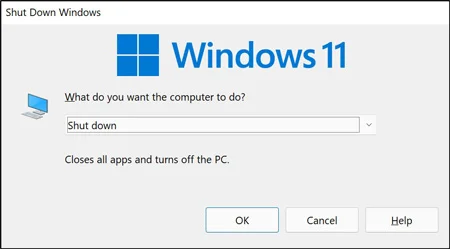
Another fantastic way to use the Alt + F4 shortcut is shutting down or restarting your computer (PC computers only). This works just as well with Windows 11 as it did in previous versions like Windows 10.
The trick to getting to the Shut Down Windows dialog box with this shortcut is you need to first be active on your Windows desktop. If you are active within an application or program like Word, Excel or PowerPoint, the Alt + F4 shortcut will instead close your program as discussed in Example #1 above.
You can quickly activate your desktop to shut down your computer in one of two ways.
Use Alt + F4 to close out of all your open programs and applications, leaving you on your desktop.
Hit Win + D on your keyboard to minimize all active windows, taking you to your desktop, and then use Alt + F4 to open the Shut Down Windows dialog box.
If you know that you want to close out of all your applications and shut down your computer, simply hit Enter on your keyboard. Windows still gives you options to save your work before shutting down your computer.
Alternatives Within the Shut Down Windows Dialog Box
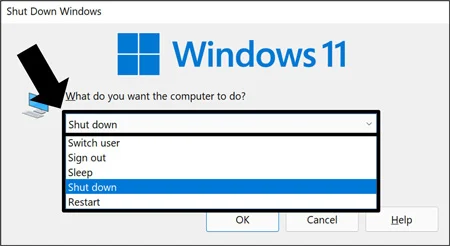
Instead of shutting down your computer, you can also use the Shut Down Windows dialog box to:
Switch user: Allows you to switch users on your machine without closing you out of your programs and applications.
Sign out: Closes you out of all your programs, applications, and signs you out of your account.
Sleep: Puts your computer in a low state of power consumption. Additionally, all your programs and applications remain open, so you can pick up where you left off.
Restart: Closes all your applications, signs you out of your account and restarts your computer. This is often necessary when installing new software programs on your computer.
The Shut Down Windows dialog box is also keyboard friendly. Once you open the dialog box, you can use your left and right arrow keys on your keyboard to navigate the different options and hit Enter to make your selection.
What does Alt+F4 do versus Ctrl+W and Ctrl+F4?
Here is a direct comparison of these similar Windows shortcuts:
Alt + F4 Closes the active window and completely exits the application itself once all documents are closed.
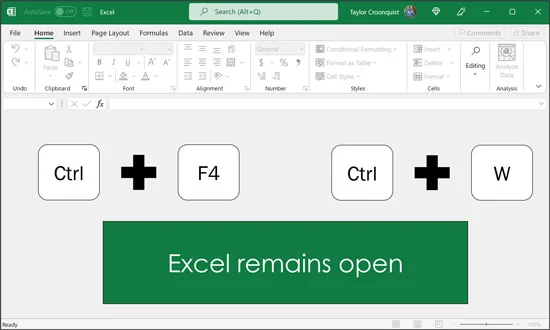
Ctrl + W Closes the current document or browser tab, but leaves the underlying program or application running.
Ctrl + F4 Closes the active document within an application without shutting down the entire program.
Another example that highlights the difference between these shortcuts is your internet browser.
For example, let’s say you have ten internet tabs open within the Chrome web browser (which is not that many).
In this case, hitting Alt + F4 closes the Chrome application itself (and all your tabs). In contrast, hitting Ctrl + W or Ctrl + F4 simply closes the current internet tab you are on (leaving the other ones open). In other words, the Chrome web browser itself never closes.
Where these shortcuts get confused is when you have multiple documents within an application open. For example, three Excel spreadsheets open within Excel. In this case, all three of these shortcuts appear to do the same thing. Hitting any one of them closes your active Excel spreadsheet.
The difference is again that Alt + F4 eventually closes you out of the Excel application itself, whereas Ctrl + W and Ctrl + F4 will never close you out of the application itself.
If that doesn’t make sense, give it a shot. Open a few Excel spreadsheets (or Word documents) and try using these different shortcuts to close out of them. As you will see, only Alt + F4 closes you out of the application itself once your other documents are also closed.
What if Alt+F4 is Not Working?
If Alt + F4 is not working on your computer, press Fn+Alt+F4 instead. Many modern laptops default to media keys rather than standard function keys, requiring you to hold the Function (Fn) key to activate standard F4 commands.
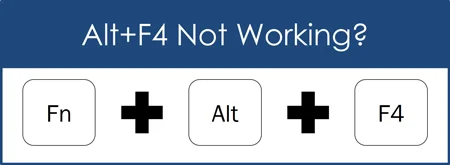
New laptops and computers come preinstalled with the media keys active instead of the classic function keys (F1 through F12). That is why shortcuts like F12 for Save As appear not to work on new laptops. The media key attached to the F12 key is active, not the underlying function key itself.
To fix this you either need to include the Fn key (Fn+Alt+F4), function lock your keyboard, or switch your function keys into the dominant position on your computer.
Common Alt + F4 questions
Q: What does Alt+F4 do in Windows?
Alt + F4 closes the window you are currently working in, much like clicking the X in its upper-right corner. If you have several windows open, it does not close everything on your computer at once.
That is what makes it so handy. Finish with a window, close it from your keyboard, and move on to your next task. No need to go hunting for the X.
Q: What is the difference between Alt+F4, Ctrl+W, and Ctrl+F4?
Alt + F4 closes the active window. Ctrl + W and Ctrl + F4 usually close the document or browser tab you are working in, depending on the program.
Chrome makes the difference easy to see. With several tabs open, Ctrl + W or Ctrl + F4 closes your current tab. Alt + F4 closes that window and all the tabs inside it.
One catch: closing the last tab in a Chrome window also closes that window. So “Ctrl+W always leaves the program open” is not a rule you can count on.
Q: How do I shut down or restart my computer with Alt+F4?
First, save your work. Then:
Press Win+D to go to your Windows desktop.
Press Alt + F4 to open the Shut Down Windows dialog box.
Choose Shut down or Restart from the dropdown, then press Enter.
The desktop part is the trick. If you are still working inside a program, Alt + F4 closes that window instead. And check what is selected before pressing Enter so you get the action you intended.
Q: Will Alt+F4 close my file without saving it?
Alt + F4 does not save your work for you. In Word, Excel, and PowerPoint, you will normally be prompted to save if you have unsaved changes. Choose Save to keep them.
My advice is to get in the habit of pressing Ctrl + S before Alt + F4 when working in Office. Save first, close second. It is a much better routine than relying on a warning to catch you.
Q: Why isn’t Alt+F4 working on my laptop?
Try Fn+Alt+F4. Your keyboard may be using the F4 key for a media or hardware control, so you need to hold Fn to get its F4 function.
If that works, check your keyboard’s Fn Lock or F Lock setting. This can let you use your function keys without holding Fn each time. The exact method depends on your keyboard.
For help setting that up, see my guide to fixing function keys that are not working.
Takeaways
Alt + F4 is one of my favorite Windows shortcuts because closing things is something we do all day. You might as well make it easy.
Here is what to remember:
Close your active window with Alt + F4. It works much like clicking the X, without reaching for your mouse.
Use Ctrl + W or Ctrl + F4 when you only want to close a tab or document. The exact behavior depends on the program. In Chrome, closing the last tab also closes its window.
Get to your desktop before opening shutdown options. Press Win + D , then Alt + F4, to bring up the Shut Down Windows dialog box.
Check the selected option before pressing Enter. Choose Shut down, Restart, or the other action you actually want.
Save first, close second. In PowerPoint, Word, and Excel, Ctrl + S followed by Alt + F4 is a useful pair to build into your routine.
Add Fn if your keyboard needs it. If Fn+Alt+F4 works, check your keyboard’s function lock setting so you can use F4 more conveniently.
The next time you finish with a window, give your mouse a break and use Alt + F4. That is one less click between you and Happy Hour.
About the Author

Taylor Croonquist
Co-Founder, Nuts & Bolts Speed Training
Taylor Croonquist is a PowerPoint expert and trainer. Over a career spanning the globe, from consulting in New York and investment banking in China, Taylor has truly seen it all in PowerPoint. Through necessity and a natural tech savvy, Taylor honed his PowerPoint skills to the point of even blowing the minds of the Microsoft PowerPoint programming team. When he's not busy crafting PowerPoint training, you can find him reading a sci-fi series or scuba diving.