The Jeopardy spin effect in PowerPoint is a custom animation sequence that creates the illusion of a two-sided flipping flashcard. It is achieved by combining a Swivel Exit effect on a front object with a Swivel Entrance effect on a back object, precisely timed so the second object appears seamlessly during the first object's rotation.
Some PowerPoint animation effects take twenty minutes of layering and fine-tuning to look decent. This one takes about two. By pairing a Swivel exit with a Swivel entrance, you can make any object appear to flip around and reveal something new on its other side — a card flip, a smiley face that changes expression, a word that turns into another word.
It looks polished, it works on almost anything, and the entire build comes down to two animations and three timing values.
How to create spinning flash cards in PowerPoint
How does the flip effect work?
The illusion is built from two separate objects stacked directly on top of each other:
The Exiting Object — the one your audience sees first. It spins away.
The Entering Object — the "other side." It spins in to replace the first one.
Each object gets a Swivel animation: an exit on the first, an entrance on the second. The trick is in the timing. The entrance starts partway through the exit and finishes at the exact moment the exit ends, so the two animations read as one continuous motion — a single object flipping over to show its back.
If you want to learn about how to spin 3D objects, check out this tutorial.
How do I create a flip effect in PowerPoint?
Here is the fastest version of the effect, start to finish:
Create your two objects. The "front" and the "back" of the flip. They should be the same size and sit in the same position for the illusion to hold.
Add a Swivel exit to the Exiting Object. You'll find Swivel under the exit effects (click More Exit Effects if it isn't in the gallery).
Add a Swivel entrance to the Entering Object.
Set both animations to start With Previous. They need to run on the same click, not one after the other.
Set the timings. Give the exit a duration of 0.50 seconds. Give the entrance a duration of 0.25 seconds and a delay of 0.25 seconds.
Stack the two objects on top of each other.
That timing setup is the whole secret: the entrance starts exactly halfway through the exit and finishes right when the exit does, so the swap happens mid-spin where nobody can see it.
⚡ Quick Tip It doesn't matter which object sits on top in the stacking order — the effect looks identical either way. Put whichever one on top makes it easier for you to select and edit.
There are a number of common mistakes people make when working with animations in PowerPoint. Check out this tutorial to find out how to avoid them.
How do timings work for animations?
The half-second version above is great for snappy transitions, but sometimes you want the flip to breathe a little. Here's the catch: you can't just double every number. At slower speeds, starting the entrance at the halfway point looks wrong — the timing relationship between the two animations has to shift as the overall duration grows.
These three combinations were worked out through a lot of trial and error, so you don't have to repeat it:
Quick: exit duration 0.50s / entrance duration 0.25s / entrance delay 0.25s
Medium: exit duration 0.75s / entrance duration 0.45s / entrance delay 0.30s
Slow: exit duration 1.50s / entrance duration 0.95s / entrance delay 0.55s
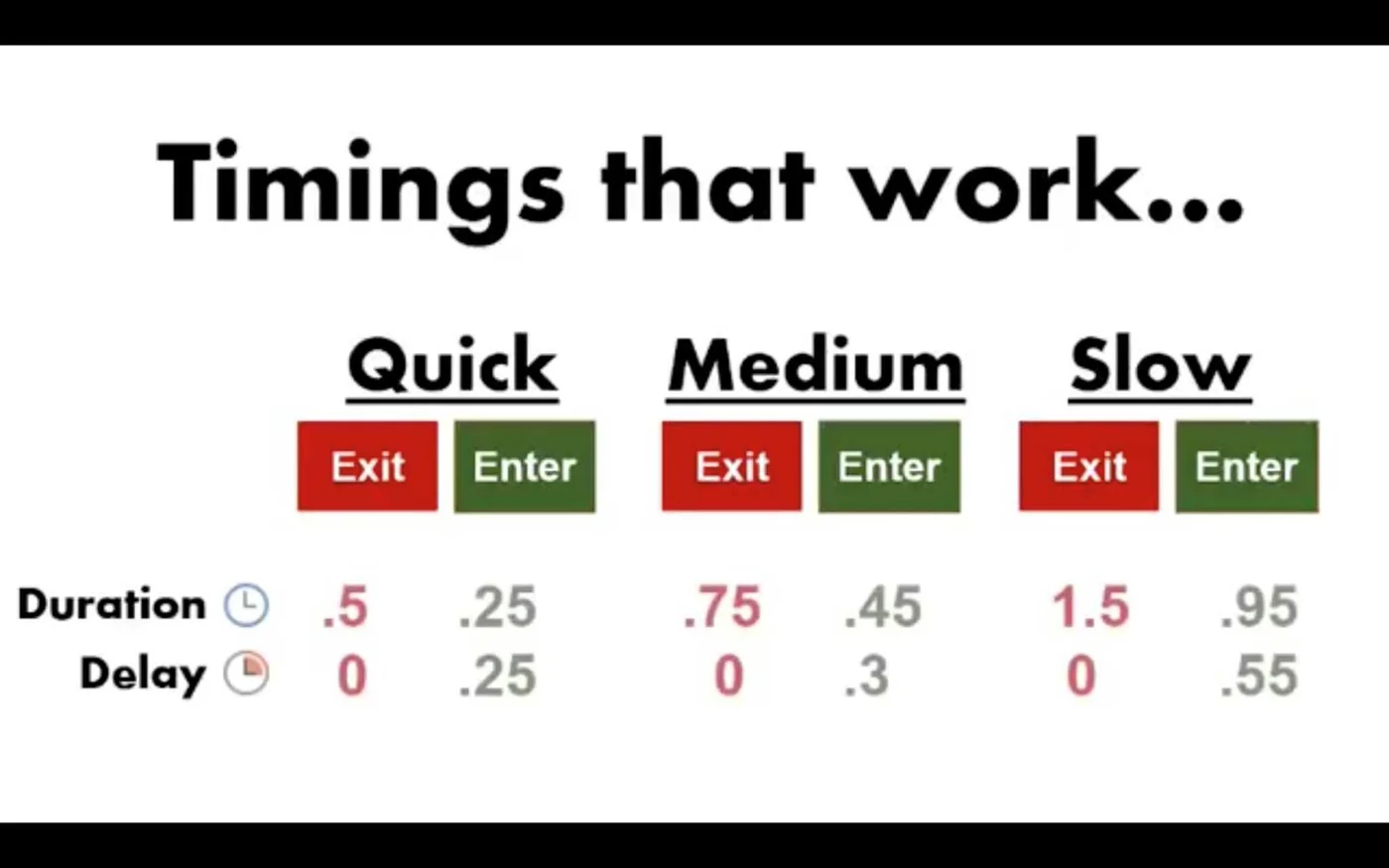
Notice the pattern — or rather, the lack of one. The Quick version is a clean 50/50 split, but the Slow version starts its entrance at 0.55 seconds into a 1.50-second exit, which is nowhere near halfway. If you want to invent your own speed, expect to spend some time previewing and nudging values until the handoff disappears.
As a rule of thumb: use Quick for rapid-fire sequences (like a row of objects flipping one after another), Medium for a featured reveal you want the audience to register, and Slow for a big finish where the flip itself is the moment.
⚡ Quick Tip The ribbon's duration and delay fields accept typed values, so enter numbers like 0.45 and 0.55 directly rather than relying on the spinner arrows, which move in quarter-second steps.
What advanced animation effects can I create with this animation spin effect?
There are many ways that you can use these effects to create even more advanced sequences. Here are two that come to mind:
Offset stacked text so it reads as separate pieces
If you flip two stacked lines of text — say, a word on top of another word — with identical timings, they'll spin together like one glued-together piece, which flattens the effect. The fix is small: offset one line's animations by 0.10 seconds.
That tenth of a second is enough to make the two lines read as independent objects flipping in near-unison, which looks considerably more dynamic.
The domino flip
For a cascading, domino-style sequence — letters or cards flipping one after another across the slide — set each object's flip to begin during the previous object's entrance, so the animations overlap slightly rather than running back to back.
This one demands careful math: every object in the chain needs its delay calculated against the cumulative timing of everything before it, and a single wrong value breaks the ripple. Build it slowly, preview often, and keep a running total of your delays as you go.
When is it best to use this effect?
This flip is best for any moment where one thing becomes another: before-and-after comparisons, question-and-answer reveals, flashcard-style content in training decks, or icons that change state. Because it's built from just two native animations, it plays reliably across PowerPoint versions and won't bloat your file the way video-based alternatives can.
Two honest limitations to keep in mind. First, the illusion depends on your two objects matching in size and position — if they're misaligned, the "flip" reads as one object vanishing and a different one appearing, which is exactly what it is.
Second, the timing values are load-bearing. This is not an effect you can eyeball; a delay that's off by a tenth of a second makes the handoff visible.
About the Author

Spicy Presentations
Yulia Barnakova is passionate about helping people develop the skills and learning mindset to thrive in the digital age. She is always experimenting with emerging technologies and has been recognized by Microsoft as a Most Valuable Professional for her creative presentation technology tutorials, which have more than 8 million views on YouTube. Her recent TEDx Talk, Think You're Not Tech Savvy? Here's Why You Are, shows how everyone can (and must) develop the mindset and skill set to embrace technology.