Your title was 28 points when you built it. You move the deck between PowerPoint and Google Slides, open it up, and now it is 28.8.
Not broken. Not obviously wrong. Just off by a fraction that has no business existing in a font size, and it is not only the title. It is every text box on every slide, each one landing on its own slightly wrong number, so nothing in the deck matches anything else anymore.
Nothing warned you, and nothing looks broken enough to investigate. That is what makes conversion damage expensive: the obvious losses you catch, and the quiet ones ship.
And this crossover is not a rare edge case. In the Presentation Guild's 2025 survey of presentation professionals, PowerPoint showed up in 98% of workflows and Google Slides in 22%. That means for many of us, we live in PowerPoint but also find ourselves working in Google Slides from time to time.
Key insight: the short version
What survives a PowerPoint and Google Slides conversion: Your text, your images (mostly), your hyperlinks, basic fade style transitions, your speaker notes, and your shapes. SmartArt makes it across too, as plain shapes you can ungroup and edit rather than as live editable SmartArt.
What breaks: Your slide dimensions, which drag your font sizes onto odd fractional values as they go, some theme fonts, the Morph transition and Zoom, complex animations, embedded video and audio, most shape effects, editable charts, which arrive as pictures, and parts of your slide master.
The rule I work by: Design in the platform where the deck will actually live, and check every element after any conversion.
Where these findings come from
Everything below comes from converting real client decks and documenting what came out the other side.
I design presentations for corporate clients in both platforms, and I have spent years teaching presentation skills to teams who are being asked to work in Google Slides whether they like it or not. Most of what follows comes out of a session I ran for our members where I converted real decks in front of everyone and documented what came out the other side, plus the client work that has produced the same problems since, plus the questions our members keep bringing to our live Q&A calls.
One caveat worth stating up front: both platforms ship changes continuously. If you find something in here that no longer matches what is on your screen, tell me and I will update the page.
Before you build a corporate template in Google Slides, read this first. If your actual plan is to rebuild your company template in Google Slides, stop here and start with the Google Slides template guide (COMING SOON). There are a few small but critical things that are limitations in Google Slides when it comes to masters, such as ghost fonts and chart formatting issue, that you'll want to know about.
What breaks when you convert PowerPoint to Google Slides
Anything that depends on the canvas size, anything animated, anything embedded, and anything your slide master was supposed to control.
Why do font sizes change when you import into Google Slides?
Let's start here, because this is the mechanism underneath the font problem, and almost nobody names it: PowerPoint widescreen is 13.333 by 7.5 inches. A Google Slides deck defaults to 10 by 5.625 inches.
It's the same 16:9 dimensions, but a different sized canvas. When you change a deck's dimensions (whether it's in the same program or between two different ones), every text box on it gets re-fitted to the new canvas, with the type scaled by whatever ratio sits between the old size and the new one.
When that ratio is not clean, and it usually is not, you do not get a tidy new number. You get 28.8. Or 21.6, or 38.4. Fractional font sizes that no designer would ever type on purpose, sitting in a deck that otherwise looks fine.
Google Slides rounds the display up, so a deck sitting in Slides mostly looks like it has whole numbers even when the underlying sizes have drifted. PowerPoint shows you the decimal. That asymmetry is why this is more visible coming back the other way: a deck built in Google Slides and exported to .pptx is where I most often open the font size box and find 28.8 staring at me.
It is a small problem that behaves like a large one. Every text box lands on its own slightly wrong number, so your type scale stops being a scale. Nothing matches, and the next person who builds a slide types a clean 28 next to your 28.8 and quietly makes it worse.
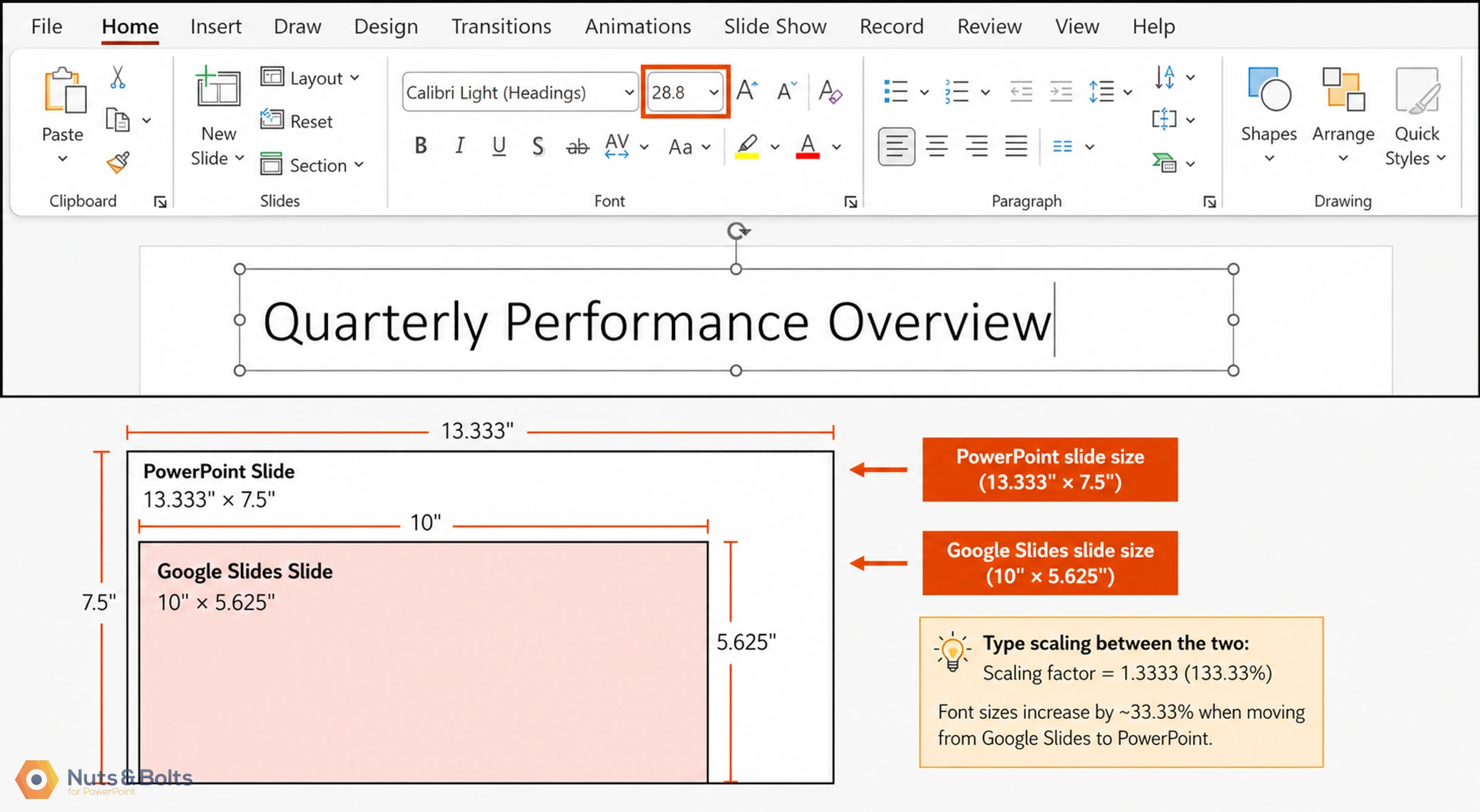
⚡ Quick Tip Set your page size before you import, not after. In Google Slides that is File, then Page setup, then Custom, and 13.333 by 7.5 inches to match PowerPoint widescreen. Fixing dimensions after the deck is already in and already mangled means re-fixing every slide.
It matters in the other direction too, and even fewer people check it there. Export a Google Slides deck to .pptx and you get a 10 inch wide PowerPoint file. It looks correct in isolation. Then someone pastes those slides into a normal 13.333 inch deck, every element scales up, and the deck you delivered is not the deck in the meeting.
What happens to fonts?
Beyond the weird text resizing, there are two things to note about fonts between PowerPoint and Google Slides.
First, custom fonts may not transfer at all if they are not web available. Google Slides substitutes, quietly.
Second, Google Slides has no true theme fonts. Your font is determined by the parent slide master placeholders, and if those get deleted, everything defaults to Arial. There is no single setting to change, which is exactly why font repair in Slides is so tedious.
If you are choosing fonts for a deck that has to cross platforms, start from fonts that are safe everywhere.
Here is the recovery sequence I use when a conversion has already wrecked the typography:
Fix the page dimensions first, at File, then Page setup. Repairing type before the canvas is right means doing it twice.
Open View, then Theme builder, and set the fonts on the master and on each layout that needs it. This is where the styling actually lives.
Fix any remaining sizes on the slides themselves, which is the manual part.
If the deck is going back to PowerPoint, do the font work there instead using change the font across all slides. It is dramatically faster than the same job in Slides.
And a gotcha inside the gotcha: Reset layout in Google Slides only resets position, not formatting. The workaround I landed on is to delete the placeholders, reset the layout, then re-paste your content unformatted.
Does Morph work in Google Slides?
No. The Morph transition does not exist in Google Slides, and neither does interactive Zoom. There is no degraded version and no almost. They are simply gone on import. If the wow factor in your deck is built on Morph, that deck is a PowerPoint deck. Full stop.
What happens to animations?
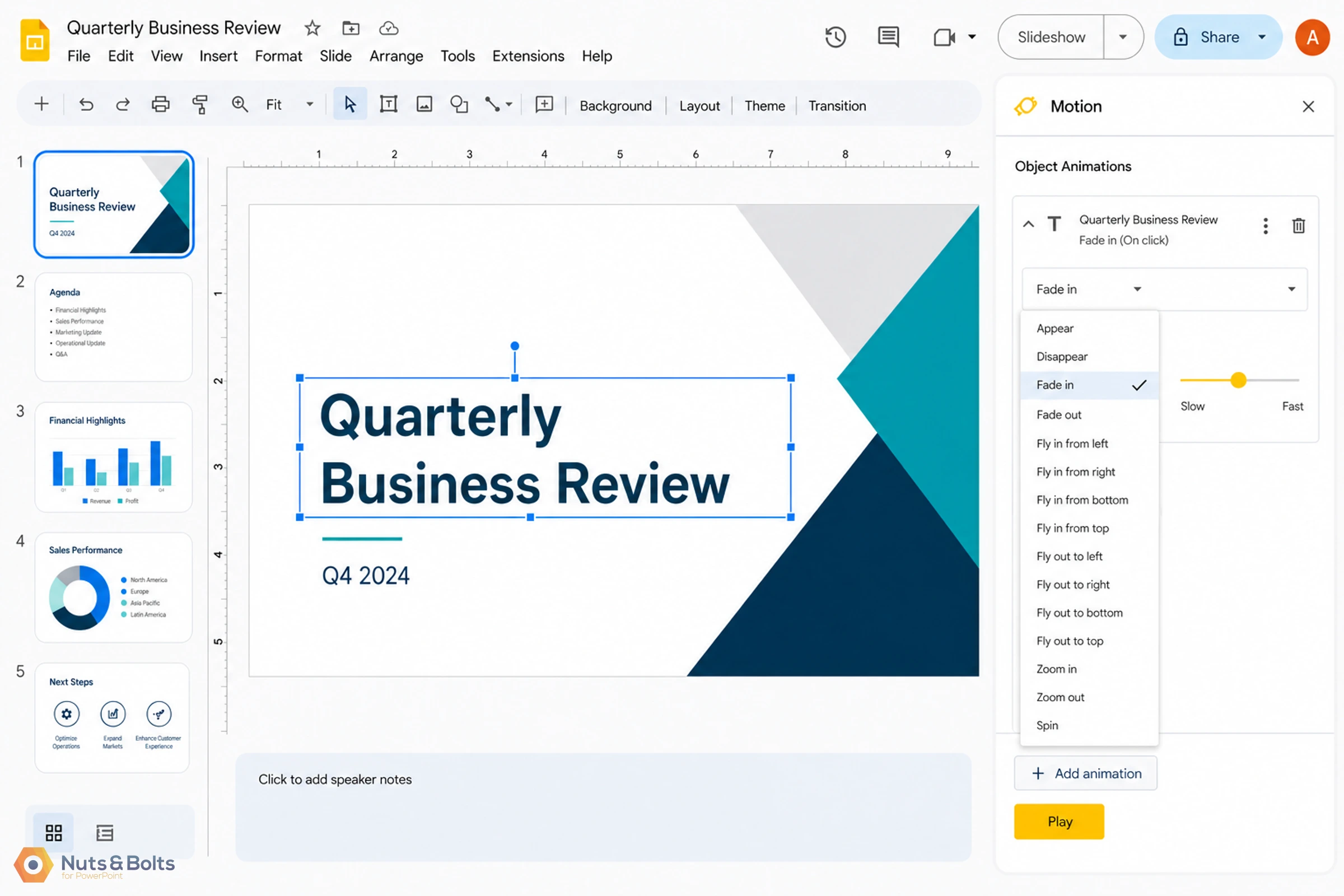
When I ran the conversions, the animations came back wiped. Google Slides has a very limited number of animation effects and no real advanced features tied to those. You get entrances and exits, spin, and not much beyond that: no meaningful emphasis category, no motion paths, no triggers, no effect options.
That means that simple entrance or exit effects sometimes make it across, but anything beyond that is just gone.
If animation is critical your deck, you may want to avoid using Google Slides. While you are deciding, it is worth asking whether the animations are earning their keep at all. The 4 mistakes people make with PowerPoint animations is the honest checklist.
What happens to slide masters?
This is another area where PowerPoint and Google Slides are very different, and they may not be what you expect.
Google does not use the word master anymore. What PowerPoint calls the slide master, Google Slides calls the theme, and you edit it at View, then Theme builder (it was called Master until Google renamed it). If you go hunting for masters in the menus you will not find them.
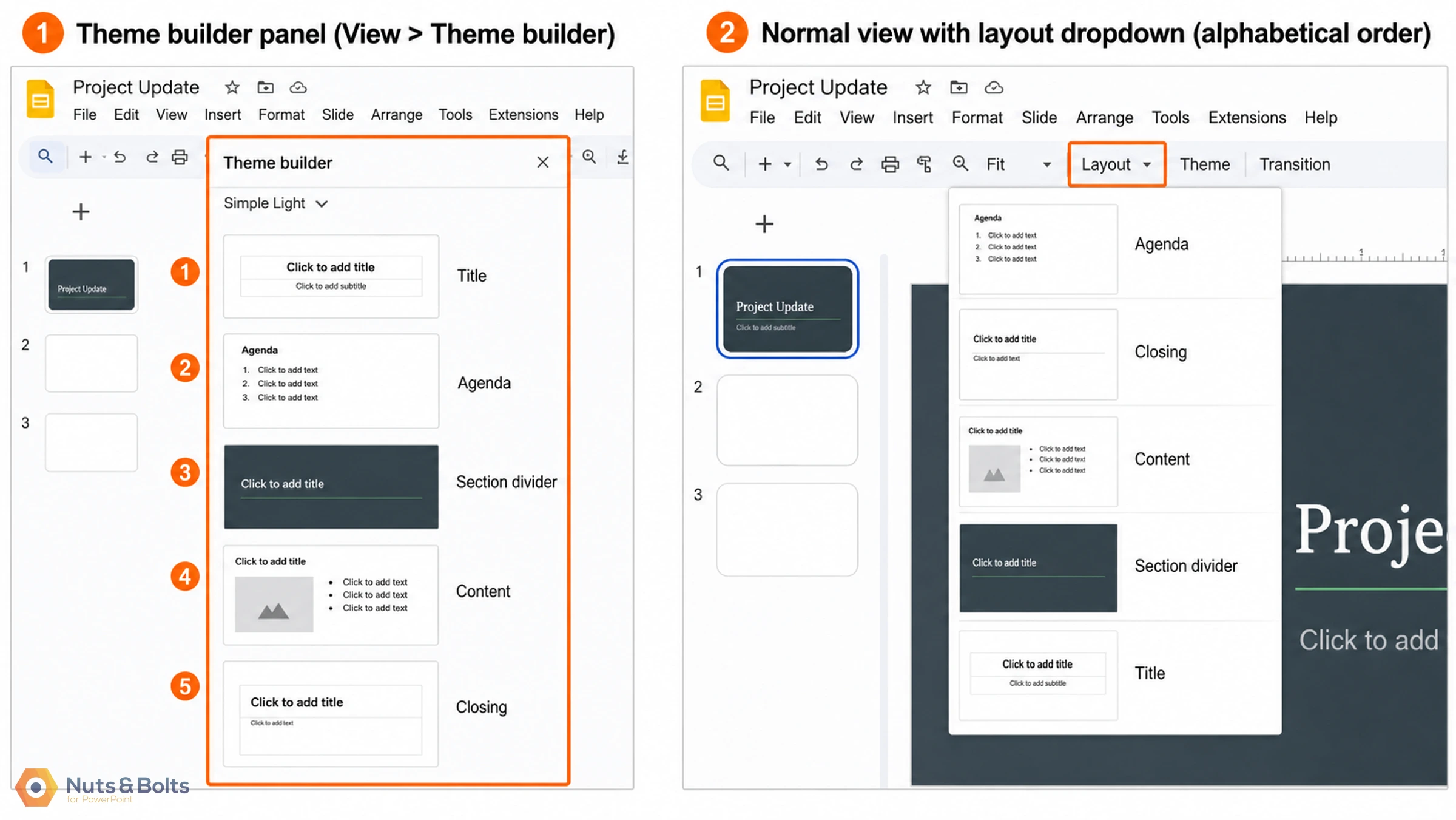
First is the ordering. In PowerPoint you can arrange your layouts in Slide Master in whatever sequence you choose. And that will match the order those layouts appear in the Normal View.
However, in Google Slides, the layout dropdown lists them alphabetically. There is no drag to reorder. So even if you put the title layout first, the agenda layout second, the section divider third, etc., all of it reshuffles into alphabetical order the moment anyone actually goes to pick a layout.
That sounds cosmetic. It is not, if you build templates for other people. Layout order is how a template teaches someone the flow of a deck, and alphabetical order teaches them nothing.
⚡ Quick Tip In Google Slides, number or letter your layout names. For example: 01 Title, 02 Agenda, 03 Section divider, 04 Content, 05 Closing; or, if you have more than 19 layouts, try AA. Title , AB Agenda, AC Section divider, BA Content, BC Closing. Alphabetical sorting then produces the order you actually wanted, and it is the only lever you have. Decide the numbering before anyone builds on the template, because renaming layouts later means every deck already built from it is referencing names that no longer exist.
Second is the placeholders. Google Slides supports four types: title, subtitle, body, and image (rectangle, rounded rectangle, and oval). That is the whole set. No chart placeholder, no video, not table, and no footer.
So every master placeholder in your PowerPoint file beyond what Google Slides offers arrives as an ordinary shape. It might look correct but it is no longer governed by anything. Update the theme and those elements do not move, because they stopped being placeholders the moment they landed.
There is one place Google Slides is genuinely ahead, and it is worth knowing if you build in both. The subtitle is a real, insertable placeholder type on any layout you want. In PowerPoint, subtitle exists only on the built-in Title Slide layout and is not offered in Insert Placeholder, so if you want a standing subhead on a section divider or a content layout you are building it from a text placeholder each time, which is tedious.
What happens to charts?
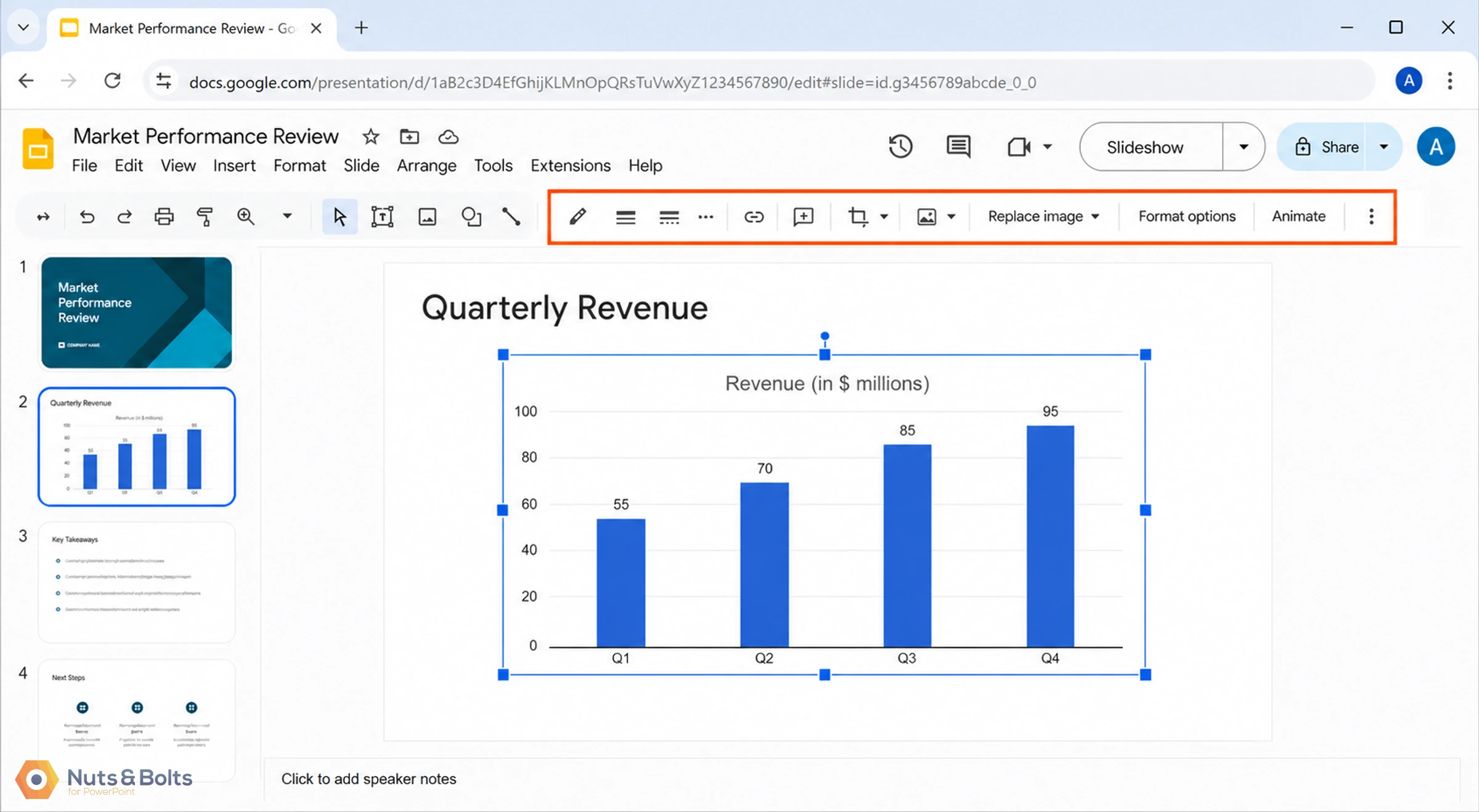
Charts that go from PowerPoint to Google Slides and vice versa import as pictures, making them un-editable.
If you need to be able to continue editing the data in a chart, rebuild it natively in whatever program you’re using.
One detail in Google Slides that can cost people an afternoon: resizing a chart is best done in the Google Sheet where it lives. If you resize it on the slide, it will look warped. Once you’ve resized it there, update it on the slide to accept the change.
What happens to embedded video and audio?
This is the one that ruins meetings, and it is the gap I most often see missing from compatibility advice.
Embedded video and audio do not reliably survive the trip in either direction. The two platforms model media differently rather than one supporting a subset of the other: PowerPoint embeds the file inside the deck, Google Slides links out to Drive or YouTube.
For screen recordings, narration tracks, audio timed to animation, background music set to play across slides, assume every one of those needs rebuilding on the other side.
What happens to shape effects?
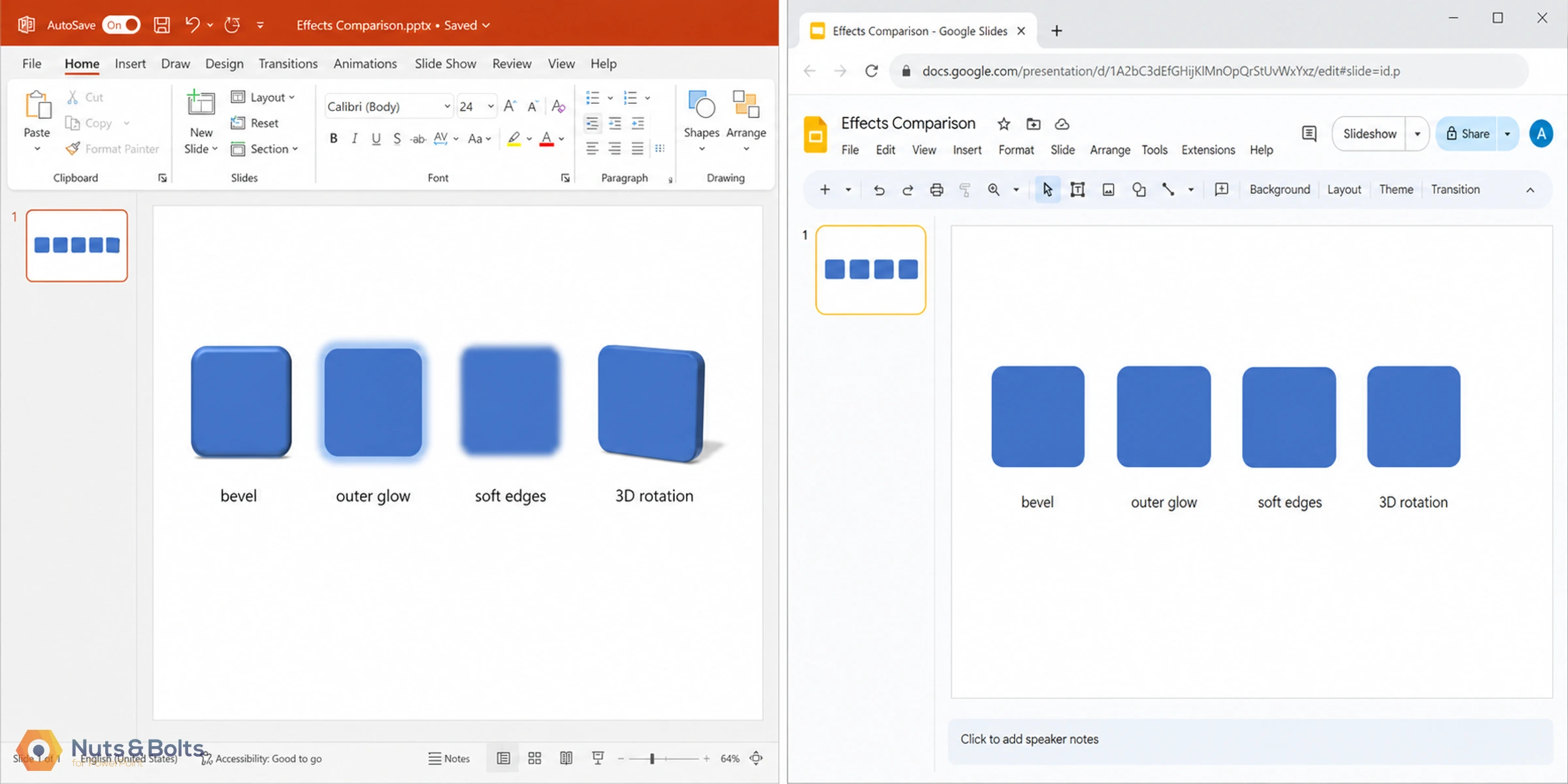
PowerPoint has bevels, reflections, glows, soft edges, 3D rotations, and other effects, and Google Slides mostly does not.
This one is dangerous precisely because it is not a functional break. The deck still works, the slides still advance, and the deck just quietly looks cheaper than the one you built. Nobody notices until the client does.
What else quietly changes?
The small things people ask me about most, in one place.
Speaker notes survive. Comments and version history do not, on either side, because they are platform native. Transitions other than fade do not degrade gracefully, they become nothing, so push, wipe, cube, and the rest arrive as no transition at all. And there is a file size ceiling on Drive conversion, so an image heavy or media heavy deck can simply refuse to make the trip.
⚡ Quick Tip Hyperlinks survive, but check the internal ones separately. A link to a URL is fine. A link to a specific slide inside the same deck is the one that breaks, and if you build interactive menu slides, those links are the whole design.
What actually survives?
Hyperlinks. Text and basic formatting. Images. Fade type transitions. Speaker notes. Shapes.
And a genuine pleasant surprise from my testing: SmartArt imports well. You can ungroup it and edit the pieces as individual shapes, so you lose the SmartArt intelligence but you keep the graphics. One thing to watch once you ungroup: any text that lived inside a shape comes apart as its own separate text box, which the team at BrightCarbon documented in their own conversion testing, so expect to nudge a few labels back into alignment.
My standing rule in either direction: Check every element after conversion. Every one.
What breaks when you convert Google Slides to PowerPoint
The return trip is kinder, but five things still need checking before you hand the file over.
What comes back clean: shapes convert back as shapes. Text, images, and hyperlinks cross without drama. Footer and date placeholders get restored on the PowerPoint side, which is a real improvement over what Slides gave you. Speaker notes make it.
What to check anyway:
Slide dimensions, and the fractional font sizes that ride along with them. This is the direction where both bite hardest. You get a 10 inch wide .pptx that looks correct on its own and misbehaves the moment it meets a normal deck, and because PowerPoint displays the decimal that Google Slides rounds away, this is usually where you first open the font size box, find 28.8, and realize the type scale has drifted.
Fonts, in reverse. A deck built in Slides on Google Fonts is built on fonts that are not installed on the Windows machine opening the .pptx. Same disease, opposite direction, and the substitution is silent.
Linked Google Sheets charts, which export as pictures.
Master and layout order, which can shift. A template maintainer feels that immediately.
Comments and version history, which stay behind.
When Google Slides actually wins
It wins the collaboration layer, and pretending otherwise costs you credibility with the team that chose it.
Time for the honest column in the other direction, because this is not a hit piece and I would not want anyone quoting it as one.
When I asked clients why they chose Google Slides, the number one answer was collaboration, and they are not wrong. Real time co-editing in the browser, no version confusion, no file passing.
The size of that gap is smaller than its reputation. PowerPoint collaborates through OneDrive and the web app, and the difference in practice is far narrower than the way people talk about it. Microsoft has also been shipping against this gap continuously, so check the current state before you make a platform decision on reputation alone.
I will add our own scar to the honest column, though. Taylor, my co-founder, and I have both had work overwritten by OneDrive offline sync: one of us edits offline, the sync resolves in the wrong direction, and the other one loses an afternoon. Google Slides does not have that failure mode, because there is nothing to sync.
With that being said, filed in Google Drive can also be deleted, renamed or moved. I had this happen with a client before I had a chance to make a copy to my personal backups folder and it was hard to retrace our steps.
So here is the frame I give people when a boss or a client asks. Google Slides wins the brainstorming layer, where a lot of people need to be in a document at once and nothing has to be beautiful yet. PowerPoint wins the build layer, where the deck gets its craft.
Two shortcuts worth knowing while you are in Google Slides: Ctrl + Alt+ G groups objects, and Ctrl + D is a browser conflict rather than a duplicate command, which catches every PowerPoint user at least once.
How to handle templates across both platforms
Template work raises the stakes on every problem above, because the damage repeats on every deck built from it.
If you own a template, meaning the company template, a client template, anything other people will build on, the compatibility problems above stop being annoyances and become governance failures.
Stack them up. No theme fonts, which is the single biggest template limitation, because your fonts hang off master placeholders rather than off a theme setting. Only three placeholder types, so anything else you built into your master arrives as a loose shape that the theme no longer controls. Layouts that sort alphabetically in the dropdown no matter how you arranged them. Theme level changes that do not reliably cascade to layouts, with slide numbers the usual casualty.
None of that is fatal for a basic deck. All of it is fatal for template governance, which is the whole discipline of making sure the fiftieth deck built from your template still looks like the first one.
✓ Best Method If the deck's permanent home is Google Slides, build the template natively in Google Slides and accept its limits going in. If the template has to exist in both worlds, treat them as two templates that happen to look alike, maintained separately, tested separately. A converted template is not a template. It is a copy that is already drifting.
Why your client sees Enable Editing and thinks your deck is broken
PowerPoint quarantines files that arrive from the internet, and clients read the quarantine as damage.
This is the problem that bites people who did everything else right. It is also the one most often confused with the problem in the next section, so take them one at a time.
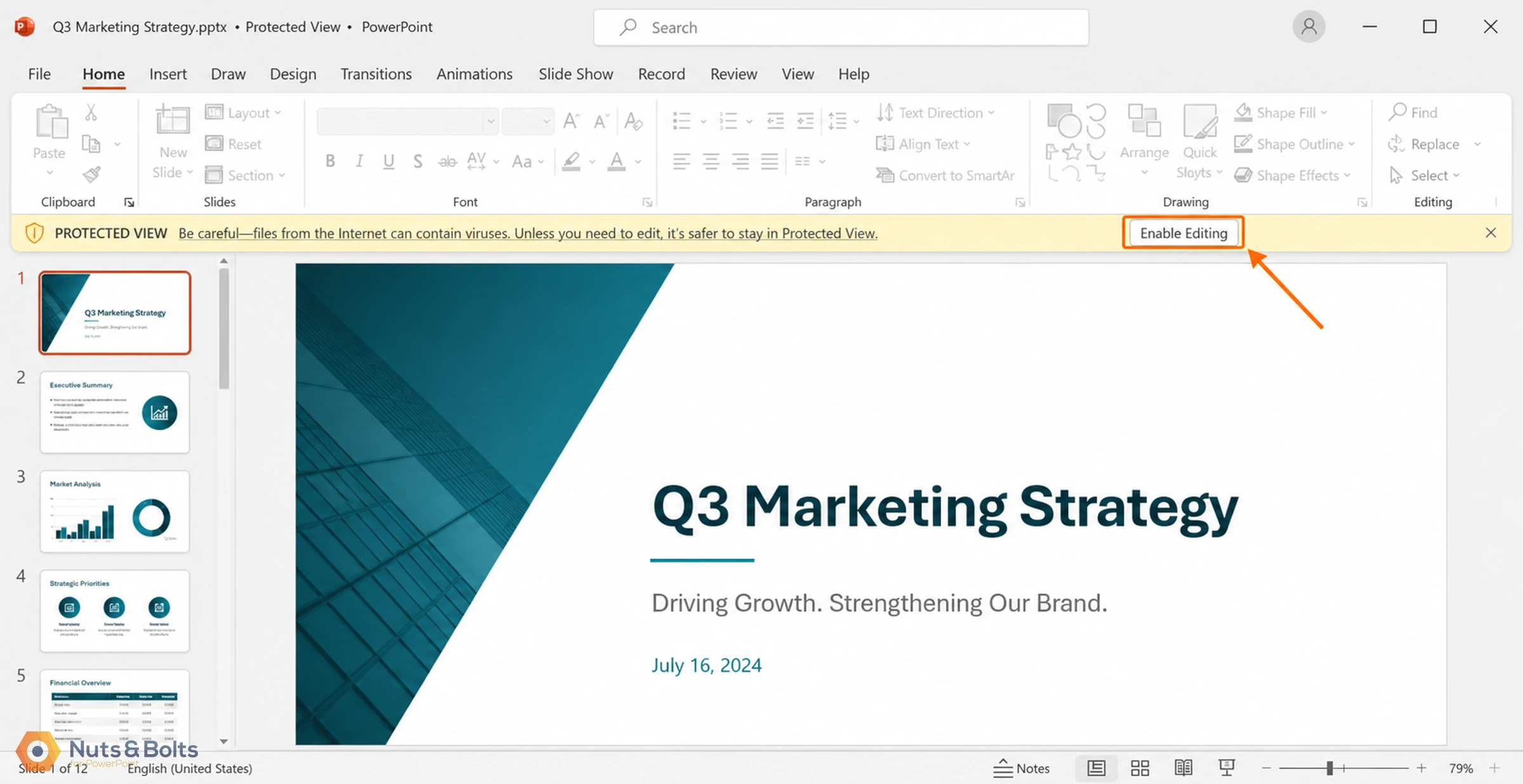
Here is this one. Your client downloads your .pptx from Google Drive and opens it in PowerPoint. PowerPoint puts it in Protected View: a yellow bar across the top, an Enable Editing button at the end of that bar, and a ribbon that is greyed out and inactive. Until they click the button, the file is not fully itself. Formatting and functionality are not properly restored, and the deck can look wrong on screen.
None of that is about Google. PowerPoint does it to any file it cannot vouch for: downloaded through a browser, pulled off a network share, opened straight out of an email attachment. Google Drive is simply one of the ways a file arrives from the internet. The same bar appears if you send the deck by email.
The client who does not know about that button concludes your deck is broken. It is not broken. It is quarantined, and they have not let it out yet. One sentence in your delivery email prevents the entire conversation.
How to stop clients opening your deck in Google Slides
Everything above converges on the moment that actually costs people: delivery.
The question I get asked is some version of this: how do I stop a client from accidentally opening my PowerPoint file in Google Slides? The honest answer is that you cannot, not from your side. You do not control what their Drive does with a double-click.
What you control is what your client knows before the file lands. And there is one thing they can do that you can hand them: holding the P key while double-clicking opens the file in Preview instead of the editor, and a password-protected deck opens in Preview automatically.
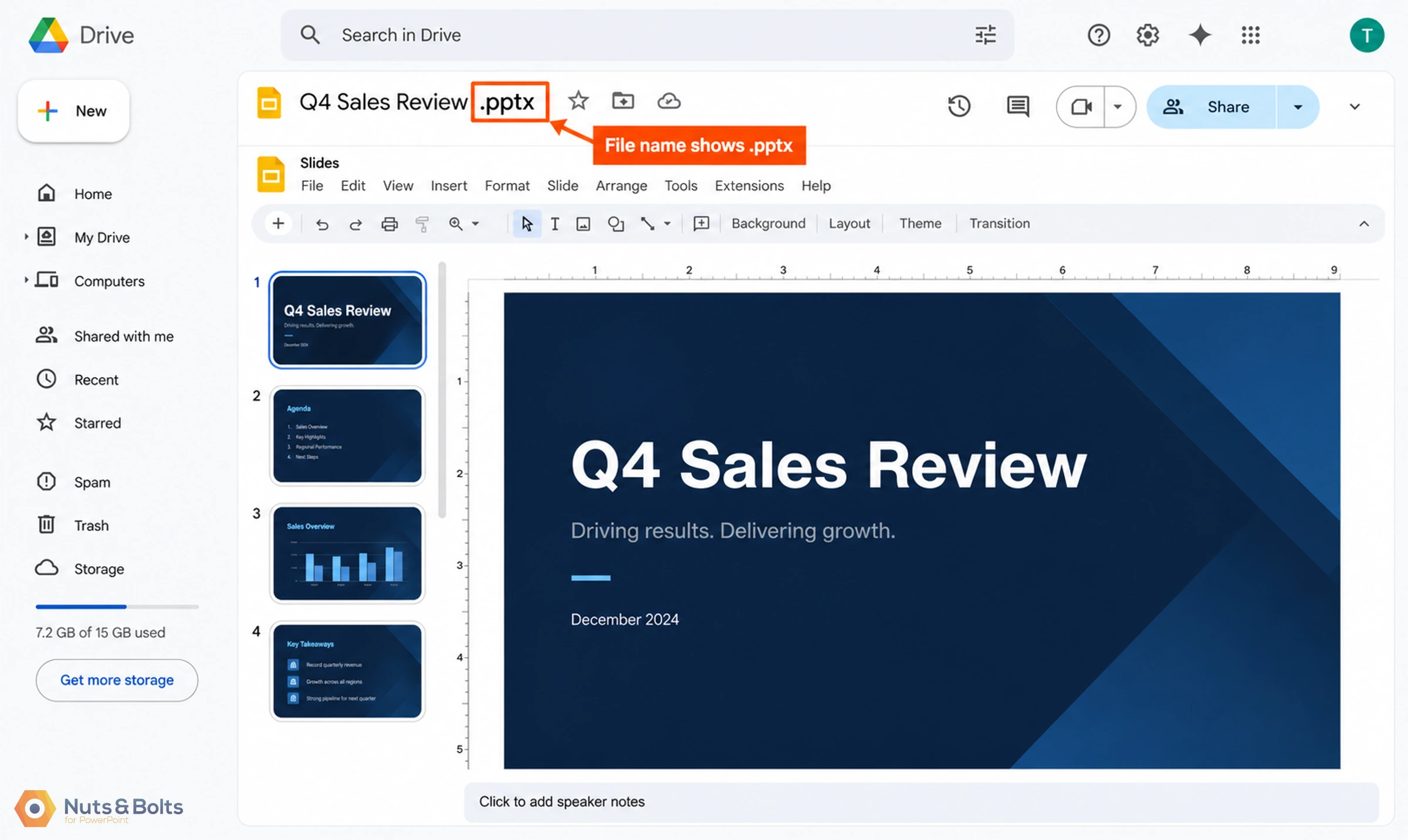
You share a beautiful .pptx through Google Drive. Your client double-clicks it. Drive opens it in Office editing mode, which renders your PowerPoint file inside the Google Slides editor without converting it, and your client is now looking at your deck through Google's renderer, with the transitions, master structure, and chart behavior stripped or mangled. The file is still a .pptx. Nothing on screen tells them what they are seeing is not how the deck looks in PowerPoint. As far as they can tell, this is your deck, and your deck is bad.
The protocol I follow, in order:
Decide the deck's real destination before you attach anything. Presenting live in PowerPoint? Send a PowerPoint file and say so. Landing in a Google workflow? Build it there.
If it must travel through Google Drive as a .pptx, tell the client to download first, explicitly, in writing, in the same message as the file.
Warn them about the Enable Editing button, per the section above, so a file that arrived perfectly intact does not get reported back to you as broken.
If they only need to look at it, do not send an editable file at all. Send a PDF instead.
Use OneDrive when you have the choice. The file stays PowerPoint rather than opening in a competitor's renderer. Be precise with clients about one thing though: from a browser it opens in PowerPoint for the web by default, which is its own reduced feature set. If the deck depends on Morph, animations, or embedded media, tell them to use Open in Desktop App.
✓ Best Method The download-first script. Paste this into your delivery email and edit to taste: "Quick note on the attached deck: it is a PowerPoint file, so please download it before opening. In Google Drive, use the download button rather than double-clicking the file, since double-clicking opens it in Google Slides and some elements and formatting will not display correctly. Once it is open in PowerPoint, click Enable Editing at the top and everything will look the way it should."
⚡ Quick Tip When in doubt, send the PDF and offer the source file on request. A PDF cannot be accidentally converted, accidentally edited, or accidentally opened in the wrong renderer, and most clients only needed to look at it anyway.
Summary: what to remember
Slide dimensions are the root cause of the font problem. PowerPoint is 13.333 inches wide, Google Slides defaults to 10, and type gets rescaled onto fractional sizes as it crosses. Set page size before you convert, and check the font size box on the PowerPoint side afterwards, since Slides rounds the evidence away.
The unrecoverable losses are Morph, Zoom, complex animation, and embedded media. Those are rebuilt, not converted.
The silent losses are shape effects, chart editability, and master governance. Nothing warns you, and the deck still opens, so these are the ones that reach the client.
The survivors are text, images, hyperlinks, shapes, speaker notes, and fade transitions. Check them anyway.
Templates are a separate discipline. Build them natively in whichever platform they will live in, and if they have to exist in both, maintain two.
Delivery is where the damage actually happens. Tell clients to download before opening, warn them about Enable Editing, and send a PDF when viewing is all they need.
Common questions
Fast answers. Each one points back to the section that explains it properly.
Q: Google Slides import lost my fonts. What happened?
A: Two different problems wearing the same coat. Sizes: your slide dimensions changed, so every text box was rescaled by the ratio between the two canvases, which is how you end up with 28.8pt instead of 28. Typefaces: any font that is not web available gets substituted silently, and Google Slides has no theme fonts, so there is no single setting to put it right. Fix the page size first, then the fonts.
Q: What breaks when converting PowerPoint to Google Slides?
A: Slide dimensions and the font sizes that depend on them, theme fonts, Morph, Zoom, complex animations, embedded video and audio, most shape effects, editable charts, and slide master structure (placeholders beyond title, subtitle and body stop being placeholders, and your layouts re-sort alphabetically). Text, images, hyperlinks, shapes, speaker notes, and fade transitions survive.
Q: What breaks when converting Google Slides to PowerPoint?
A: Less, but check five things: the exported file is 10 inches wide rather than 13.333 and your font sizes come back as decimals like 28.8, Google Fonts substitute silently on Windows, linked Sheets charts export as pictures, master order can shift, and comments do not travel. This is the direction where the fractional sizes are most visible, because PowerPoint shows the decimal that Google Slides rounds away.
Q: Why does my font size say 28.8 instead of 28?
A: Because the deck changed dimensions at some point and every text box was rescaled by the ratio between the old canvas and the new one. It happens converting between PowerPoint and Google Slides, and it happens inside PowerPoint alone when a 4:3 deck is converted to 16:9. Google Slides rounds the display up so you often will not spot it there; PowerPoint shows you the decimal.
Q: Does Morph work in Google Slides?
A: No, and there is no partial version. Morph and interactive Zoom have no Google Slides equivalent and do not survive conversion in either direction.
Q: Does embedded video or audio survive the conversion?
A: Do not count on it, in either direction. The two platforms handle media differently rather than one supporting a subset of the other. Plan to rebuild media on the other side.
Q: How do I stop Google Drive from opening my PowerPoint file in Google Slides?
A: You cannot change what Drive does on a double-click, so change what your client does. Tell them in writing to download the file before opening it, send a PDF if they only need to look at it, or share through OneDrive instead.
Q: Should I convert my PowerPoint template to Google Slides?
A: No. Convert a deck, rebuild a template. A converted template loses theme fonts and every master placeholder beyond title, subtitle, and body, so it stops governing the decks built from it. If you need the template in both places, maintain two.
Q: Which is better, Google Slides or PowerPoint?
A: Wrong question. Google Slides wins the collaboration and brainstorming layer. PowerPoint wins the build layer, where the deck gets its craft, its animation, and its template discipline. Most teams need both.
Conclusion
The compatibility question is not really "PowerPoint or Google Slides?" It is "what happens to my work at the border?" And now you know: text, images, hyperlinks, speaker notes, and shapes cross freely. Your slide dimensions and the type scale that depends on them, Morph, complex animations, embedded media, shape effects, editable charts, and template governance do not.
So make the call the way I make it after years of building in both: design in the platform where the deck will live, deliver in the format your client will actually open, and check every element after any conversion. That last one is not paranoia. It is the entire job.
About the Author

Camille Holden
Co-Founder, Nuts & Bolts Speed Training
Camille Holden is a PowerPoint expert, a trainer and a presentation designer. After years working in the trenches, fine-tuning hundreds of her colleagues' last minute panic-attack presentations, Camille cultivated her PowerPoint skills through tricks, work-arounds, and fine-tuned techniques for getting more done. When she's not helping clients build gorgeous and functional presentations, you can find her singing jazz or doing yoga.